The Results tab (the first tab of Back Office › Discounts & Promotions › Guest Survey) shows what guests answered.
Filters
Choose the period (last 7, 28 or 90 days, or 12 months), one survey or all, and one order kind or all.
The headline numbers
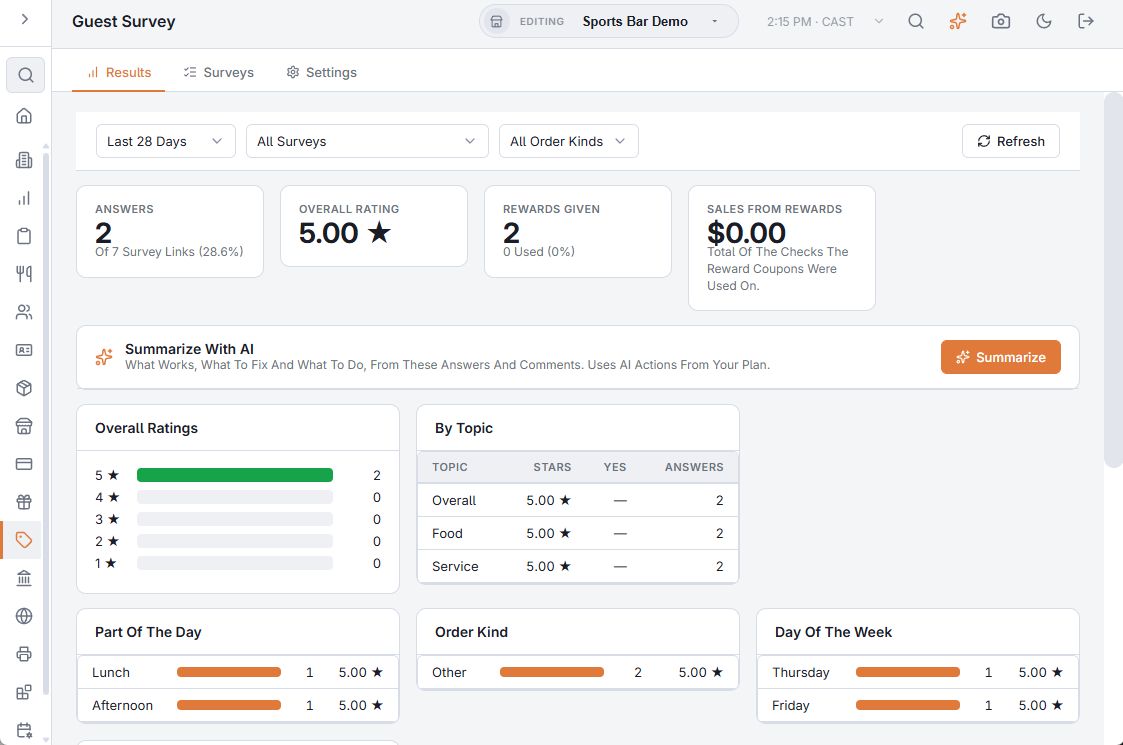
- Answers — surveys sent, out of the survey links printed, with the response rate.
- Overall Rating — the average of the overall question, 1 to 5 stars.
- Rewards Given — and how many were used at the register.
- Sales From Rewards — the total of the checks the reward coupons were used on: what the survey brought back.
The breakdowns
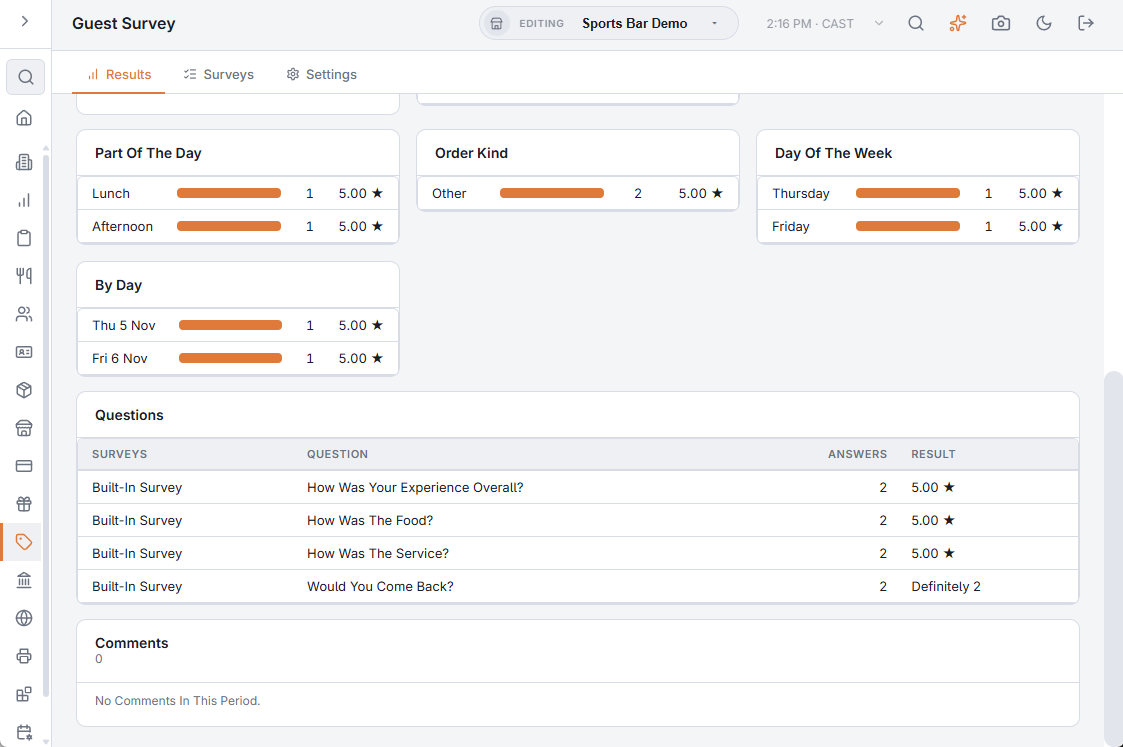
- Overall Ratings — how many guests gave one to five stars.
- By Topic — average stars and % yes for food, service, speed, order accuracy and the rest, whatever the question’s wording.
- Part Of The Day, Order Kind, Day Of The Week and By Day — where the good and bad ratings cluster.
- Server — only when Keep The Server With Each Response is on.
- Questions — every question with its result: average stars, % yes, or how many picked each answer.
- Comments — the 200 newest, with date, part of the day, order kind and rating. The check number and table show only when Keep The Order With Each Response is on.
Summarize With AI
Press Summarize for a one-line headline plus What Works, What To Fix and What To Do, written from the numbers and comments in the period you chose. It needs at least five answers, quotes the numbers it relies on, and never names your staff — server names are not sent to the AI. Each summary uses AI actions from your plan, and only runs when you press the button.
Related: Guest survey · Survey library and Generate With AI
Guests to contact
Guests who rated a visit low and asked the manager to get in touch show at the top of the Results tab, with Send Apology and Mark Handled. See Guest survey: making it right after a low rating.