You never reinstall the agent to get a new version. Each agent checks for updates by itself, downloads them in the background, and applies them when no job is printing.
Windows
The Windows agent updates like the POS: it downloads the new version quietly and installs it as soon as nothing is printing and nobody is in the middle of editing a printer. The Printers screen shows Updating — restarting in a few seconds… for a moment; the agent comes back next to the clock and carries on. Nothing is asked.
Android
- The agent downloads the new version and checks it before doing anything with it.
- It waits until it is idle — no job printing.
- On a managed device (set up as a kiosk by your reseller) it installs silently and restarts on its own.
- On an ordinary device Android does not allow silent installs, so the agent posts a notification: Update ready — tap to install. Tap it, confirm Android’s prompt, and the agent comes back up by itself, connected and printing.
The About screen
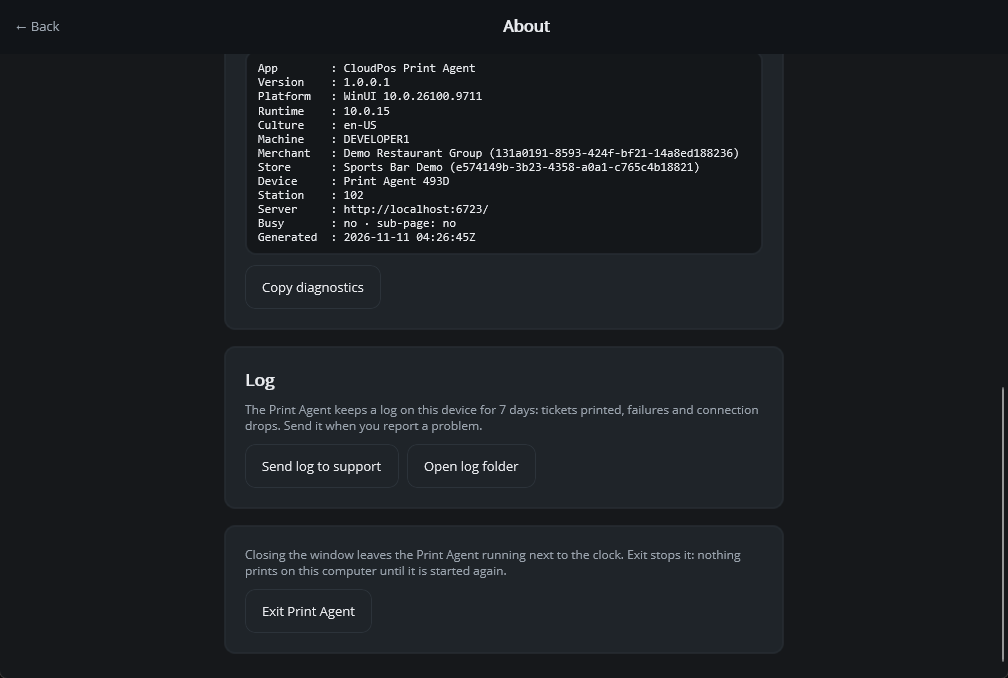
About, on the Printers screen, shows:
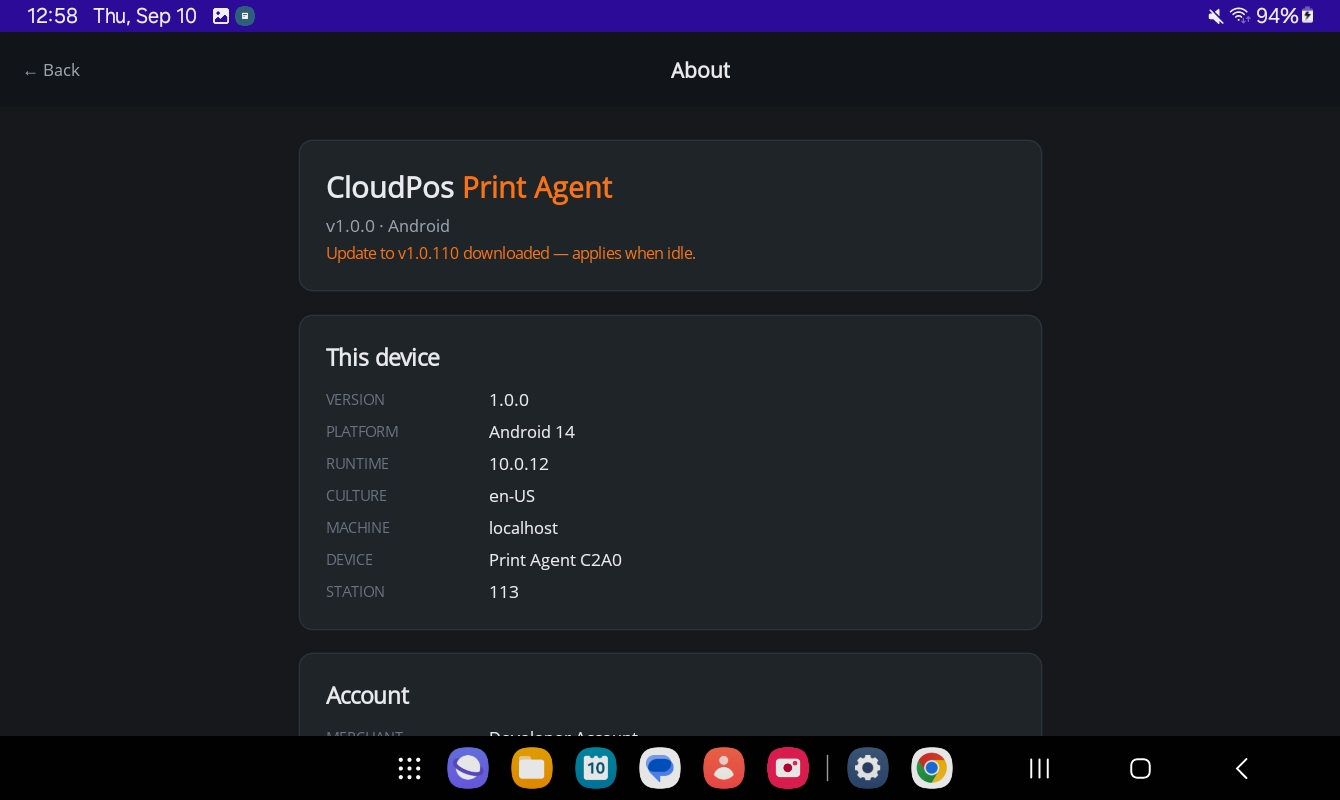
- The version and platform, and a line such as Update to v1.0.110 downloaded — applies when idle when an update is waiting.
- This device — version, platform, machine name, the agent’s device name and station number.
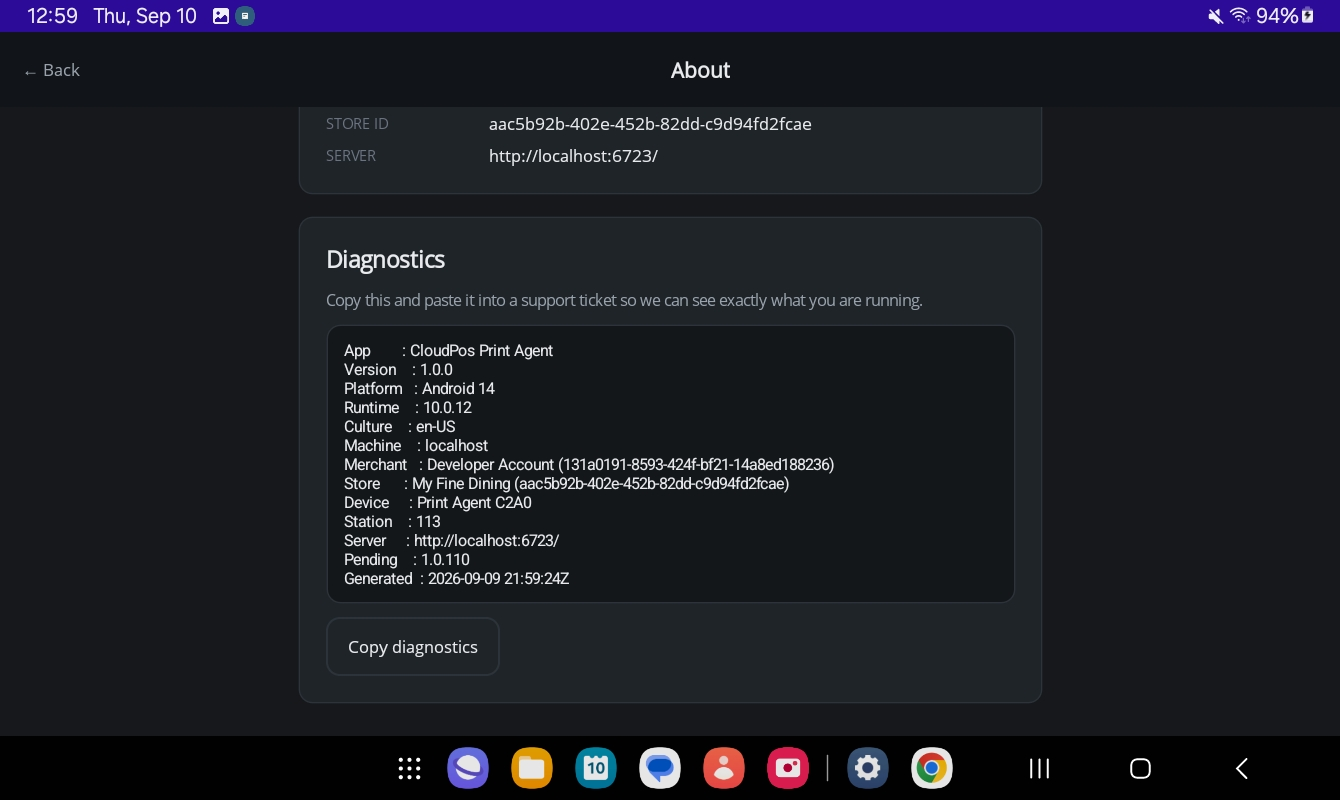
- Account — the merchant and store the agent belongs to, and the server it talks to. This is the quickest way to confirm which store an agent prints for.
- Diagnostics — everything above in one block, with Copy diagnostics to paste into a support ticket.
The update button
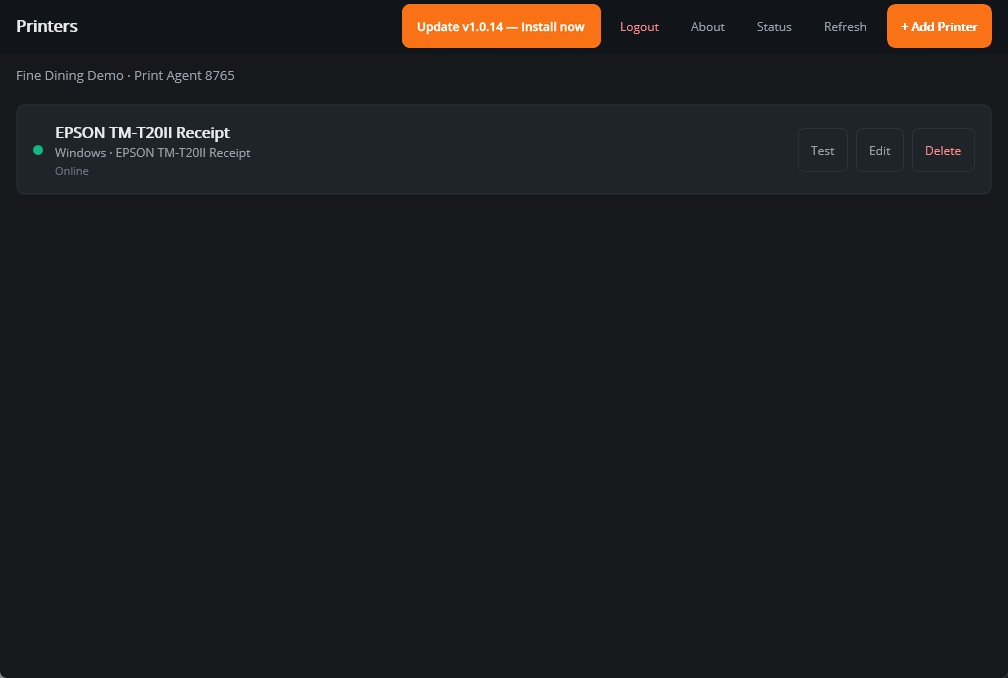
When a new version is available, a pulsing button appears at the top of the Printers screen:
- Update vX available — a new version exists; press it to download and install it now.
- Downloading update vX… — it is on its way.
- Update vX — Install now — it is downloaded and will install by itself when the agent is idle; press it to install now.
- Installing vX… — the agent is about to restart.
Pressing it asks Install update: Install now or Later. On an Android tablet that is not a managed device, Android then asks to confirm the install, so press the button when someone can tap through.
Sending the log to support
The agent keeps a log on the device for 7 days: tickets printed, failures, connection drops and printer alerts. When something goes wrong, open About and, in the Log card, press Send log to support. A box asks for a short note — what went wrong and roughly when; it is optional — and the log is sent to us with the device’s details. Log sent confirms it.
On Windows, Open log folder shows where the files are. Under it, Exit Print Agent stops the agent (Installing the Print Agent on Windows).