What a guest sees after scanning a table code, step by step. It is worth walking through once yourself on a real phone before you brief the floor — it is the fastest way to answer the questions guests actually ask.
1. Scanning
The guest points their phone camera at the card. No app is needed; the built-in camera on both iPhone and Android recognises the code and offers to open the link. Tapping it opens your storefront in their normal browser.
2. The table is remembered
The moment the link opens, the browser records which table this guest is at. The page header changes to a stripped-down version carrying just three things: your business name, the table, and the cart. The usual navigation is deliberately gone — a seated guest is not shopping, and Home, Favourites, and a sign-in prompt are all ways to lose someone mid-order.
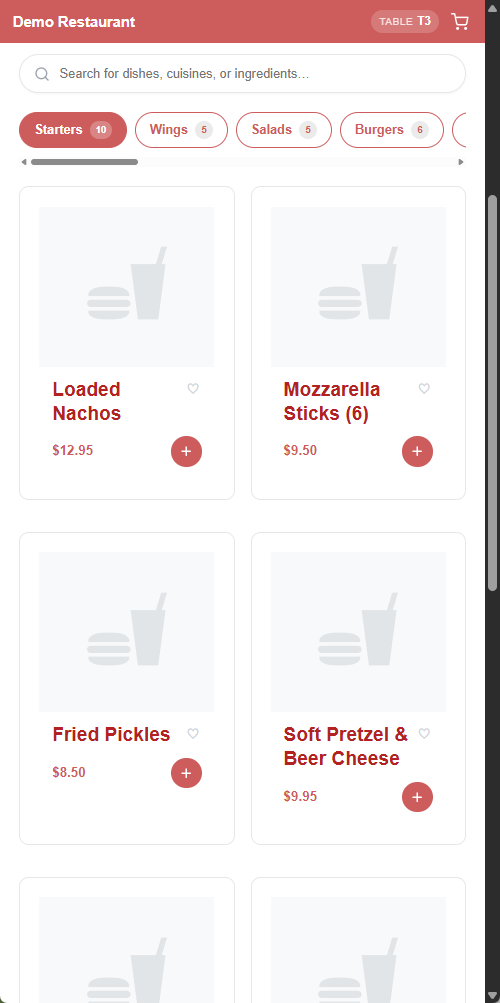
That memory lasts about four hours — long enough for any meal — and survives closing the browser, locking the phone, or wandering out for a phone call. It is per phone: everyone at the table can scan and each phone builds its own cart.
3. Browsing and building the cart
From here it is your ordinary online-ordering menu — the same categories, item photos, descriptions, modifiers, and prices. Nothing needs to be maintained twice.
4. Sending the order
The cart looks different for a QR guest. Instead of the usual checkout button leading to pickup or delivery options, the cart shows a short panel for the table.
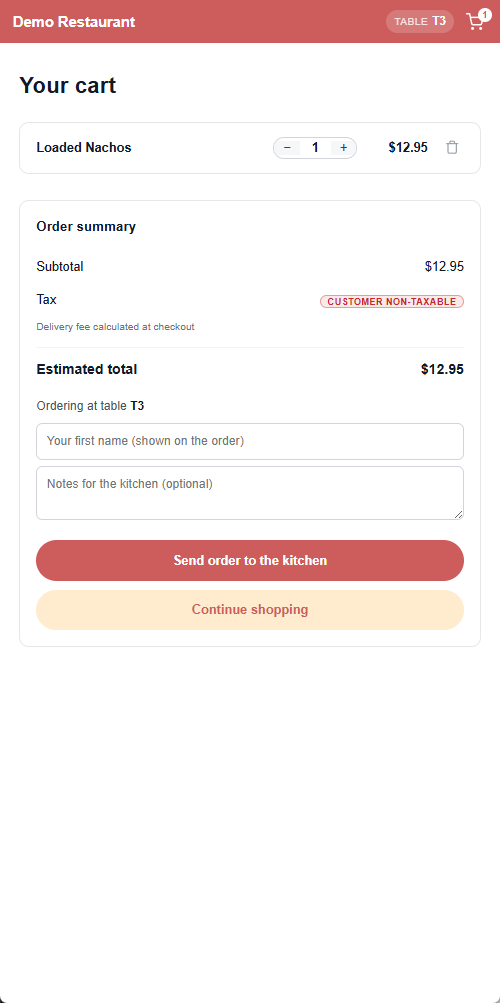
- Ordering at table and the table name — so the guest can see they are ordering to the right table.
- A first name — so the kitchen and the server know whose plate is whose at a shared table. It rides along with the items.
- Notes for the kitchen (optional) — a short note for the kitchen, such as an allergy or a timing request.
- Send order to the kitchen — submits the round.
There is no address step and no delivery fee. The button disables itself while the order is being sent, so an impatient double-tap cannot create a duplicate round.
When the table pays online
With Pay Online Before Sending To Kitchen chosen in Back Office, the cart says This table pays online. Your order is sent to the kitchen as soon as the payment goes through. and the button is Pay And Send To Kitchen. It opens the card payment page; once the payment succeeds, the order goes to the kitchen as its own check. A guest who leaves without paying sends nothing, and the unpaid order is cancelled after the time set in Back Office.
When someone else already has a check open
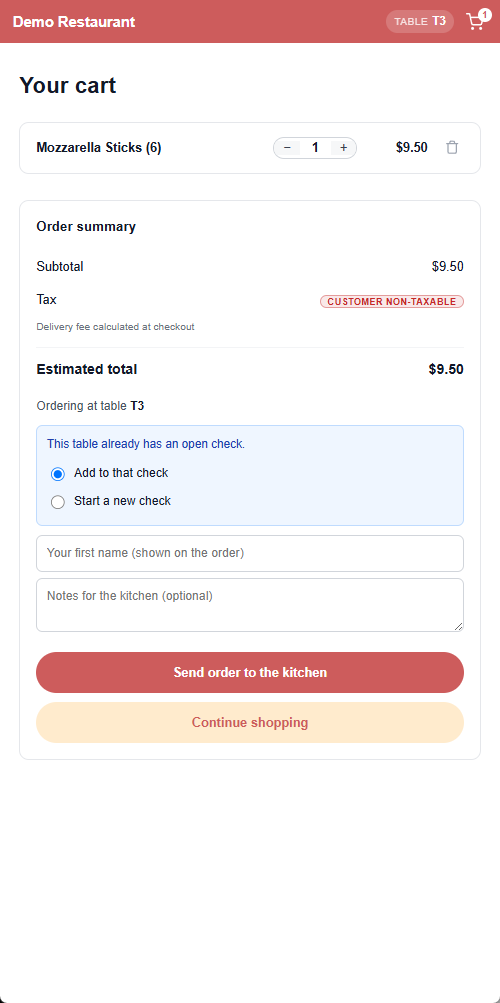
If another phone at the table already started the check, the second guest is asked rather than assumed. The panel shows who started it, with two choices: Add to that check or Start a new check.
This is what stops a newly seated party from landing on the previous party’s bill when a check has been left open. A real table-mate taps Add to that check and everything merges; someone who does not recognise the name starts their own. Guests who are already on the check are never asked again — only a phone the check does not know about sees the prompt.
When only servers may start a check
If you set Who can start a check to Servers only, a guest scanning a table with nothing open can browse the whole menu but cannot send. Please ask your server to start your check before ordering. shows, and the send button is greyed out. As soon as a server opens the check at the POS, the guest can send normally — no rescanning needed.
5. Confirmation, and what happens next
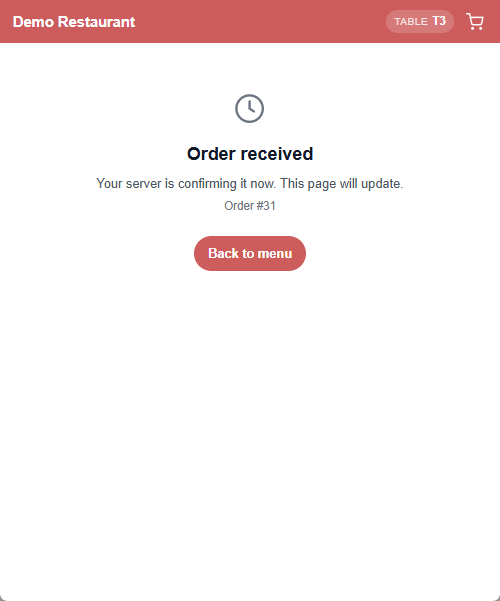
The guest sees a confirmation with their order number. With Send to kitchen immediately it reads Order sent and says the order is on its way.
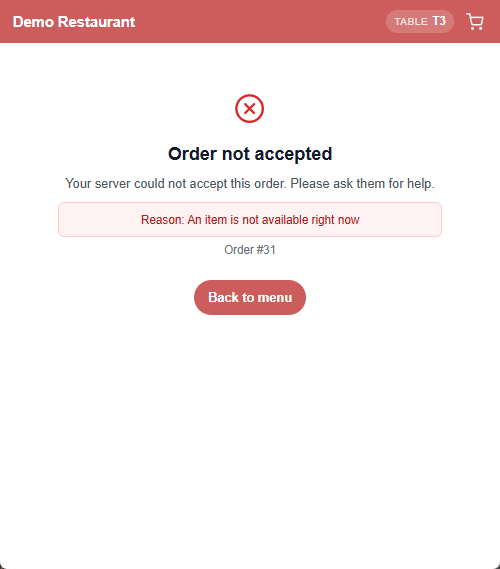
With Hold for server approval the page keeps itself up to date. It starts with Order received and says the server will confirm it shortly, and then changes on its own — without the guest refreshing anything — to either Confirmed or Order not accepted, with the reason the server chose. That matters: a declined order that looked identical to a cooking one would leave a guest waiting indefinitely for food that is never coming.
Items that were not available
If the guest ordered something that has since been marked unavailable, the rest of the order still goes through and the confirmation page lists what was left off. Without that, a guest who ordered three things and received two would have no idea which one was missing or why.
6. Ordering another round
The guest simply browses again and sends a second order. Because the table is still remembered, the new items are added to the same check as another round — the guest does not re-scan, and the server does not need to merge anything. The kitchen receives only the new items. In approval mode each round is approved on its own, and the table still ends the meal with one check. When the table pays online, each round is paid for and becomes a check of its own.
7. Paying
With Pay At The Table (POS), the guest pays at the end of the meal as they always did — the server brings the check and settles it at the POS; ordering never asks for a card. If you also use QR pay at table, the printed check carries its own payment code. With Pay Online Before Sending To Kitchen, every order was paid when it was sent.
When something is wrong
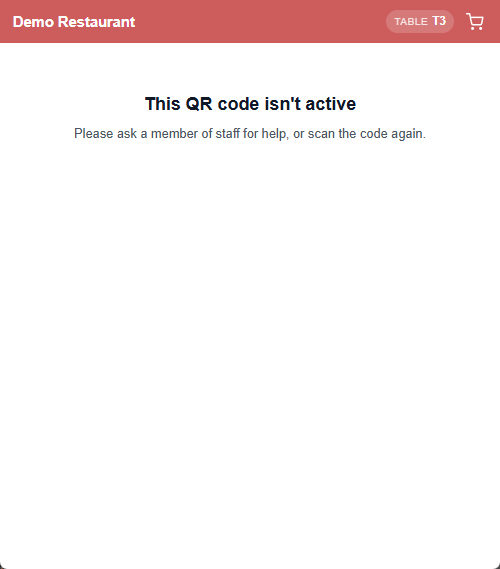
A code that has been revoked, regenerated, or whose table no longer exists shows a short page asking the guest to check with a member of staff. Nothing is charged and nothing is sent.
Print a one-line prompt on your table cards — Scan to order · ask us if it doesn’t open. It sets the expectation and saves the guest waving at a passing server.