Service-pace rules (Back Office › Store Setup › Order Entry Screen › Service Pace Rules) set how long each step of dine-in service should take, so the live views can tint a table that is falling behind. The Pace Targets button on the Server Pace Report opens the same tab.
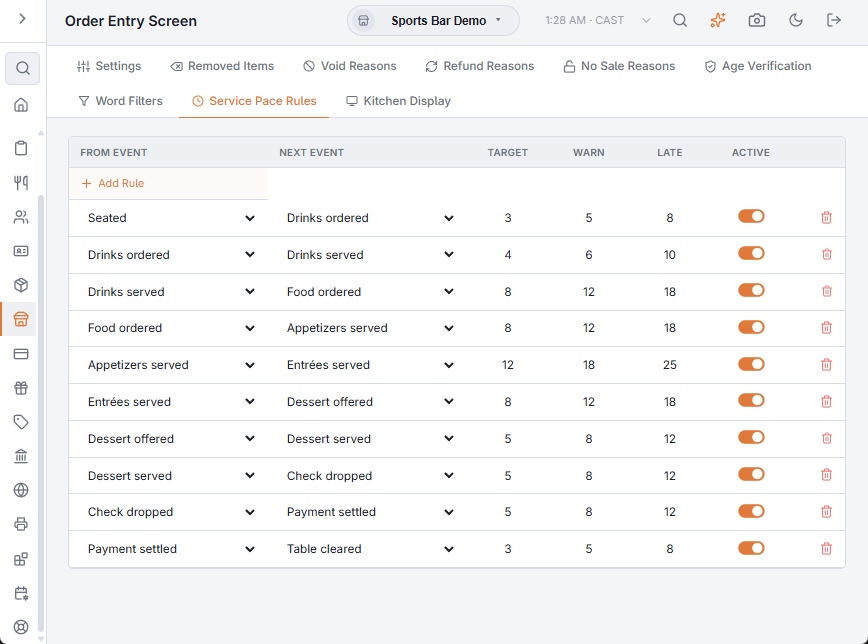
A rule
Each rule times the gap between two service events: From Event and Next Event, chosen from Seated, Drinks ordered, Drinks served, Food ordered, Appetizers served, Entrées served, Dessert offered, Dessert served, Check dropped, Payment settled and Table cleared. Three times follow, each 1–180 minutes:
- Target — how long the step should take; past it, the table shows as over target.
- Warn — past this the table turns to warning. Left blank, it is 1.5× the target.
- Late — past this the table is late. Left blank, it is 2× the target.
Add Rule adds Seated → Drinks ordered at 5, 7 and 10 minutes, ready to change. Edits save as you make them. The delete button removes a rule at once, without asking. Only one rule is used for each From Event, and the rules apply to dine-in orders every day, at every hour.
Setting numbers that work
- Start from measured reality, not aspiration: run two normal weeks, read the actual step timings in the Service-pace report, and set Warn at “slightly worse than normal”, Late at “a guest is now annoyed”.
- Targets too tight make the floor permanently red and the colors get ignored; too loose and the first warning arrives after the apology should have. The tuning test: on a normal night, a handful of warnings and rare lates.
- Revisit after menu or kitchen changes — pace targets encode the kitchen you had when you set them.
Switching a rule off
Turn Active off to stop using a rule without deleting it. It stays in the list, so it can be switched back on later; only active rules tint tables and feed the pace views.