On Back Office › Inventory › Setup › Menu Costing, Market Check asks the AI to search the web for what comparable dishes and drinks sell for at restaurants near your store’s address. The answer comes back as a low, typical and high price, a one-line summary and the sources it used, and is kept for 14 days so the page doesn’t search twice for the same item. See Menu Costing: cost, margin and a recommended price for every item for the rest of the page.
Running a check
- Choose Food Items or Bar Items (modifiers are not checked) and, ideally, one category — batches of related items search better than a mixed list.
- Either tick the rows you want checked, or tick nothing to check every item on screen that has no market price yet.
- Tap Market Check and confirm. Items are sent in batches of 15, about a minute each; the button counts up (“Checking 15 Of 42…”), the table fills in as each batch finishes, and a message reports the result at the end. You can keep working on the page while it runs.
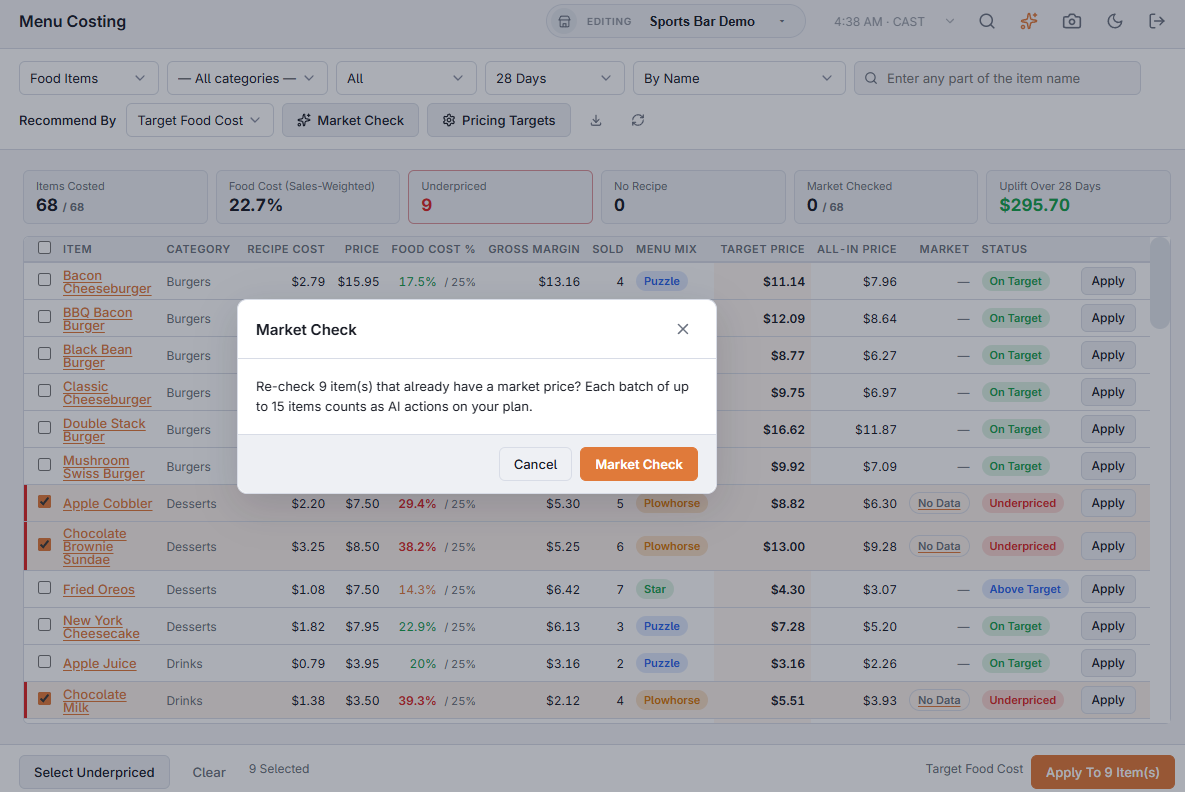
To check an item again — after a price change nearby, or when the first answer was thin — tick rows that already have a market price and tap Market Check. When every ticked row already has one, the check is a re-check, and the confirmation says so.
Reading the Market column
- The typical price in bold with the low–high range beside it.
- A badge comparing your price with the range: Below Market, In Range or Above Market.
- Check — the market price is more than 40% from your price, below the recipe cost, or there is neither a price nor a recipe cost to compare it with. It is more likely a misread or a different dish than the market.
- No Data when nothing comparable turned up. Tap it — the window shows the AI’s own note on why.

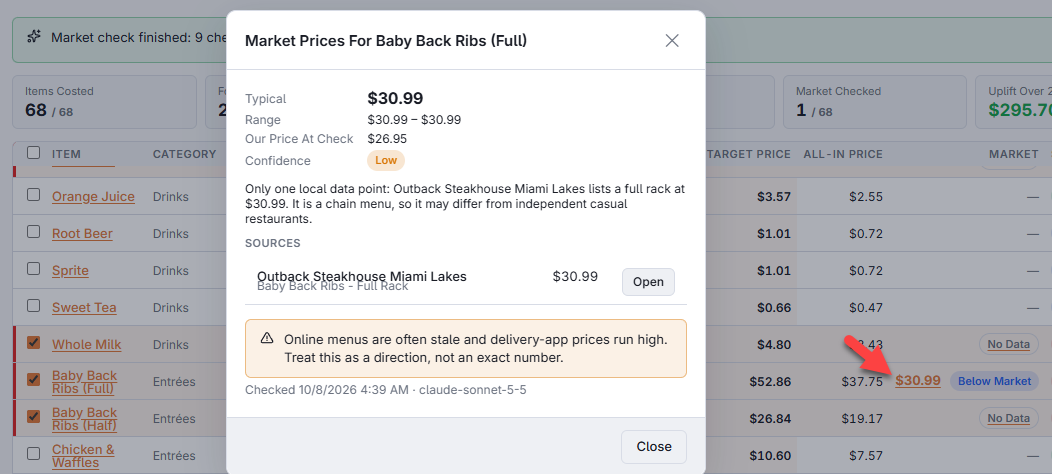
Tap any market price to see where it came from: typical and range, Our Price At Check, the Confidence (High = three or more local menus agree, Medium = two, Low = one or only delivery apps), the summary, and each source with an Open button that shows the link as a QR code and lets you copy it.
Using it to reprice
Set Recommend By to Market Price and the Apply buttons use the typical market price, rounded by your rounding rule. The status filters Below Market / Above Market and the sort Biggest Gap To Market First bring the items that matter to the top.
Rows flagged Check are left out of Apply To N Item(s); the footer says how many were left out. Apply one on its own row: a confirmation shows your price and the market price before it changes.