Back Office › Inventory › Setup › Menu Costing lists every menu item with what one serving costs to make, what it sells for, and what it should sell for. It reads the same recipes and costs as the Recipes (yield, cost, ingredients), but for the whole menu at once, and it can change prices from the table.
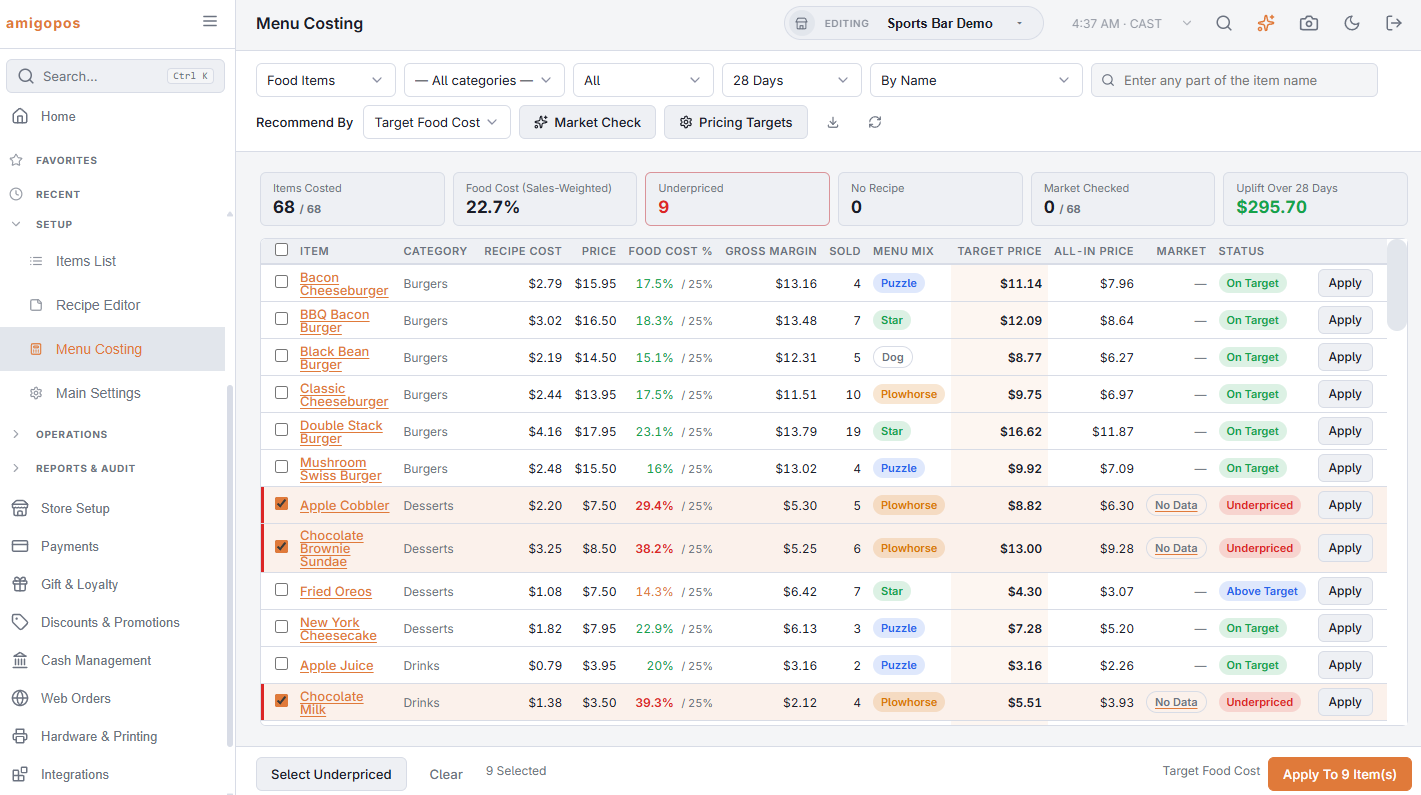
The toolbar
- Item Type — Food Items, Bar Items or Modifiers. Modifiers are listed by modifier group and have no Menu Mix or Market column.
- Category and Status — the status list has Needs Attention (underpriced, no recipe, no price, or a partial cost), each status on its own, and Below Market / Above Market.
- Sales Window — 7, 28, 90 or 365 days of sales for the Sold column and the menu mix.
- Sort — By Name, Worst Food Cost First, Lowest Margin First, Most Sold First, Biggest Uplift First or Biggest Gap To Market First. The search box matches item and category names.
- Recommend By, Market Check, Pricing Targets, the download button (CSV of the rows shown) and Refresh.
Above the table, the KPIs show Items Costed, Food Cost (Sales-Weighted), the number Underpriced and with No Recipe, Market Checked, and the Uplift (below).
What each column means
| Column | Meaning |
|---|---|
| Item | Tap a menu item’s name to open it in the item editor. Hidden marks an item that is hidden on the POS. |
| Recipe cost | The ingredients of one serving at their current cost: average cost of the stock on hand, else the last delivery, else the case cost. A Partial badge means at least one ingredient has no cost yet, so the figure is understated. |
| Price | The item’s menu price. |
| Food Cost % | Recipe cost as a share of the price, next to the target for that item (for example 17.5% / 25%). Red when underpriced, blue when well under the target. |
| Gross Margin | Price minus recipe cost. |
| Sold | Units sold in the sales window. Hover for the revenue. |
| Menu Mix | Menu-engineering class within the item’s category: Star (popular and profitable), Plowhorse (popular, low margin), Puzzle (profitable, slow), Dog (slow and low margin). Hover a badge for the suggested action. |
| Target Price | Recipe cost ÷ target food cost %, rounded by your rounding rule. |
| All-In Price | Recipe cost ÷ the share left for ingredients once labor, overhead and profit are covered (see Pricing Targets). |
| Market | What comparable items sell for nearby, from the Market Check: what comparable items sell for nearby. |
| Status | Underpriced (food cost more than 2 points over target), On Target, Above Target (more than 10 points under — room, or a premium item), No Recipe, No Price. |
Where the target comes from
Every item has a target food cost %. A menu category with a Markup multiplier (Menu › Menu Setup › Menu Categories) sets it for its items: ×4 means a 25% target, ×3 means 33.3%. A modifier group’s Markup does the same for its modifiers. Everything else uses the store target from the Pricing Targets panel.
Pricing Targets
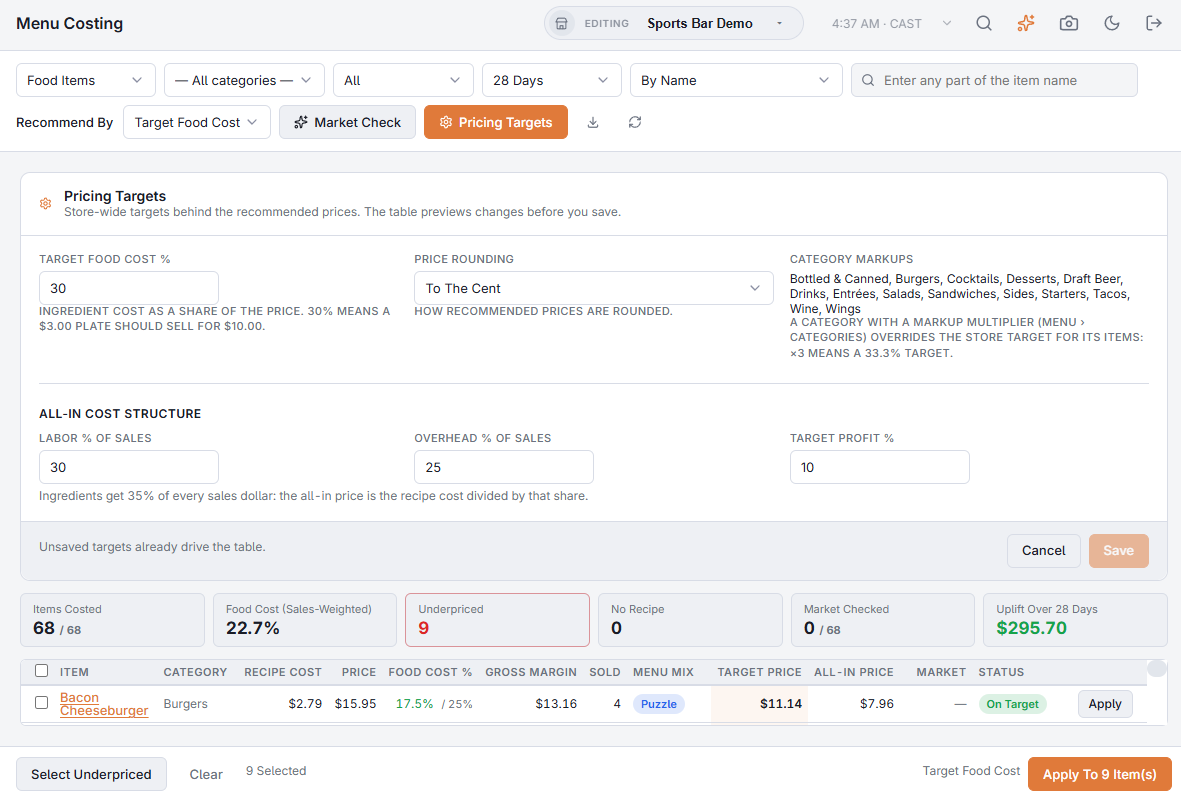
Tap Pricing Targets in the toolbar. The table previews every change before you save, so you can see what a different target does to the recommended prices. Save keeps the targets; Cancel drops the changes.
- Target Food Cost % — the store-wide target; 30% means a $3.00 plate should sell for $10.00.
- Price Rounding — how recommended prices are rounded: To The Cent, Nearest .25, Nearest .50, Ending In .95, Ending In .99 or Whole Number. The .95 and .99 rules never round below the unrounded price.
- Category Markups — the categories whose markup overrides the store target.
- All-In Cost Structure — Labor % Of Sales, Overhead % Of Sales and Target Profit %, from your P&L. What is left is the share for ingredients, and the All-In Price is the recipe cost divided by that share. If the three add up to 100% or more there is nothing left and no all-in price is shown.
Changing prices
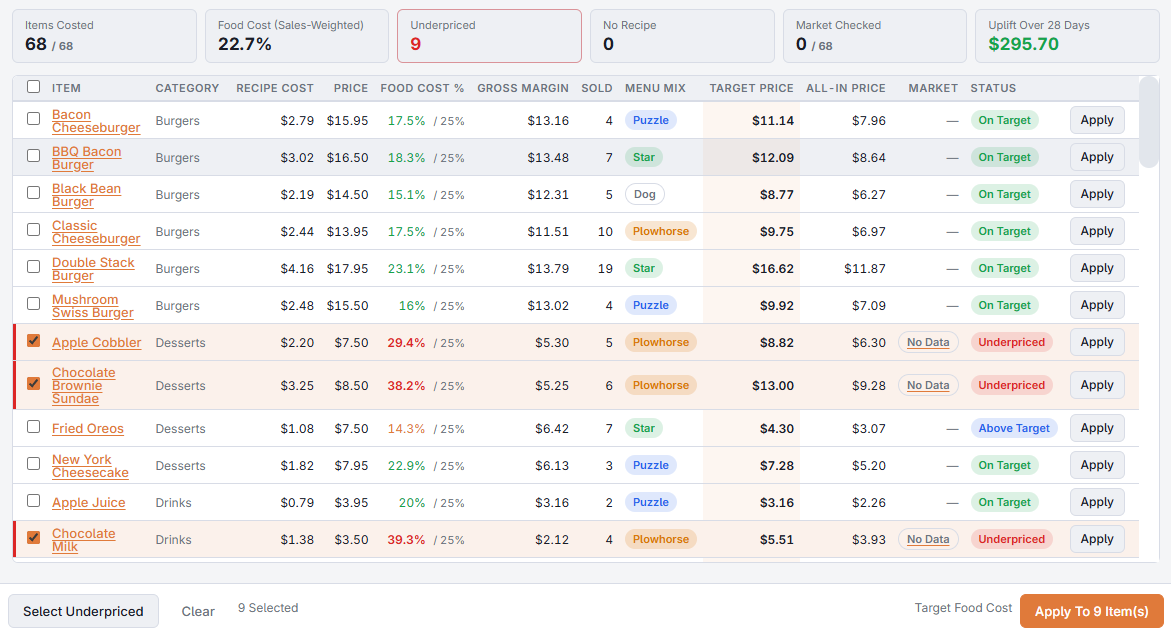
Recommend By decides which recommendation the Apply buttons use: Target Food Cost, All-In Cost or Market Price. Then either:
- Tap Apply on one row to set that item to its recommended price, or
- Tick several rows (or tap Select Underpriced to tick the underpriced rows shown), check the count in the footer and tap Apply To N Item(s). A confirmation states how many items change and by which rule.
Every station picks up the new prices right away. With Market Price, rows whose market price is flagged Check are left out of Apply To N Item(s) and can only be applied one at a time — see Market Check: what comparable items sell for nearby.
Tonight's push items
The star next to an item's name marks it as tonight's push item: suggestions offer it first whenever it fits. Tap it again to stop pushing the item. See Setting up Insight and Suggestions.