With Send time punches on (Settings tab of Back Office › Integrations › 7shifts), every clock event of a linked employee is sent to 7shifts. 7shifts becomes the place where actual hours are reviewed and exported to payroll; the POS keeps its own time sheets unchanged.
What is sent
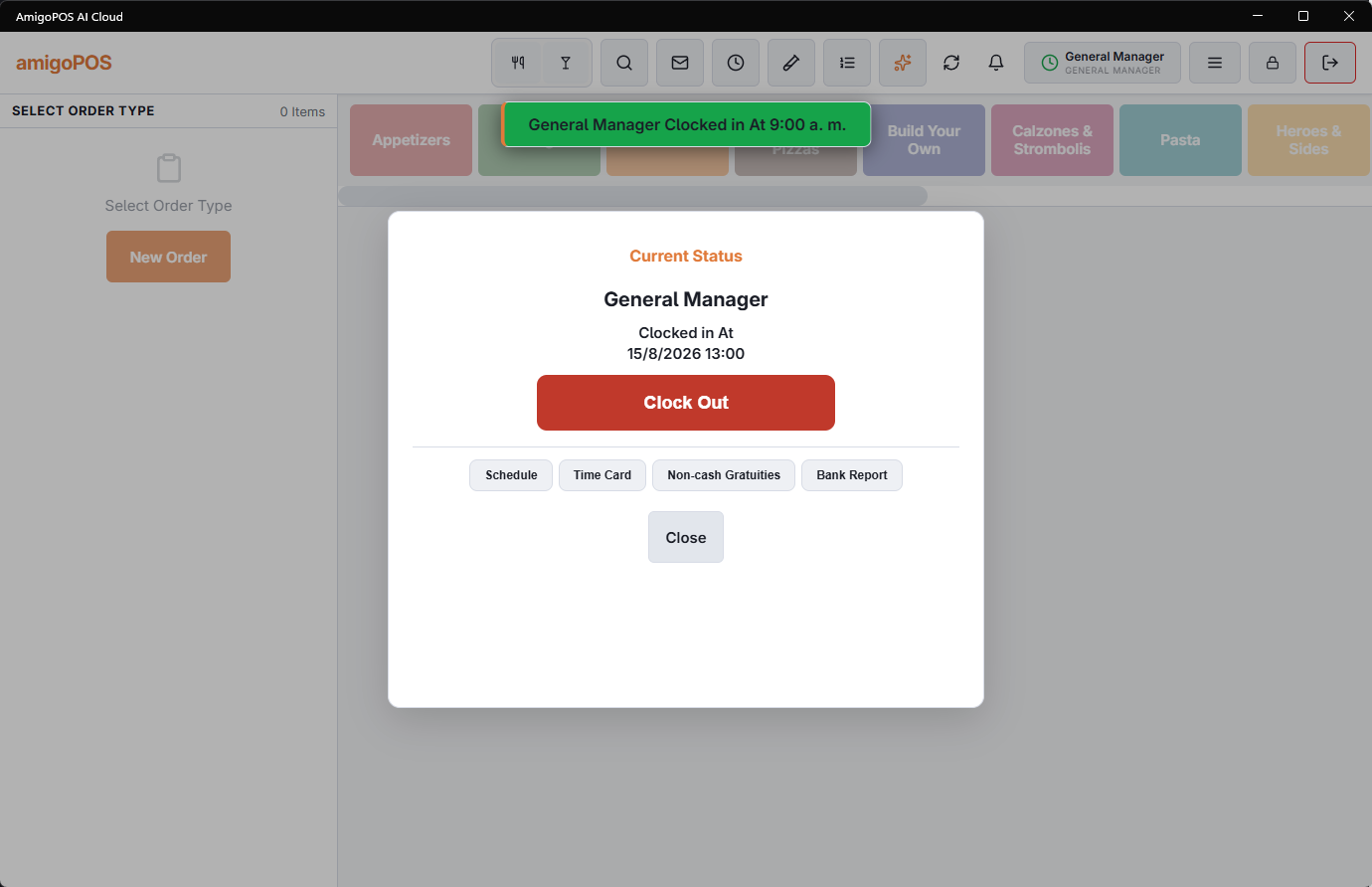
- Clock in creates the punch in 7shifts, under the 7shifts role mapped to the job the employee clocked in on.
- Clock out, breaks, declared cash tips and time sheet edits update the same punch.
- Deleting a time sheet in the POS deletes its punch in 7shifts.
Each update is built from the POS time sheet at the moment it is sent, so 7shifts always gets the latest times and the full list of breaks. Breaks are marked as paid when Breaks are paid is on.
What is needed
- The employee is linked to a 7shifts user, and the job they clocked in on is mapped to a 7shifts role. See Linking jobs and employees.
- When either is missing, the request shows on the Activity tab with the reason and is retried. Fix the link, then press Retry on the row.
Corrections
A manager correcting a time sheet in the POS sends the correction on. Editing a punch inside 7shifts does not change the POS, so the two records then differ. Agree with your managers which side is used for corrections.
When 7shifts is unreachable
The clock action finishes normally on the POS. The punch waits in the queue and is sent when 7shifts answers again; a request is tried for about eight hours before it is marked as failed.
Checking
Compare a day’s hours in 7shifts against the POS time sheets. A gap almost always means an unlinked employee or an unmapped job; the Activity tab names it.