Most problems show up on the Activity tab of Back Office › Integrations › 7shifts.
The Activity tab
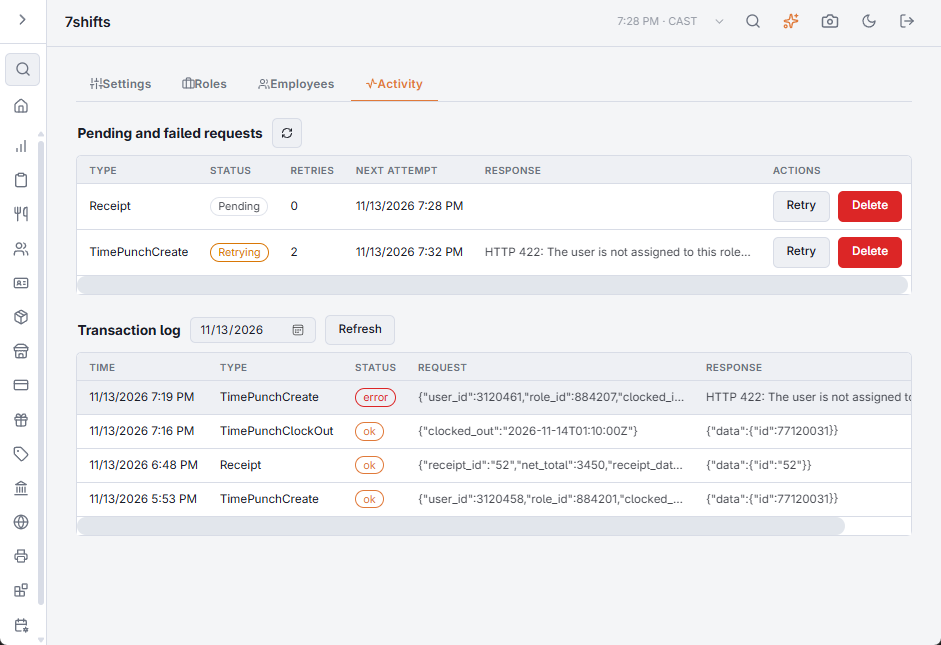
Pending and failed requests lists what is still waiting to go to 7shifts: its Type, Status (Pending, Retrying or Failed), the number of Retries, the Next attempt and the Response from 7shifts. Click a response to read it in full and copy it.
- A failed request is tried again after 1, 2, 5, 10, 30, 60, 120 and 240 minutes, then shown as Failed.
- Retry sends it again now, once the cause is fixed. Delete removes it without sending, after confirmation.
The Transaction log below shows every request and answer for the chosen day while Transaction logging is on (Settings tab). Pick a date and press Refresh.
Test connection fails
The access token is wrong, expired or was revoked in 7shifts, or the company or location ID is wrong. Generate a new token, paste it again and check both IDs under Developer Tools › Resource IDs.
Some employees’ hours never appear
The employee is not linked to a 7shifts user, or the job they clocked in on is not mapped to a role. The failed punch on the Activity tab says which. Fix it on the Employees or Roles tab, then press Retry. A 7shifts user deleted in 7shifts also breaks the link: unlink the employee and link them again.
An employee cannot be pushed
Hover the information icon on their row on the Employees tab. 7shifts needs an email address, and at least one of the employee’s jobs must be mapped to a role.
Hours are duplicated
Two sources are sending punches — usually a second integration, or hours keyed into 7shifts by hand as well as clocked at the POS. Choose one.
Sales do not appear
- Check that Send sales receipts is on.
- Check the Location Id: sales sent to another location are misplaced, not missing.
- Look for failed receipts on the Activity tab.
Staff cannot clock in
Schedule enforcement is on and the Unscheduled Clock-In Policy on the Time Clock page is Block. The employee is either unlinked or not on the 7shifts schedule for now. Link them, add the shift in 7shifts, or set the policy to Require Manager so a manager can let them in. See Schedule Enforcement.