Split by item divides a check by picking which lines go to which new check — the tool for tables where seat assignment didn’t happen or the desired split doesn’t follow seats.
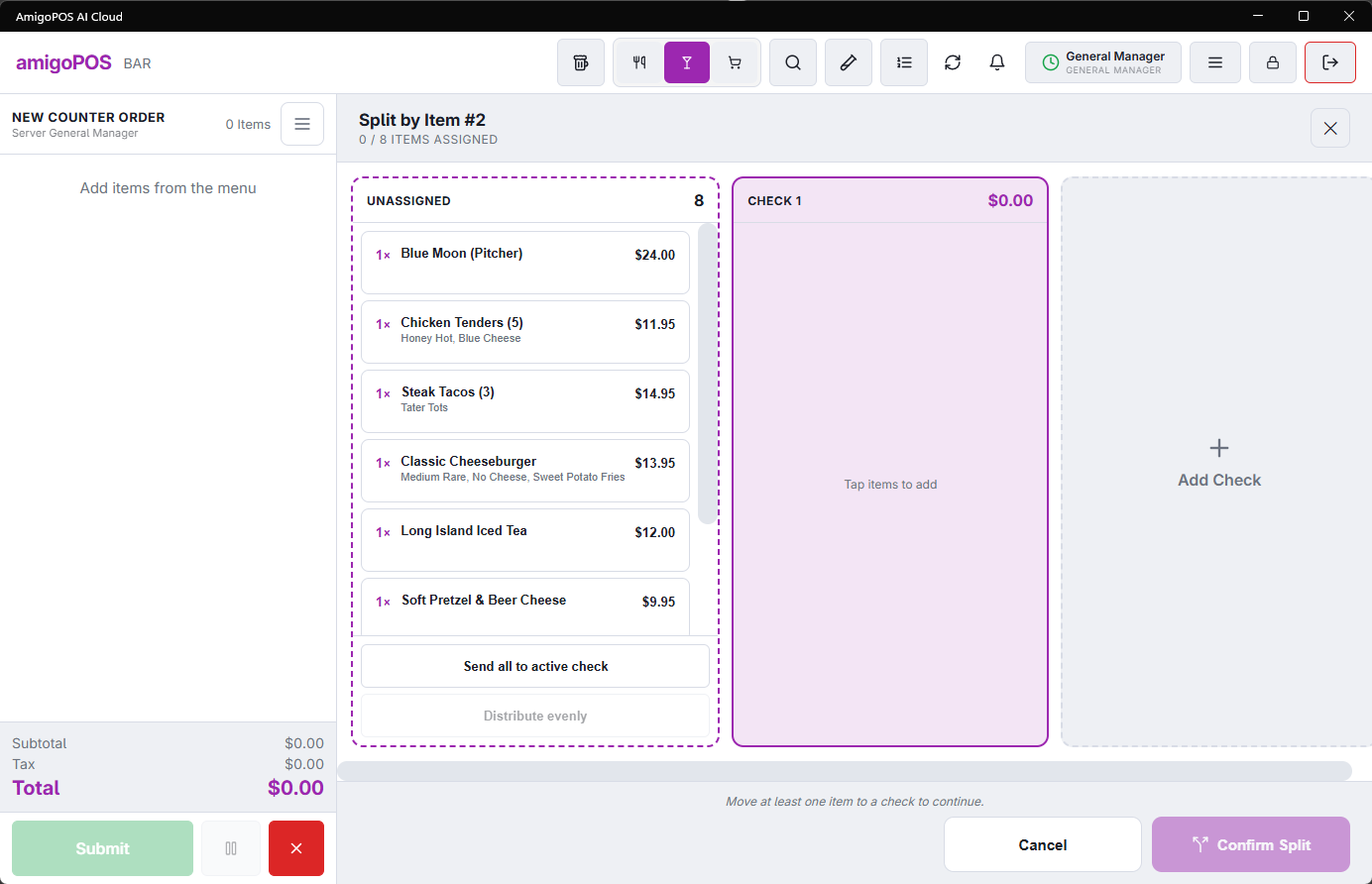
The flow
- Select the order, tap Split, choose by item.
- Move lines between checks — tap items into the target check; create as many checks as needed. Quantities can divide (two of the four beers to each side).
- Confirm. Each check settles on its own.
Where it shines
- “We’ll take the wine, they’ll take the food” — splits that ignore seating entirely.
- Fixing an unassigned table at settle time — slower than split-by-guest, but it gets there.
- Separating a business portion from a personal one on the same visit.
Kitchen tickets
Splitting does not re-fire anything. Lines that already went to the kitchen carry their sent stamp onto the new checks, so the cooks see nothing new — only items added after the split print, as they would on any order.
Not while timers are running
An order with a running or paused timer (pool table, lane, rental) cannot be split or combined. The POS says Order #12 Has A Running Or Paused Timer. Open The Order, Stop The Timers (Not Pause), Then Try Again.
Recall the order, stop each timer, then split or combine: the stopped time lines split like any other item. See Settling, splitting and combining timed checks.
Permission
Splitting needs the Split Order permission on the job. Without it, tapping Split asks for a manager, who can approve on the spot; the approval is recorded. The order is checked first, so a manager is only called over for a split that can actually go ahead.