Back Office › Discounts & Promotions › Suggestive selling › Programs turns suggestive selling into staff goals with rewards. A program sets a goal for a period — a shift, a day, a week, a month or a contest’s dates — and each employee who reaches it earns the program’s reward, with bigger rewards for going further.
Creating a program
Press Create New Program (+). A program called New Program is added and opens: enabled, per shift, with a goal of 20 accepted upsells. Change it as below; every change saves as you make it. Show Disabled also lists programs that are switched off.
- The name and the Enabled switch: off, the program stops tracking progress. Delete removes it.
- Description — one line on what counts, shown to staff under the name.
Goal
- Period — Per Shift, Per Day, Per Week, Per Month, or Custom Date Range with Custom Period Start and Custom Period End for a one-off contest. Progress starts again each period.
- Goal Type:
Goal type Counts Total Upsells Accepted suggestions, any rule. Specific Rule Accepted suggestions of the Target Rule. Rule Tag Group Accepted suggestions from rules with the Target Tag. Upsell Revenue The sales of the accepted suggestions. Accept Rate Accepted suggestions out of those shown; written as 0 to 1, so 0.30 is 30%. - The goal itself — Goal Count, Goal Revenue or Goal Rate (0 – 1), depending on the type.
- Minimum Offers Shown (accept rate only) — how many offers an employee must be shown before their rate counts, so one offer accepted out of one isn’t 100%.
Rewards
- Base Reward — earned at 100% of the goal: the Reward staff see (for example “$5 gift card” or “leave 30 minutes early”) and an optional Amount, the cash value used on the Payouts page.
- Tier 2 Reward — tick it to add a bigger reward: Unlock At is a multiple Of Goal (1.5 means 150% of the goal), with its own Reward and Amount.
- Tier 3 Reward — a third level; Tier 2 must be on first.
Each reward an employee reaches in a period is added to Payouts and commissions straight away, to be paid and marked paid.
Visibility & Active Window
- Active From and Active Until — when the program runs; leave Active From blank to start now.
- Notify User On Milestones — the employee gets an alert at the register at 50% of the goal, at 100% and at each tier.
- Show On Welcome Screen — the program’s team standings appear on the welcome screen tile (Server progress and team standings).
What staff see
Each running program appears as a card on the employee’s My Status screen: the program’s name, its description underneath, the period and the time left, progress toward the goal, and the reward.
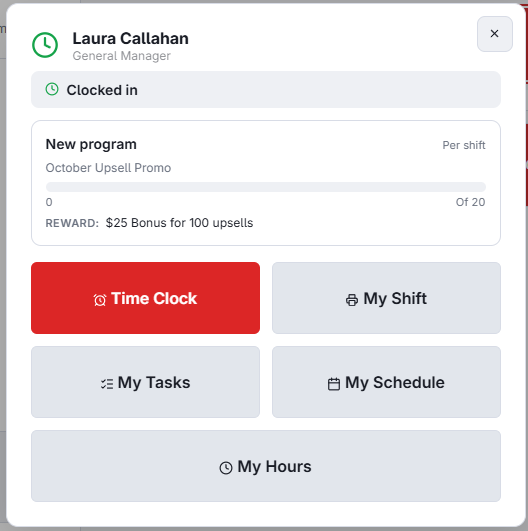
Give each program a clear name and a one-line description of what counts, such as Suggest a dessert to every table of two or more. Without a description, staff see only the name and the numbers.