My Schedule is the employee’s side of the scheduler. Staff open it from the user panel (tap your name in the top bar) and see their own week — and nothing about anyone’s pay.
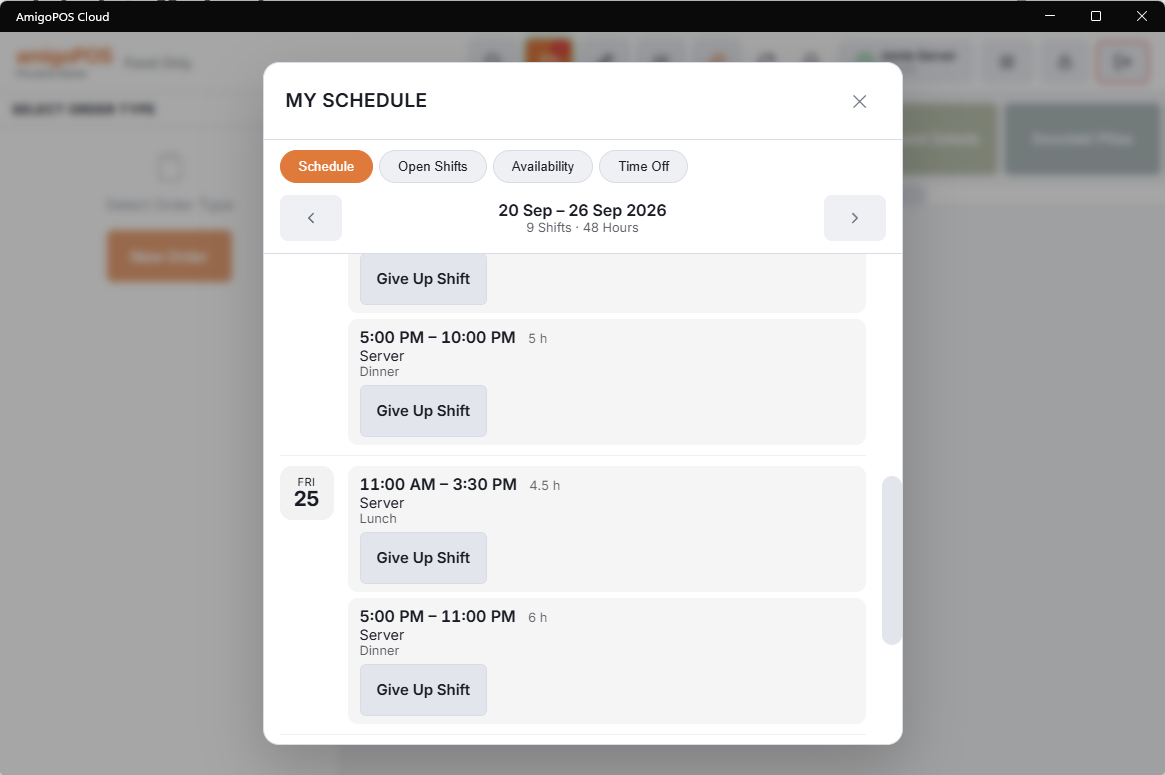
Schedule
One week at a time, arrows for other weeks, days off shown as such, with the week’s shift count and hours at the top. Only published shifts appear — drafts stay invisible until the manager publishes, which is what makes it safe to build next week in the open.
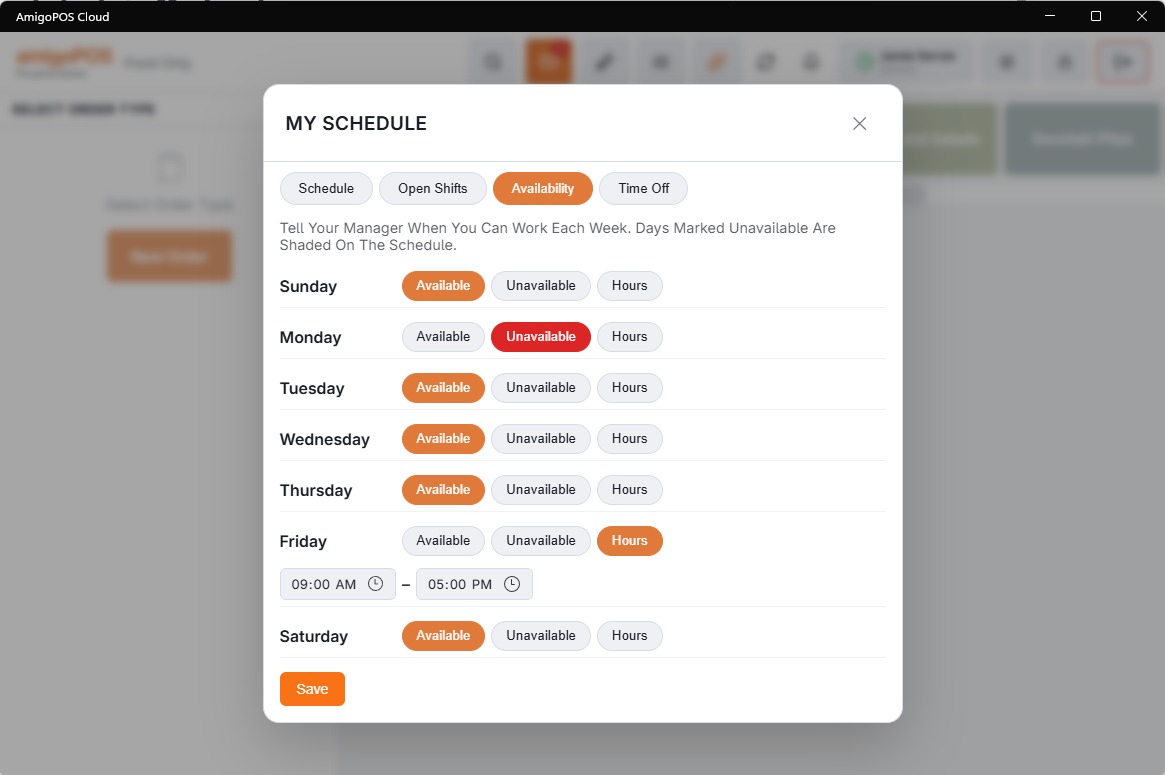
Availability
Each weekday is set to Available, Unavailable, or Hours with a from–to window. Those choices shade the scheduler grid for the manager: an unavailable day is hatched, a limited day shows the window, and a shift placed outside it is flagged. It is guidance for the person building the schedule, not a hard block.
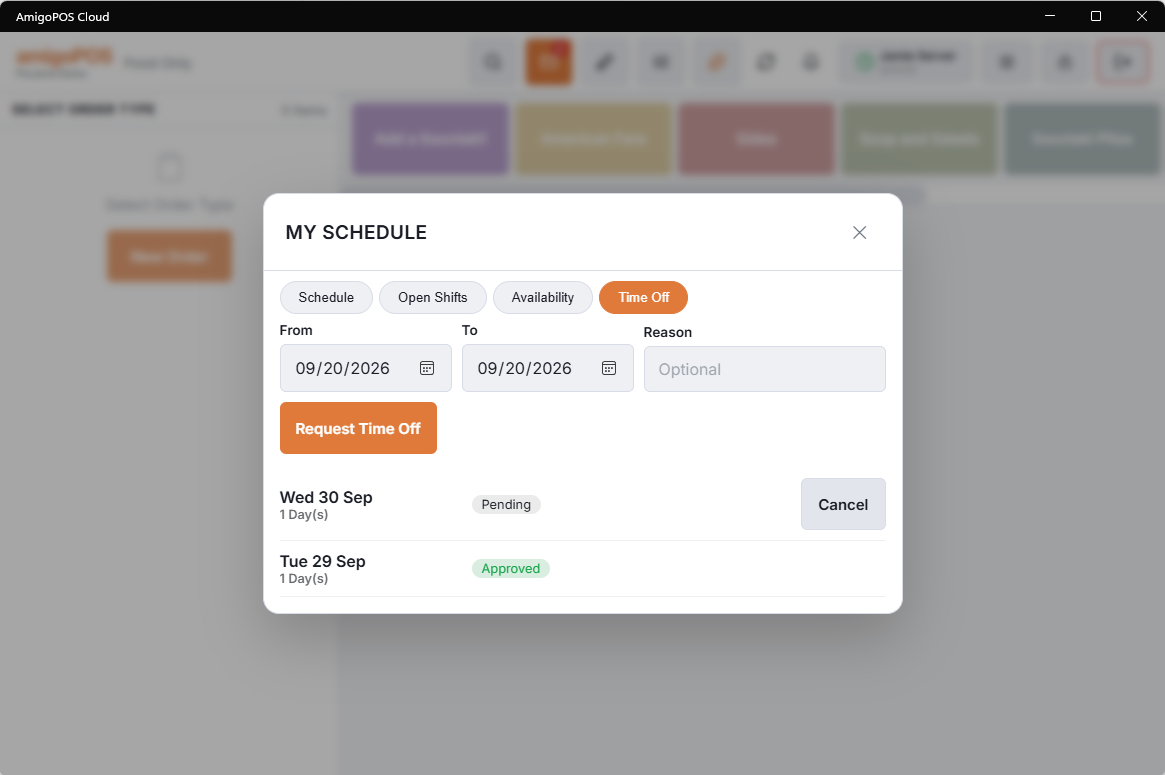
Time off
Requests take a date range and an optional reason. While a request is pending it can be withdrawn; once a manager decides, the answer and any note arrive as a message, and the day is marked on the scheduler — red once approved, amber while pending.
Schedule texts
With Text employees when a schedule is published switched on (Back Office › Employees › Scheduling › Time Clock), publishing a week also sends each affected employee their own shifts by text, in their own language, to their mobile number. Each text is charged and billed monthly — see SMS log and message costs.
Open shifts and giving up a shift
An Open Shifts tab lists shifts the employee can pick up — open shifts for their jobs, and shifts coworkers are giving up or offering to them — and every future shift on the Schedule tab has Give Up Shift. How both work, and the optional manager approval, is in Picking up, giving up and swapping shifts.
On a phone
Where the store has switched on phone access, the same schedule, open shifts, availability and time off are on the staff site — see Using the staff site on your phone.
Part days, unpaid days and your balance
A time-off request can cover part of a day — one date, from a time to a time — and can be marked unpaid. Where the store gives paid days off, the screen shows how many you have left and what this request would leave; part days count as hours against it.
If your store has managers approve availability, saving your weekdays sends them for approval rather than changing them straight away, and the screen says so until the answer arrives in Messages.
When a published shift changes
After the week is published, a manager can still change it. If one of your published shifts gets new times, another day or job, goes to someone else or is deleted, a message tells you straight away, with the old and the new times — marked important when the shift is less than a day away. Changes to drafts are not sent; they come with the next Publish.
In your phone’s calendar
With phone access, the staff site can also put your published shifts and approved time off in your phone’s calendar app — see Your shifts in your phone’s calendar.