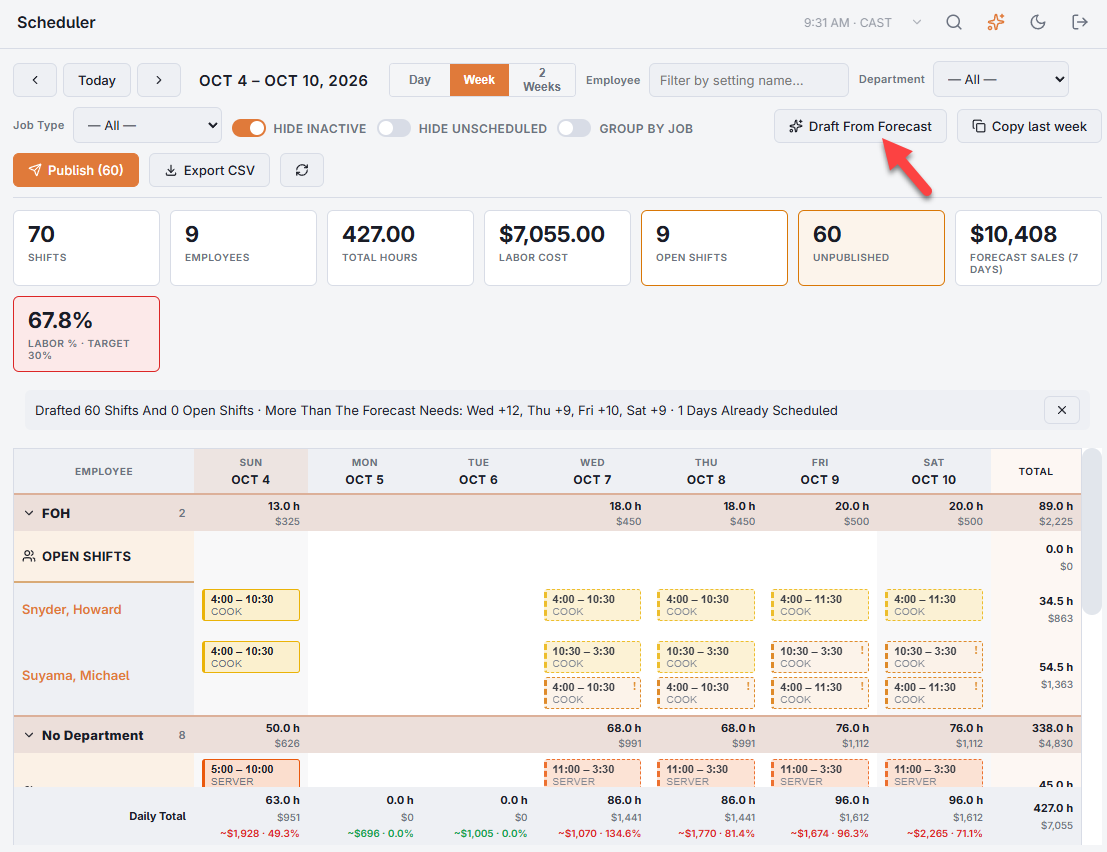
In the Scheduler week view, choose Draft From Forecast (next to Copy Last Week) and confirm.
What it does
- Copies last week’s shifts into this week as drafts. A shift belonging to someone who has since been disabled or released becomes an open shift.
- Compares each day with the forecast. When a labor target and pay rates are set, a day needs its forecast sales times the labor target percentage. Otherwise it needs last week’s labor scaled by how this week’s forecast compares with last week’s sales.
- Where a day is short by about three quarters of a typical shift or more, it adds up to three open shifts of that day’s most common job at its usual times, for staff to claim.
- Where a day has more than the forecast needs, it only reports it — for example More Than The Forecast Needs: Fri +2. Nothing is removed.
Closed days and days that already have shifts are skipped. Nothing is published: review the week, adjust it, then publish as usual.