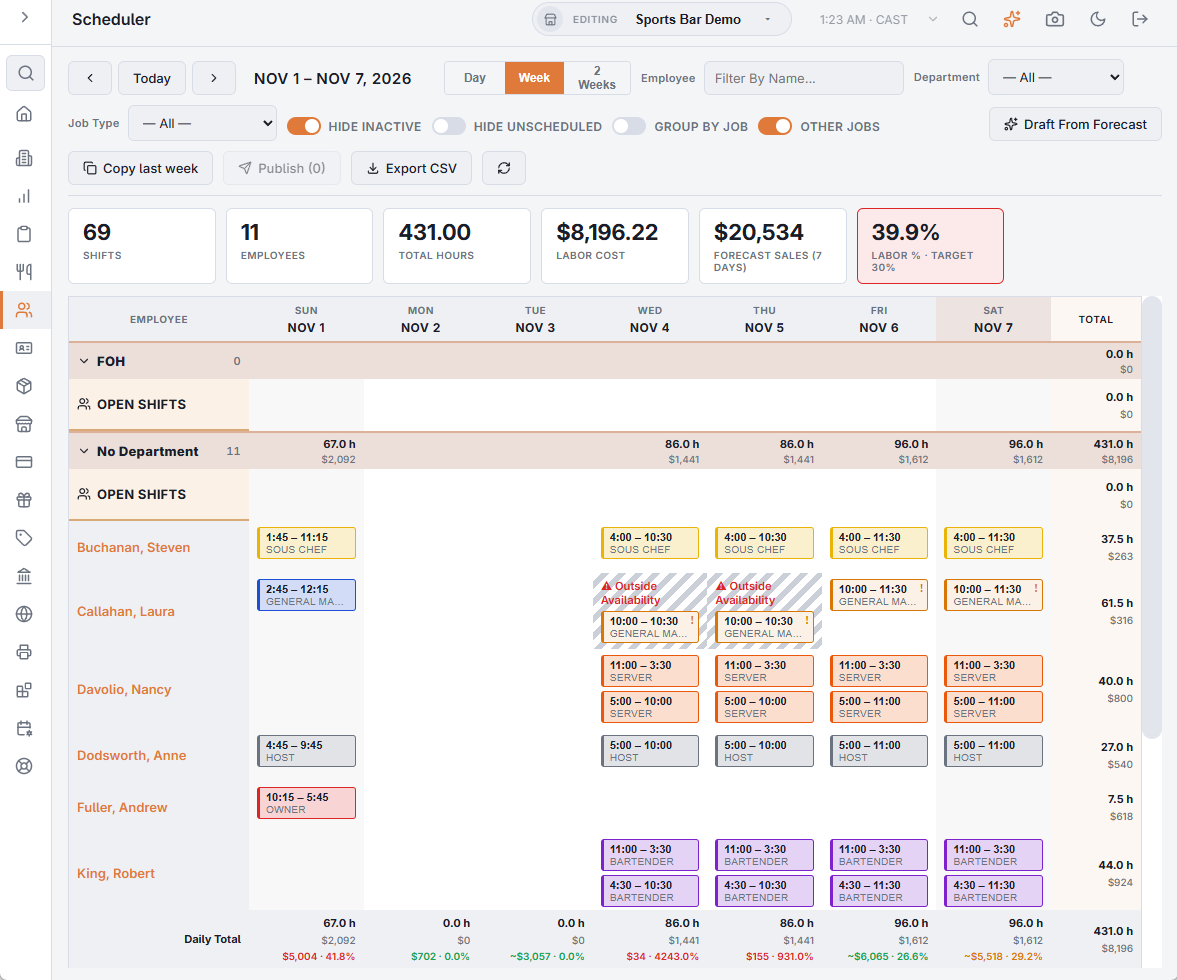
Back Office › Employees › Scheduling › Scheduler is the staff schedule: a grid of employees against days, with shifts as colored blocks. Shifts are drafts until you publish them.
Finding your way
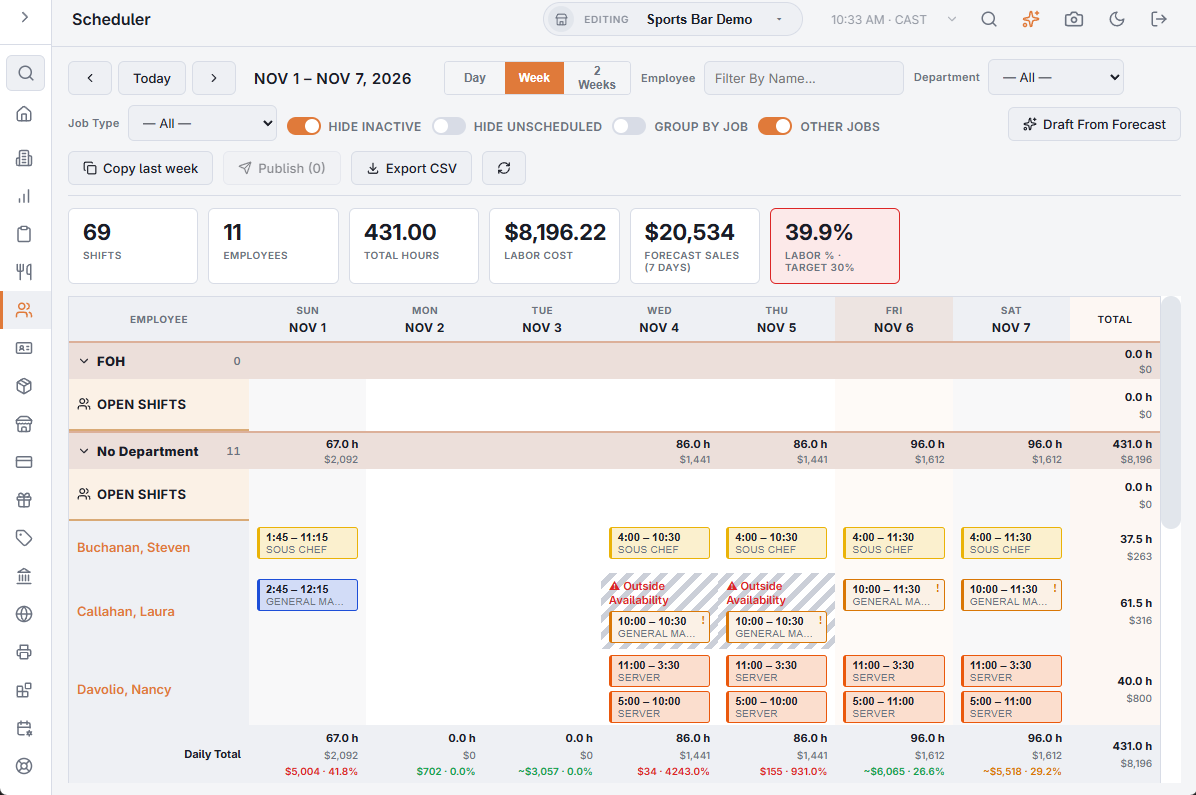
- The arrows and Today move between periods; Day, Week and 2 Weeks choose how much is shown.
- Employee (Filter By Name...), Department (when jobs have departments) and Job Type narrow the rows. Job Type and Department list only the people concerned: those who hold the job, plus anyone with a shift in it in the period.
- Hide inactive and Hide unscheduled leave out inactive employees and employees with no shifts in the period.
- Group By Job and Other Jobs are described below. Clicking an employee’s name opens their profile.
The grid normally bands employees by department, each band with its own subtotals; a band folds away with its header.
Building the week
Click the + in a day to add a shift: job, date, times, pay rate and notes. The job’s color codes the block, so the grid reads at a glance. Click a shift to open its editor, where it can be changed, copied, moved or deleted. Choosing the job fills in its default hourly rate while the pay rate is still 0.
The summary strip above the grid totals the shifts, employees, hours and labor cost, and counts open shifts, unpublished shifts, people over their hours and conflicts. Each day has its own total.
Scheduling against the forecast
When a sales forecast is available, each day shows its forecast sales and the scheduled labor as a percentage of them, colored against Scheduled labor target % (Time Clock settings); the summary strip adds the forecast and labor % for the period.
- If the plan is already above your labor target, the week will be worse.
- Employees with several jobs are scheduled under the job the shift needs — it is the rate and role that clock-in should match.
Availability and time off on the grid
What staff set in My Schedule shows up here: an unavailable day is marked Unavailable, a day with limited hours shows the window, approved time off shows Time Off and a pending request Time Off?. A shift placed outside someone’s availability is flagged Outside Availability — a warning, never a block. Overlapping shifts, less than an hour of rest before a shift and more than 12 hours in a day are flagged the same way.
Publishing
Publish shows how many drafts there are in the period. Publishing releases them to staff, who do not see drafts until then. Each affected employee gets an in-app message, and — where Schedule Published is switched on at Back Office › Integrations › SMS (see SMS settings) — a text listing their shifts for the week.
Copy last week copies every shift of the previous period into this one as drafts; days that already have shifts are skipped. Export CSV downloads the period’s shifts with their hours, pay, labor cost, published state, notes and department.
Copying and moving shifts
Open a shift and use the two buttons beside Delete:
- Copy (Ctrl+C) — a strip under the summary shows what is on the clipboard. Click any day, for any employee, to paste a copy; every day shows a Paste button while the clipboard is loaded, and you can paste as many times as you need.
- Move (Ctrl+X) — the original dims. Click the day, or another employee’s day, to put it there (Move Here). Clicking its own day cancels.
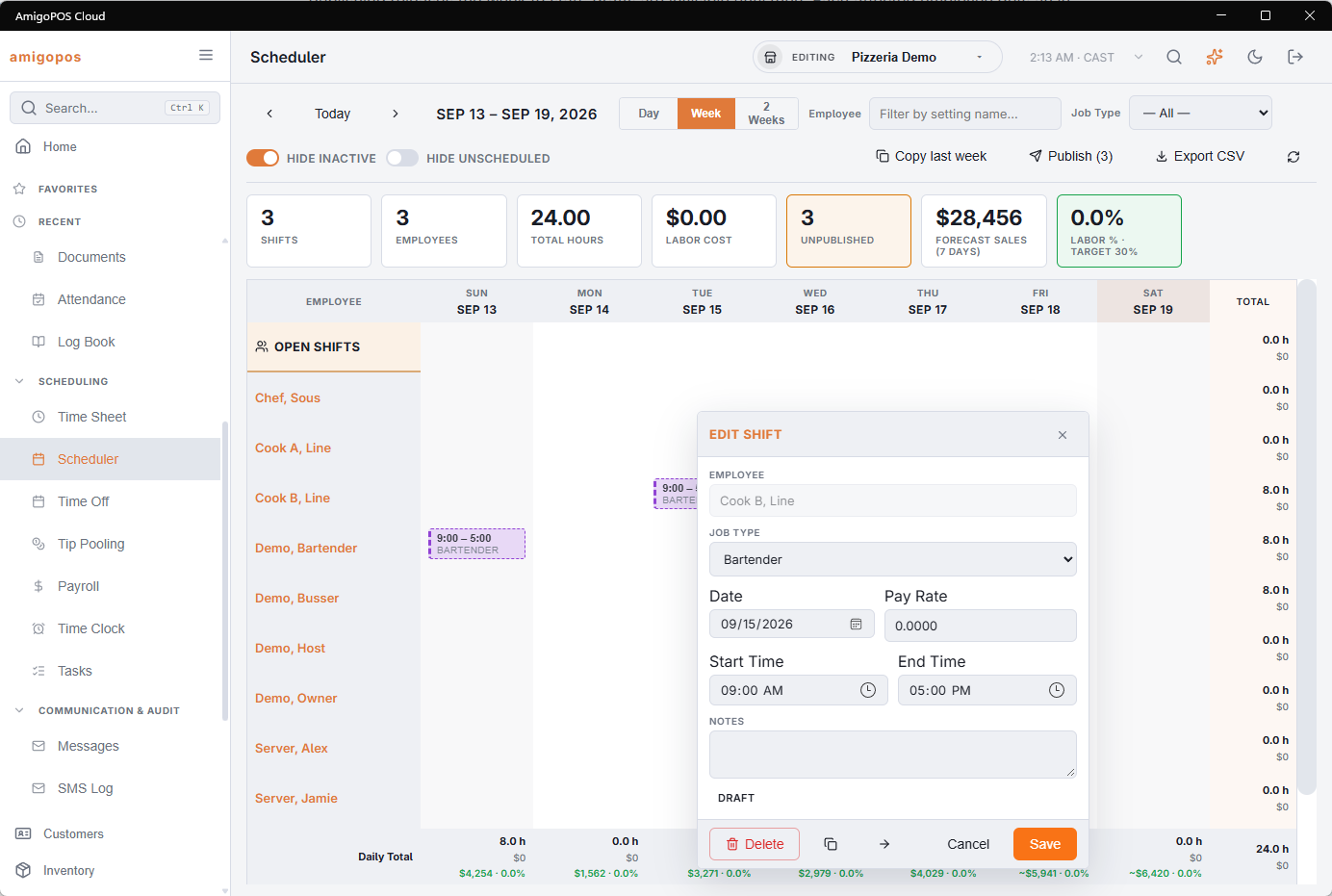
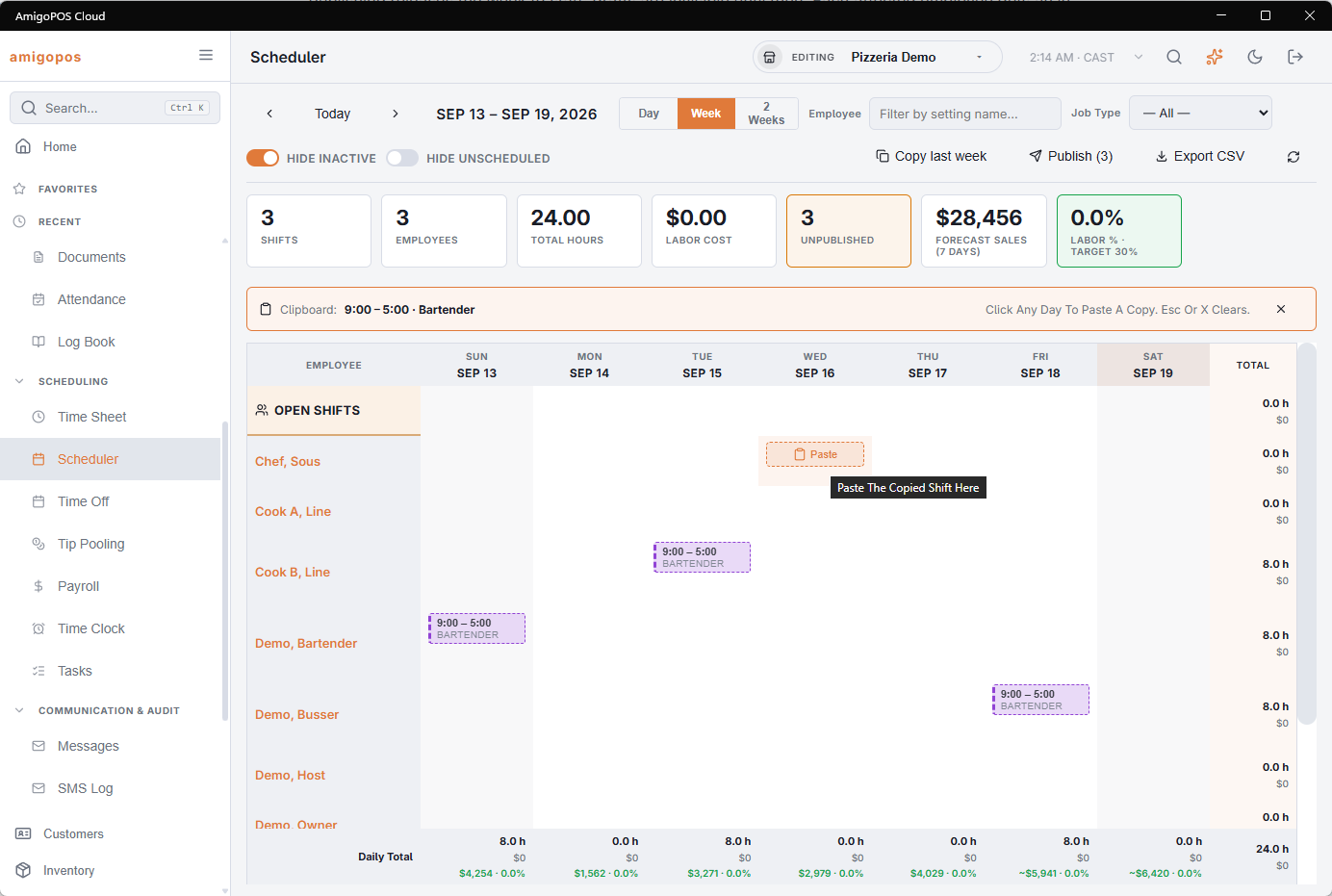
Pasted and moved shifts keep their start time and length, overnight shifts included. A pasted copy is a new draft, so it goes out with the next Publish. A moved shift keeps its state: moving a published shift changes it straight away, and the employee is told (see Changing a published shift below). Esc or the × on the strip clears the clipboard. Everything works by tapping, so it behaves the same on a tablet.
Open shifts and approvals
The Open Shifts row at the top holds shifts with a job but nobody on them yet — see Open shifts. When Manager Approval For Shift Changes is on, an Approvals button with a count appears in the toolbar while staff requests are waiting: Approve or Decline each one — see Picking up, giving up and swapping shifts.
Overtime warning while you build
Hours add up across the week as you place shifts. A shift that takes someone past the overtime warning threshold gets an amber OT mark, and one past the weekly hours cap gets a red one; that employee’s hours in the totals column turn the same color, and the summary strip counts how many people are over. It is a warning, never a refusal — sometimes the overtime is the cheapest answer, and you want to know you are choosing it.
The two thresholds are the ones the time clock already uses: Overtime Warning Threshold (Weekly Hours) and Weekly Hours Cap (Back Office › Employees › Scheduling › Time Clock), either of them 0 to switch that warning off. Only scheduled hours count — hours already worked this week are the clock’s business. The day view has no week to add up, so nothing is marked there.
Drafting from the forecast and overtime alerts
In the week view, Draft From Forecast copies last week as drafts and adds open shifts where the forecast needs more — see Drafting the schedule from the forecast. Managers are warned before a published shift takes someone into overtime — see Overtime alerts.
Grouping by job, and other jobs
Switch on Group By Job and the grid bands employees by job instead of department — FOH · Bartender, FOH · Server, BOH · Cook… — each band with its own Open Shifts row and the employees who hold that job or have a shift in it, showing only that job’s shifts. All the bartenders sit together, so one glance down a column confirms every day has one. Someone with two jobs appears in both bands; every shift is in exactly one, so the totals do not change. A + inside a band starts a shift with that band’s job.
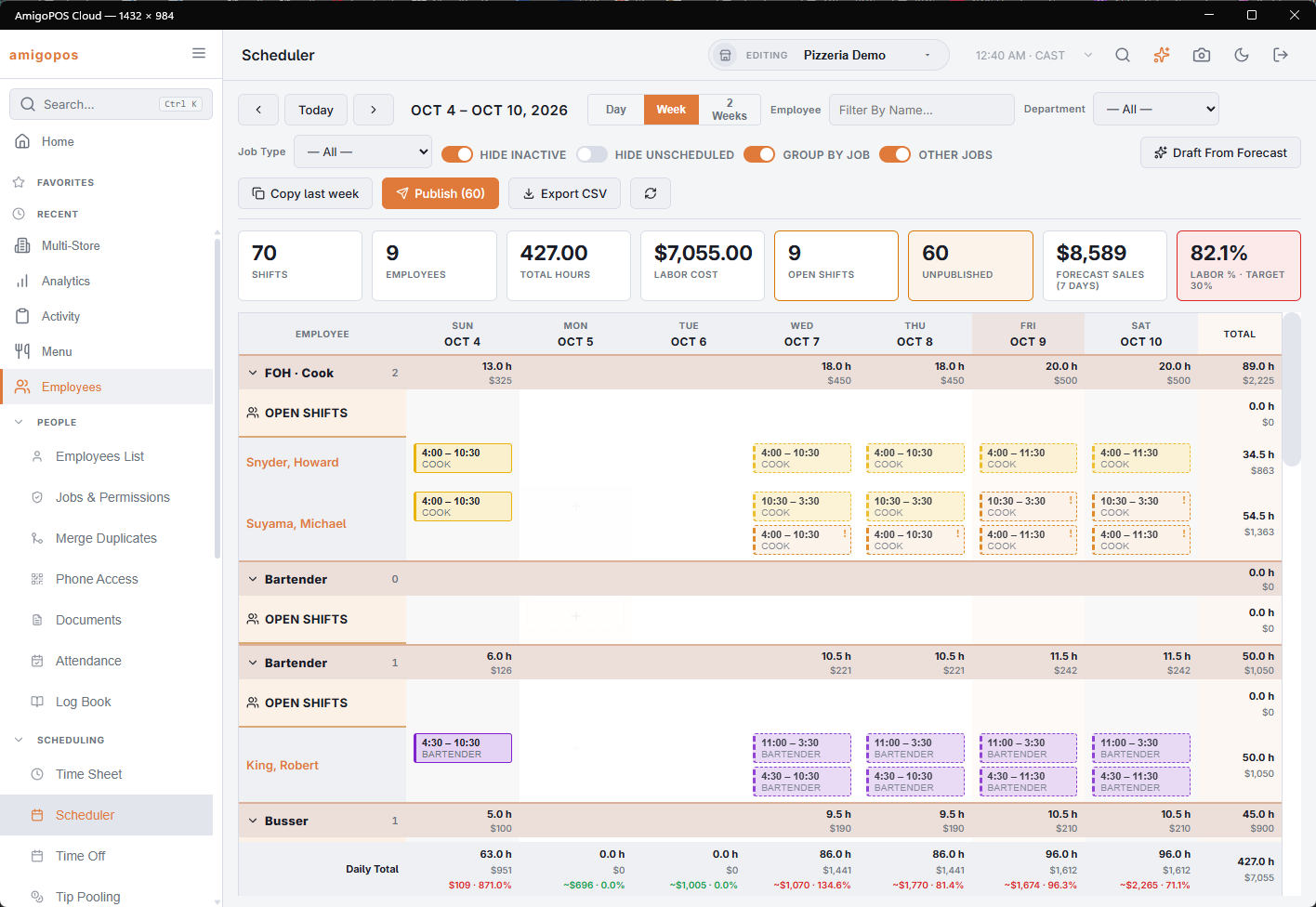
With a band or a Job Type filter, Other Jobs (on when the page opens) also shows each employee’s shifts in other jobs, greyed out and not counted in the totals, so you can see they are busy elsewhere.
Changing a published shift
Once a shift is published, its editor says Changes Are Sent To The Employee. Saving a change to it — new times, another day or job, another employee, moved to Open Shifts, or deleted — sends a message straight away, in each person’s own language, with the old and the new times:
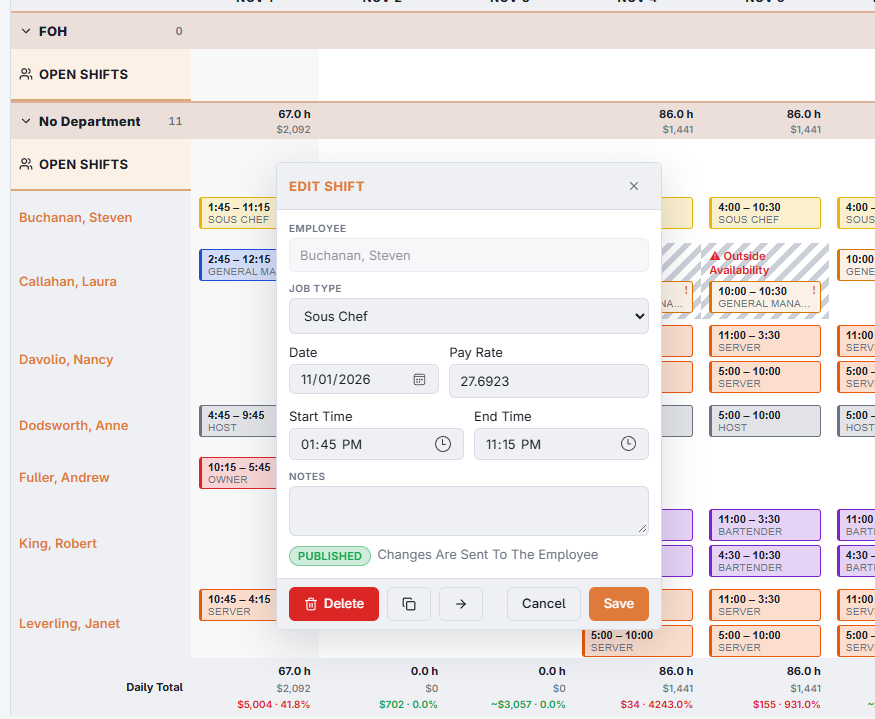
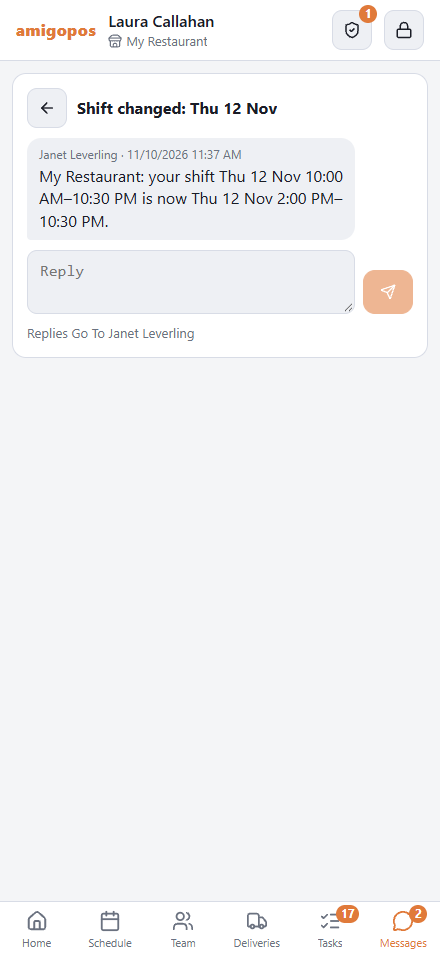
- Shift changed — to the employee, when the times, day or job change.
- New shift and Shift removed — when a shift goes from one employee to another, both hear. A shift moved to Open Shifts, or deleted, tells its employee it was removed.
The message comes from the manager who made the change, so a reply reaches them; a change saved by a sign-in that is not one of the store’s employees goes out as a system notice instead. It is marked important when the shift is less than a day away, and it arrives in Messages at the register and on the staff site, with a notification on phones that have them switched on.
Nothing is sent for drafts (Publish does that), for shifts that are already over, for a change to your own shift, or for an edit that only touches the notes or the pay.