Instead of typing your PIN, you can unlock the staff site with the Face ID, Touch ID or fingerprint you already use to unlock your phone. Your face or fingerprint never leaves the phone: the phone checks it, and the store only receives the phone’s signed answer.
Turning it on
- Open the staff site and unlock it with your PIN.
- Open More › This Phone, find the Face ID / Fingerprint card and tap Enable.
- The phone asks for your face, finger or screen lock. When the card says On For This Phone, it is done.
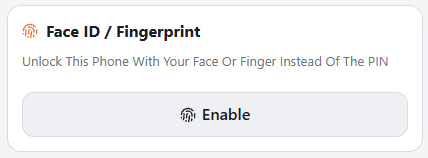
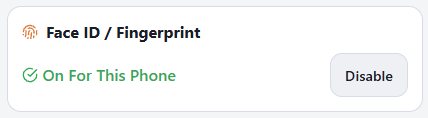
The card only appears on phones that have Face ID, Touch ID, a fingerprint reader or a screen lock, in a browser that supports it. The phone may save it with your passwords as a passkey for the staff site; that is what it uses next time.
Unlocking
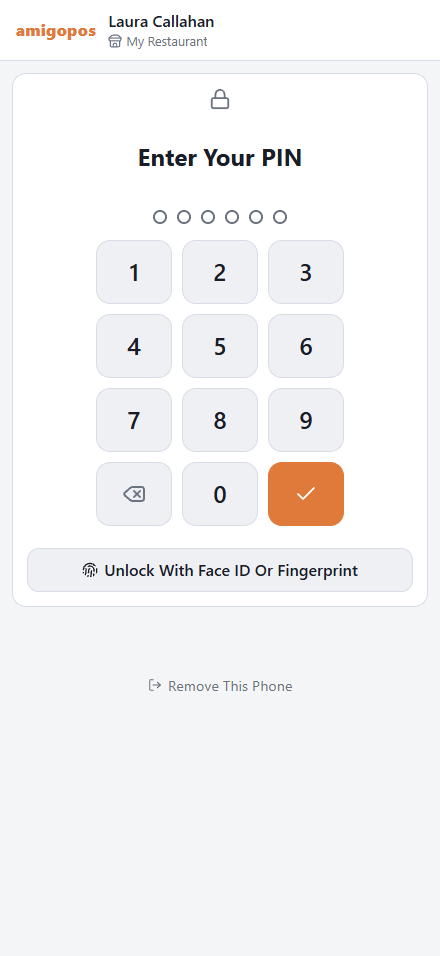
The PIN pad now shows Unlock With Face ID Or Fingerprint. Tap it, then look at the phone or touch the sensor. It unlocks for the same 12 hours as the PIN, and it works even after five wrong PINs have locked the pad. Your PIN still works as before.
It belongs to this phone
- It unlocks only the phone where you turned it on, and only while that phone is set up for you. Your passwords app may show the passkey on your other devices; it opens nothing there.
- It ends with this phone’s access: Remove This Phone, 90 days without opening the site, a manager revoking phone access, or leaving the job. When the phone is set up again, turn it on again.
- Disable on the card turns it off for this phone.
If it does not work
- Cancelling the face or finger prompt shows no message: the PIN pad stays, and the button works again.
- “Face ID Or Fingerprint Did Not Work — Use Your PIN” — the phone reported an error, or the store did not accept its answer, for example after the PIN pad had been open for more than two hours. Tap the button again, or use the PIN. If it keeps happening, Disable it and Enable it again.
- “Face ID Or Fingerprint Could Not Be Turned On” — the phone reported an error, or the store did not accept the new passkey, for example after the This Phone page had been open for more than two hours. Make sure the phone has a screen lock, then tap Enable again.
- The button is gone from the PIN pad — it was turned off, or the phone was set up again. Unlock with your PIN and turn it on again.
How often it asks
The site asks for your face, finger or PIN again when the phone has been put away longer than Lock When Away — 15 minutes unless you change it — and always after 12 hours. Set it under More › This Phone; see This Phone: notifications, Face ID, Lock When Away and appearance.