Back Office › Employees › Scheduling › Time Off is the manager’s side of what staff set in My Schedule: time-off requests, availability changes, paid-time-off balances and each employee’s weekly availability. The page appears for jobs with the Manager Screen permission.
It has four tabs: Requests, Availability Requests, Allowances and Availability. The first two show a count while something is waiting.
Requests
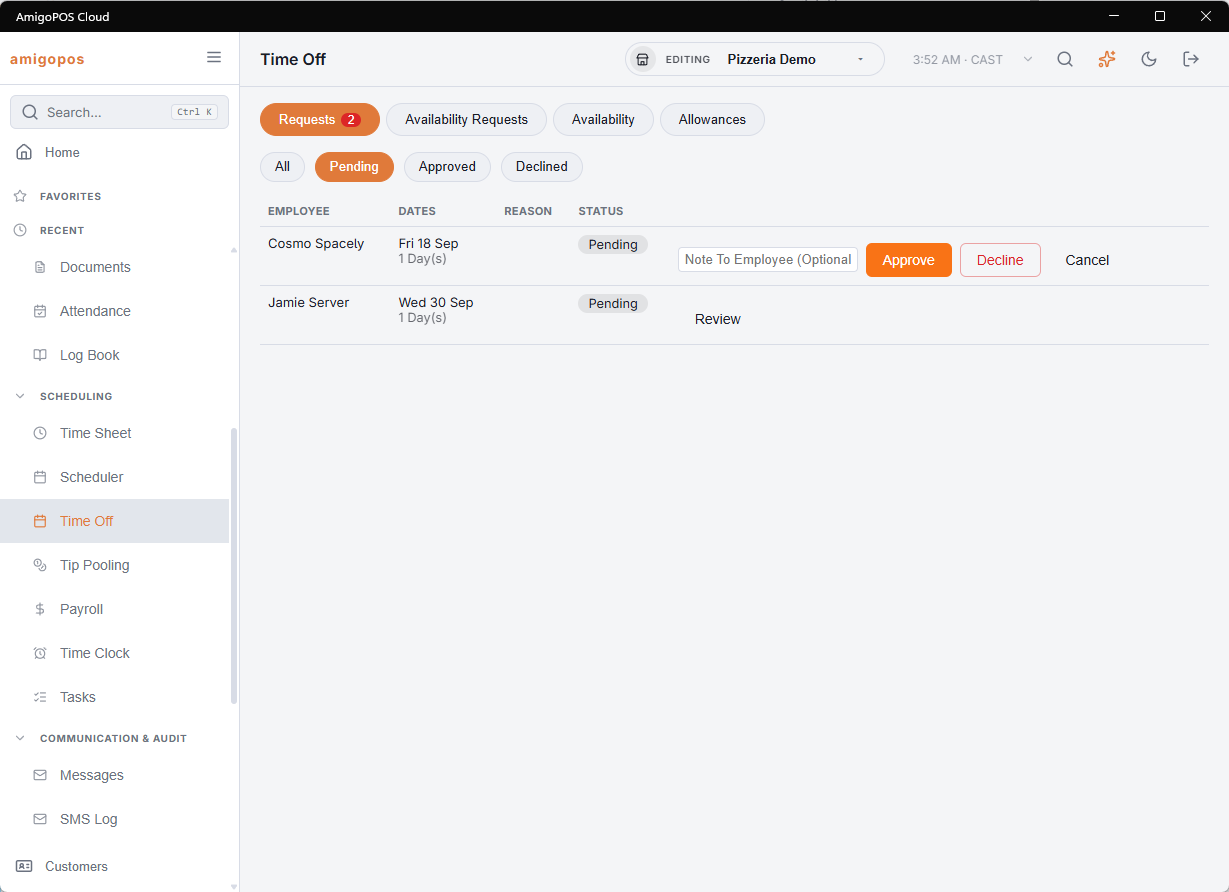
All, Pending, Approved and Declined filter the list; pending requests sort to the top. Each row shows the employee, the dates — with the number of days, or the times for part of a day, and Unpaid when it is unpaid — the reason and the status.
- When balances are on, a pending request shows Balance After This Request: n Days, in red when it would go below zero.
- Review opens a box for an optional Note To Employee (Optional), with Approve and Decline. Either way the employee gets a message with the dates and your note.
- A decided request shows who decided it and when, and the note.
Approved days show as Time Off on the scheduler grid and pending ones as Time Off?, so a conflict is visible while you build the week rather than after.
Part of a day, and unpaid days
A request can cover one date from a time to a time — the dentist at eleven, not the whole Tuesday — and it can be marked unpaid. Part days are charged against the balance as hours, eight hours to the day.
Availability Requests
With Availability Changes Need Approval on (Time Clock settings), an employee saving their weekdays sends a request instead of changing anything. This tab shows their Current week above the Proposed one, with the changed days marked; Approve applies it and Decline keeps the current one, each with an optional note to the employee.
Allowances
Paid time off per employee for the current time-off year, whose dates are shown under the table. Leave Allowance blank to use the store’s standard; use Adjustment for carry-over or corrections. Changes save as you leave each box. Used, Pending and Remaining follow from them.
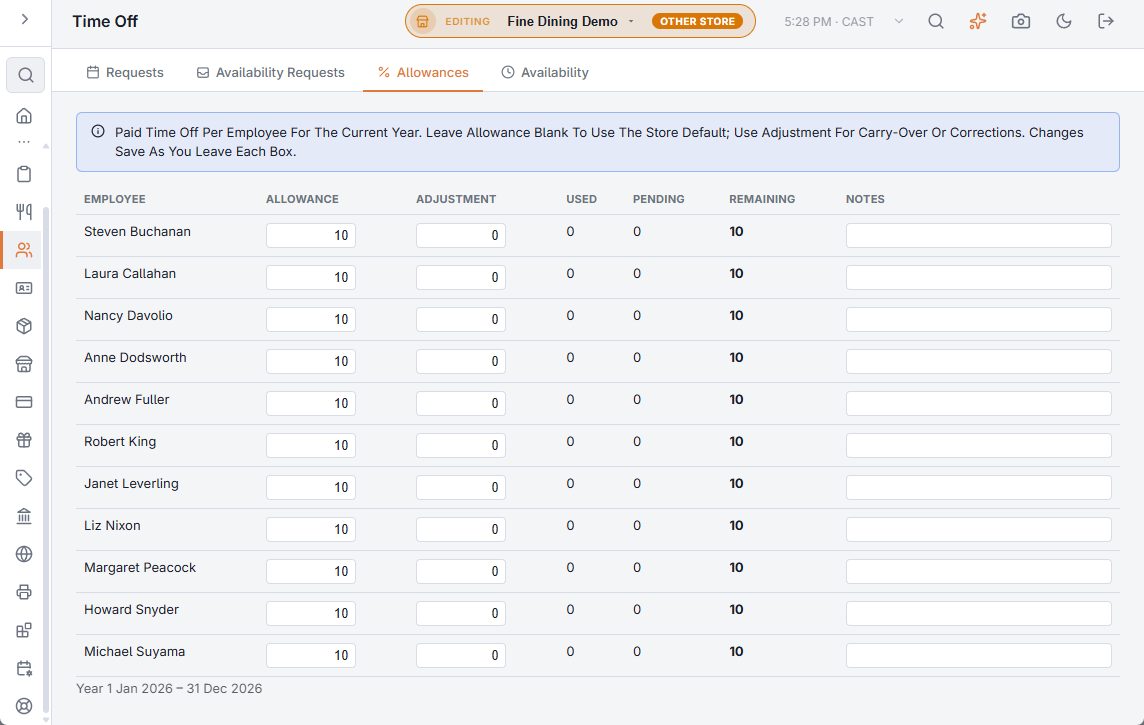
When days are earned from hours worked, an Earned column appears; point at a figure to see the hours worked behind it.
Availability
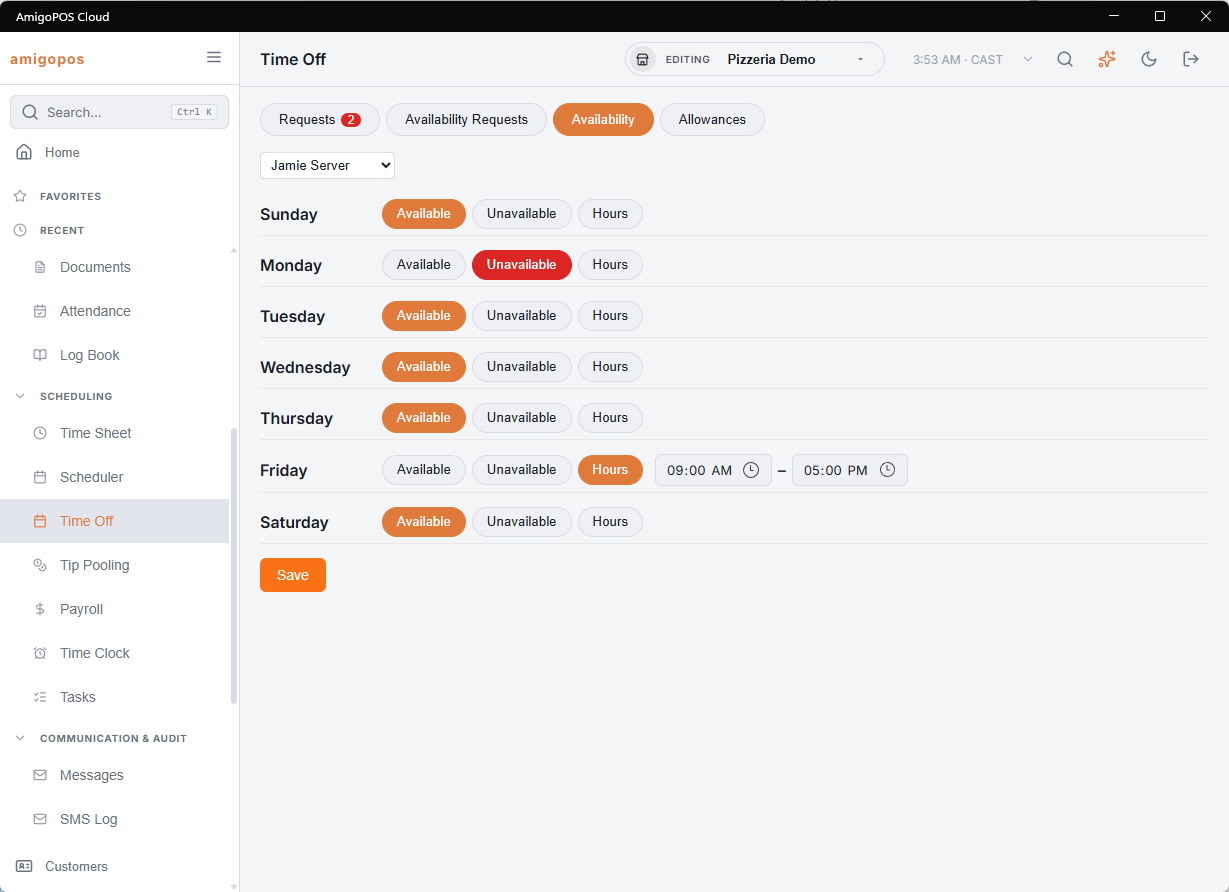
Pick an employee in Select Employee to edit their weekly availability with the same weekday editor the employee sees — for staff who tell you their availability in person. A manager’s change here always applies at once: you are the approval.
Paid time off settings
In Back Office › Employees › Scheduling › Time Clock, section Time Off & Availability (see Time Clock settings):
- Paid Time Off Per Year (Days) — the store’s standard allowance; 0 leaves balances off. The allowance is available from the start of the year.
- Time-Off Year Starts In Month — the month the year rolls over; 1 is January.
- Availability Changes Need Approval — see above.
Approvers then see what a request would leave, and the employee sees the balance on their phone.
Days earned from hours worked
Two settings in the same section add days off as employees work:
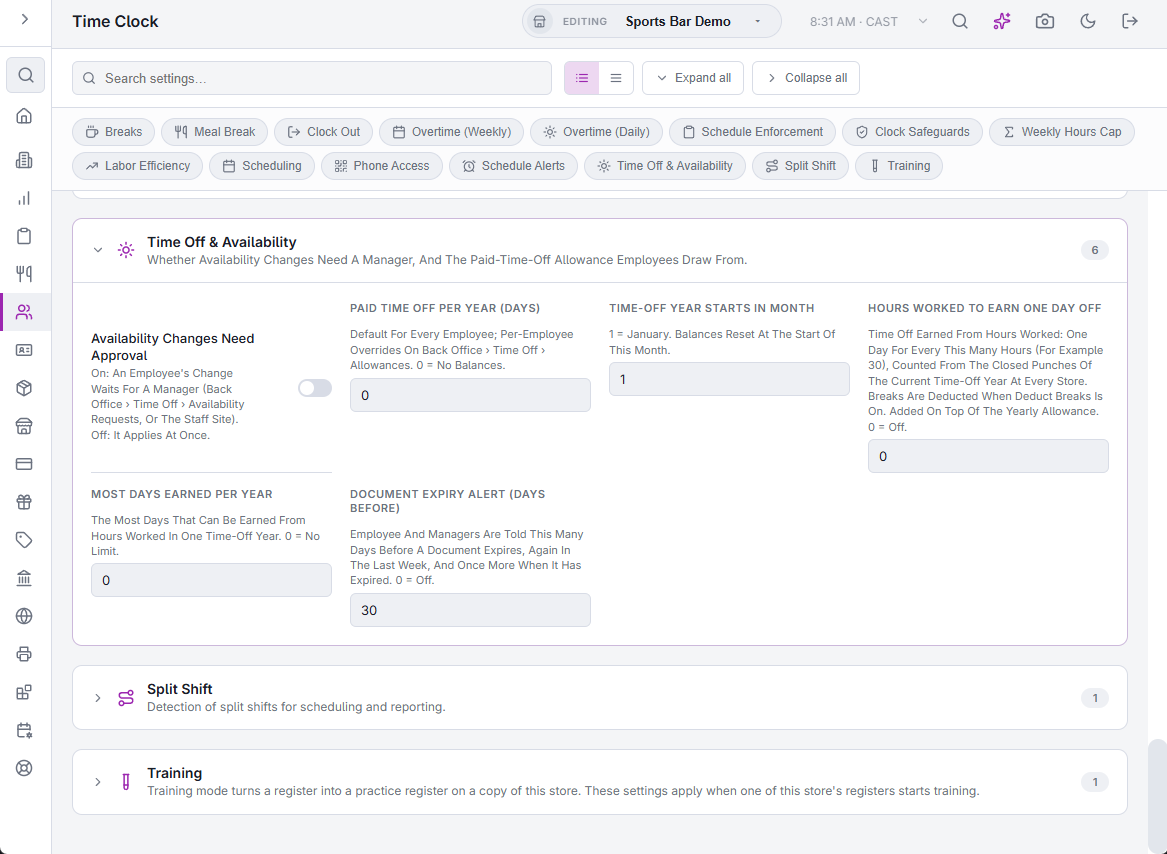
- Hours Worked To Earn One Day Off — 30 means one day for every 30 hours worked. 0 turns it off.
- Most Days Earned Per Year — a ceiling on the days earned this way in one time-off year. 0 means no limit.
The hours come from finished punches that started in the current time-off year, at every store, with breaks taken off when Deduct Breaks is on. Days are counted in fractions — 45 hours at 30 is 1.5 days — and a punch counts once it is clocked out. The count starts again with each time-off year.
Earned days are added on top of the allowance and any adjustment, so a store can give days for hours alone: switching earning on turns balances on even when the yearly allowance is 0.
- What a request would leave, shown to the approver, includes the earned days.
- On the staff site, the employee’s balance says how many days were earned and from how many hours.
Requests from phones
Staff using the staff site send availability and time-off requests from there; they arrive here exactly like requests made at the register, and the decision reaches them in the site’s Messages tab.