Back Office › Employees › Scheduling › Time Clock holds the store’s time-clock rules: breaks, what happens at clock-out, overtime, how strictly punches follow the schedule, the safeguards against forgotten clock-outs, and the settings for the staff site, schedule alerts and time off.
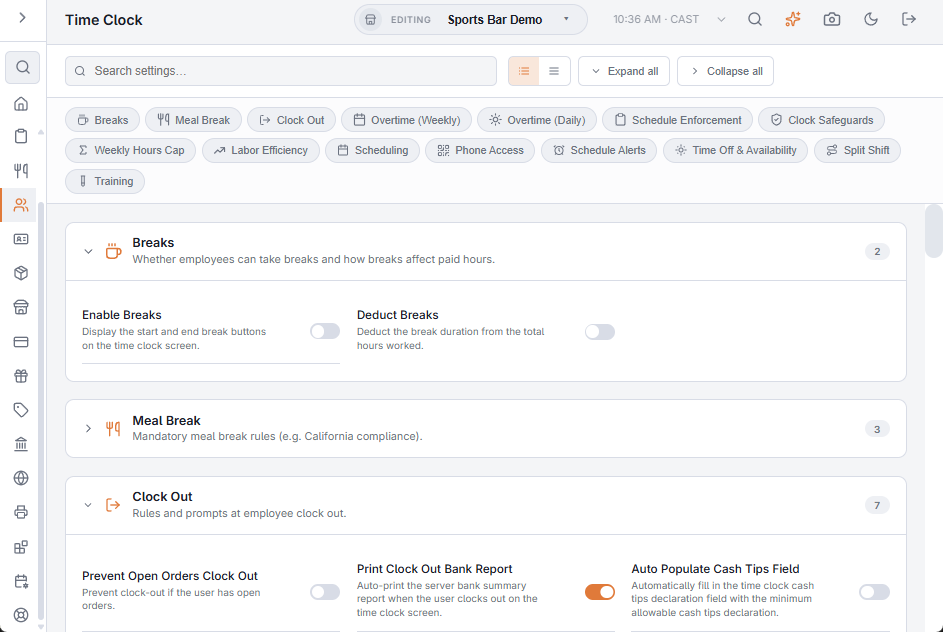
There is no Save button. A switch or drop-down saves as soon as you change it; a box saves when you leave it, with a tick to confirm. Search settings at the top finds a setting by name. Some sections open folded; click a section’s title to open it.
Breaks
- Enable Breaks — shows the start and end break buttons on the time clock screen, and on the staff site.
- Deduct Breaks — takes the break time off the hours worked.
Meal Break
- Meal Break Required — every shift needs a meal break. A shift without a qualifying break is flagged Missed Meal Break on the Time Sheet.
- Required After (Hours) — the hours worked by which the break must be taken.
- Minimum Duration (Minutes) — how long a break must be to count as the meal break.
Clock Out
- Prevent Open Orders Clock Out — an employee with open orders cannot clock out.
- Print Clock Out Bank Report — prints the employee’s bank summary when they clock out on the time clock screen.
- Auto Populate Cash Tips Field — fills the cash tips box with the minimum declaration.
- Display Tips Declaration Summary — shows the day’s sales and the minimum declaration on the cash tips screen.
- Blind Tip Declaration — the employee enters card tips and cash tips first; the shift’s sales, tip percentage and sales per hour appear only after.
- Enforce Minimum Cash Tips Declaration — refuses a cash tips amount below the minimum.
- Tips Declaration Percentage — the whole-number percentage used to work out the minimum declaration.
See Declaring cash gratuities.
Overtime
| Setting | What it does |
|---|---|
| Overtime Hours 1 and Overtime Hours Rate 1 | Weekly hours after which the first overtime multiplier applies, and the multiplier (1.5 for time and a half). |
| Overtime Hours 2 and Overtime Hours Rate 2 | A second, higher weekly tier and its multiplier. |
| Enable Daily Overtime | Overtime is also counted per day, as some US states require. |
| Daily Overtime After (Hours) | Hours in one day after which Overtime Rate 1 applies. |
| Daily Double-Time After (Hours) | Hours in one day after which Overtime Rate 2 applies. |
Overtime and labor cost are worked out when a punch is clocked out or saved. After changing these settings, use Recalculate on the Time Sheet for punches already closed; see Timesheets.
Schedule Enforcement
- Enforce Schedule — the master switch. When on, clock-in and clock-out are checked against the employee’s published shifts.
- Early Clock-In Grace (Minutes), Late Clock-In Grace (Minutes), Early Clock-Out Grace (Minutes) and Late Clock-Out Grace (Minutes) — how far before or after the scheduled start and end a punch is still allowed.
- Unscheduled Clock-In Policy — an employee with no shift tries to clock in.
- Out-Of-Window Policy — a punch outside the grace windows.
- Enforce Scheduled Job Code — the job clocked in under must be the one on the shift.
- Require Manager To Be Clocked In — a manager approving an override must be clocked in.
Each policy is Block (refused), Require Manager (a manager override) or Allow. A punch that needs a manager cannot be made from the staff site; the employee is told to use the register.
Clock Safeguards
- Auto Clock-Out After (Minutes) — closes a forgotten shift this many minutes after its scheduled end, or after the maximum shift length when there is no schedule. 0 turns it off.
- Minimum Rest Between Shifts (Hours) — refuses a clock-in this soon after the last clock-out. 0 turns it off.
- Maximum Shift Length (Hours) and Maximum Shift Policy — what happens when a shift runs longer: Warn (a flag on the manager screen), Auto Clock-Out or Require Manager.
- Overtime Warning Threshold (Weekly Hours) — warns the employee at clock-in once their hours this week reach it; the scheduler marks shifts past it too. 0 turns it off.
- Rounding Interval (Minutes) — rounds punch times to the nearest 5, 6 or 15 minutes, or Off. Check your local rules before using it.
Weekly Hours Cap
Weekly Hours Cap is the most hours an employee may build up in a week, and Weekly Hours Cap Policy what happens when they reach it: Block, Require Manager or Allow. 0 turns the cap off. The scheduler marks shifts past it in red.
Labor Efficiency
- Enable Labor Warnings, Labor Warning Threshold (%) and Minimum Shift Before Warning (Minutes) — a warning on the manager screen when a clocked-in employee’s labor cost passes this share of their own sales, once they have been on the clock for the minimum.
- Scheduled labor target % — the target for scheduled labor cost as a share of forecast sales, used by the scheduler and Draft From Forecast. 0 turns it off.
Scheduling
- Manager Approval For Shift Changes — when on, a pick-up or hand-over waits in the scheduler’s Approvals until a manager approves it. When off, it happens at once and managers are told. See Picking up, giving up and swapping shifts.
- Hide Tips Until A Manager Approves — employees see their net tips in My Hours only after every punch in that week is approved. See Reviewing and approving punches.
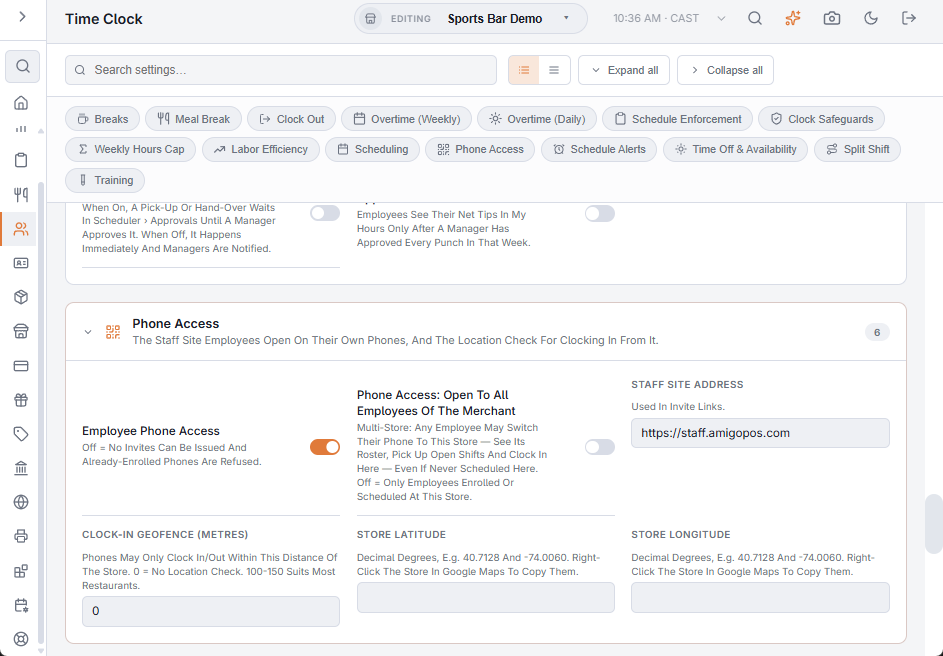
Phone Access
Employee Phone Access, Phone Access: Open To All Employees Of The Merchant, Staff Site Address, Clock-In Geofence (Metres), Store Latitude and Store Longitude set up the staff site. See Employee phone access (manager setup).
Schedule Alerts
- Shift Reminder (Minutes Before) — reminds the employee before their shift starts.
- Late Alert (Minutes After Start) — no clock-in this long after the start: managers are alerted and the employee is reminded. It is also the grace for late on Attendance and the Time Sheet.
- No-Show Alert (Minutes After Start) — still no clock-in: managers are alerted.
Each is 0 to turn it off. The alerts arrive as messages and as notifications on phones that have them on; see Phone notifications and schedule alerts.
Time Off & Availability
- Availability Changes Need Approval — an employee’s availability change waits for a manager.
- Paid Time Off Per Year (Days) — the standard allowance; 0 means no balances.
- Time-Off Year Starts In Month — 1 is January; balances start again that month.
- Hours Worked To Earn One Day Off and Most Days Earned Per Year — days off earned from hours worked, on top of the allowance.
- Document Expiry Alert (Days Before) — how far ahead employees and managers are told a document expires. See Employee documents and certificates.
See Time off and availability (manager).
Split Shift
Detect Split Shifts marks a shift as split when the same employee clocks in twice or more in one business day with more than an hour between. It only marks the shift; any split-shift premium is paid in your payroll service.
Training
Print Kitchen Tickets In Training — when on, a register in training sends its practice tickets to the kitchen printers, marked TRAINING. When off, it prints receipts and labels only. See Training mode: a practice register.