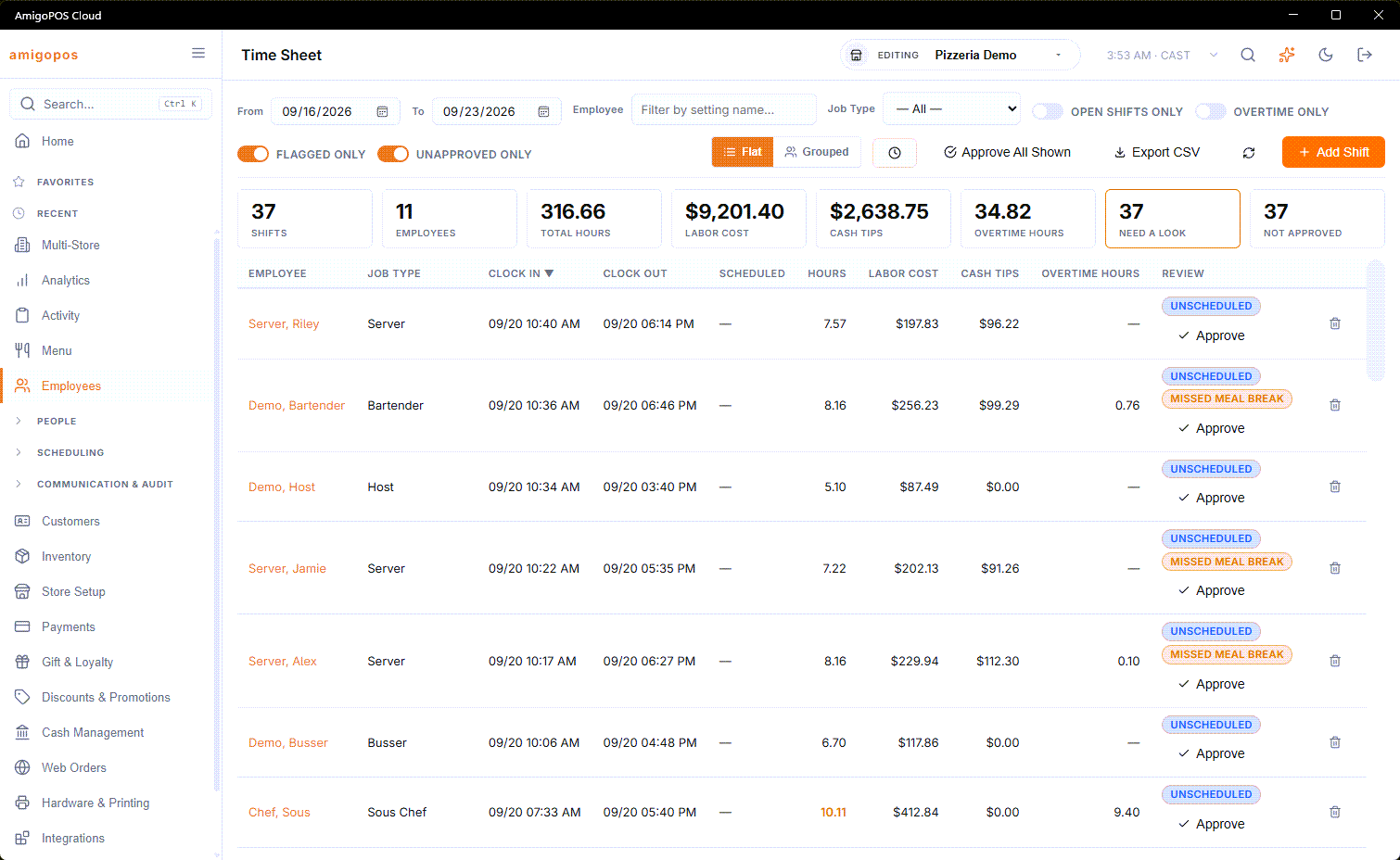
Once a week, before payroll, a manager goes through the week’s punches on Back Office › Employees › Scheduling › Time Sheet: fix what is wrong, add what is missing, approve the rest. The review columns and the approval buttons appear for managers only — employees whose job has the manager permission.
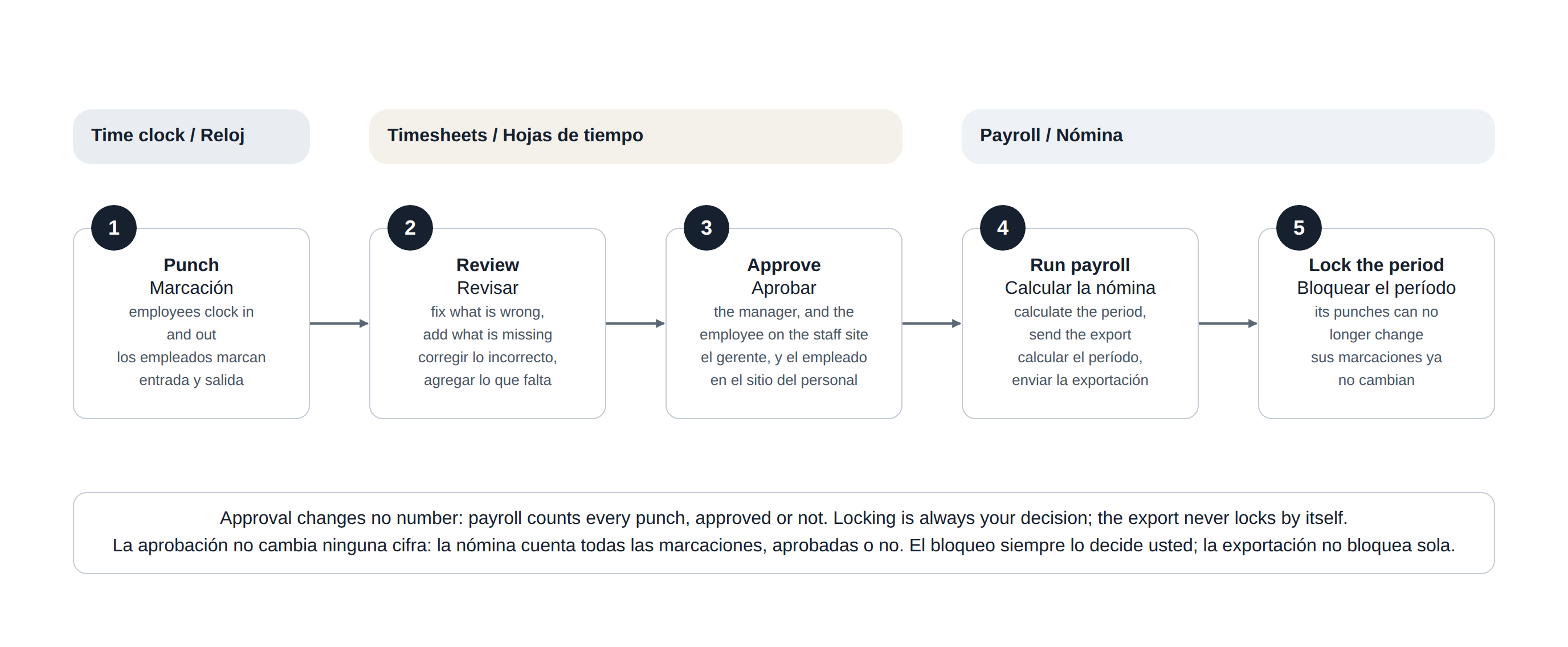
In one picture: the week's punches, from the time clock to the locked pay period.
What the review adds
- Scheduled — the published shift the punch served, and underneath it how far the punch was from it: clock-in against the scheduled start, then clock-out against the scheduled end, in minutes. +12m · −35m means twelve minutes late in and thirty-five minutes early out.
- Review — a label for anything worth a second look, and the approvals.
- No Punch rows at the top of the list — published shifts that ended without any punch.
- Flagged Only and Unapproved Only switches in the toolbar, and Need A Look and Not Approved counts in the summary strip.
The Scheduled and Review columns and the No Punch rows are part of the flat view. A punch is matched to its shift the way Attendance history does it: the shift it was clocked in for, otherwise the employee’s nearest shift starting within four hours of the clock-in.
The labels
- Not Clocked Out — still clocked in from an earlier business day, an hour past the end of the shift, or for more than 12 hours. Almost always a forgotten clock-out.
- Auto Clock-Out — the time clock closed the shift by itself (automatic clock-out or the maximum shift length), so the clock-out time is the scheduled end or the limit, not when the person left.
- Late In — clocked in later than the scheduled start plus the grace in Late Alert (Minutes) (Employees › Scheduling › Time Clock › Schedule Alerts), ten minutes if that is off.
- Early Out — clocked out more than 15 minutes before the scheduled end.
- Late Out — clocked out an hour or more after the scheduled end. The usual story is a clock-out that was forgotten and done later.
- Over 12 hours — a finished punch longer than twelve hours.
- Unscheduled — no published shift near the punch. It only appears when the store publishes schedules for those dates, so a store that does not schedule is not flooded with it.
- Missed Meal Break — the store’s meal-break rule was not met on that shift.
Missed clock-ins
A No Punch row is a published shift that has ended with no punch at all. Either the employee did not come in, or they worked and forgot to clock in. For the second case, the + button on the row (Add Punch) opens Add Shift with the employee, job and scheduled times already filled in and linked to that shift — set the times actually worked and save.

Approving
- Approve on a row signs off that punch. It becomes Approved · name, naming the manager who approved it.
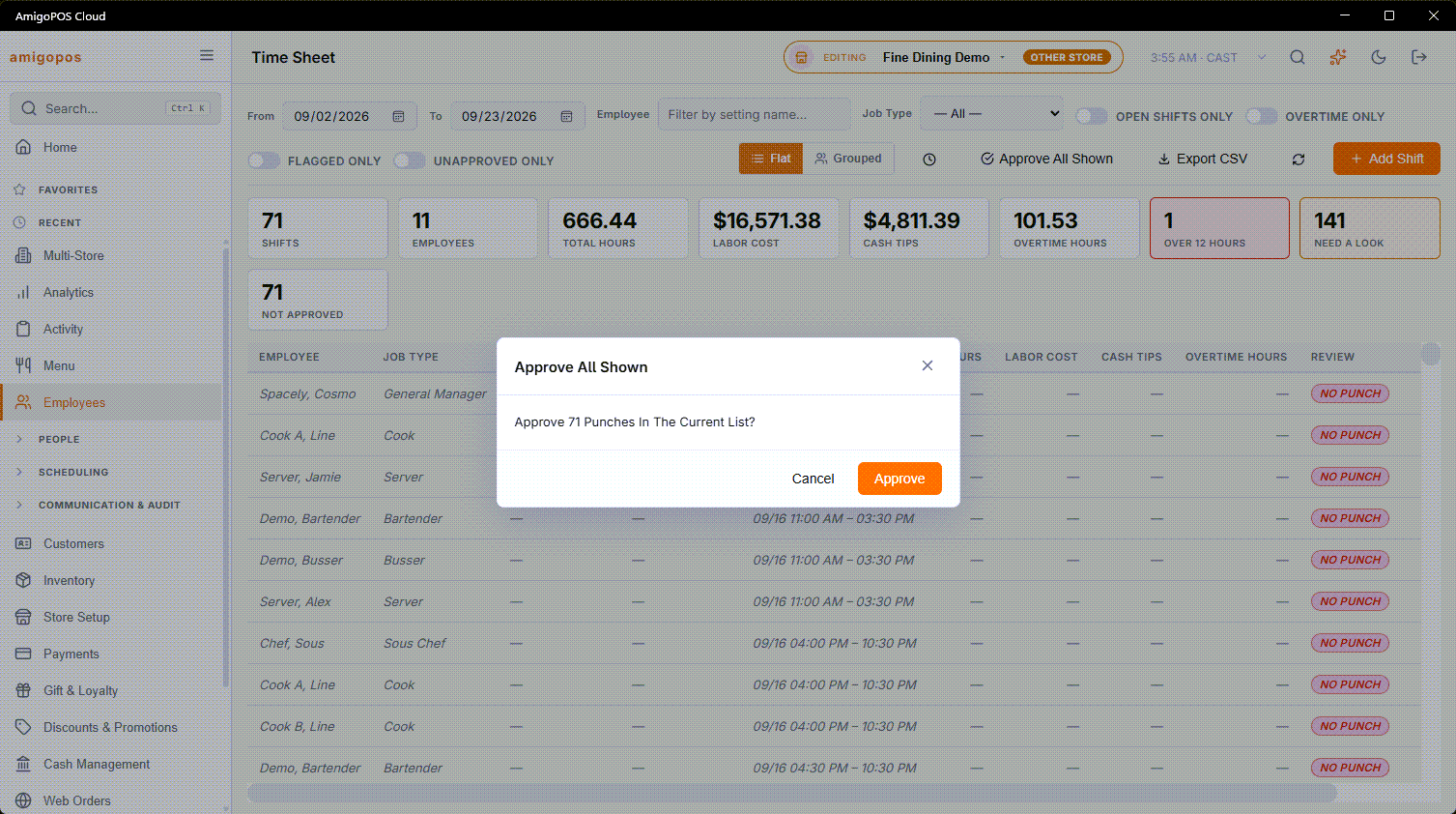
- Approve All Shown in the toolbar approves every finished punch in the list as it is filtered right now, after asking. Narrow the list first — one week, one employee, or Unapproved Only.
- Clicking an Approved label withdraws that approval.
- A person icon with a check means the employee approved the punch themselves on the staff site.
Punches still running cannot be approved, and neither can punches inside a locked pay period. Approve All Shown skips them and says how many it skipped.
When an approved punch is edited
An approval is for the punch as it was. Changing the employee, job, clock-in or clock-out time, pay rate or tips — here, or from the time clock at the register — clears both the manager’s and the employee’s approval, so the corrected punch comes back as not approved and goes through the review again.
Approval and payroll
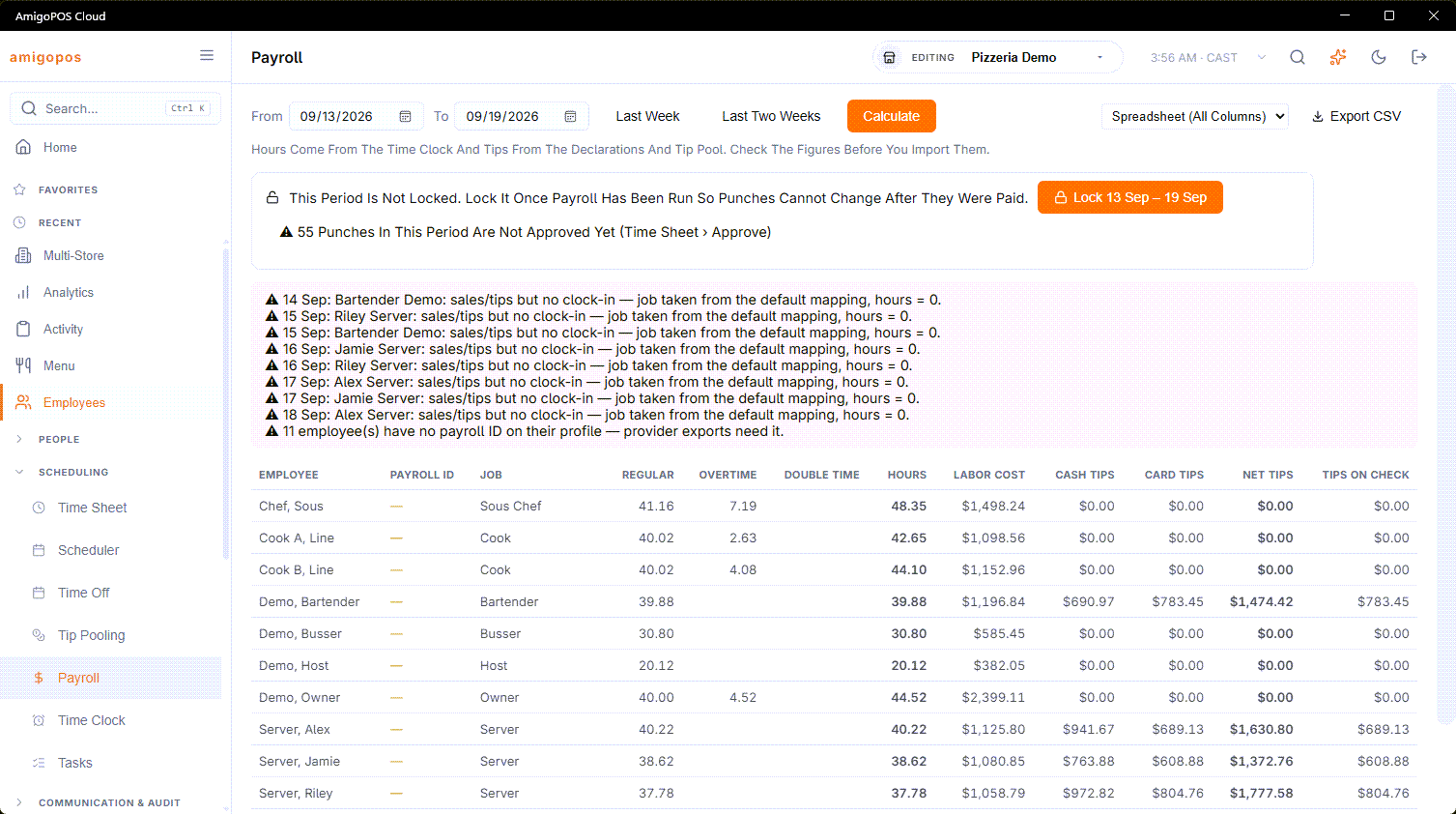
Approval changes no number. Hours, labor cost and tips are the same approved or not, and Payroll calculates from every punch; what approval adds is a record that each punch was looked at. When you lock the period on the Payroll page, the lock panel says how many finished punches are still not approved — a reminder, not a block.
Export CSV on Timesheets carries the review too, in five extra columns: Scheduled, Flags, EmployeeApproved, ManagerApproved and ApprovedBy.
Employees approving their own hours
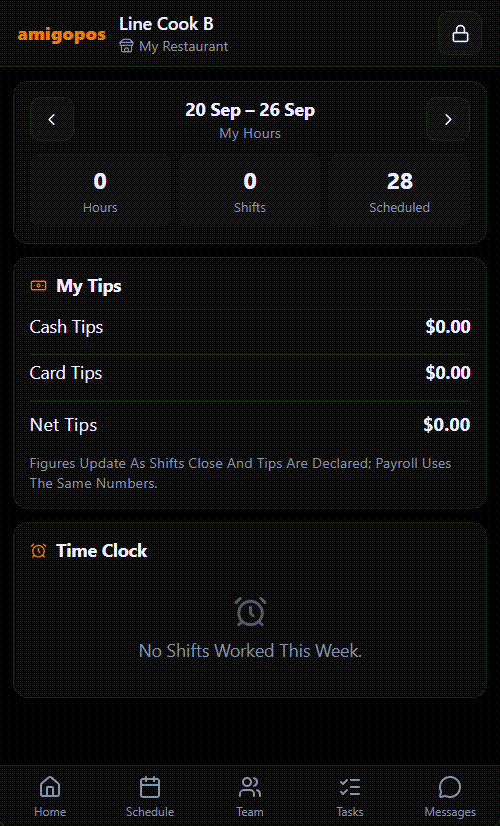
Employees with phone access approve their week on the staff site, under My Hours & Tips, with Approve My Hours. It confirms their finished punches for that week. The employee’s approval and the manager’s are separate — neither needs the other.
A weekly routine
- Set the dates to last week, in the flat view.
- Switch on Flagged Only and work through the list: correct the times, add the missing punch from a No Punch row, or leave a punch that was right.
- Switch Flagged Only off and Unapproved Only on, look down the list, and press Approve All Shown.
- If your staff approve their own hours, check that they have before payroll.
- Run Payroll, send the export and lock the period.
Disputed punches
Employees can dispute a punch from My Hours — at the register or on the staff site — with a note. Every manager gets a message, the punch’s approvals are cleared, and the Review column shows a red Disputed tag with the employee’s note.
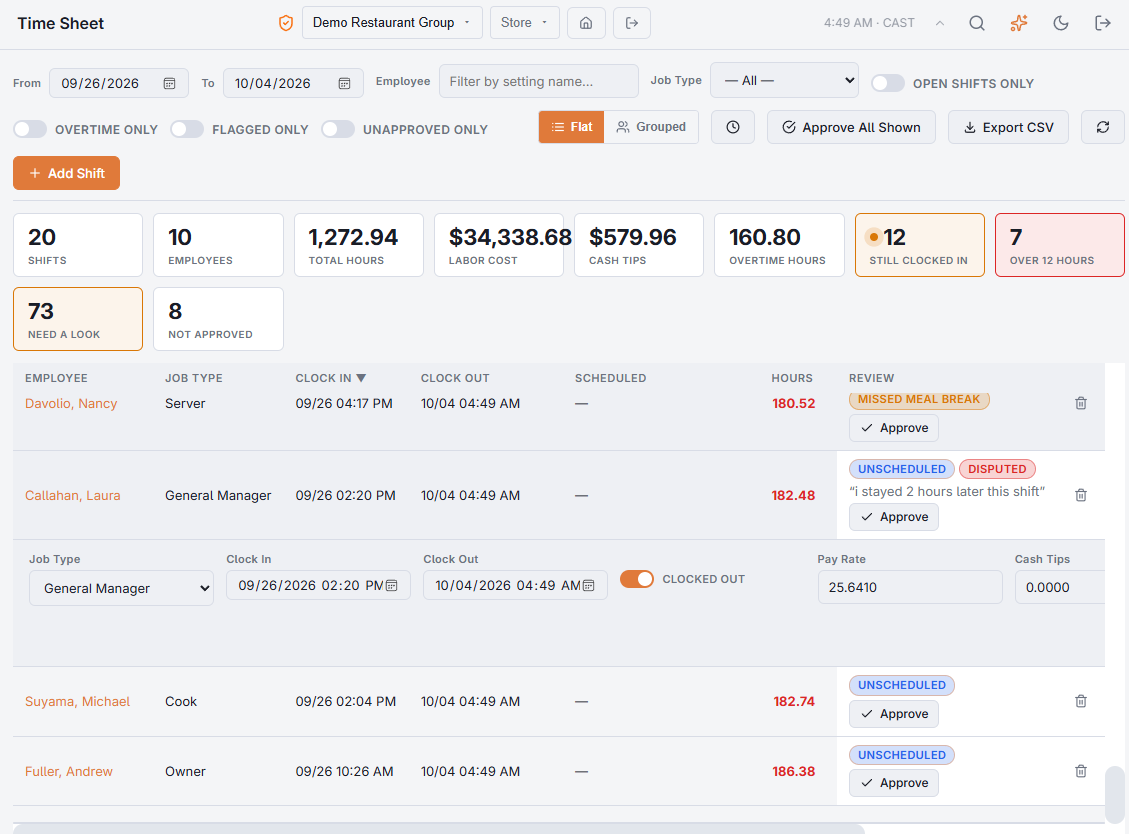
- Approve on a disputed punch keeps it as it is and closes the dispute.
- Editing the punch closes the dispute too, and sends it back to the employee to review.
- Approve All Shown leaves disputed punches out, so each one is decided on its own.
Hiding tips until you approve
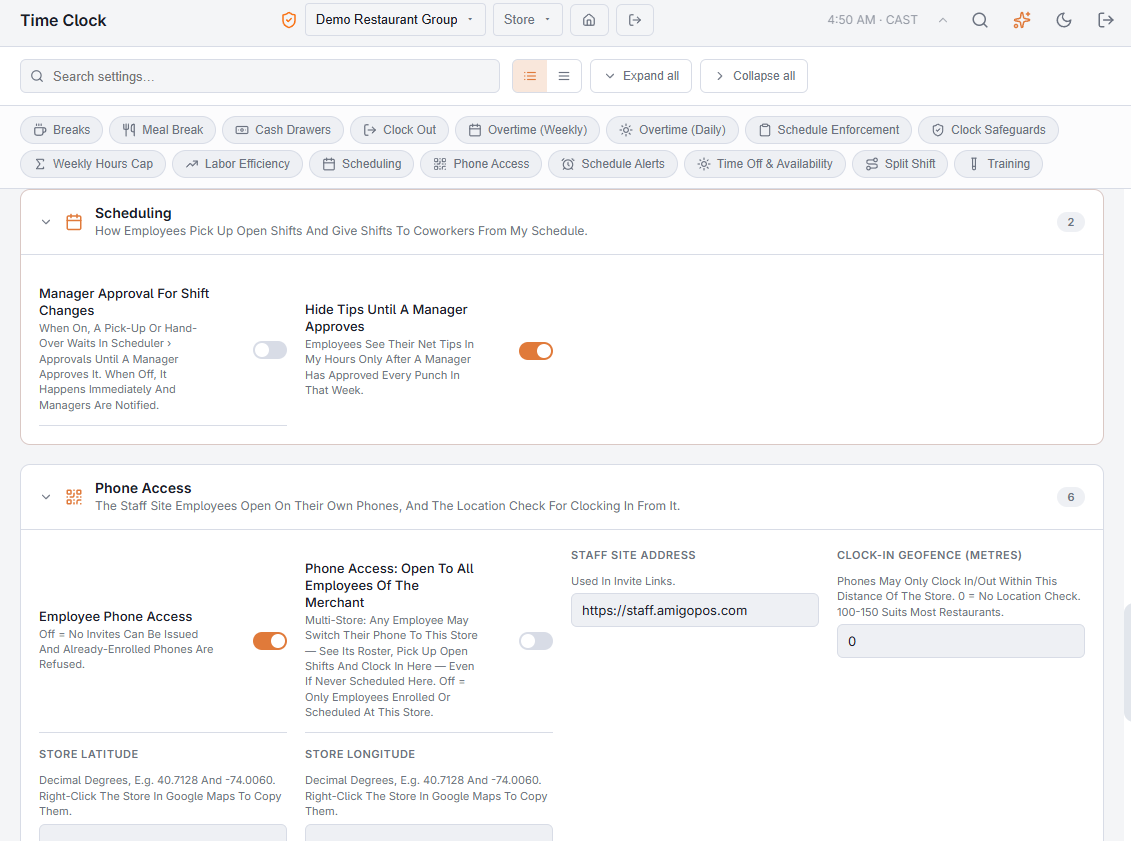
Hide Tips Until A Manager Approves (Back Office › Employees › Scheduling › Time Clock, under Scheduling) keeps employees’ net tips off My Hours until every punch in the week is manager-approved. It is off by default.
From a manager’s phone
The staff site’s Time Punches page shows the same review for a week — labels, disputes, approvals, locked periods and the No Punch shifts — and its Approve and Approve All Shown are the same approvals as here, under the same rules. It also closes a forgotten clock-out at the time the person left. Editing, adding and deleting punches stay on this page. See Fixing punches from your phone.