Two punch fixes can be made from a manager’s phone: closing the punch of someone who forgot to clock out, and approving the week’s punches. Everything else about punches — changing times, adding a missing punch, deleting one — stays on Timesheets in Back Office; see Reviewing and approving punches.
Both need a job with manager access, which the server checks on every request, and neither works on your own punches: another manager, or Back Office, looks after those.
Clocking out someone who forgot
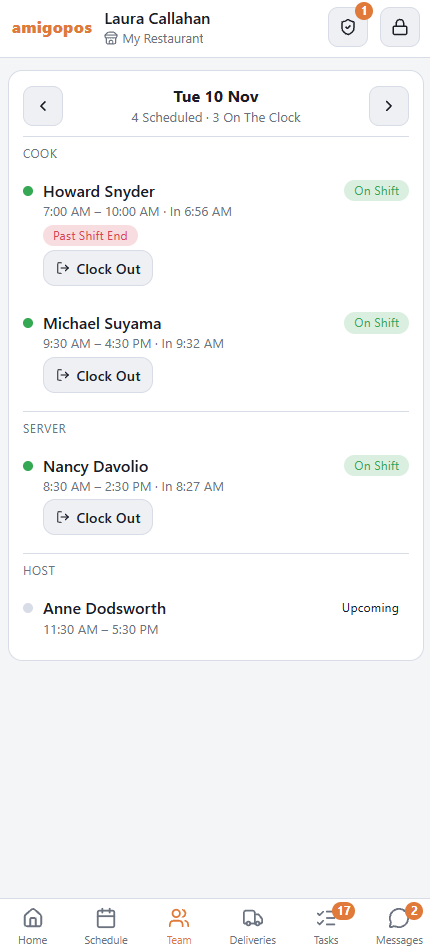
- Open Schedule › Team. Everyone else still on the clock has a Clock Out button under their name.
- Tap it and set the time the person actually left. It must be after their clock-in and after any break, and not in the future.
- Tap Clock Out to confirm.
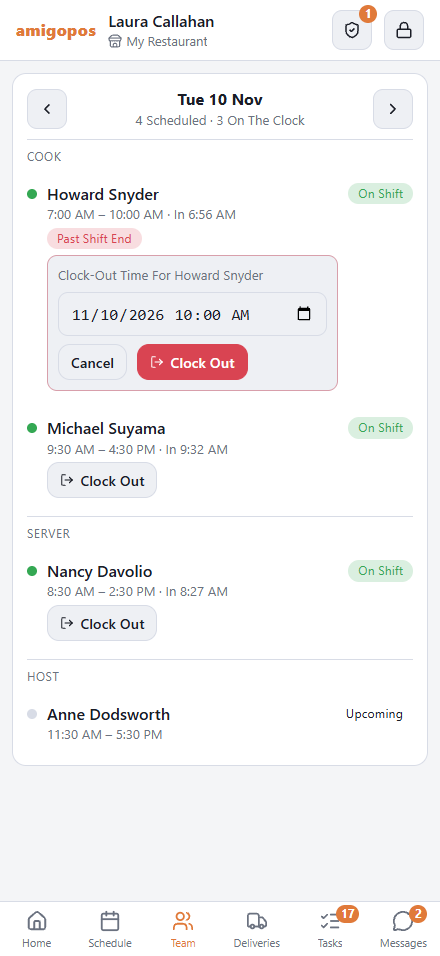
- A break still running ends at the same time, and the time follows the store’s punch rounding, as at the register.
- The employee gets a message saying who clocked them out, and at what time.
- The override log records it as Manager Clock-Out (Phone), with the employee as the user and you as the one who authorized it.
- The closed punch is on Timesheets like any other, ready for the weekly review.
- A driver with deliveries still out, or delivered and not banked, can’t be clocked out until they are banked; the phone shows “You Still Have Deliveries Out. Bank Them Before Clocking Out.”
On Today, the Past Shift End chip and the warning about someone still clocked in from yesterday open the Team page showing only who is Still On The Clock; the chip beside it shows the whole day again.
The Time Punches page
More › Time Punches, and the link at the bottom of the Labor card on Today, open a week of punches as the Back Office review sees them, by the store’s business week. The arrows change the week.
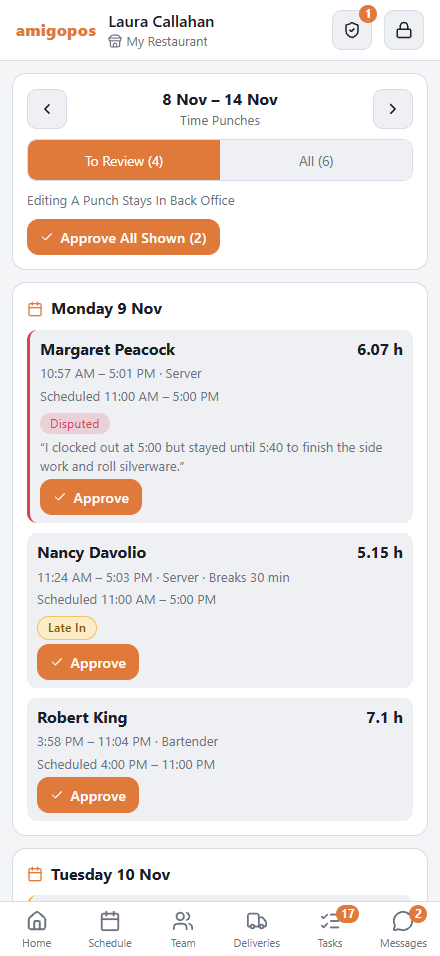
- To Review — the punches that need you: finished and not approved yet, disputed, or still running from an earlier day or long past the shift. Your own punches and those in a locked pay period are left out.
- All — every punch of the week, those included.
- Each punch shows its times, job, breaks and scheduled shift, with the same labels as Timesheets (Not Clocked Out, Late In, Early Out and the rest), Disputed with the employee’s note, and Locked inside a locked pay period.
- A punch still running has Clock Out here too.
Approving
- Approve signs off one finished punch, exactly as on Timesheets, where it then shows as approved with your name.
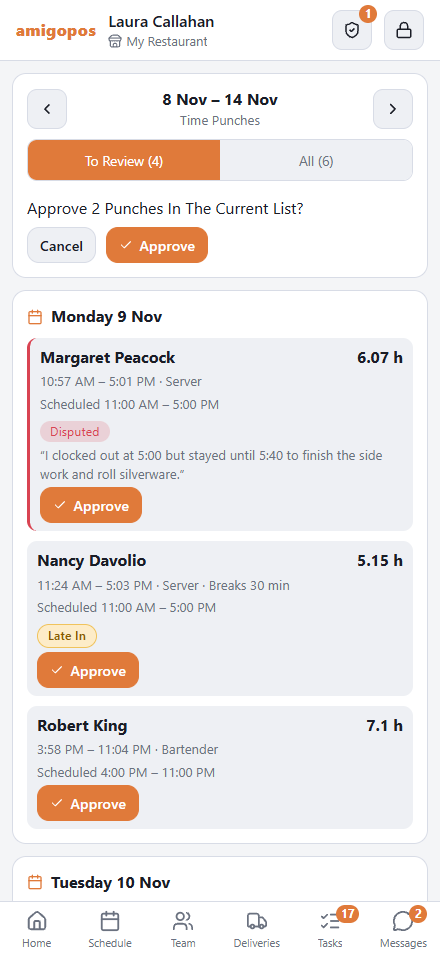
- Approve All Shown approves every finished punch in the list, after asking. As on Timesheets, it leaves disputed punches out: approve each of those on its own, which also closes the dispute.
- Punches still running and punches in a locked pay period cannot be approved.
Published shifts that ended with no punch at all are listed at the bottom under No Punch. Add the missing punch in Back Office.