Put a QR card on each pool table, lane or room. Guests scan it and see, on their own phone, how long they have played, what the game has cost so far and what else is on the check — and they can call their server without walking to the bar.
What the guest sees
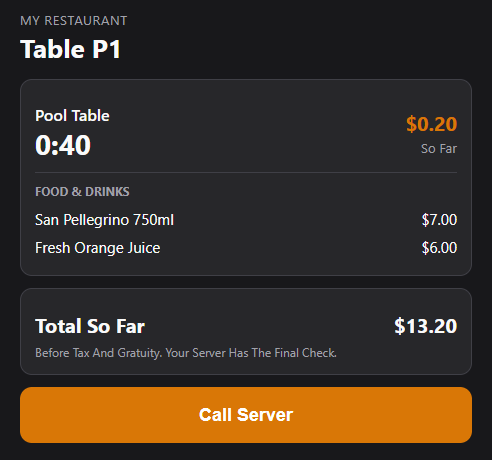
- The store name and the table.
- Each running game: a large clock and the charge so far, both ticking every second. A paused game shows ⏸ and stops.
- Food and drinks on the open check, and Total So Far with the note that it is before tax and gratuity.
- A big Call Server button.
- Nothing can be changed from the page: no stopping, pausing or ordering.
The page refreshes itself every two minutes to pick up stopped timers, new items and new games. It shows in English, Spanish or Arabic from the phone’s language, and follows the phone’s dark mode. When nothing is running it says so.
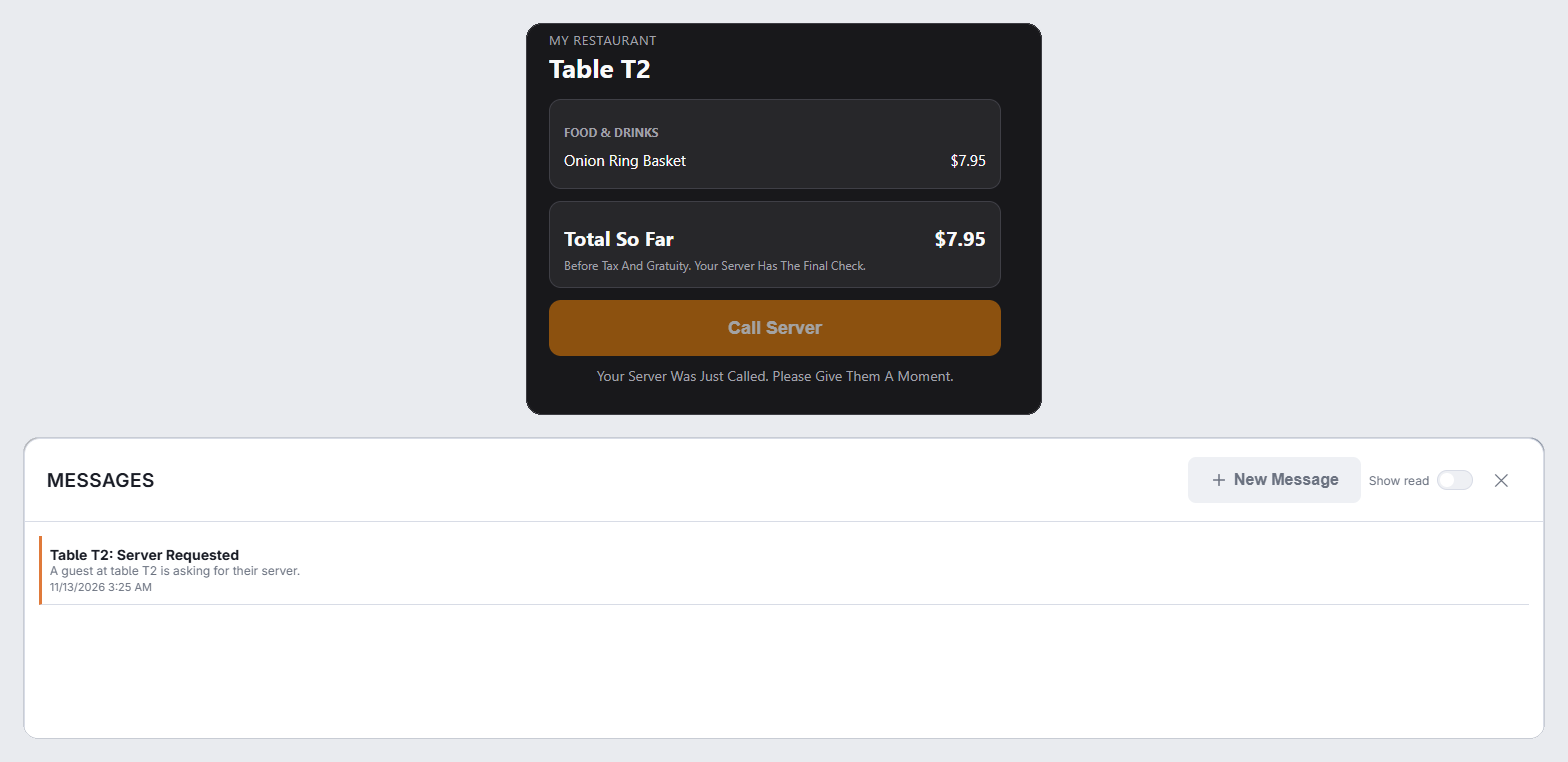
Call Server
The button sends a quick alert to the server on the table’s check — or to the managers if nobody has the check — naming the table. Staff devices get it straight away. Tapping again within two minutes sends nothing more; the guest is told the server was just called.
Printing the cards
- Open Back Office › Activity › Orders › Table Time.
- Tap Guest QR Cards. The PDF preview opens with one card per timed table, in the same card design as the QR ordering cards, with the line Scan To See Your Table Time.
- Print, cut and put each card on its table.
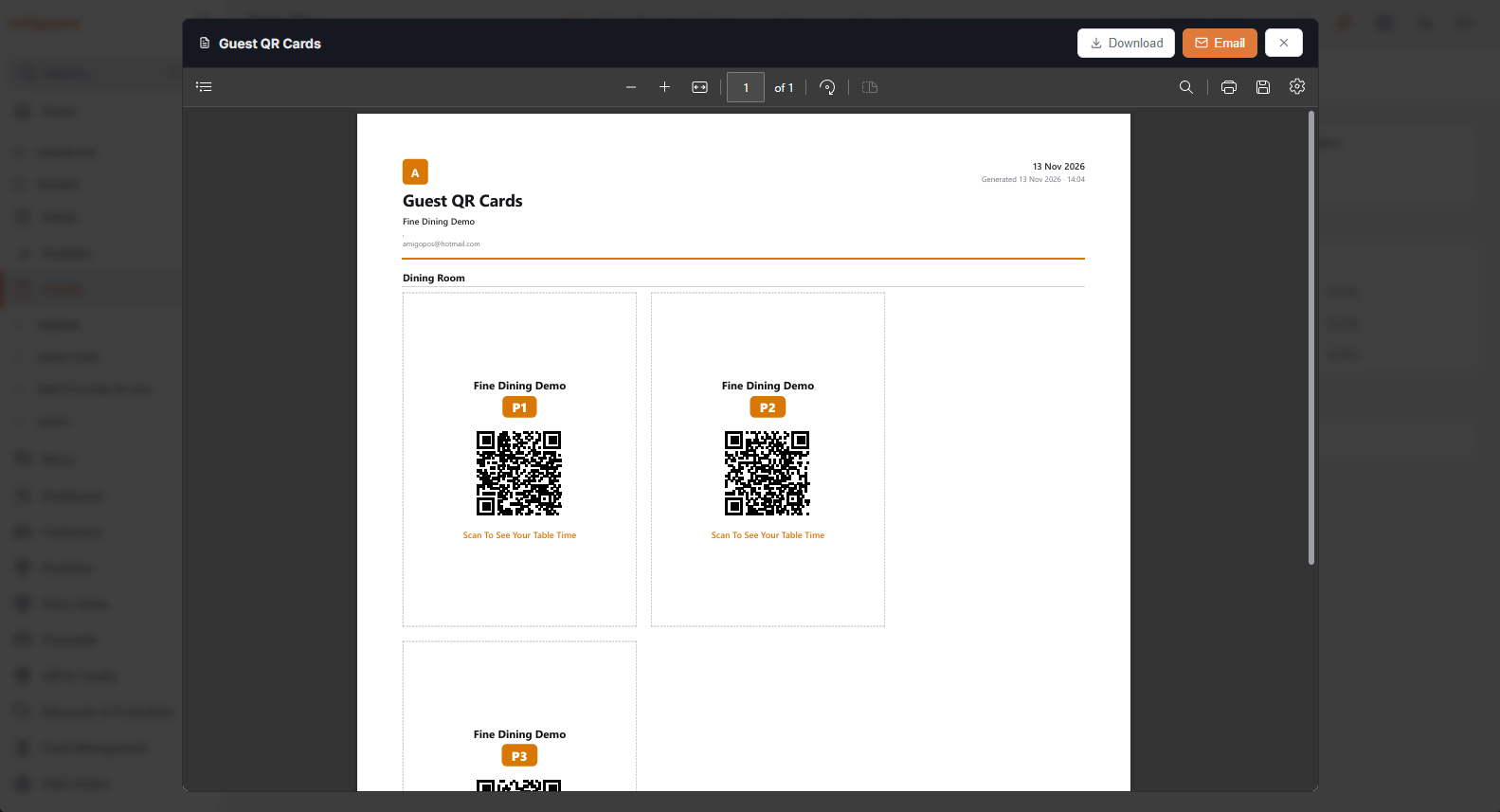
- Timed tables that have no QR code yet get one when the cards are made. Tables that already have one keep it.
- The code is the table’s own: a card only ever opens its own table, and nothing in the address can be guessed or changed to see another.
- Re-print a card when a table is renamed. Revoking a table’s code on the QR ordering page also retires its guest card.
The cards use the public address that the pay-at-table links use. If it is not set, the PDF says so; see Stripe setup for where it is entered.
A table that also uses QR ordering has two different codes. Label the cards clearly — Order and Your Table Time — so guests scan the right one.