Back Office › Hardware & Printing › Registered Devices keeps the log bundles each device has uploaded. You can read a bundle there, download it, or have AI read it and list the problems it finds, with likely causes and fixes.
Getting a station’s logs to Back Office
- On the register, open More › Settings and go to Diagnostics.
- Optionally type a note in What happened? (optional). It is shown with the bundle.
- Press Upload To Back Office. The register says Logs saved in Back Office. Email Support does the same and also sends the logs to support.
Opening a bundle
- In Registered Devices, press the document icon (Logs) on the device’s row.
- The window lists its bundles with Date, Version (and platform), Size and Note. A bundle that was also emailed shows the address it went to.
- Press View on a bundle.
Below the list you then see Download (the whole bundle as a zip file), Analyze With AI, the device’s summary (device-info.txt) and Recent Lines: the last 400 lines of its newest log file. Delete on a bundle removes it after a confirmation.
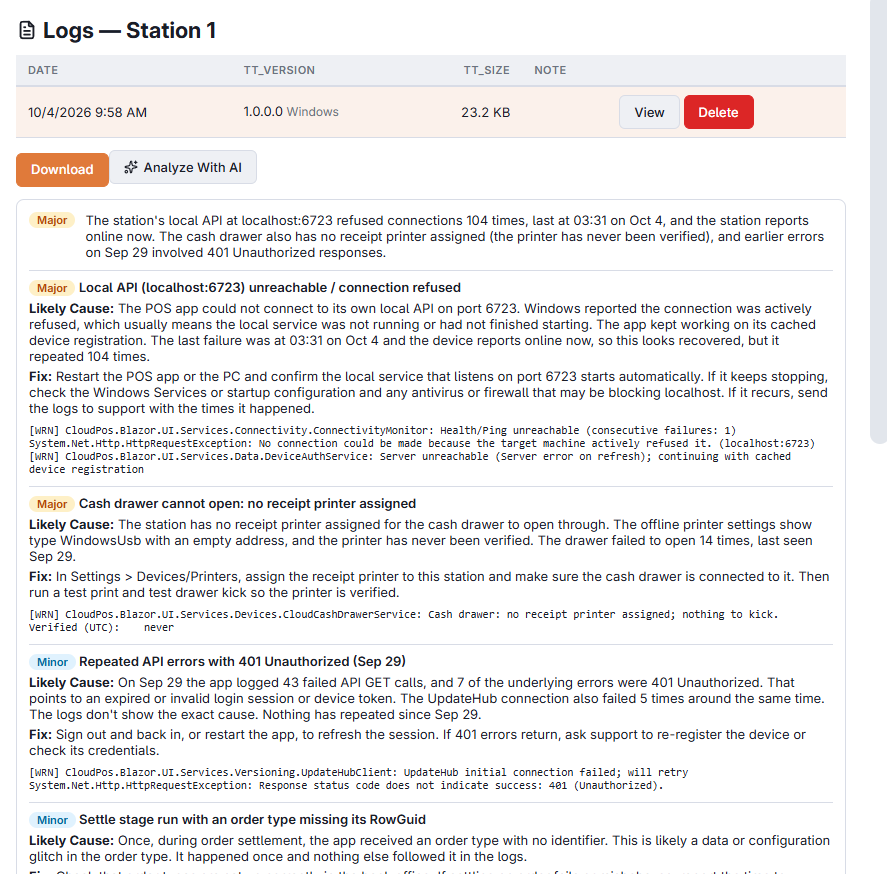
Analyze With AI
Press Analyze With AI on the bundle you are viewing. You get:
- An overall severity — No Problems, Minor, Major or Critical — and a short summary.
- Findings, each with its severity, a Likely Cause, a Fix to try and up to three lines copied from the logs as evidence.
- Next Steps.
The analysis is written in the language Back Office is using. It is kept for 24 hours, so analyzing the same bundle again in that time costs nothing. If the steps do not help, send the logs with a Submitting a support ticket.