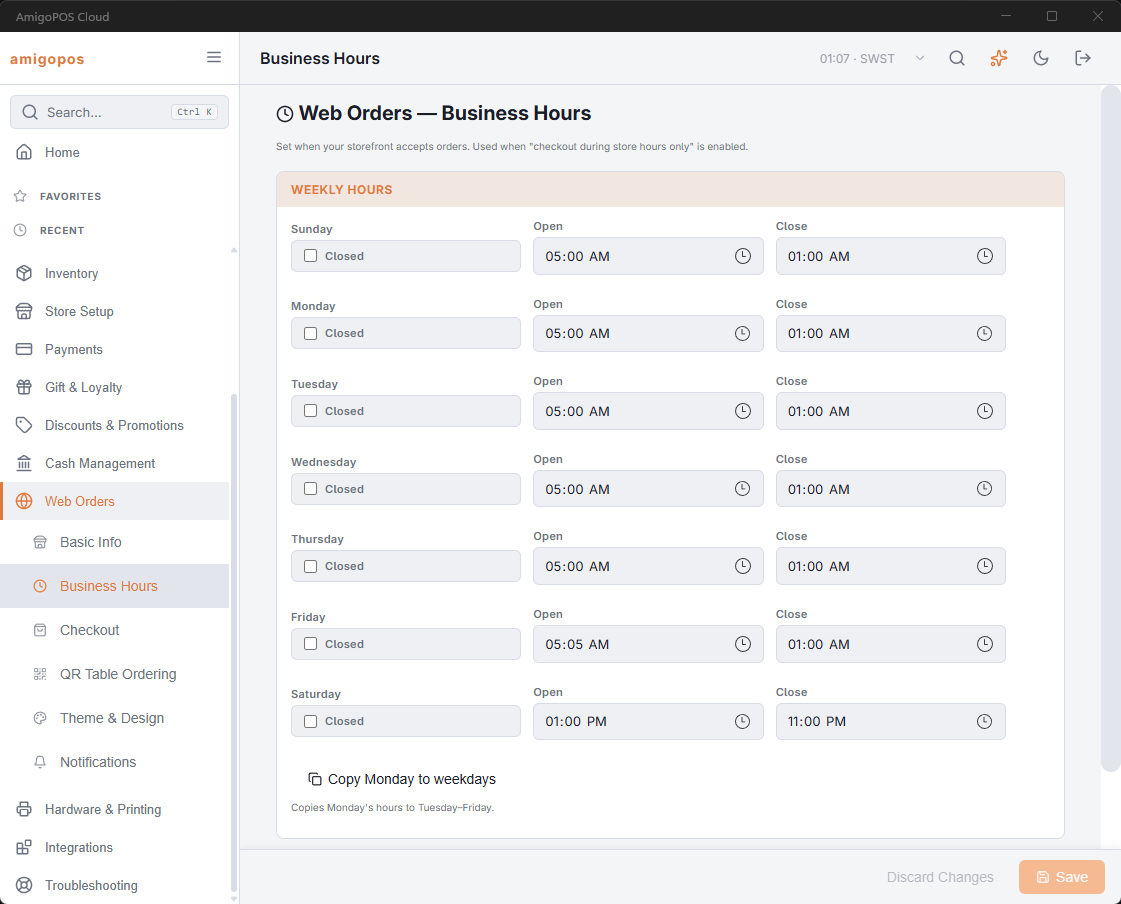
Weekly hours
Uber Eats uses the same weekly opening hours as your web ordering site. Set them under Back Office › Web Orders › Business Hours, then publish the menu — the hours travel with it.
Holidays and one-off closures
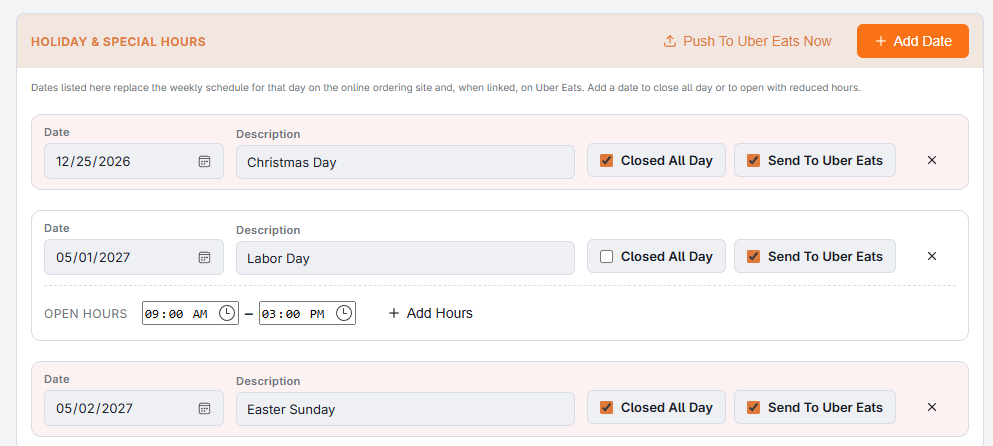
Closing for a public holiday, or opening late for one day, is a holiday hours override on the same page, under Holiday & Special Hours. These are date-specific and sit on top of the weekly pattern.
Press Add Date, tick Closed All Day or add the hours you will actually trade, leave Send To Uber Eats ticked, and save. The full set is sent to Uber within seconds; Push To Uber Eats Now sends it again on demand.
Pausing during service
Pausing takes the store off the marketplace immediately without touching hours or menu. Use it when the kitchen genuinely cannot fulfil orders — a printer failure, a backed-up pass, staff shortage.
Go to Back Office › Integrations › Uber Eats › Connection. The Uber Eats Availability card shows whether the store is online right now. Choose how long in Pause For — 15 minutes up to 4 hours — and press Pause Store. The store comes back by itself when the time runs out; Resume Store brings it back sooner.
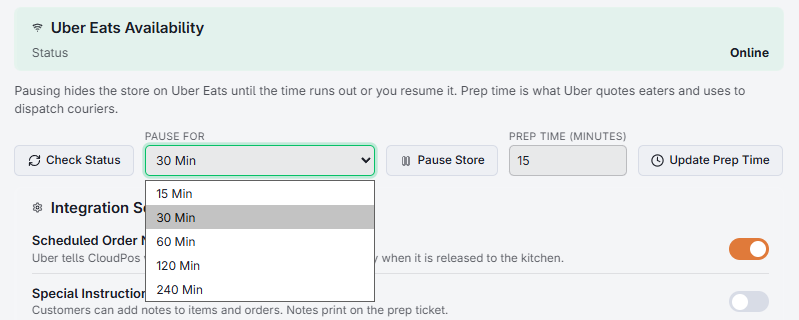
Always set a time for the pause to lift. A store paused during a rush and forgotten stays invisible until somebody notices the missing revenue.
Store prep time
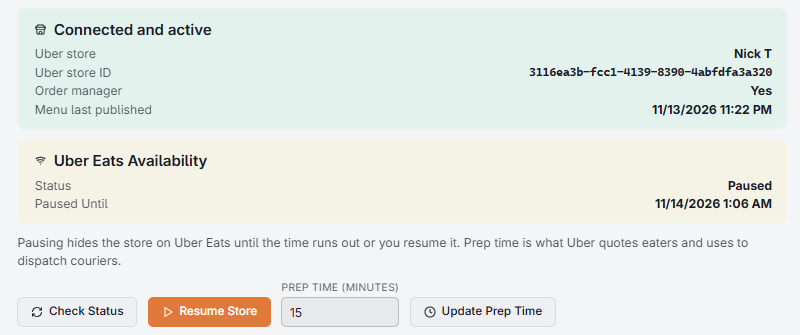
The same card sets the store’s prep time on Uber — the time Uber quotes eaters before they order and uses to send couriers when no time comes with the order. Enter the minutes in Prep Time (Minutes), from 1 to 180, and press Update Prep Time. The box shows the value Uber holds; it is read from Uber each time the tab opens and when you press Check Status.
Lengthen it during a rush so couriers arrive when the food does, and shorten it again afterwards. It is separate from Default prep time in Settings, which is sent with each order as it is accepted and decides that order’s ready time.
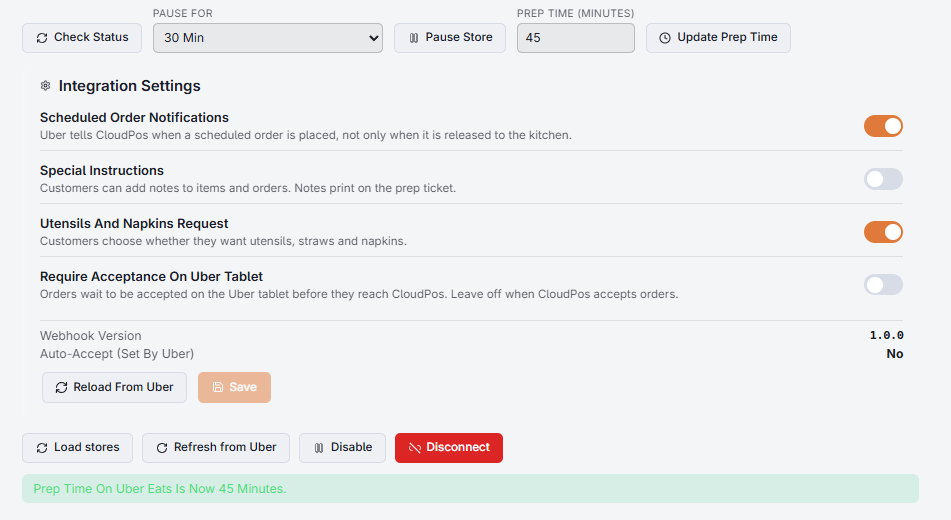
Reading the availability card
- Status — Online, or Paused when the store is not taking orders.
- Offline Reason — shown only when the store is not online: Uber’s reason, exactly as Uber sends it.
- Paused Until — when a pause ends by itself.
Press Check Status to read them again.
Why the store is not showing
The reason on the availability card explains most cases:
- Outside menu hours — the current time is not inside the published hours. This is by far the most common reason.
- Paused by the restaurant — somebody paused it, here or in Uber’s own tools.
- Paused by Uber — Uber has taken the store offline; your partner manager will know why.