Back Office › Integrations › Uber Eats › Settings. Settings save as you change them. The settings Uber itself keeps for the store — special instructions, utensils, scheduled order notifications — are on the Connection tab instead; see Connecting a store to Uber Eats.
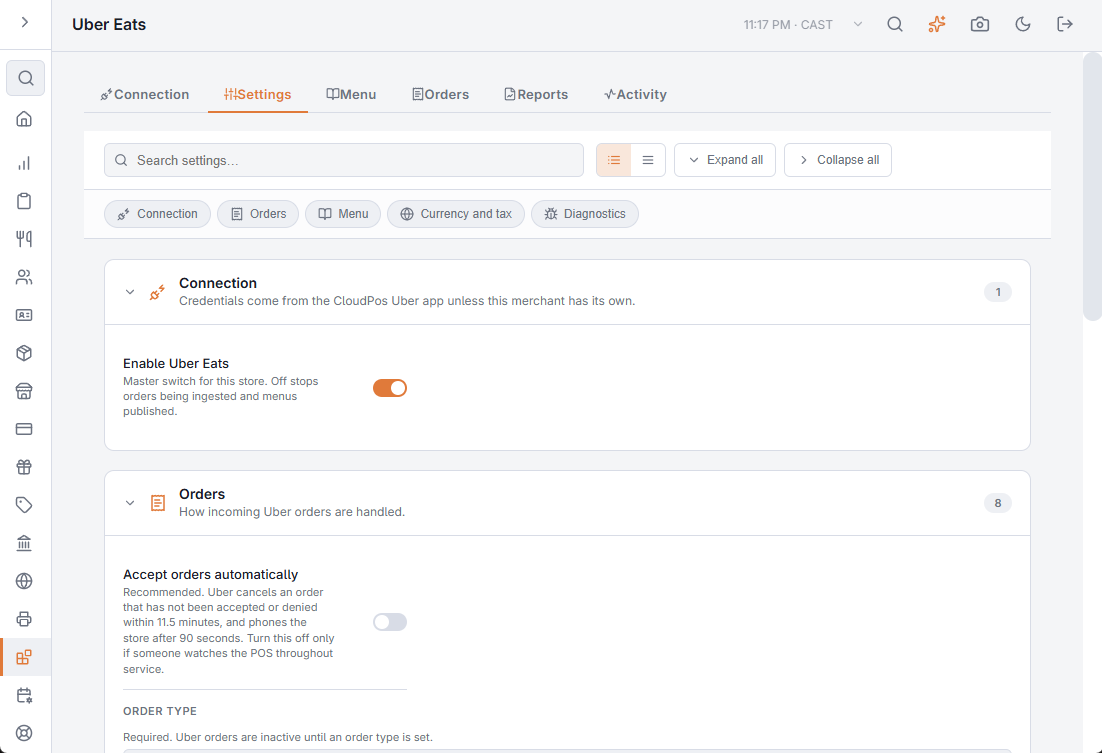
Connection
- Enable Uber Eats — the master switch for this store. Off stops orders being taken in and menus being published, and locks the Orders, Menu and Currency and tax settings below until it is switched back on.
Orders
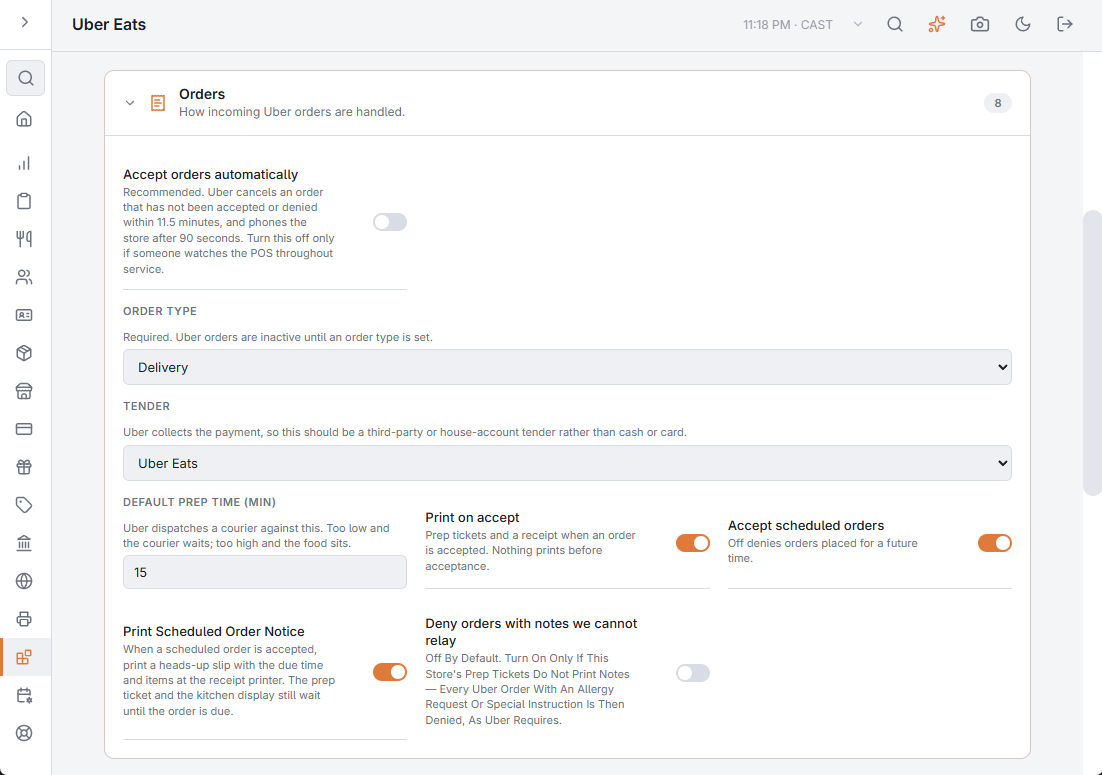
- Accept orders automatically — recommended, and on by default. Uber cancels an order that has not been accepted or denied within about eleven minutes, and telephones the store after ninety seconds of silence. Only turn this off if somebody watches the Order Manager throughout service.
- Order type — required. Uber orders are inactive until this is set. Most stores create an order type called “Uber Eats” so the sales report separates marketplace trade from the rest.
- Tender — Uber collects the money, so this should be a third-party or house-account tender, never cash or card. If the store has none yet, Create Uber Eats Payment Method under the list makes one called “Uber Eats” that stays out of the cash drawer count, and selects it. Without a tender, orders still come in but their takings are missing from payment reports.
- Default prep time — sent to Uber with each order as it is accepted; Uber dispatches a courier against it. It also fills the Prep time (min) box in the Order Manager, where it can be changed for one order. The store-wide prep time Uber holds is set separately, on the Connection tab — see Hours, holidays and pausing the store.
- Print on accept — prep tickets and a receipt print when an order is accepted. Nothing prints before that, so a denied order costs no paper and no food.
- Accept scheduled orders — off denies orders placed for a later time.
- Print Scheduled Order Notice — off by default. When a scheduled order is accepted, a heads-up slip with the due time and the items prints at the receipt printer, so the kitchen knows what is coming. The prep ticket and the kitchen display still wait until the order is due.
- Deny orders with notes we cannot relay — off by default, and it should stay off. CloudPos prints allergy and instruction text on prep tickets. Switch it on only if this store’s prep tickets have been set up without notes: every Uber order carrying an allergy request or a special instruction is then denied, as Uber requires.
Menu
- Publish the menu to Uber Eats — keeps Uber’s catalog in step with the POS menu.
- Price markup — a percentage added to POS prices when publishing, to offset Uber’s commission. Zero publishes your POS prices unchanged.
- Include bar items — publishes bar menu items as well as food. Individual items can still be excluded on the item editor.
- Publish item images and Public image URL — Uber downloads item photographs from an address on your own server, so that address has to be reachable from the internet. Leave the URL blank to publish without photographs.
- Mark sold-out items on Uber — when an item’s counter reaches zero in the POS, it is shown as sold out on Uber within about half a minute.
Currency and tax
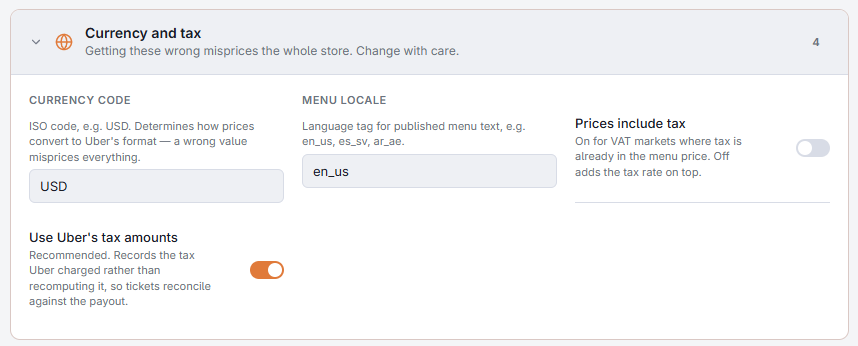
These four are easy to get wrong and expensive when you do. If you are unsure, leave them as they are and check with your partner manager.
- Currency code — determines how prices are converted for Uber. A wrong value misprices every item on the store.
- Menu locale — the language tag for published menu text.
- Prices include tax — on for markets where tax is already inside the menu price.
- Use Uber’s tax amounts — recommended. Records the tax Uber actually charged rather than recalculating it, so tickets reconcile against the payout.
In the US, Uber also needs a tax label on each item; those are set on the Menu tab. See Uber Eats tax labels.
Diagnostics
Log every request saves each call to Uber and Uber’s answer for thirty days, viewable under Activity › API Log. Failures, denials and cancellations are always saved; turn this on when setting up or chasing a problem, and off the rest of the time. See Checking what Uber received.