Back Office › Integrations › Uber Eats › Menu.
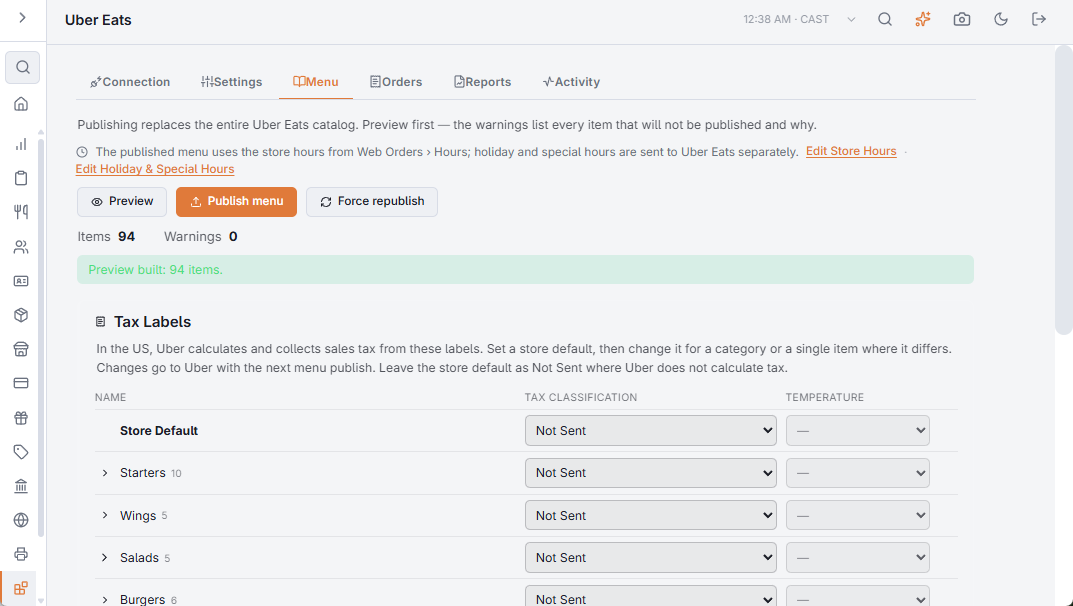
Preview before you publish
Press Preview. Nothing is sent to Uber — CloudPos builds the catalog and shows you what it would publish, along with a list of warnings.
The warnings are the useful part. They name every item that will not be published and why. The usual reasons:
- No price — an item priced at zero is skipped. A free dish on a marketplace is expensive, so CloudPos will not publish one by accident.
- No category — items must belong to a menu category.
- Hours problems — a day open for less than an hour, or hours that run past midnight, cannot be expressed on Uber and are adjusted or skipped.
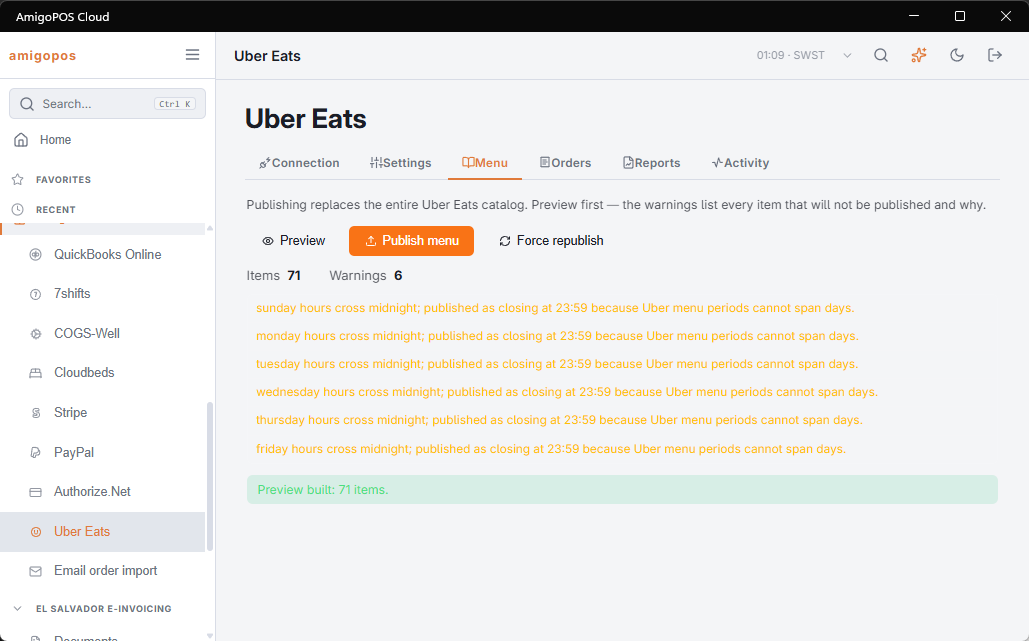
Publishing
Press Publish menu. The item count and any warnings are shown when it finishes.
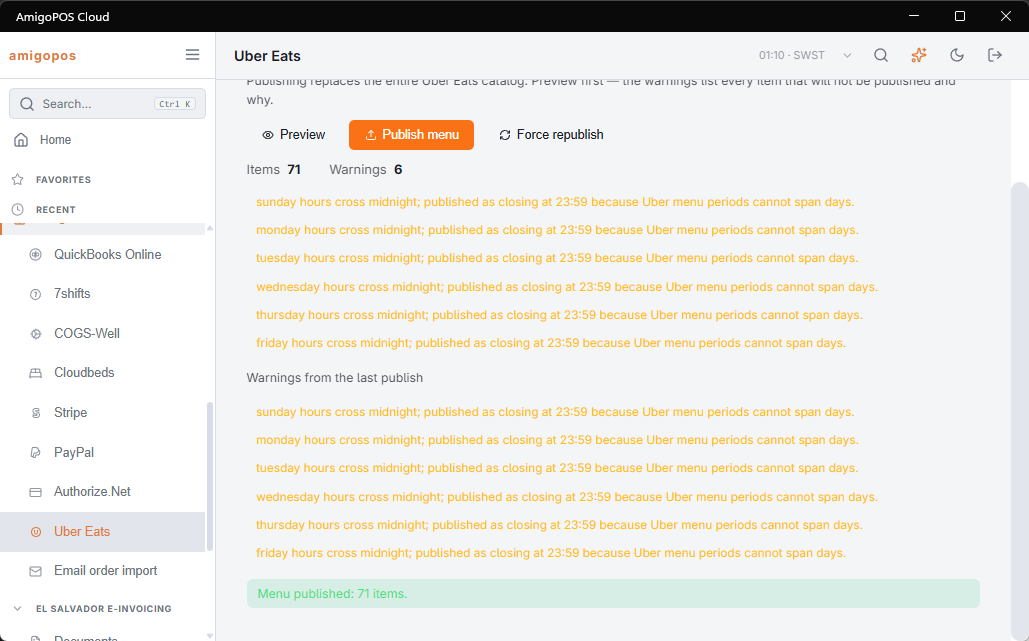
Force republish sends the menu again even when nothing has changed. Use it if Uber’s copy has drifted — for instance after somebody edited the menu in Uber’s own tools.
Keeping the menu in step
Once Publish the menu to Uber Eats is switched on, you do not normally press Publish again. Editing a menu item, category or price queues a republish automatically, and several edits in a row collapse into one upload.
Tax labels
In the US, Uber calculates and collects sales tax from a label on each item. The Tax Labels card below the publish buttons sets them for the store, a category or a single item, and they go to Uber with the next publish. See Uber Eats tax labels.
Excluding items
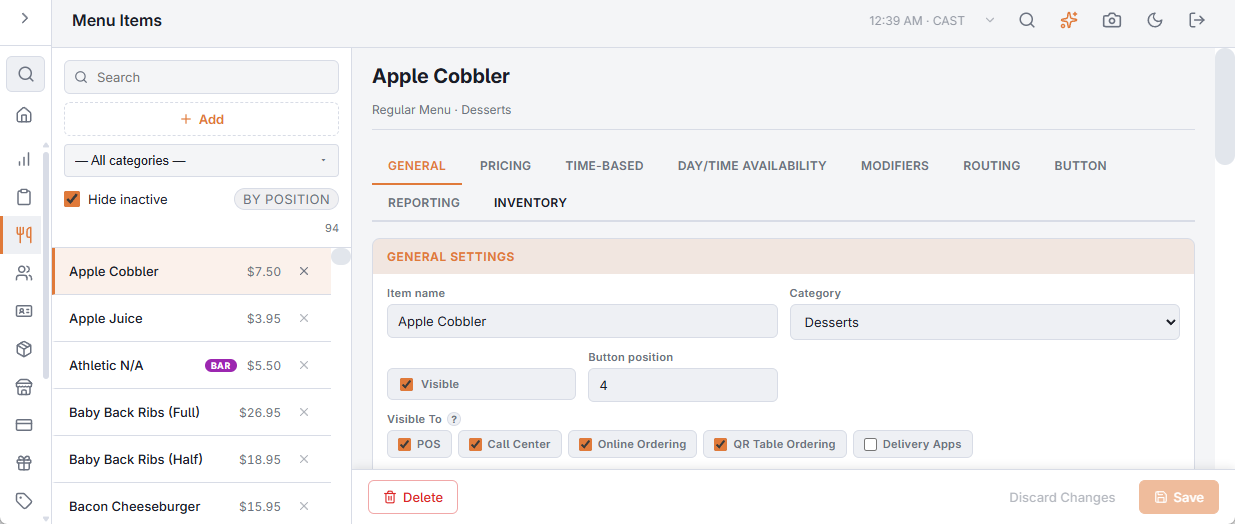
Some items do not belong on a delivery marketplace — room hire, deposits, staff meals. On the item editor, untick Delivery Apps under Visible To and save. Unticking it on a category takes the whole category off Uber Eats, and on a modifier it removes that option. The change goes to Uber with the next menu publish.
Sold-out items
Uber marks an item sold out when its POS item counter reaches zero, without republishing the whole menu. Mark sold-out items on Uber must be on in Settings.
- To take an item off right away, open Manager › Menu Item Counters on the POS (or Item Counters in Back Office), add the item and set its quantity to 0.
- An item with a counter also goes sold out by itself when it sells down to zero.
- Setting the quantity above zero, or deleting the counter, puts the item back on sale.
The change reaches Uber within about half a minute and shows as MenuItemUpdate on the Activity tab. A sold-out item comes back by itself at the end of the store’s day.