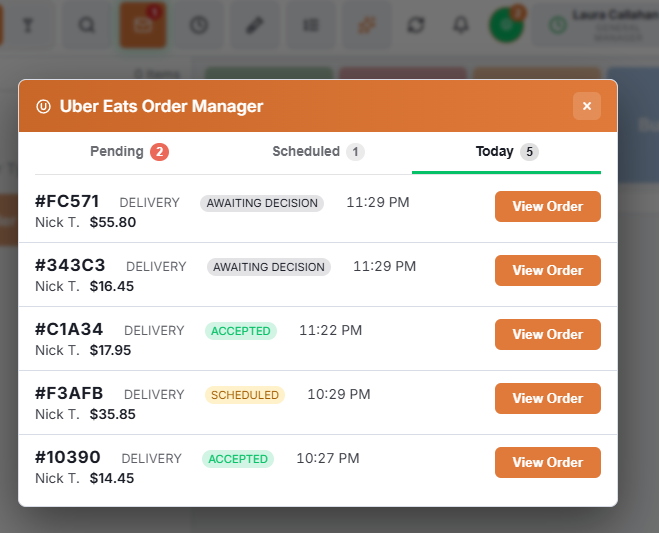
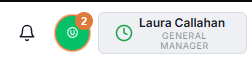
The Uber Eats button on the POS top bar opens the Order Manager. It is on the bar whenever the store is linked to Uber Eats and the integration is switched on; stores without Uber Eats never see it.
- Plain icon — nothing is waiting. A small number on it is how many scheduled orders are accepted and waiting for their time.
- Pulsing, with a count — orders are waiting for a decision. It turns urgent when the oldest is close to Uber’s deadline.
- Pulsing, with ! — something is wrong: orders recently failed to come in, or no order type is set so new orders cannot. Hover over it for the reason.

The window has three tabs. It opens on the first one that has something in it.
Pending — orders waiting for a decision
Only used when Accept orders automatically is off. Each order shows its short code, the order type, the eater, the total and a countdown — the time left before Uber cancels it on the store’s behalf. Uber also telephones the store after ninety seconds without an answer.
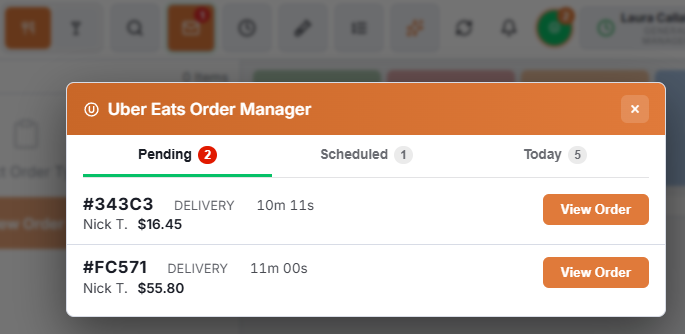
Press View Order to see the items, then:
- Accept — tells Uber yes, prints the prep ticket and receipt and sends the order to the kitchen display. Uber dispatches a courier against Prep time (min); change that number first if this order will take longer than usual.
- Deny — asks for a reason: Item unavailable, Kitchen too busy, Store closed, Cannot honour the request, POS not ready or Other, with an optional explanation. Then press Confirm. The reason is reported to Uber; pick the accurate one, because denying everything as Other makes the store look unreliable.
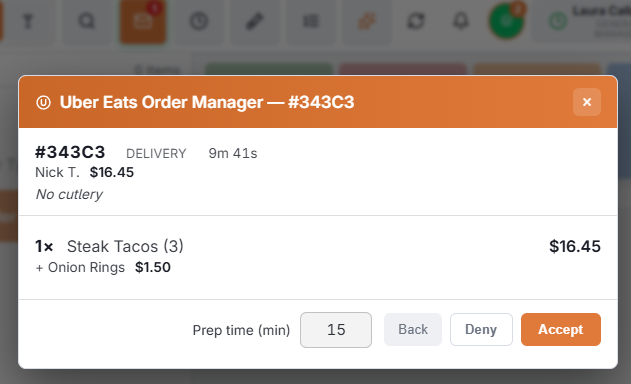
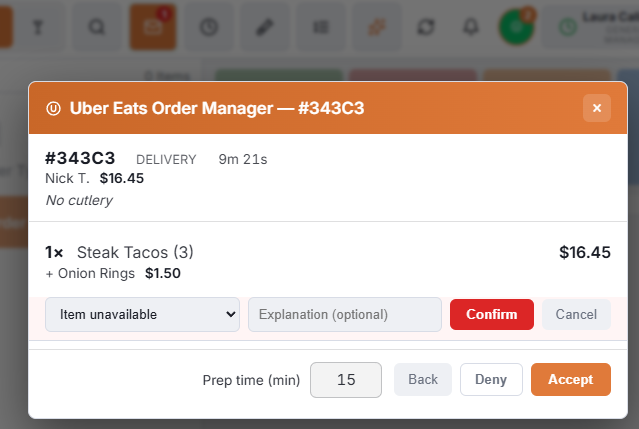
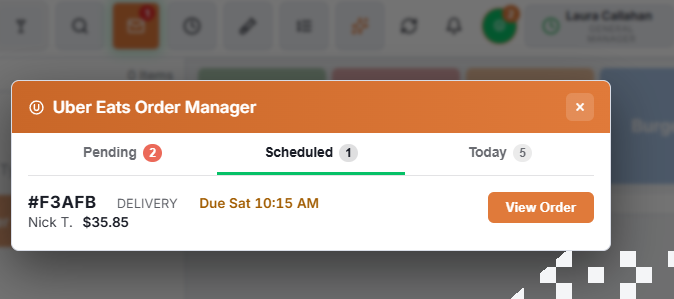
A scheduled order waiting for a decision shows a Scheduled pill and its due time, and has no prep-time box — Uber already holds the time the eater asked for. Accepting it moves it to the Scheduled tab; nothing is cooked yet.
Scheduled — accepted orders for later
Scheduled orders the store has accepted, with the time each is Due. Shortly before that time Uber sends the order again and it becomes a normal ticket that prints and goes to the kitchen. Open one to see its items or to Cancel Order.
Today — every Uber order this business day
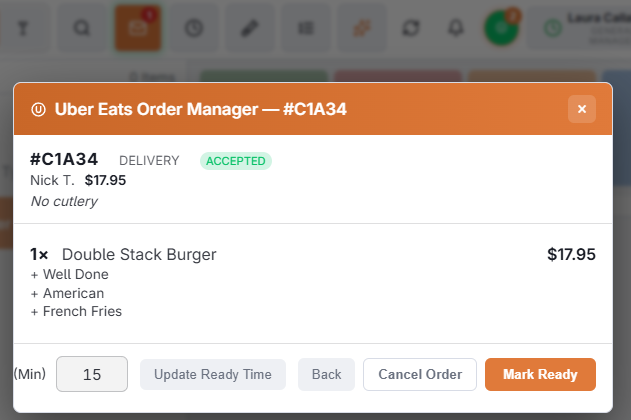
Each order with its status: Accepted, Ready, Scheduled, Cancelled or Denied. Open an accepted order to:
- Mark Ready — tells Uber the food is ready for the courier.
- Update Ready Time — the kitchen is running late or early: enter the minutes in Ready In (Min) and press it, and Uber moves the courier to match.
- Cancel Order — asks for a reason (Customer Called To Cancel, Out Of Items, Restaurant Too Busy, Kitchen Closed, Cannot Complete Customer Note or Other), tells Uber and voids the ticket. It needs the same permission as voiding an order.