When a customer places an order on the online storefront, it lands at the register as a pending web order. Nothing is made until someone at the store pulls the order in — this page covers how new orders announce themselves and how to work them.
The alert badge
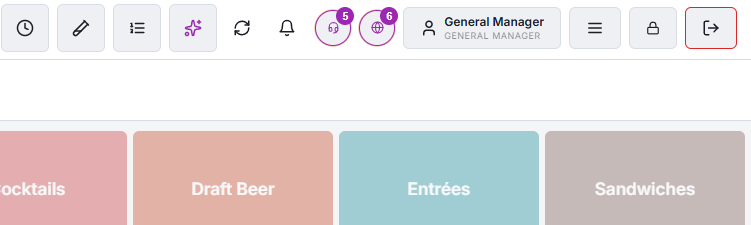
A pulsing globe badge with a count appears in the register’s top bar the moment at least one web order is waiting. It shows on every station, so whoever is free can take it. The badge disappears on its own when the pending list is empty.
The pending list
Tap the badge to open the Pending web orders panel. Each row shows the order number and its age — how long ago the customer submitted it. Ages past the store’s lateness threshold turn red: those customers have been waiting; take them first.
Working an order
- Tap Recall on the row. The order opens in order entry with everything the customer chose — items, modifiers, notes, and their details.
- Review it, make any changes the customer phoned in, and send it to the kitchen like any other order.
- Payment depends on how the customer checked out: prepaid web orders settle against the online payment; pay-at-pickup orders settle normally when the customer arrives.
Web orders also appear under the Web filter on the orders list, and their storefront status can be viewed and advanced from the Web status action there — useful for marking an order ready so the customer’s tracking page updates.
Common questions
- No badge, but a customer says they ordered. Check the orders list under Web — the order may already have been recalled by another station. If it’s not there at all, check the storefront’s business hours and the store’s connection.
- Two people tapped Recall at once. The order opens for the first; the second gets the refreshed list without it.
- How do web orders pause when we’re slammed? Turn on Disable checkout at Back Office › Web Orders › Checkout: the site stays browsable but takes no orders until you turn it off. See Checkout settings.
What the customer sees when you mark it ready
Marking a web order ready from the orders list (Web › Mark Ready And Notify) turns the customer’s order page to Ready For Pickup (or Ready, Waiting For The Driver), whether or not a text goes out. Bumping it on the KDS does the same only when the ready text is actually sent — the customer has a phone number and the store’s order-ready notification is on. Until then the page shows the estimate from Checkout settings. The customer sees the change when they reload the page.