Back Office › Web Orders › Checkout controls how the online ordering site takes orders: pickup and delivery, who may check out and when, scheduled orders, gift and loyalty cards, and the user online payments are recorded under. Changes take effect when you select Save. If the save fails, Save failed is shown and your changes stay on the page, unsaved.
Pickup and delivery
- Accept pickup orders, with Minimum pickup time in minutes — the earliest the site promises a pickup order.
- Accept delivery orders, with Minimum delivery time in minutes, Minimum delivery amount (the smallest order subtotal accepted for delivery; 0 for none) and Default delivery fee (charged when no delivery zone sets a fee).
Checkout access
- Require login to checkout — customers must sign in before they place an order. Guests ordering from a table QR code are not asked.
- Disable checkout, with Message shown when checkout is disabled — the site can still be browsed but takes no orders, and shows your message. Use it when the kitchen is overwhelmed or equipment is down; it takes effect as soon as you save.
- Allow checkout during store hours only, with Message shown when store is closed — outside the hours on Business hours for web orders the order is refused with your message.
- Web order checkout user — the employee record that online payments and gift and loyalty redemptions are recorded under. Create New creates one and sets it straight away; when none is set, one is created at the first checkout.
Online Payment
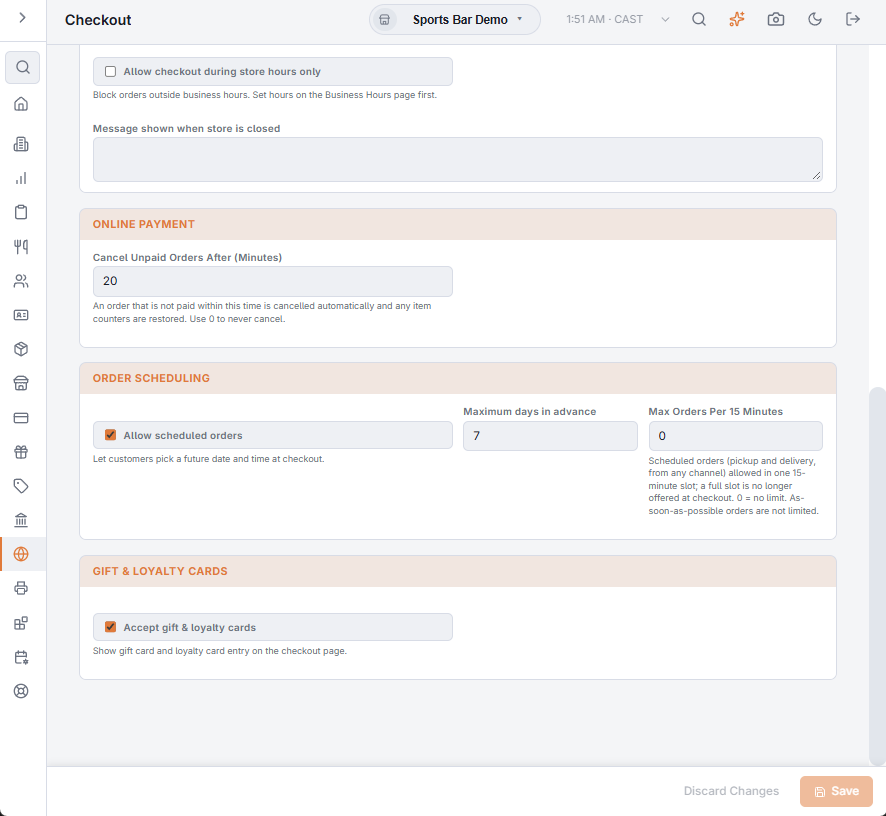
Cancel Unpaid Orders After (Minutes) — an online order paid by card that is not paid within this time is cancelled, and any item counters it used are given back. The default is 20, the most is 240, and 0 never cancels. It is the same setting as on the QR Table Ordering page (Setting up QR table ordering); changing it on either page changes both.
Order scheduling
- Allow scheduled orders — customers can pick a future day and time at checkout, up to Maximum days in advance (1–30). Scheduled orders reach the register under the Delayed filter.
- Max Orders Per 15 Minutes — see Limiting orders per time slot below.
Gift & Loyalty Cards
Accept gift & loyalty cards shows gift card and loyalty card entry on the checkout page.
Scheduled orders at checkout
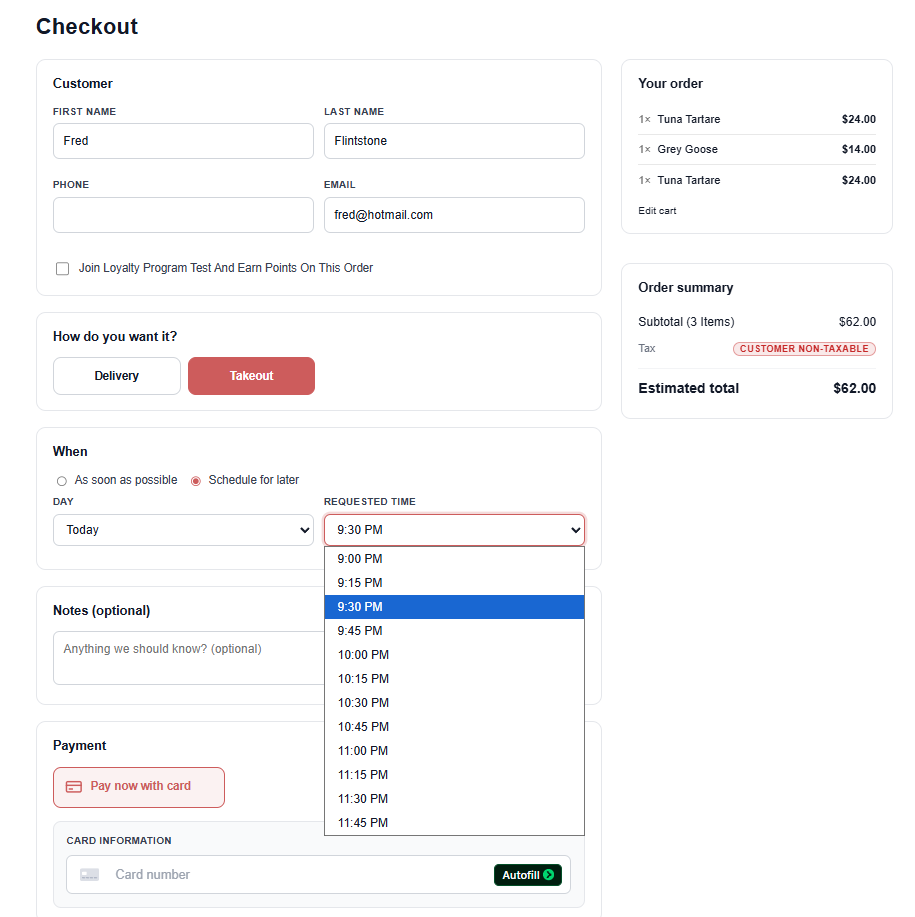
When Scheduled orders is on, the customer picks a Day and a Time from lists that only offer bookable times: 15-minute slots inside the store’s open hours (holidays included), no sooner than the pickup or delivery minimum minutes, and no further out than the maximum scheduled days. Times are the store’s local time. When scheduling is off the choice is not shown, and when nothing is bookable it is shown disabled with a note. Scheduled web orders reach the kitchen at their kitchen time — see Scheduled orders on the KDS.
Delivery zones at checkout
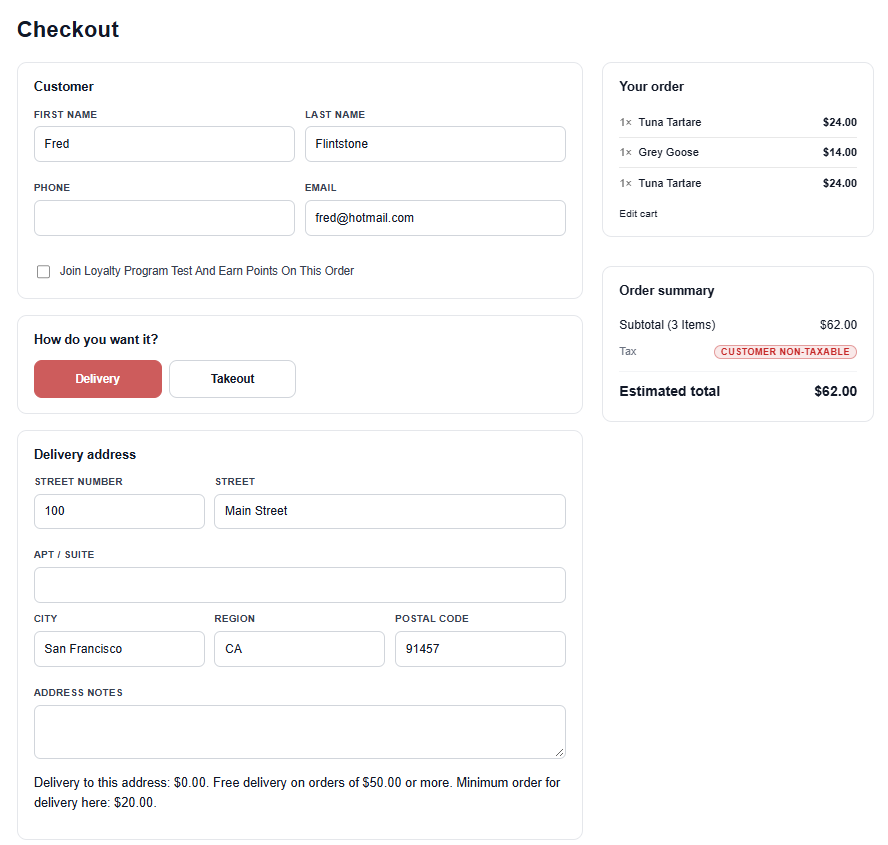
With delivery zones set up for the store, checkout prices delivery from the customer’s address as they type it: the zone’s fee, a free-delivery amount and the zone’s order minimum are shown under the address, and an address outside every zone is refused with a message. If the address cannot be located, the default delivery fee applies. See Delivery zones and the zone map.
Delivery partner texts
Under the delivery address, checkout asks the customer whether a delivery partner may text them updates about their delivery, with a tracking link. The box is never ticked for them. Stores that use Entreo pass the answer on, and Entreo texts only the customers who ticked it. See Customer texts and tracking.
Saving cards at checkout
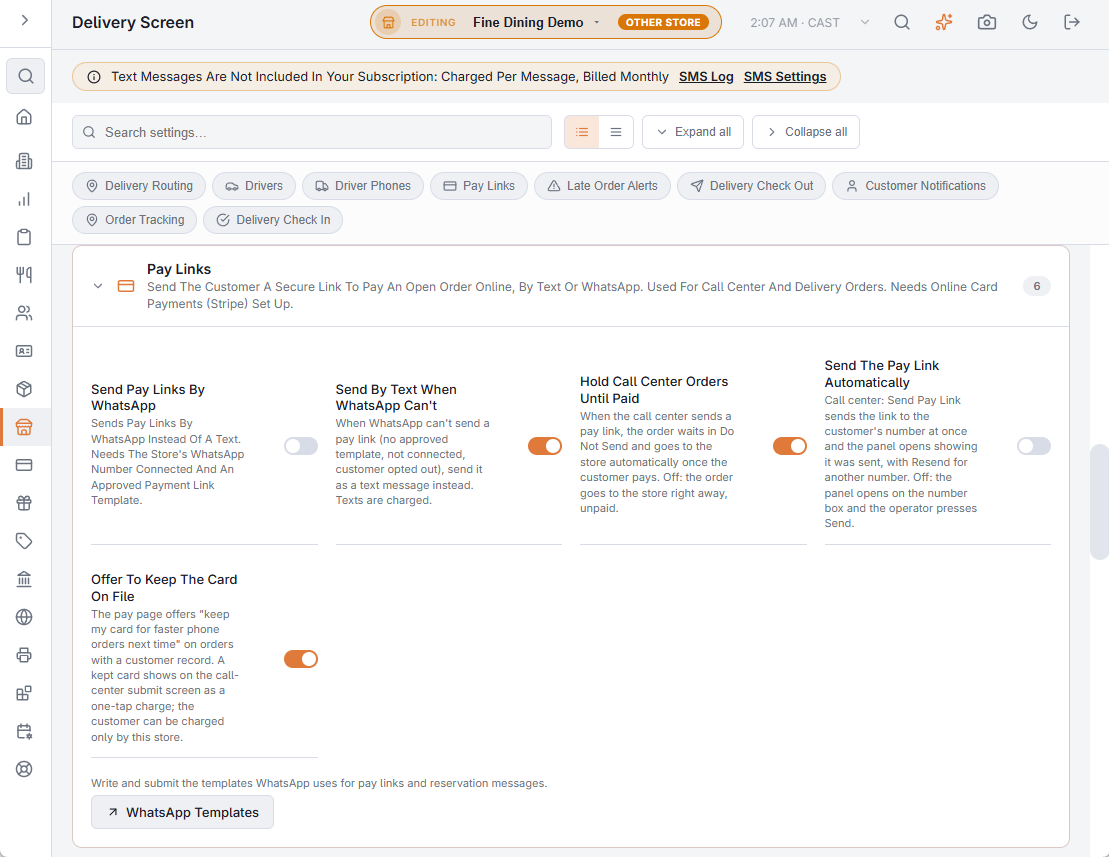
Whether signed-in customers are offered Save this card for next time is not set on this page. It follows Offer To Keep The Card On File in Back Office › Store Setup › Delivery Screen › Pay Links, the same switch the pay page uses. Turned off, checkout stops offering to save a card; cards already saved still show and can be used or removed. See Customer accounts on the storefront.
The ready time the customer sees
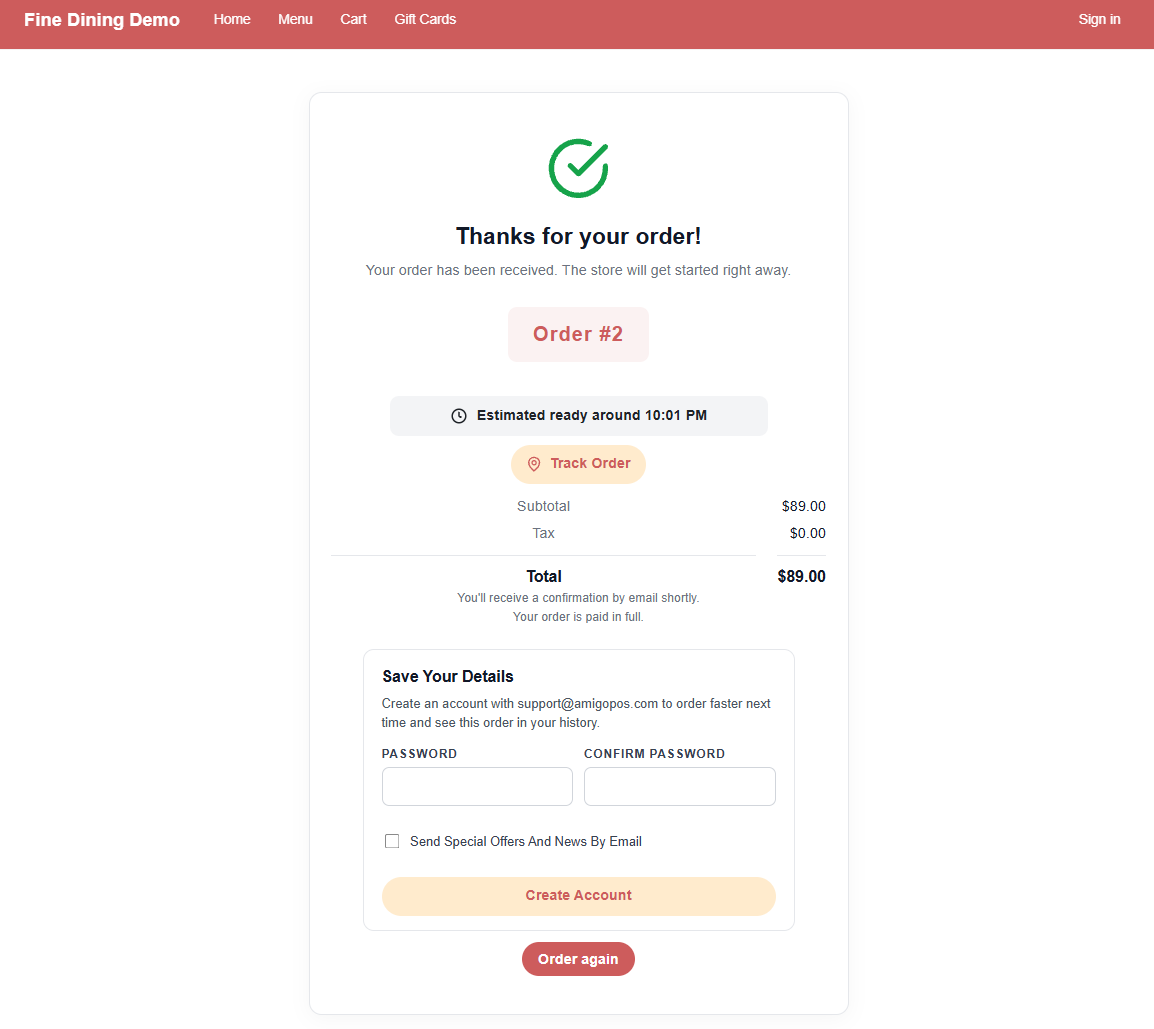
On the order confirmation page, and on the order’s page under My orders, the storefront tells the customer when to expect the order. The estimate is the time the order was placed plus the minimum pickup time or minimum delivery time on this page — Estimated ready around 6:45 PM or Estimated delivery around 7:15 PM, in the store’s time zone.
- Once that time passes it says Should be ready any minute (or on its way). Three hours past it, with nothing recorded, the line disappears rather than guess.
- A scheduled order shows Scheduled For the time the customer chose.
- When the store marks the order ready it turns green: Ready For Pickup, or Ready, Waiting For The Driver; later Picked Up, On The Way or Delivered.
- It is a fixed offset: it does not know how busy the kitchen is, so set the minimums to what the kitchen manages at rush. The page does not update by itself; the customer reloads it.
- Table (QR) orders and voided orders show no estimate.
Limiting orders per time slot
Max Orders Per 15 Minutes, in the Order scheduling section of this page, caps how many scheduled orders one 15-minute slot can take. 0, the default, means no limit.
- Every scheduled order for the slot counts — pickup and delivery together, from any channel: web, call center or the register. Voided orders don’t, and neither does a card checkout the customer abandoned before paying.
- A full slot is left out of the Time list at checkout. The time is checked again when the order is placed, so a customer whose page was open while the slot filled up has to pick another time. Two orders placed in the very same second can still both get in.
- As-soon-as-possible orders are not limited, and do not count towards a slot.
Goes Well With Your Order
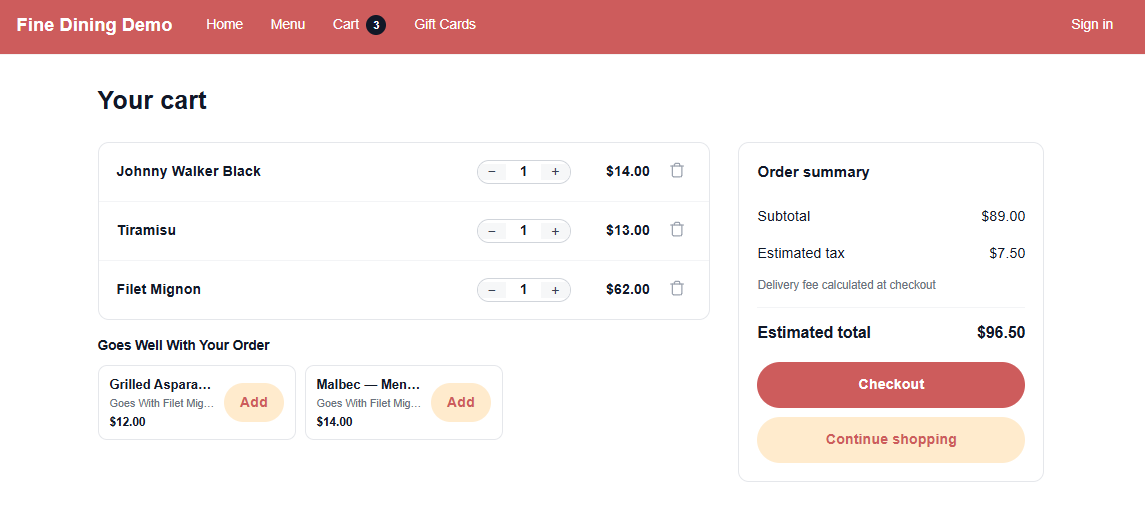
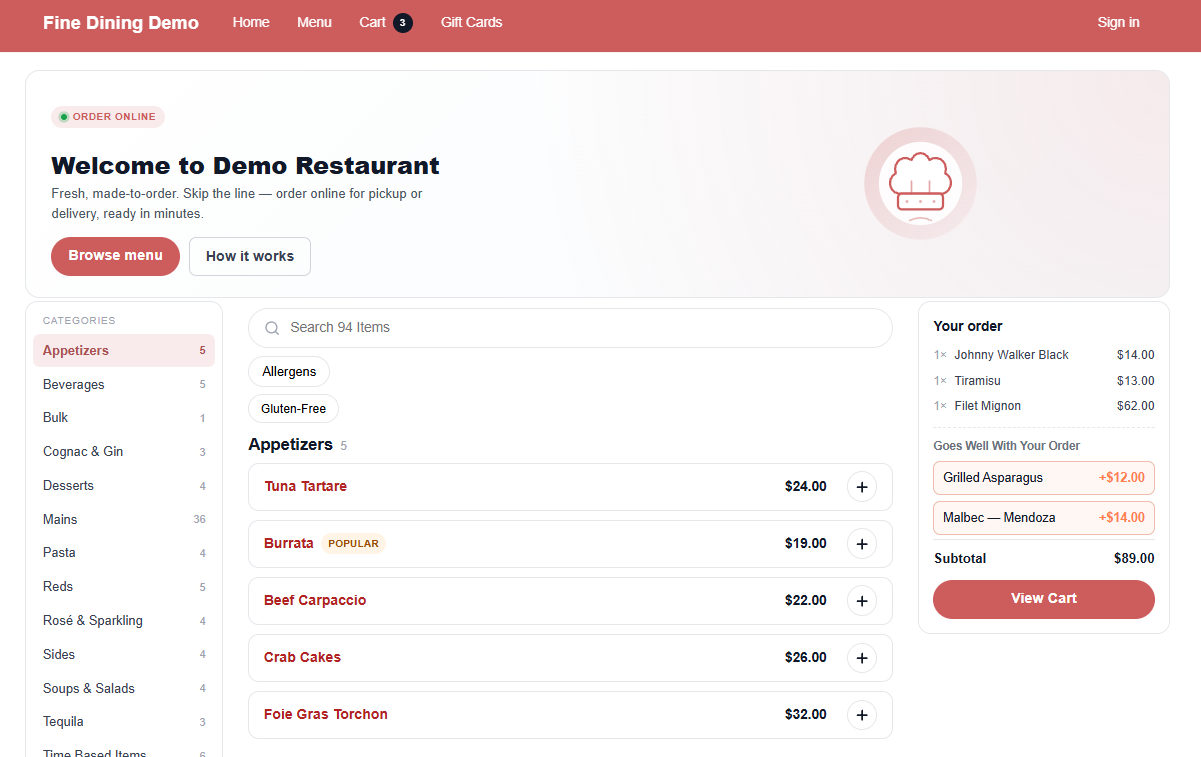
The cart shows up to three items that go with what the guest has chosen — what this store's guests most often add, or today's recommended items — each with Add (or Choose when it has options to pick). On a computer the cart panel beside the menu offers two. Only items on the online menu right now and not sold out are offered. It is on unless Goes Well With In Online Ordering is turned off (Store Setup › Order Entry Screen › Guests).