Customers can order as guests, or create an account on the storefront to save their details. This is what they will ask you about.
Signing in and forgotten passwords
- Sign in / Register from the storefront menu. Repeated failed attempts are slowed down for a short while.
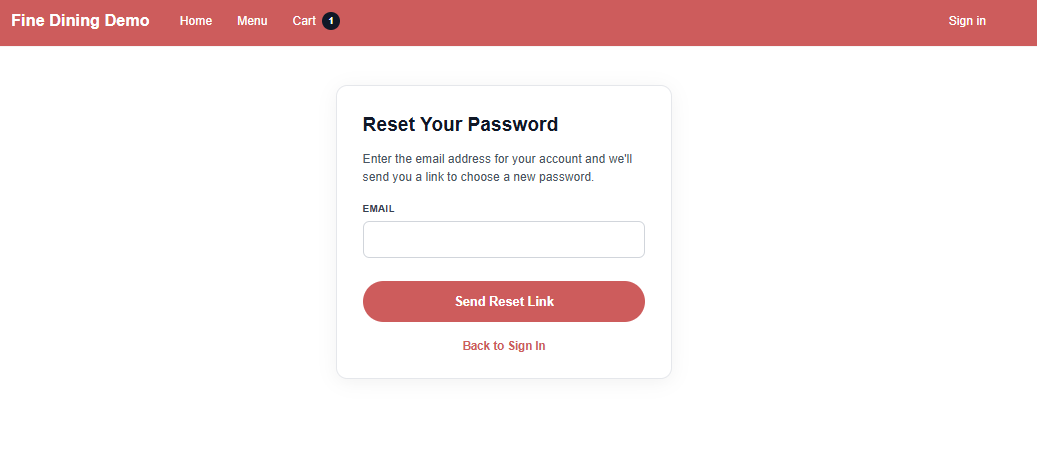
- Forgot Password? on the sign-in page emails a reset link to the account’s address. The link works for 2 hours; resetting also clears a lockout from too many attempts.
- Staff accounts (managers and admins) cannot be reset from the storefront; they are managed in the Back Office.
Profile and addresses
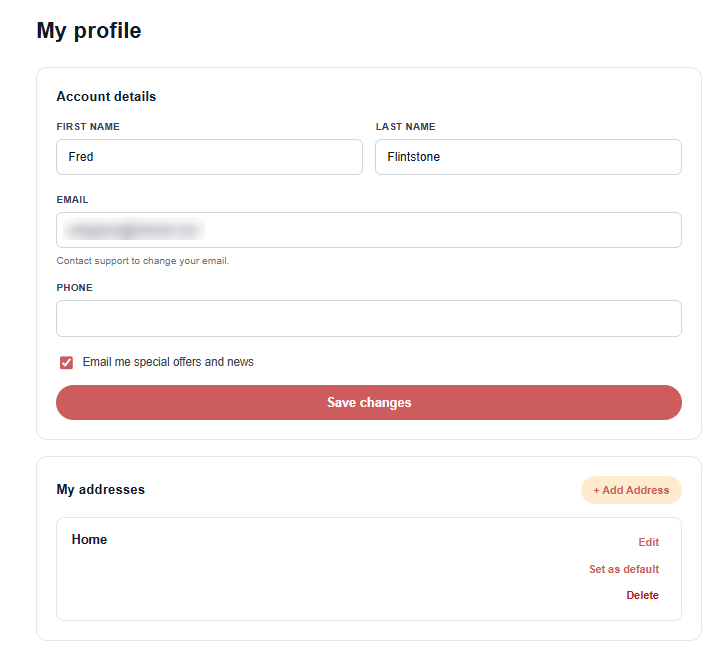
The Profile page holds the name, phone and whether the customer wants offers by email, and their delivery addresses: add, edit, delete, and pick the default used at checkout. A customer only ever sees and changes their own addresses.
Favorites and reorder
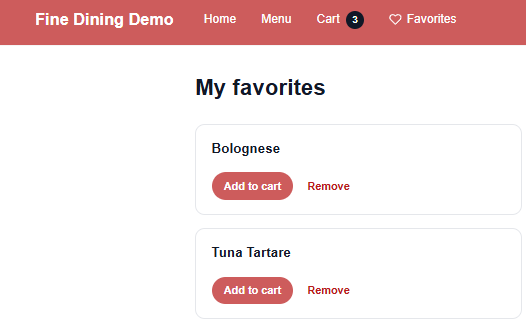
- Signed-in customers see a heart on menu items; tapping it saves the item to Favorites, where it can be added to the cart, renamed or removed.
- Past orders can be ordered again from the order history. Items or options no longer on the menu are left out, and prices are today’s.
Saved cards
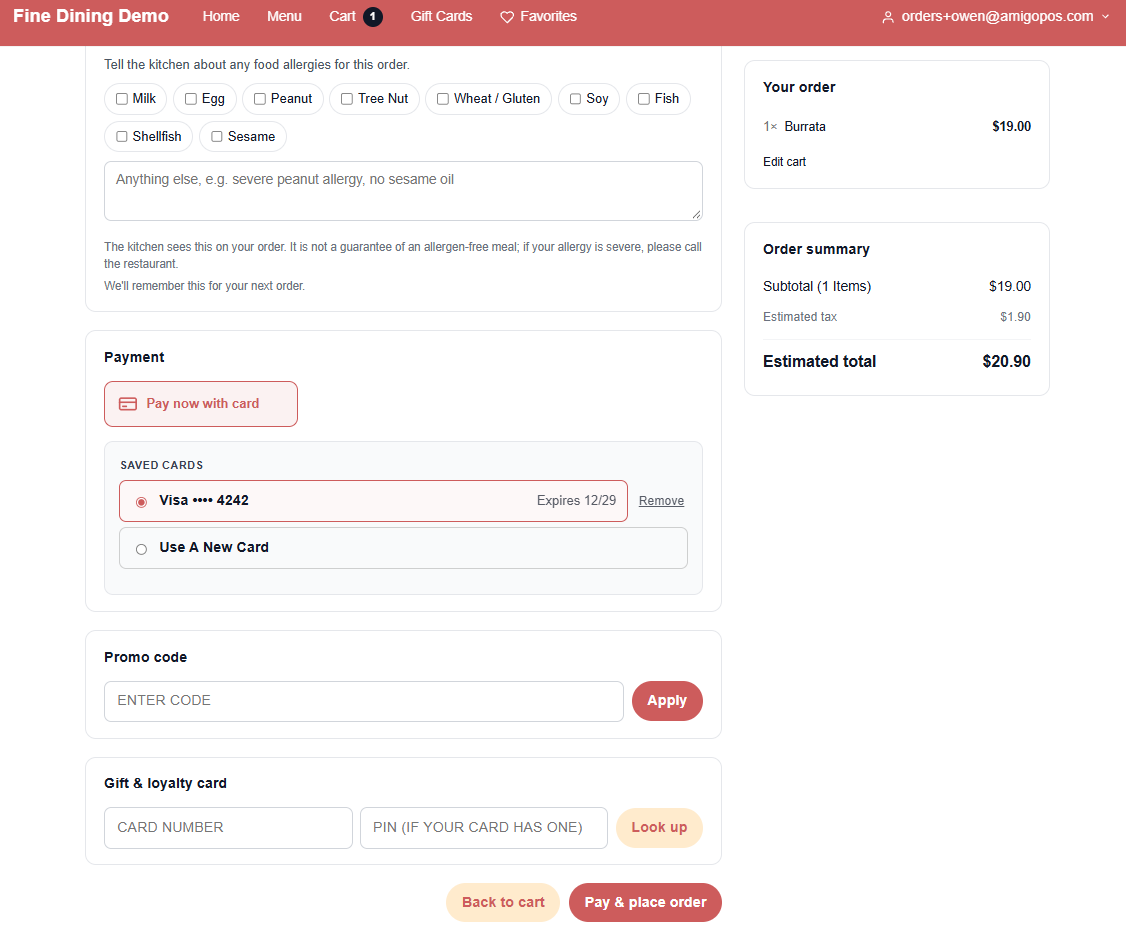
A signed-in customer paying by card can tick Save this card for next time at checkout. The card is kept by Stripe, the payment processor: the store never sees or stores the card number, and the note under the checkbox says so.
- Next time, checkout lists their Saved Cards — for example Visa •••• 4242, Expires 12/27. They pick one and pay, or choose Use A New Card. Their bank may still ask them to confirm the payment, as it can with a new card.
- Remove beside a card takes it off the list after a confirmation. A charge the store already arranged with that card, such as a reservation fee or a call-center order, still goes through.
- Guests, and orders placed from a table’s QR code, never see saved cards. A customer only ever sees their own.
- A card saved here is also one the call center can charge on file for that customer.
- Whether the checkbox is offered follows the store’s Offer To Keep The Card On File setting — see Checkout settings.
Order status on the order page
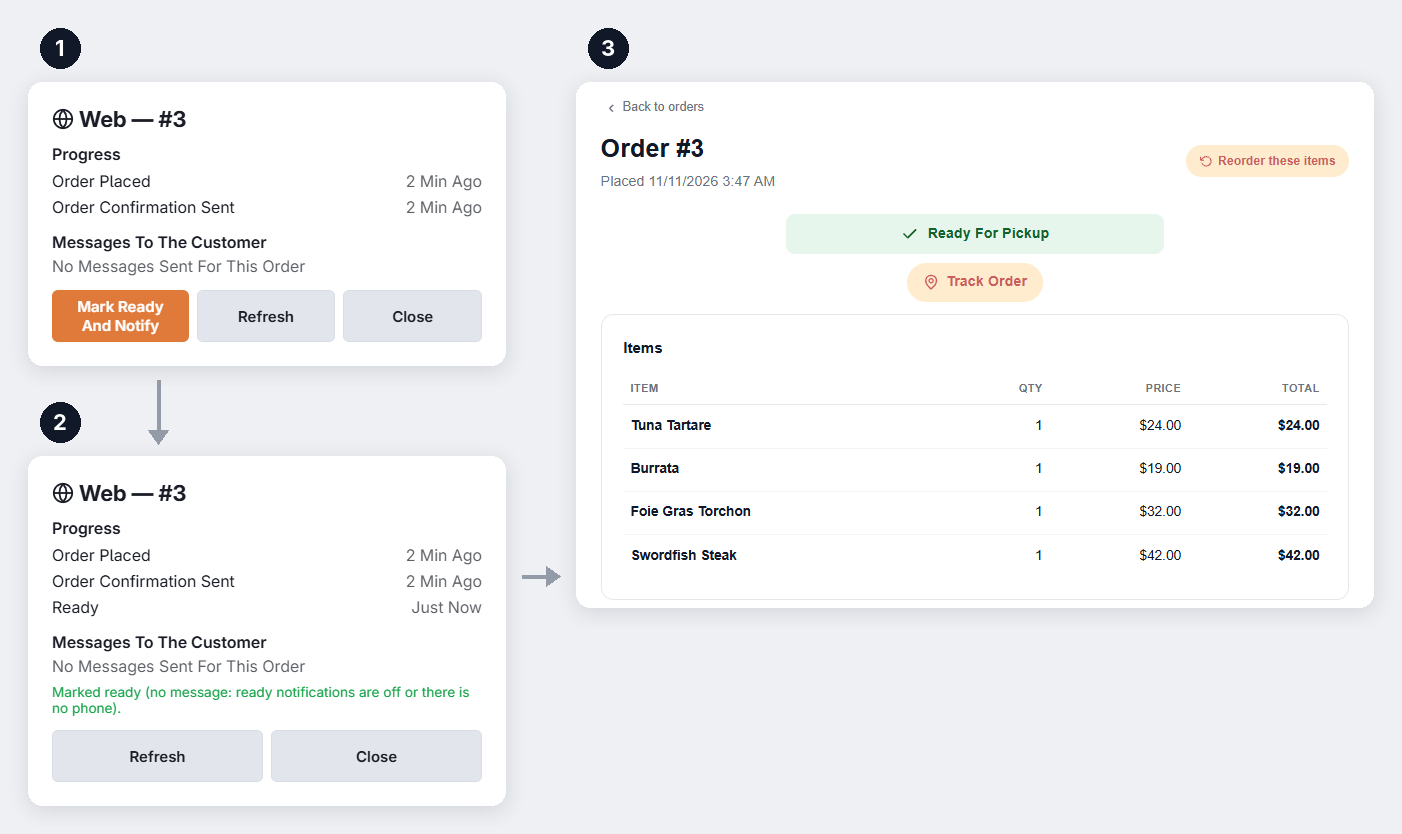
Opening an order from My orders shows when it should be ready, or that the store has marked it ready, picked up, on the way or delivered. See Checkout settings for how the time is worked out.
Earlier orders join an account after the email is confirmed
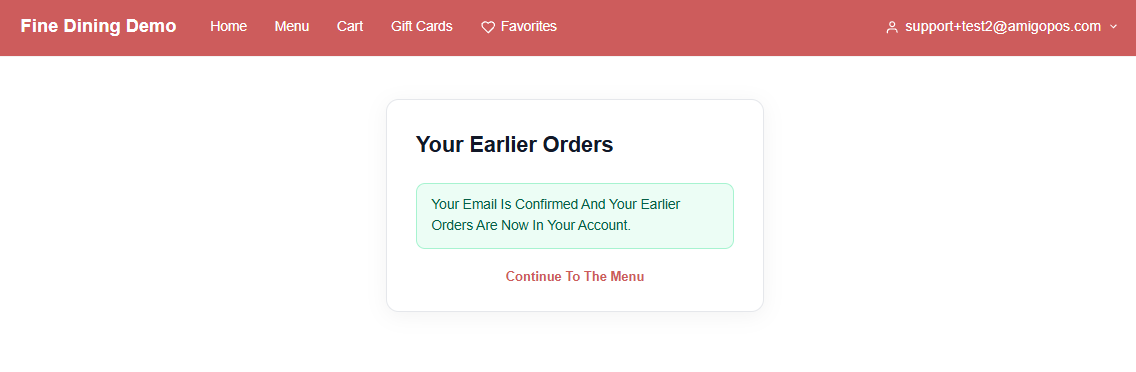
When a guest who just ordered creates an account, the account starts with its own customer record, and the guest gets an email: open the link to add the earlier order to the account. The link confirms the email address and works for 2 hours.
- Until the link is opened, the earlier order stays with the guest record. This stops someone from taking over another person’s order history by registering with their details.
- If the new account already placed orders before the link was opened, the records are kept apart, and the page says so. Join them in Back Office with the customer merge.