Quick actions let you do everyday Back Office jobs in the assistant with a few taps: change a price, 86 an item, fix a forgotten clock-out, pause online ordering, cover a shift. You pick from lists instead of typing, and the AI is not used, so a quick action is instant and does not count against your AI allowance.
Doing a quick action
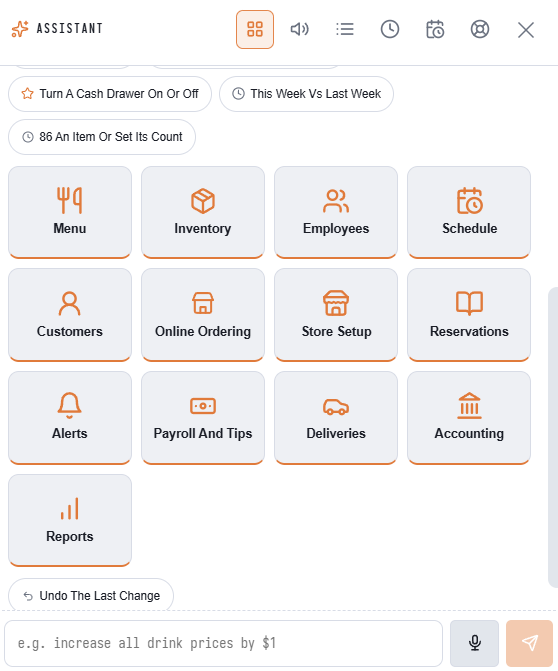
- Open the assistant. The launcher shows first.
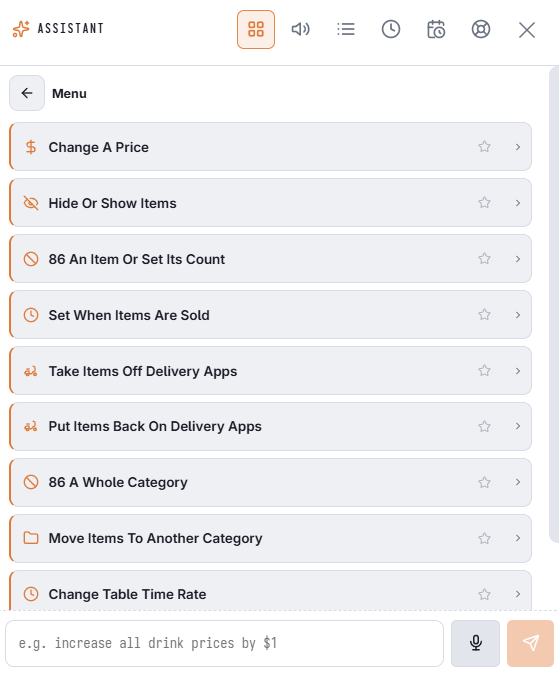
- Tap an area tile (Menu, Employees, Online Ordering …), then the action you need.
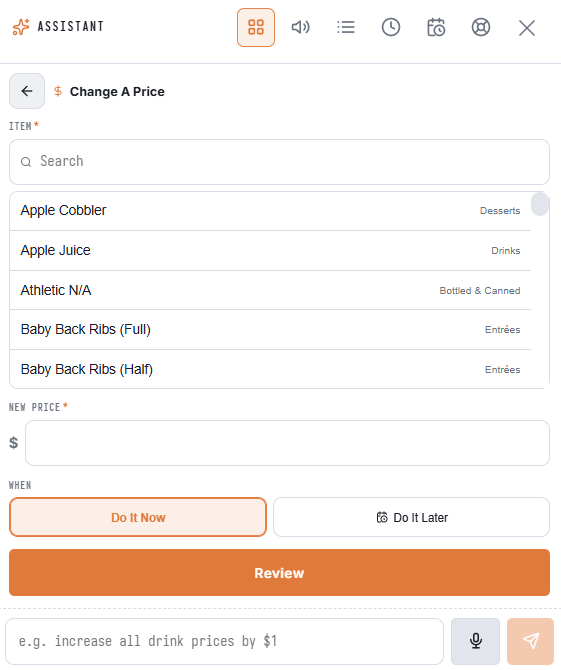
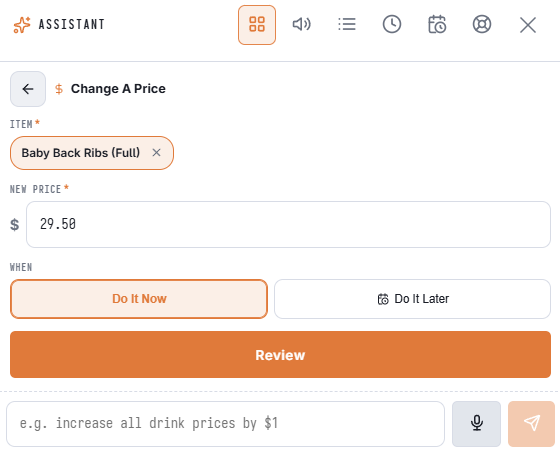
- Fill in the short form. Items, employees, shifts and customers are picked from a list — type a few letters to narrow it.
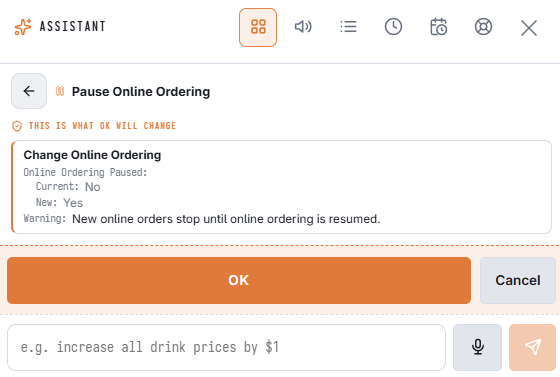
- Tap Review. A card shows exactly what will change.
- Tap OK to apply it, or Cancel to go back and change something.
After OK
You see what was done. Undo This reverses most changes for a short time afterwards, and a follow-up chip offers the next likely step — for example Resume Online Ordering after a pause. Do Something Else goes back to the tiles.
Do it later
Many actions have a Do It Now / Do It Later switch. Choose Do It Later and a time to schedule the change — for example, resume online ordering at 6 pm. You approve it now; it runs at that time. To see or cancel changes waiting to run, ask the assistant “what changes are scheduled?”.
Favorites and recent
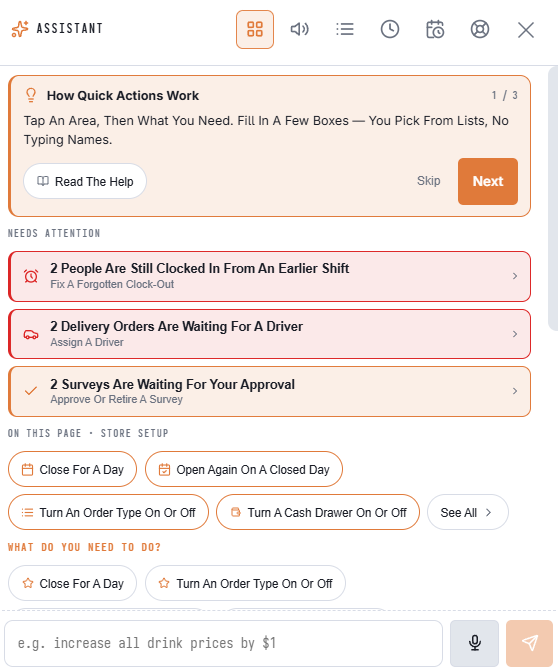
Tap the star next to an action to keep it on the launcher's first screen. The actions you used last show there too. Both are remembered for you on this device.
First-time tips
The first time you open the launcher on a device, three short tips explain how it works. Tap the i button next to What Do You Need To Do? to see them again.
What you see
The launcher only shows actions your job may do and features your plan includes. Reports and lookups (such as How Are Sales Today?) are answered by the assistant in the chat and do use the AI. You can always type or speak a request in the box below the tiles instead. See Every quick action, by area and Needs Attention and On This Page.