Pay links need two things at each store: somewhere for the customer to pay, and a way to send them the link. Both are store settings, so one store can use pay links while another does not.
The payment page
Pay links use the same hosted payment page as the table QR code, run by the store’s Stripe account. A store already taking QR payments needs nothing new. Where it isn’t set up, the pay link screen says so and no link can be made.
The link is short — a few characters after the store’s web address — so a pay link sent by text fits in a single message. The payment page appears in the language of the customer’s phone (English, Spanish or Arabic), turns away a link whose order has since been voided, and won’t let the same balance be paid twice.
Sending by text
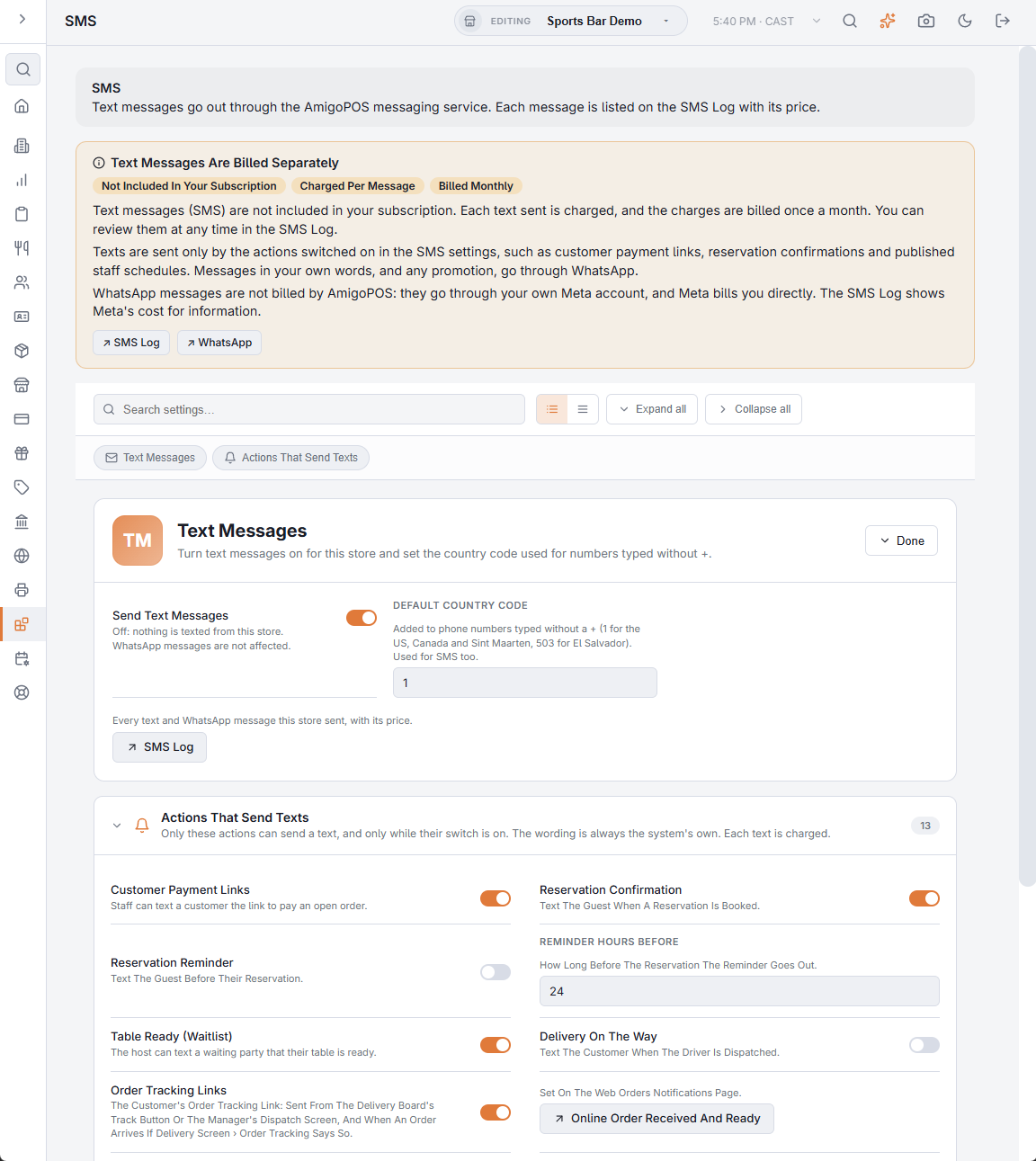
Texts go through AmigoPOS’s text service: there is nothing to set up, but texting has to be switched on for the store and for pay links on Back Office › Integrations › SMS. Each text is charged and billed monthly. The wording is fixed: English, or Spanish for Spanish-language stores.
Sending by WhatsApp
Once the store has connected its own WhatsApp account (WhatsApp: how it works) and Meta has approved a Payment Link template, turn on Send Pay Links By WhatsApp. Meta bills the store directly, usually far less than a text, and it is the channel many customers actually read.
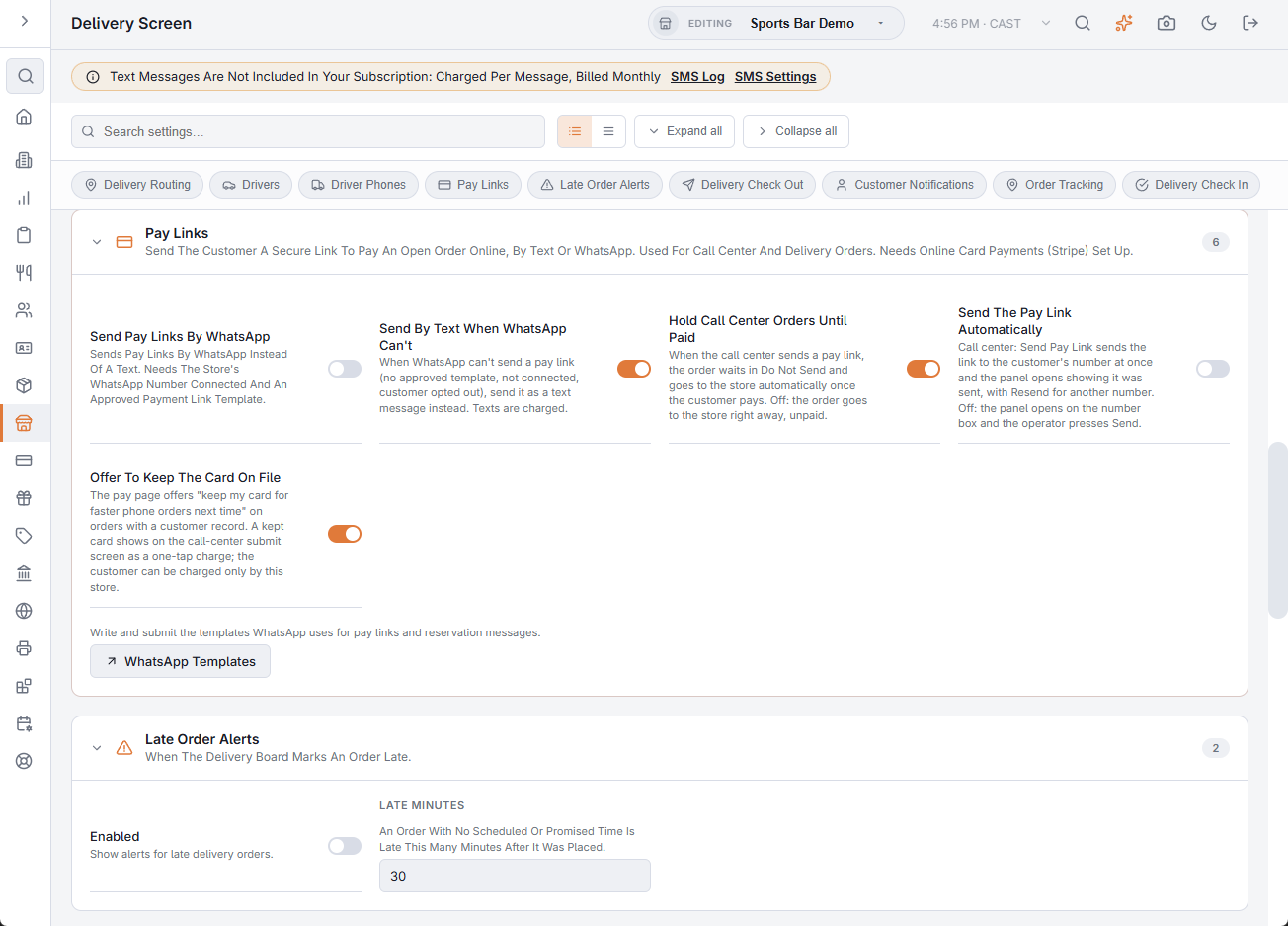
The pay link switches
- Send Pay Links By WhatsApp — WhatsApp instead of text.
- Send By Text When WhatsApp Can’t — no template, not connected, or the customer opted out: the link goes by text instead of failing.
- Hold Call Center Orders Until Paid — on (the default), a call-center order sent with a pay link waits in Do Not Send and goes to the store by itself once it is paid; off, it goes to the store at once, unpaid.
- Confirm Payments By WhatsApp — the customer gets the Payment Received template once the link is paid.
The first three are on Back Office › Store Setup › Delivery Screen › Pay Links and on the WhatsApp page; the last one is on the WhatsApp page. The Pay Links section also has a WhatsApp Templates button that opens the message templates.
Two more switches
- Send The Pay Link Automatically — call center only: Send Pay Link on the submit screen sends the link to the order’s number at once; the panel opens on the sent view with Resend for another number. Off, the panel opens on the number box and the operator presses Send.
- Offer To Keep The Card On File — on by default: the pay page offers to keep the customer’s card for faster phone orders; a kept card shows on the call-center submit screen as a one-tap charge. See Sending a pay link.
Offer To Keep The Card On File also decides whether storefront checkout offers Save this card for next time to signed-in customers — see Customer accounts on the storefront.