A pay link is a message containing a link to the store’s secure payment page for one order. The customer pays on their own phone: no card number is read down the phone line, and nothing is typed into the POS.
Where you can send one
- At call-center submit — Send Pay Link on the submit screen.
- From the orders list — Pay Link on the rail beside a live, open order that still owes money: the way to catch the ones nobody sent a link for.
- From the delivery screen — Pay Link on a card in the Out tab, for a driver already on the road with an unpaid order.
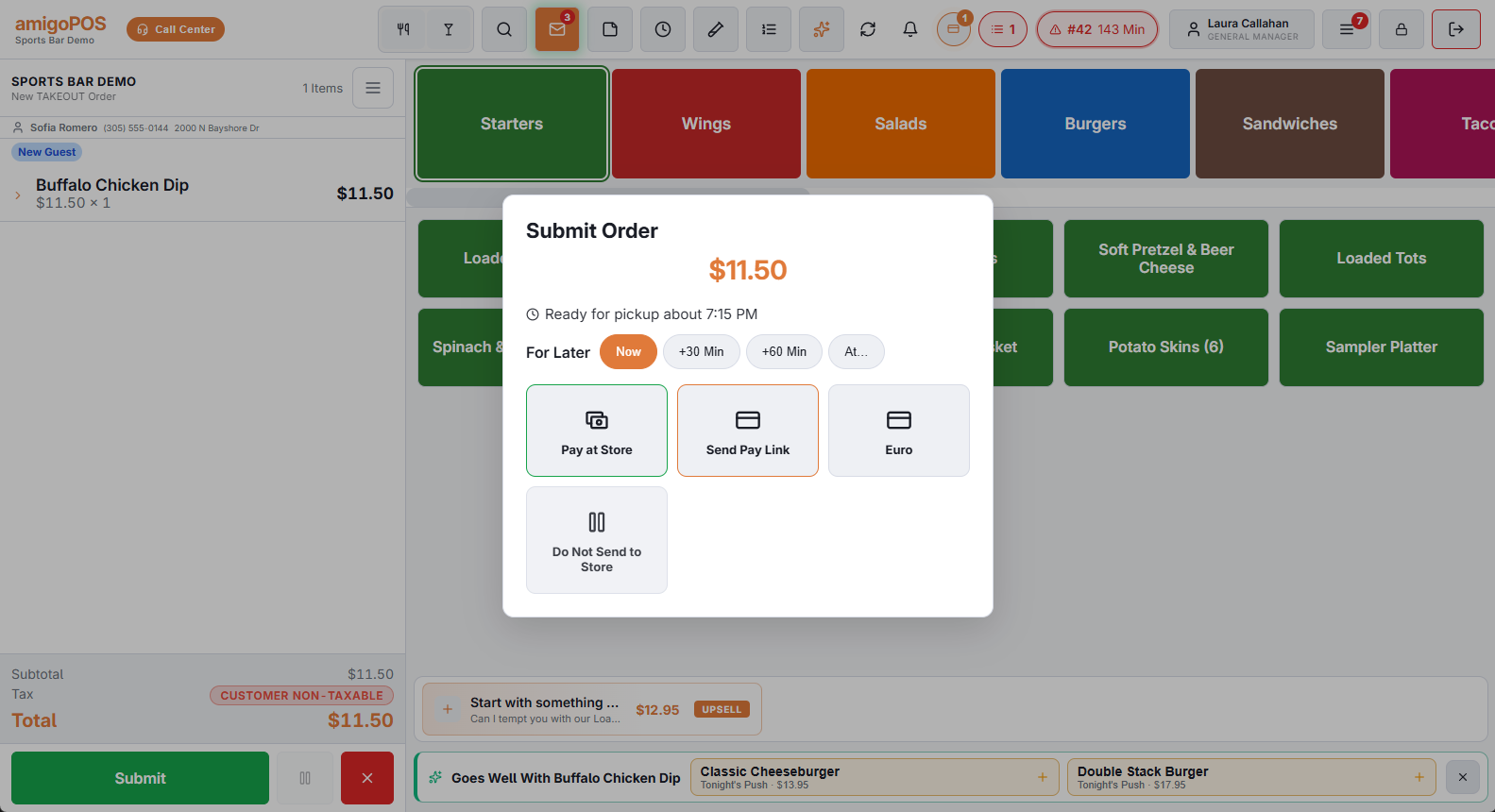
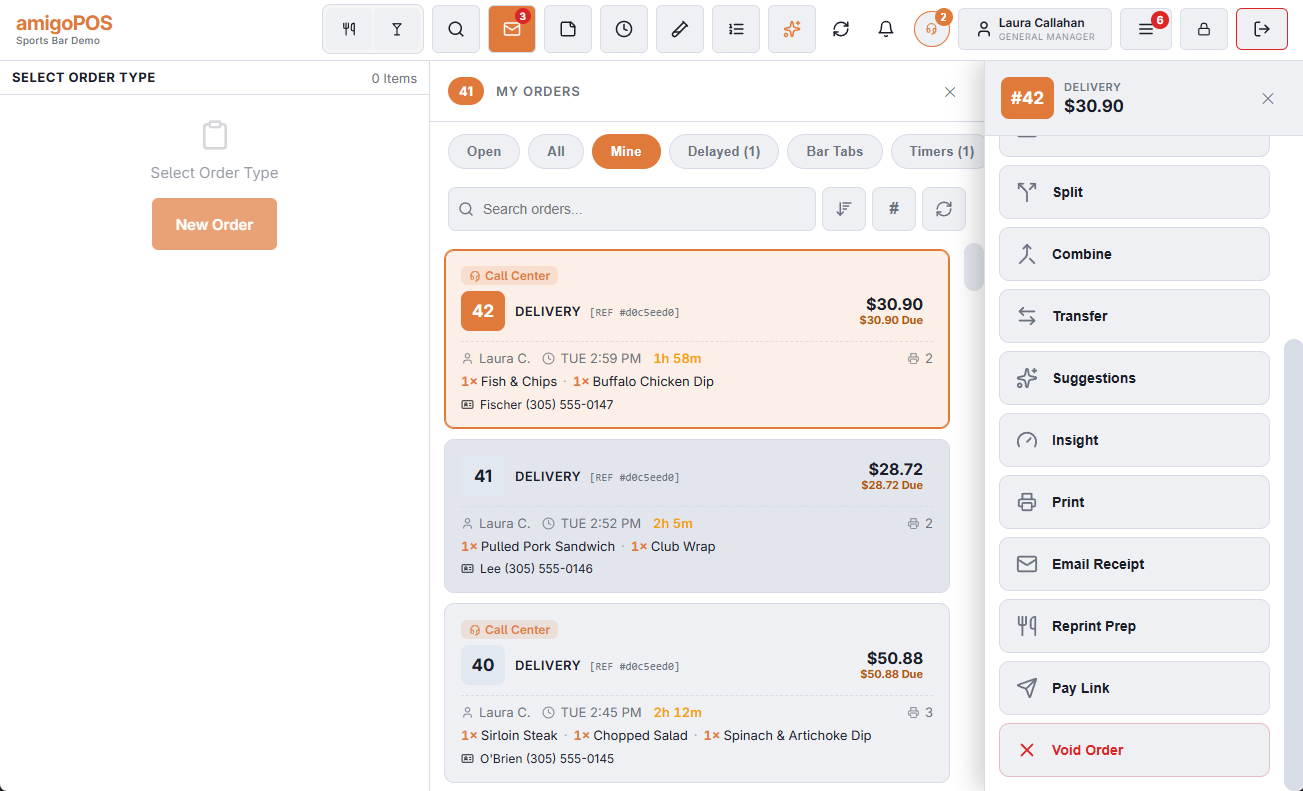
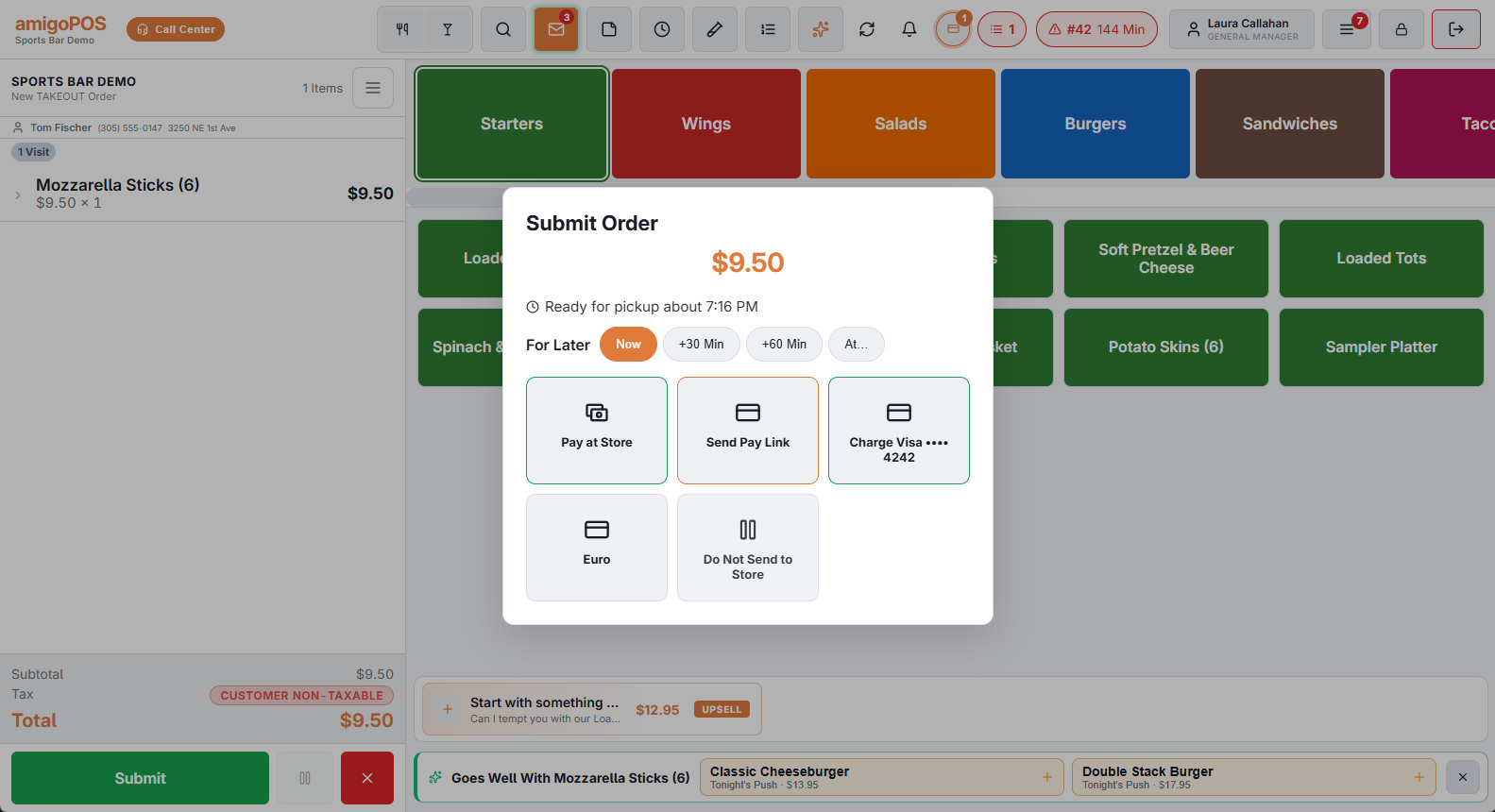
From the call center: the order waits until it is paid
With Hold Call Center Orders Until Paid on (the default), Send Pay Link saves the order in Do Not Send — nothing prints and the store isn’t alerted — and opens the pay link screen. Stay on the line while the customer pays: when the payment lands, the order goes to the store by itself, already paid, and the screen says so.
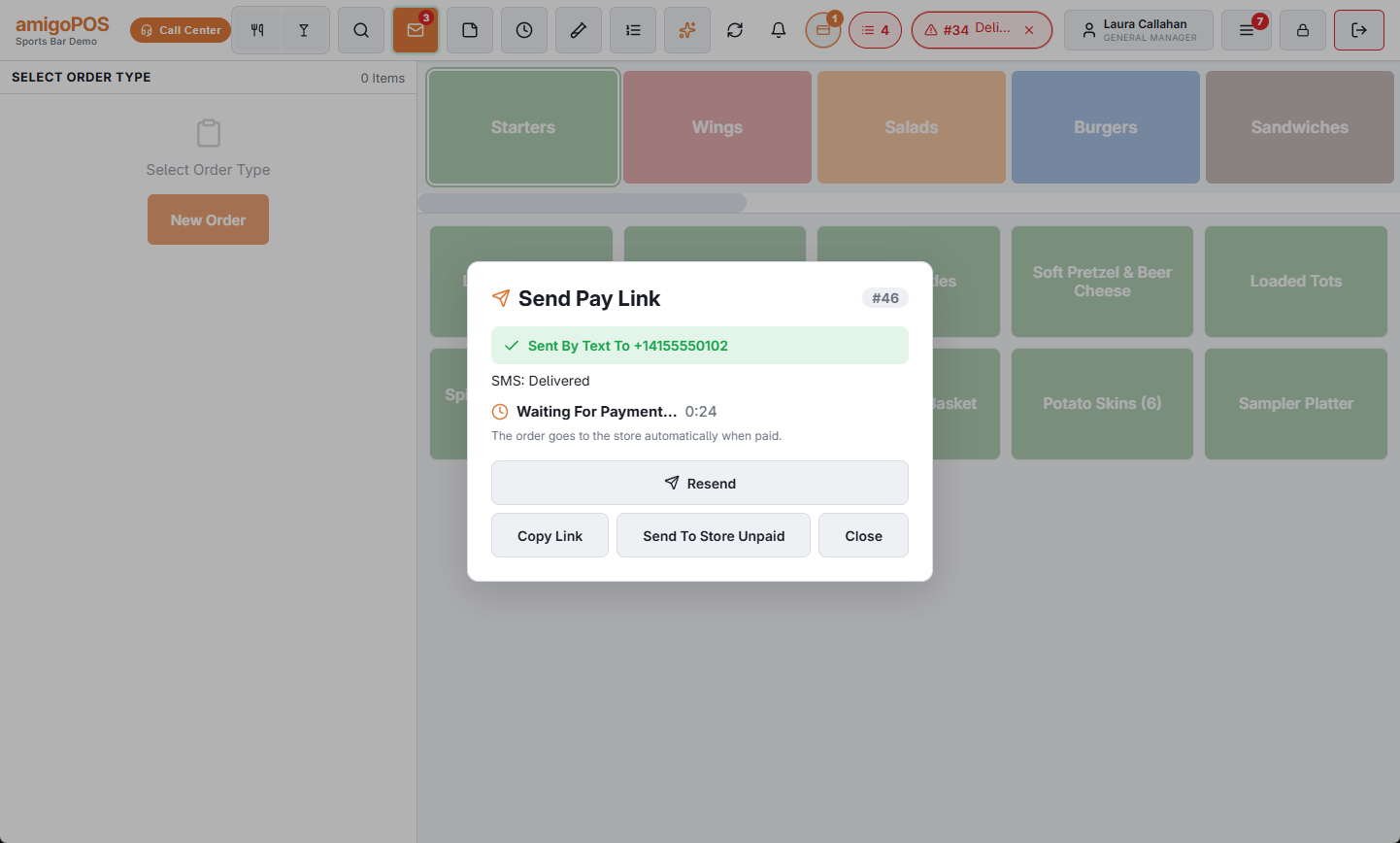
- If the customer can’t pay by link, Send To Store Unpaid releases the order now. The link keeps working for later.
- Closing the screen cancels nothing: if the customer pays later, the order still goes to the store.
- An order that is never paid stays in Do Not Send, where it can be recalled like any other held order.
- An order the store already has — recalled to change it — is never taken back onto hold.
With the switch off, the order goes to the store at once, unpaid, and the link follows.
Sending
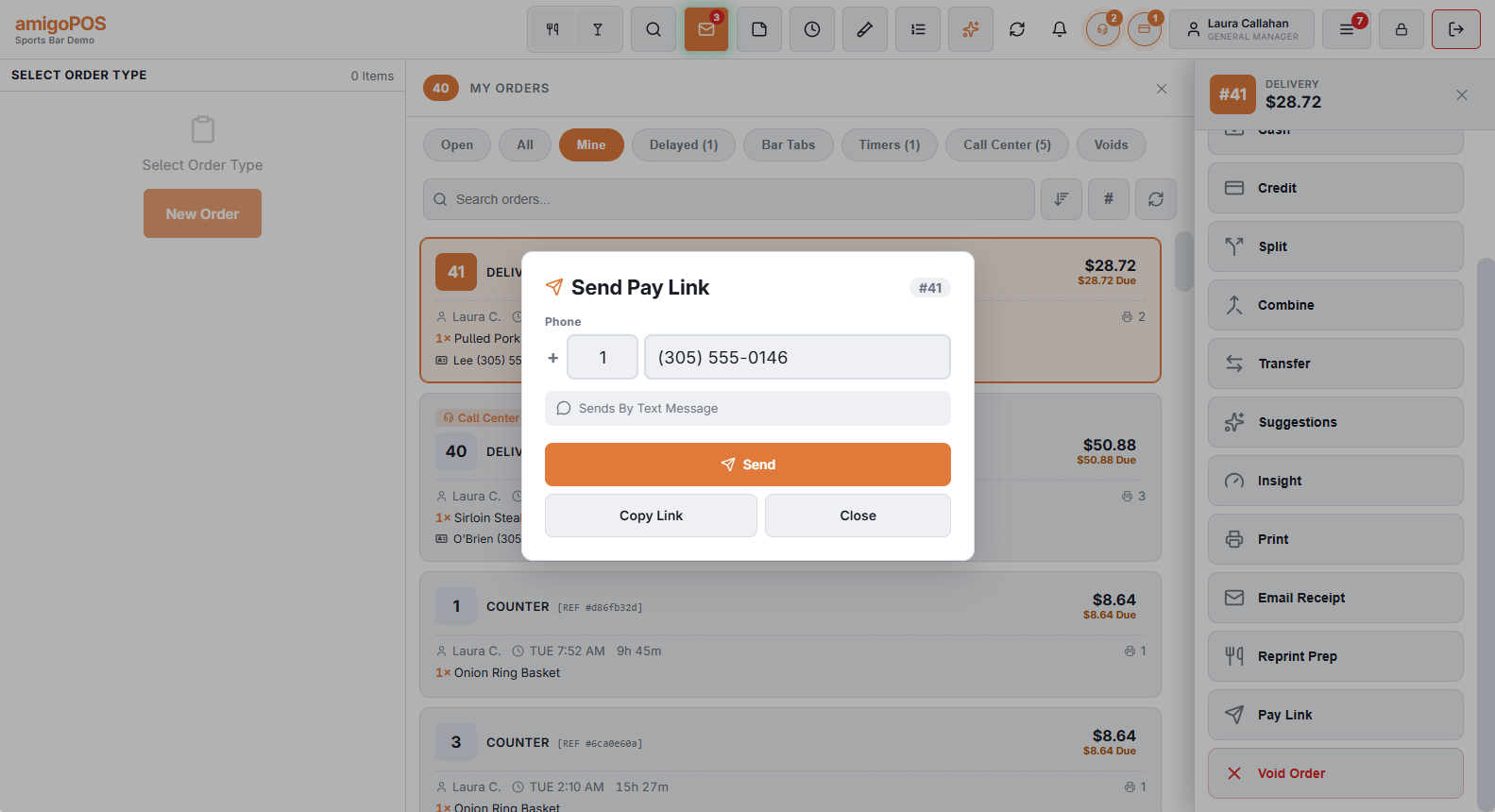
The number is filled in from the order; correct it if needed. It is entered as a fixed +, a country code already filled with the store’s own, and the number the way the customer says it: change the country code for a foreign number, or paste a number that starts with + as it is. What you type is used for this message only and is never saved on the customer.
Under the number, the screen says how the link will go — WhatsApp or text — or why it can’t. When the store has approved Payment Link templates in more than one language, pick the customer’s language.
Watching it arrive
After Send, the screen shows how the link went, its delivery status — sending, sent, delivered, read or not delivered — and Waiting For Payment with a timer. When the customer pays it shows Paid with the amount and, from the call center, that the order has gone to the store. Once the link is out, a tap outside the screen no longer closes it.
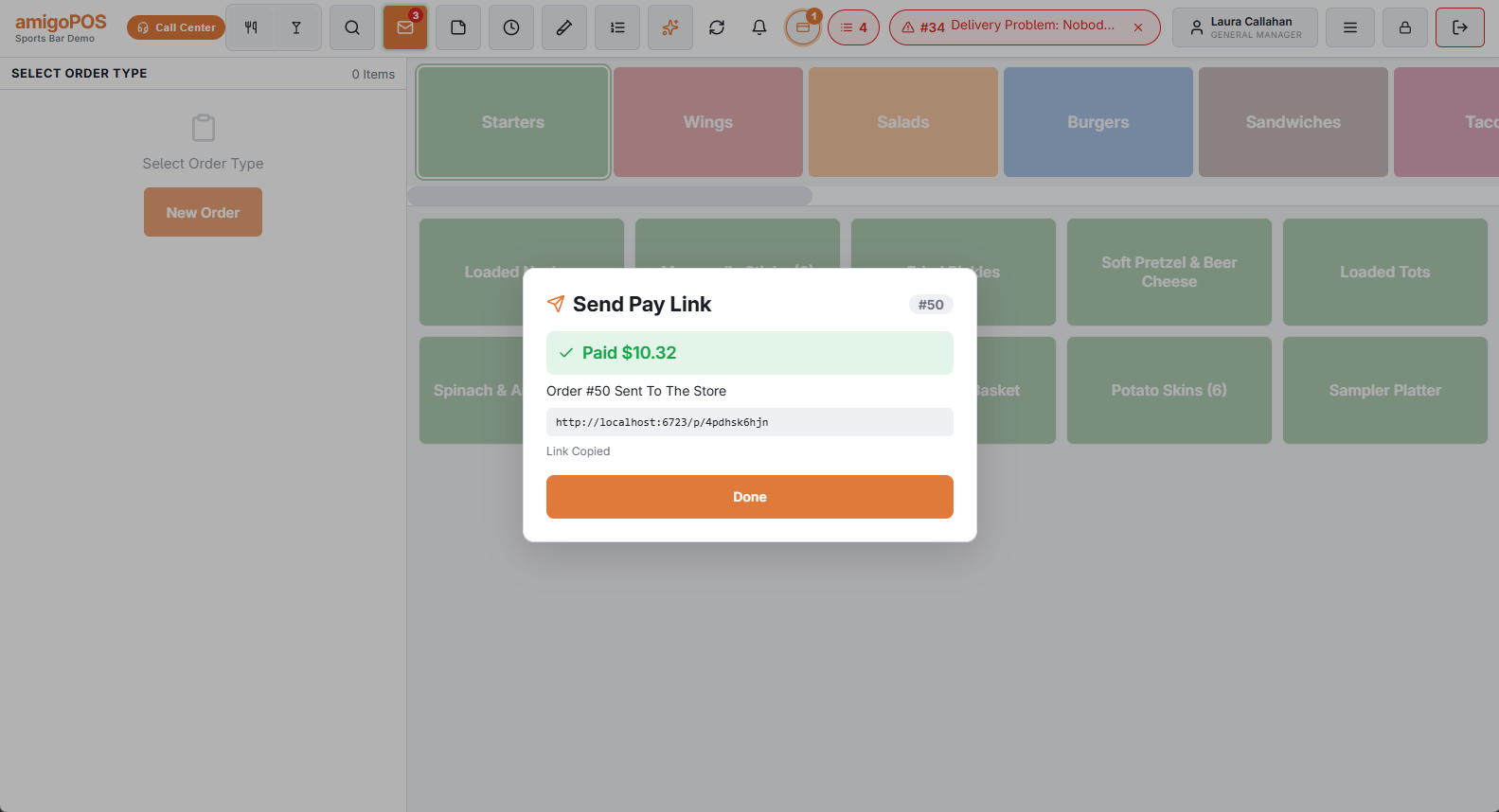
When the message doesn’t go out
If sending fails — a landline, a mistyped number, messages switched off — the link is shown on screen. Copy Link puts it on the clipboard for any other way of passing it on, and the screen keeps watching for the payment all the same. Resend lets you correct the number and send again; the link doesn’t change.
When the card is declined
If the customer’s card is refused on the payment page, the call center’s tracker shows Payment Failed with the reason on that order, until it is paid. The link still works: the customer can try again or use another card.
From the driver’s phone
A driver at the door can show the same payment page as a QR code on their own phone, or message the link, with Pay By Card on the stop. See Deliveries on the driver’s phone. When an order that is out is paid online, the driver’s phone is told not to collect.
Sending the link automatically
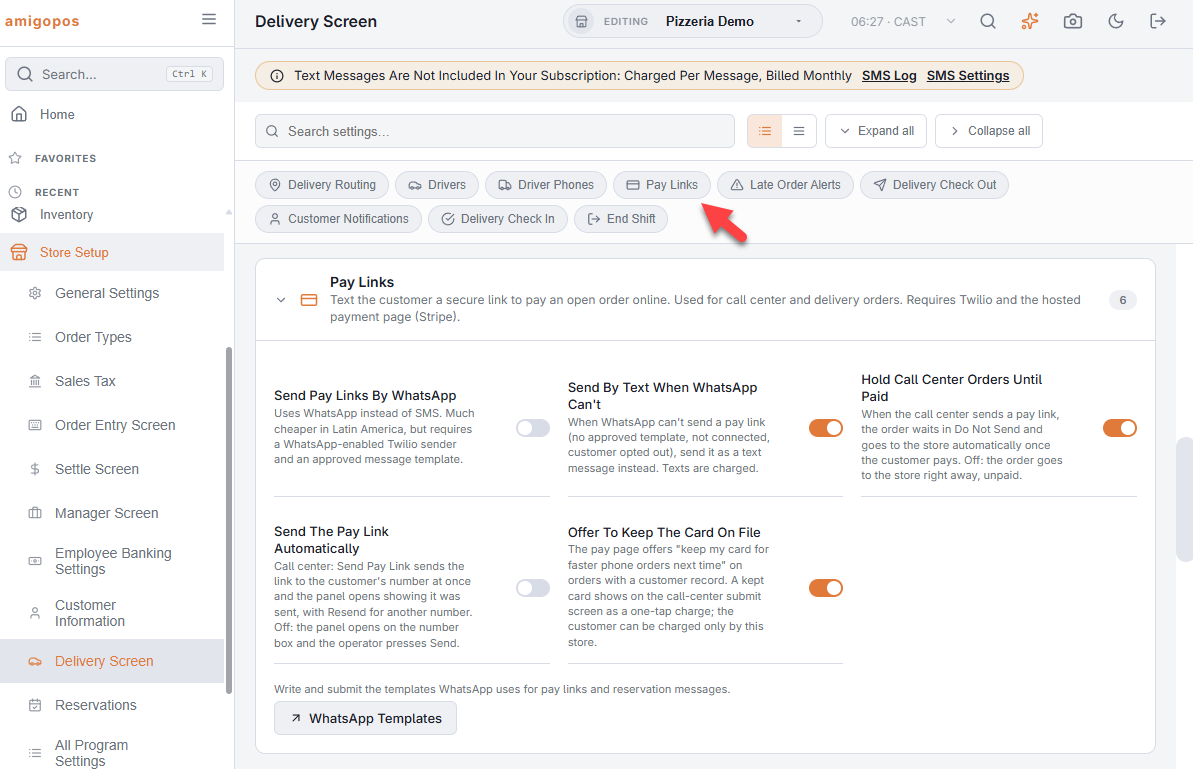
With Send The Pay Link Automatically on (Back Office › Store Setup › Delivery Screen › Pay Links), tapping Send Pay Link on the call-center submit screen sends the link to the number on the order at once. The panel opens showing where it went and the message’s delivery status; Resend brings the number box back for another number.
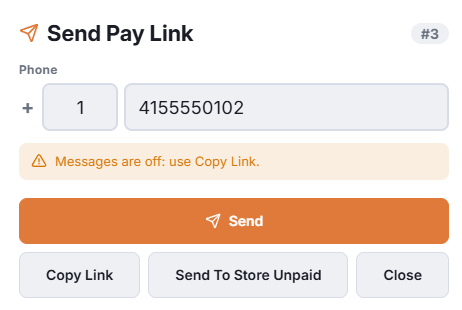
The link is not sent on its own — the panel opens on the number box as before — when the number has fewer than seven digits or the store’s messaging is not ready (no public address, no WhatsApp template, no SMS). The orders list and the delivery screen are not affected by the switch: there the link is always sent by hand.
Keeping the card for next time
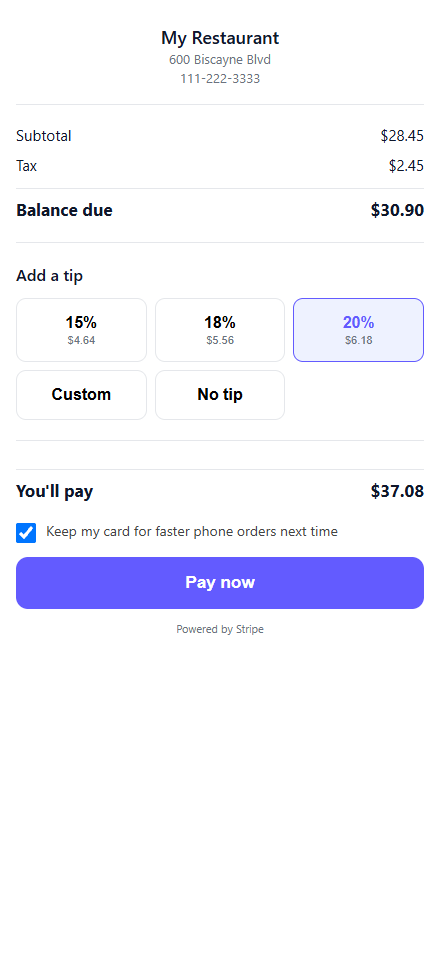
When the order belongs to a customer record and the store offers it (Setting up pay links), the pay page shows Keep my card for faster phone orders next time. Ticked, Stripe keeps the card under the customer; we hold only the brand, the last four digits and the expiry — no card number ever touches the register.
The next time that customer calls, the call-center submit screen shows Charge Visa •••• 4242 beside the other ways to send. One tap parks the order, charges the card and sends the order to the store the moment the charge is approved — the store gets it with the receipt and the kitchen ticket as usual. A decline leaves the order in Do Not Send with the reason on the screen; a pay link, or another card, can follow from Pending call-center orders at the store.
A card is kept with the store whose pay link took it: a card kept through one store’s pay page can be charged by that store only, because each store has its own Stripe account.