Back Office › Employees › Communication & Audit › Messages is where managers write to staff and check that a message arrived. Messages appear at the register and on the staff site, rather than on a noticeboard nobody reads. The page appears for jobs with Compose messages or Message Log.
Sent messages
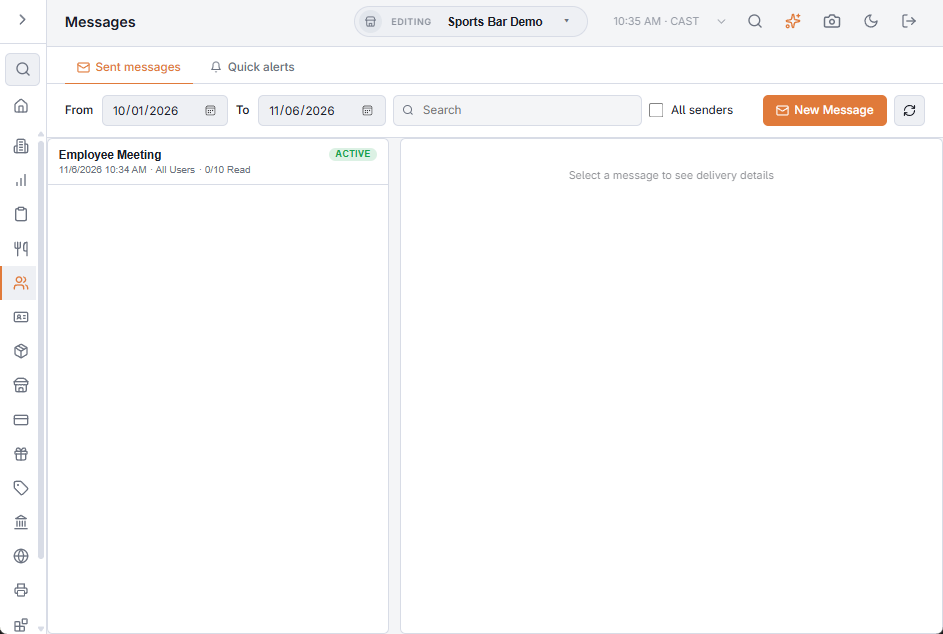
The Sent messages tab lists messages between From and To (the last 30 days when it opens), newest first. The search box looks through subjects, text and senders. The list shows your own messages; with the Message Log permission, All senders shows everyone’s.
Each row shows the subject, its state — Scheduled, Active or Expired —, when it was created, who it went to, how many recipients have read it and, when asked for, acknowledged it, and the number of replies. Important messages stand out.
Writing a message
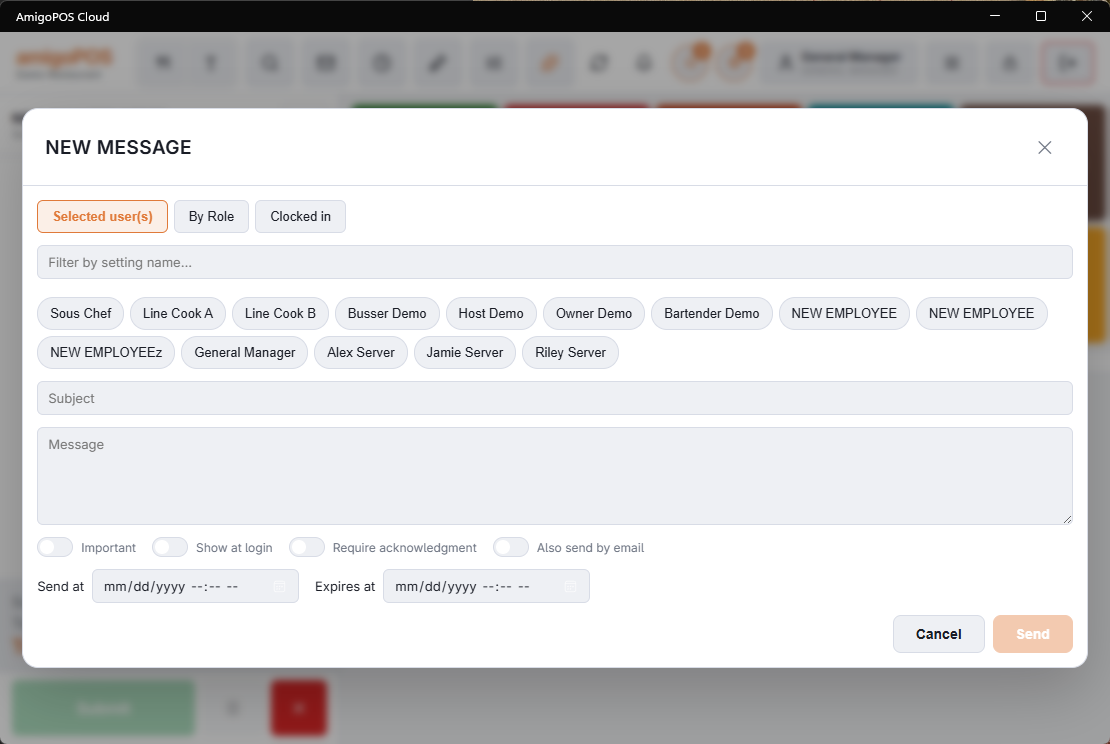
New Message opens the composer; it needs the Compose messages permission.
- Who — Selected user(s), everyone in a job (By Role), whoever is Clocked in, or All Users. Messaging everyone needs the Message All Employees permission.
- Subject and Message.
- Important — marks it out from routine notices.
- Show at login — puts it in front of the recipient when they sign in, rather than waiting for them to look.
- Require acknowledgment — they must confirm they have read it, and you can see who has.
- Also send by email — also emails it, for something people need off shift.
- Send at and Expires at — schedule it for later, and have it drop off by itself.
Checking a message
Click a message to open it. The top shows the sender, when it was created, when it is sent and expires, and its options; with email, how many emails went out (✓) and failed (✕). Under the text, Recipients lists each person with when it was Delivered, Read and Acknowledged, and its email status, followed by the replies.
- A Scheduled message can be changed with Edit, or removed with Delete, until it goes.
- An Active message can be taken out of every inbox at once with Expire now. Its entry stays in the log.
To see every message sent in the store with its read and acknowledgement counts, use the Message Log; see Message log.
Quick alerts
The Quick alerts tab holds the one-tap messages staff can send to all managers from the POS — a delivery arriving, an item running out. Add one with its Label, set its Sort Order, switch it Enabled or off, or Delete it. Changes save as you make them. Sending one needs the Quick Alerts permission.
Notices the system sends
Some messages are sent automatically and land in the same inbox as yours: time-off decisions, a published schedule, shift offers and pick-ups, and manager-approval requests for shift changes. They show the person who triggered them as the sender.
Staff using the staff site on their phones read the same inbox in its Messages tab; reading a message there marks it read at the register too.
Messages from employees’ phones
On the staff site, Message The Managers lets an employee start a message — Running Late, Can’t Make My Shift or a question in their own words. It is delivered to every active employee whose job has manager access, in the inbox here and on their phones, with a notification where those are on. A manager’s reply goes to the employee and to the managers who have already answered. See Using the staff site on your phone.