The staff site is your schedule, time clock, tasks and messages on your own phone. It runs in the phone’s browser — there is no app to install.
Setting up your phone
- Your manager gives you a QR code or texts you a link. Scan the code with your phone’s camera, or tap the link. The link works once, within 48 hours.
- The phone is now set up. Enter your PIN — the same one you use at the register.
- Optional: use your browser’s Add to Home Screen so it opens like an app.
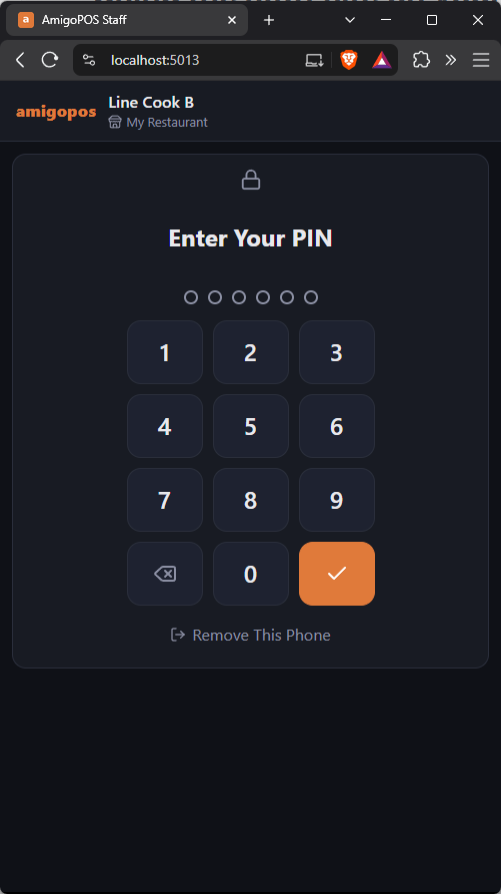
After that, open the site and enter your PIN. It stays unlocked for up to 12 hours, and asks for the PIN again when the phone has been put away for a while — 15 minutes unless you change Lock When Away; see This Phone: notifications, Face ID, Lock When Away and appearance. The padlock at the top locks it at once. Five wrong PINs lock it for 15 minutes.
Home
Home shows what you need now, and nothing else.
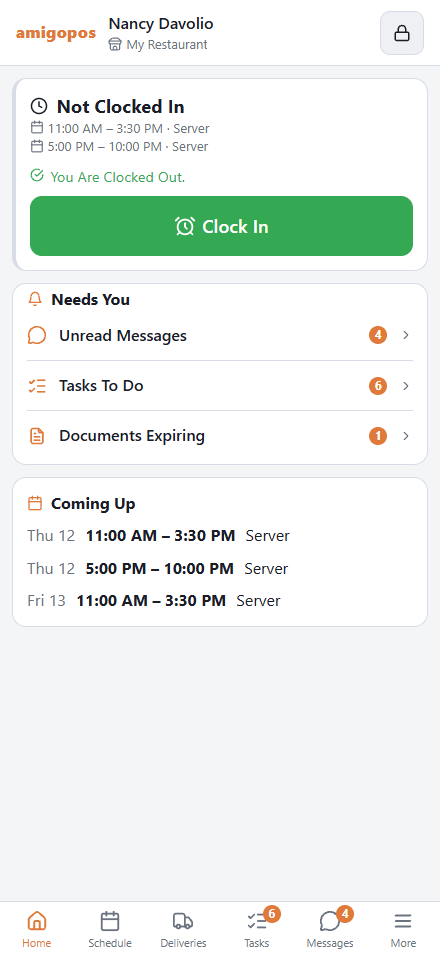
- The clock card — whether you are clocked in, today’s shift (or No Shift Today), and the Clock In or Clock Out button.
- Needs You — one row for each thing that is waiting for you, with a count: Unread Messages, Tasks To Do, Shifts Offered To You, Last Week’s Hours To Approve, Documents Expiring, and Deliveries for drivers. Tap a row to go there. When nothing is waiting it says You’re All Caught Up.
- Coming Up — your shifts for the next week.
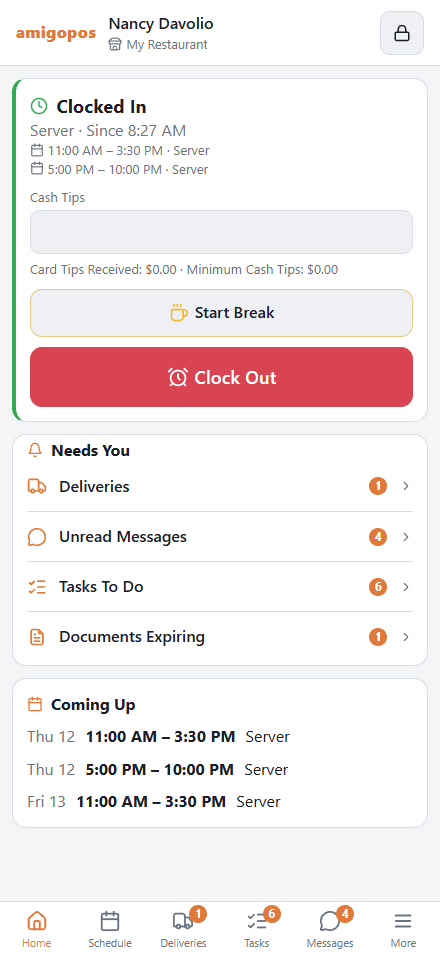
- Clock In — if you have more than one job, pick the one you are working first. If your store checks location, your phone asks to share it: allow it, and be at the store.
- Clock Out — if your store asks for tips at clock-out, enter your card tips and cash tips first, then tap Clock Out. When Clock Out is refused, the reason is shown in words — for a driver, usually deliveries that are not banked yet.
Getting around
The bar at the bottom holds Home, Schedule, Tasks, Messages and More; drivers also have Deliveries. Inside a page, the top of the screen shows the page’s name with a Back arrow. A short line at the bottom of the screen confirms what you just did, or says why it did not work.
Schedule
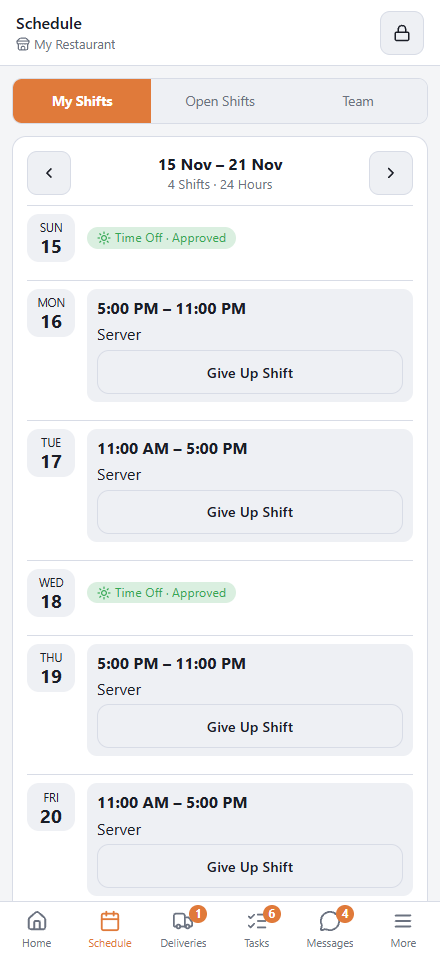
The strip at the top switches between three pages:
- My Shifts — your published shifts, a week at a time, with the week’s shifts and hours. Future shifts have Give Up Shift. A day you have asked off shows Time Off with Approved or Pending. Tap a day’s name to see who else is working that day.
- Open Shifts — shifts you can pick up; see Picking up, giving up and swapping shifts.
- Team — who is working, day by day.
Tasks
Today’s checklists for your jobs. Tap a task to tick it off; a task that needs a number, a temperature or a note asks for it first. Tap a task you ticked by mistake to undo it — if it holds a reading, a note or a photo, you are asked first, because they are removed. A task somebody else ticked can only be undone at the register.
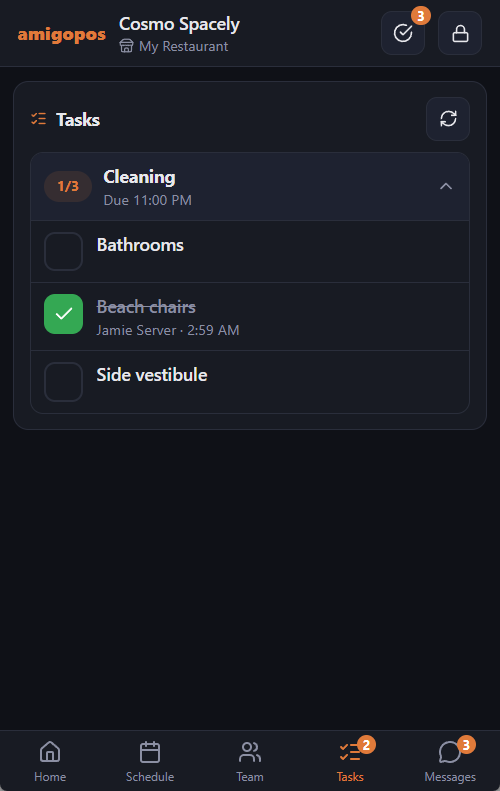
- A task with a camera icon needs a photo. Tap it, then Take Photo: the camera opens, and a task that only wants the photo is done as soon as you take it. If it also asks for a number or a note, enter that too and tap the tick. Tasks that need a photo can only be done here, not at the register.
- Range: under a task shows the readings that are fine. A reading outside it is saved anyway, shown in red, and your managers are told straight away.
- A list a manager gave you for the day says Assigned To You, and a list past its due time says Overdue.
Messages
Messages from your managers and from the system (time-off answers, shift offers, a published shift that changed). Tap one to open the conversation and reply. A reply to a message sent to the whole team goes to the person who sent it and anyone who has already answered, not to everyone — the line under the reply box says who will get it. Messages that need it have an Acknowledge button.
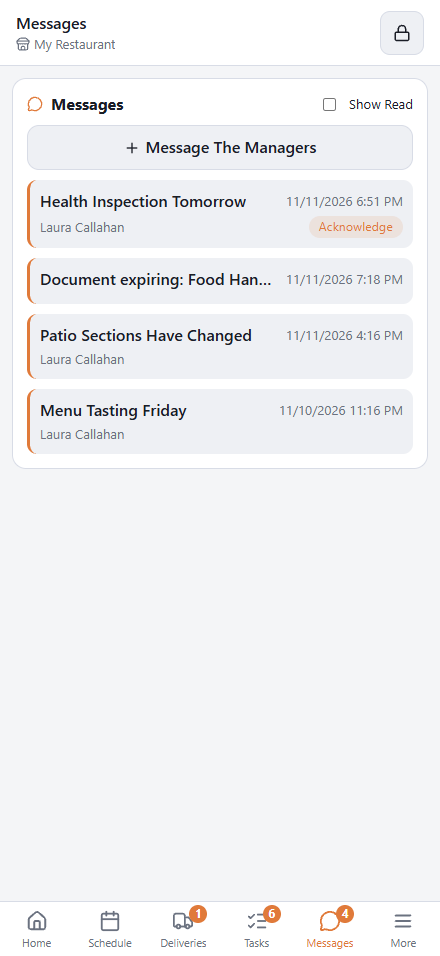
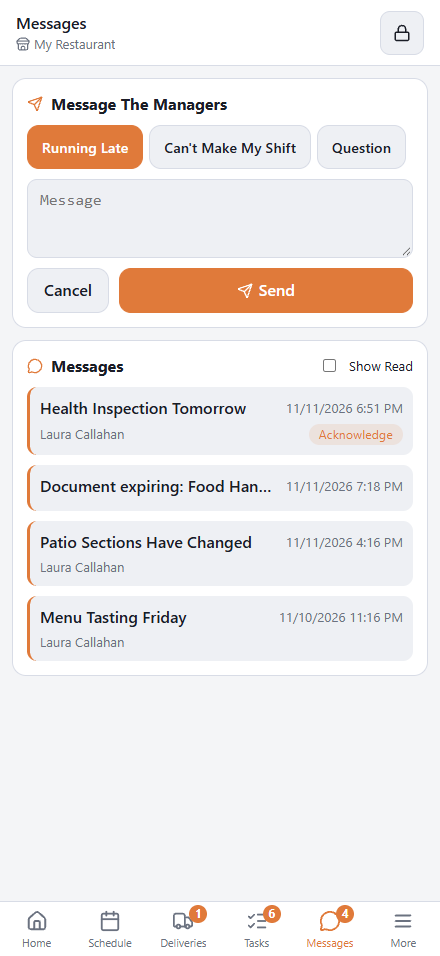
Message The Managers starts a message of your own. Pick Running Late, Can’t Make My Shift or Question, add a few words if you want, and tap Send. The first two can be sent as they are. It goes to every manager, and their answer comes back to you in the same conversation.
More
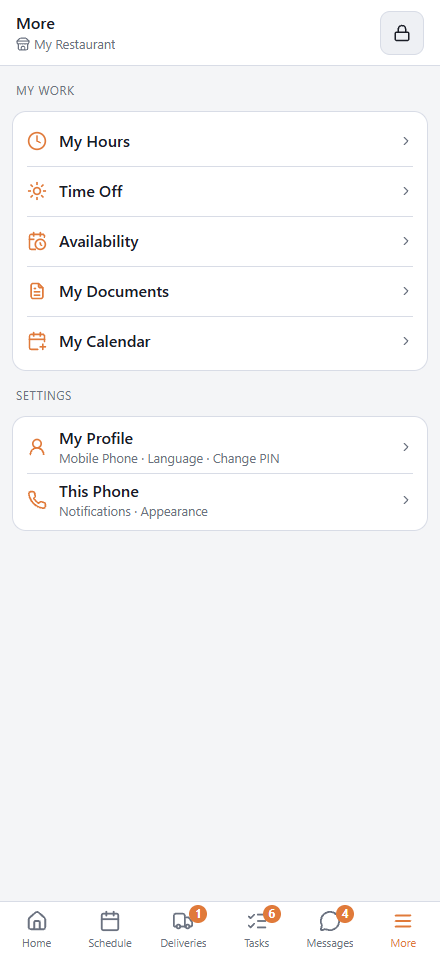
Everything that is not a tab is on More.
- My Hours — your hours and tips for the week, and the punches behind them; see My Hours & Tips (staff view).
- Time Off — request dates off, see the answer, and cancel a request that hasn’t been decided.
- Availability — for each weekday: Available, Hours (from–to) or Unavailable. Save when done.
- My Documents — your food handler card, ID or permit, with a photo you take on the phone. You are reminded before one expires; see Employee documents and certificates.
- My Calendar — your shifts in your phone’s calendar app; see Your shifts in your phone’s calendar.
- Inventory Count — only if your job lets you count inventory; while a count is open the row shows how many items have been counted. See Counting inventory as a team on your phones.
- My Profile — your mobile number, email, language and PIN; see My Profile: your phone number, email, language and PIN.
- This Phone — notifications, Face ID or fingerprint, Lock When Away, light or dark, and Remove This Phone; see This Phone: notifications, Face ID, Lock When Away and appearance.
Managers have more rows here; see Manager tools on the staff site.
Time off and availability
A time-off request can be a whole day or part of one — pick the date and the hours — and you can mark it unpaid. If your store gives paid days off, the screen shows the days you have left and what the request would leave. Where your store gives days off for hours worked, the balance says how many of its days you earned that way, and from how many hours — for example Includes 2.5 Days Earned From 75 Hours Worked.
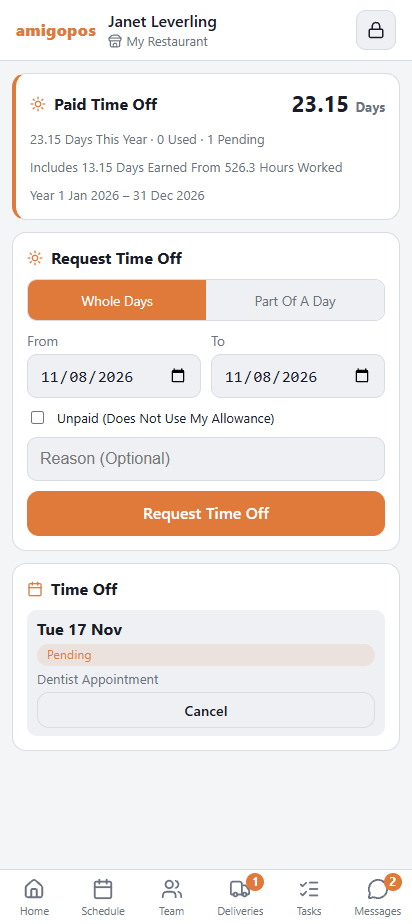
Where your store asks managers to approve availability changes, saving your weekdays sends them for approval instead of applying at once, and the screen says so until the answer arrives.
Breaks
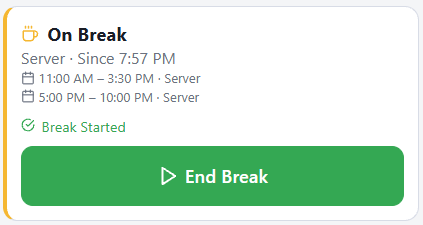
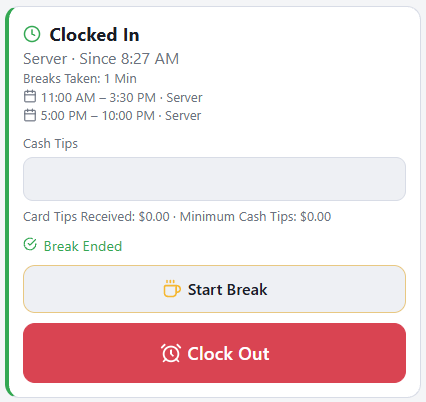
Where the store uses breaks, the clock card has Start Break above Clock Out while you are clocked in. During the break the card says On Break and since when, and its one button is End Break. Once you have taken a break, the card also shows Breaks Taken with the minutes.
- One break at a time, with the same location check as clocking in.
- “End Your Break Before Clocking Out” — a break is still running, for example one started at the register: end it first, then clock out.
Deliveries (drivers)
If you hold a driver job, the bar at the bottom also has Deliveries: your run, stop by stop, with a badge for the stops still out. See Deliveries on the driver’s phone.
More than one store
If you work at more than one location, the store name at the top becomes a picker. Switching stores changes everything on the site — schedule, open shifts, team, tasks, hours — and clocking in then belongs to that store. One invite is enough; you do not set the phone up twice.
Language
The site uses the language set on your employee profile — the same one the register uses for you. Change it yourself under More › My Profile; Same As This Phone follows your phone’s language. Arabic is shown right to left.
With no signal
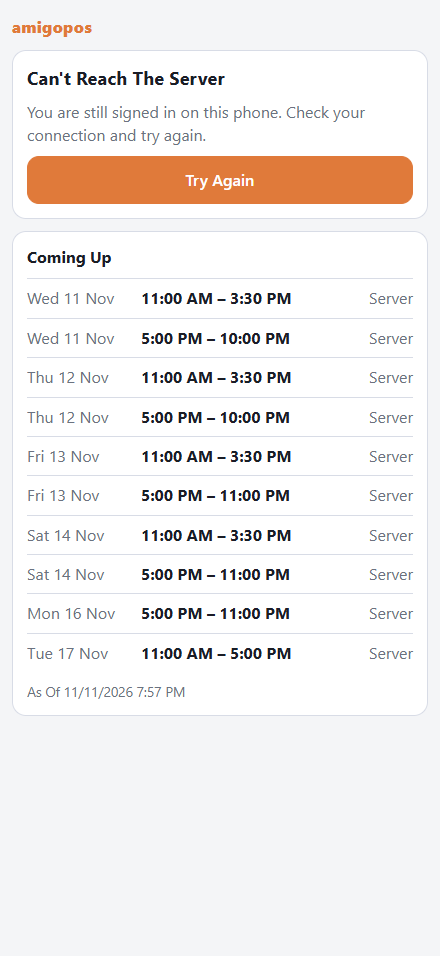
If the phone has no connection when you open the site, you get Can’t Reach The Server with the shifts Home showed the last time it was open, and the time they were saved. That page does not ask for your PIN and shows days, times and jobs only. Try Again reloads, and the page reloads by itself when the connection is back. Clocking in, tasks and messages need a connection.
If something goes wrong
- “Can’t Reach The Server” on a page — the phone lost its connection or the store’s server did not answer. Tap Try Again. You are still set up; you do not need a new invite.
- “This phone is not set up yet” — ask your manager for a new invite. This happens after 90 days without using the site, after Remove This Phone, or if your access was removed.
- “You must be at the store to clock in” — your phone’s location is too far away. Step outside or near a window so the phone gets a better fix, and try again.
- “Allow location access” — the browser was told not to share location. Allow it for this site in your browser’s settings.
- “This punch needs a manager” — the store’s rules need a manager to approve this punch (for example, clocking in well before your shift). Use the register.
- The PIN pad appeared while you were using the site — the phone was away longer than Lock When Away, or the 12 hours ran out. Enter your PIN and you are back on the page you were on.