Phone, delivery, and call-center order types open with the customer lookup — find the caller, or create them, in seconds.
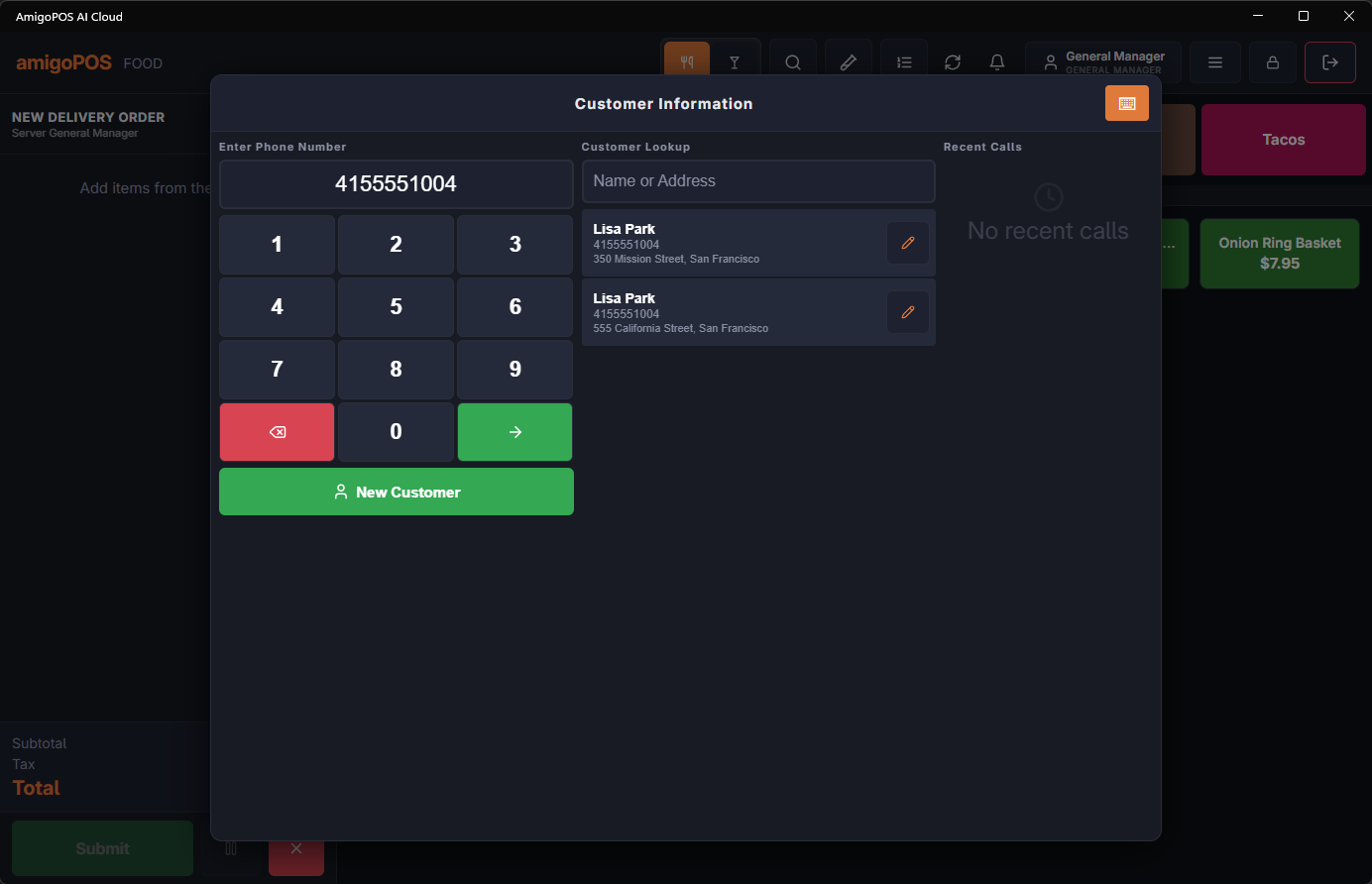
Looking up
- By phone — the primary path: digits go in (a minimum count before search fires), matches appear as you type. With caller-ID integration, recent calls are listed to tap instead of type.
- By name or address — the fallback when the phone number is new but the customer isn’t.
Selecting a match loads the customer onto the order — name, addresses, notes — and their order history is one tap away (“the usual” is a reorder, see Customer order history). A blocked customer flags immediately, before the order is taken. Unblock on the customer screen needs the Unblock Customer permission; without it, a manager approves.
New customers
New customer opens the entry form with the phone number already filled. Which fields appear and which are required is configured per store — see Customer-information screen; require only what the order genuinely needs, because this form is on the critical path of every phone order.
Calls from the phone system
With caller ID connected, Take Call on the incoming-call banner opens this screen with the caller’s number already searched. The Recent Calls column on the right lists the latest calls, newest first: tap one to search that number. Calls already taken are dimmed, and an unknown number shows the name sent by the phone company when there is one. See Taking a call at the register.
For a regular, Customer Info shows their usual order with a one-tap button — see The usual: one-tap reorder for regulars.
During an outage
Lookup needs the server. While the register is offline, the customer screen is replaced by a small prompt for a name and phone, which print on the receipt. No customer record is created or matched. See Working offline.
Delivery address: one Continue
For a delivery order type the address is routed as soon as the customer comes on screen: the zone, the delivery fee and the estimated time appear by themselves, so a known address needs one Continue. An address you type or change is routed on the first Continue (the banner shows what was found) and committed on the second. Picking another saved address routes that one.
Order type, on a call-center station
Until the order starts, a strip across the top of the customer screen shows the order types the call center may use, with the current one lit. Tap another to change it; a delivery address is routed again. Once the order has started, the type is changed from More › Change Order Type, as on any register, with the Change Order Type permission or a manager’s approval.