CloudPos needs the internet for full functionality, but an outage won't stop you taking orders. When the connection to the server drops, the register switches to offline mode on its own — no action needed — keeps working from the data already on the device, and syncs everything back the moment the connection returns.
This topic covers using the register during an outage. Managers should also read Preparing a station for offline mode and After an outage.
How you'll know you're offline
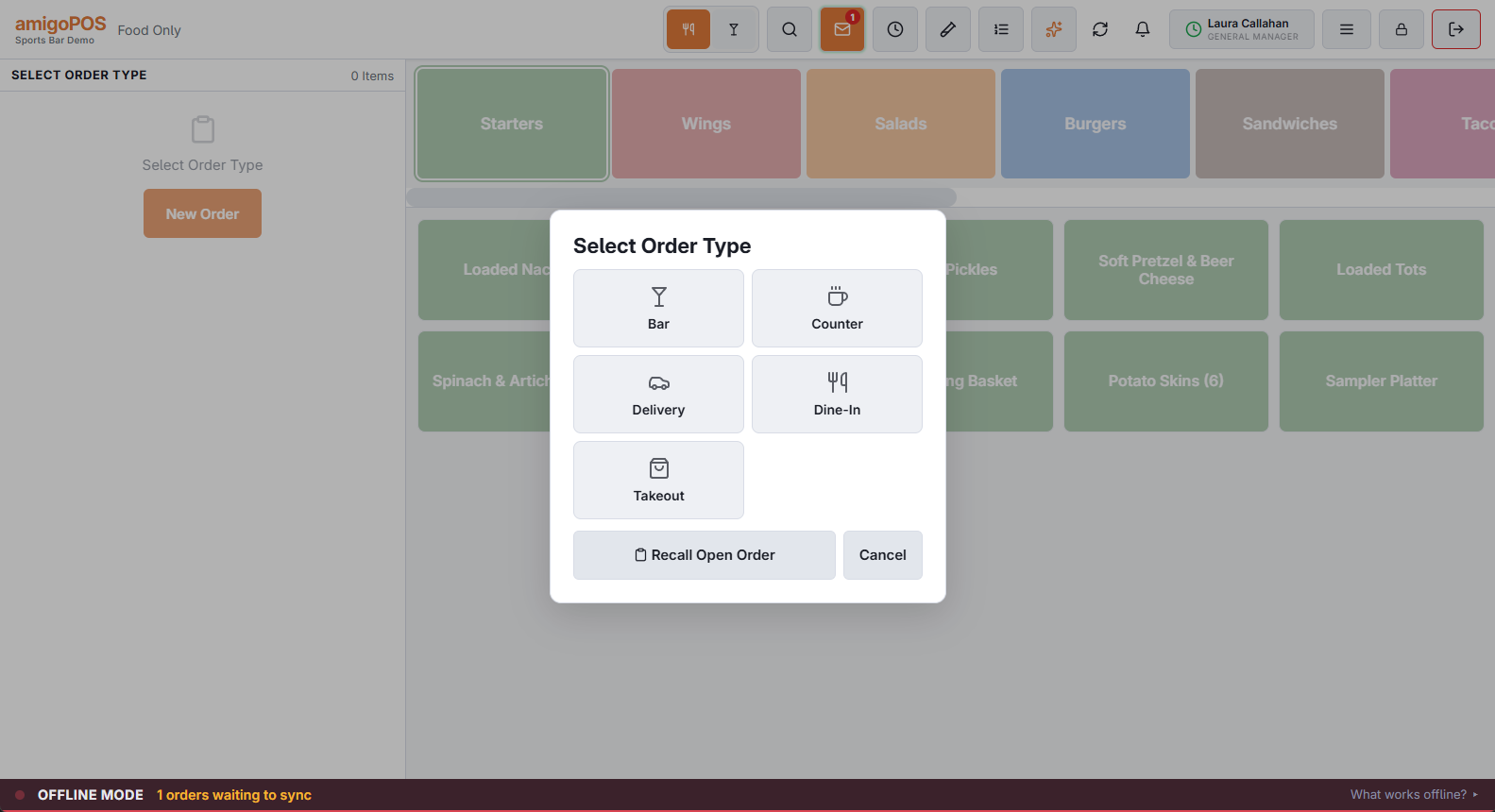
- A red OFFLINE MODE banner appears across the screen. It shows how many orders are waiting to sync and how current your orders list is ("Orders as of 14:32").
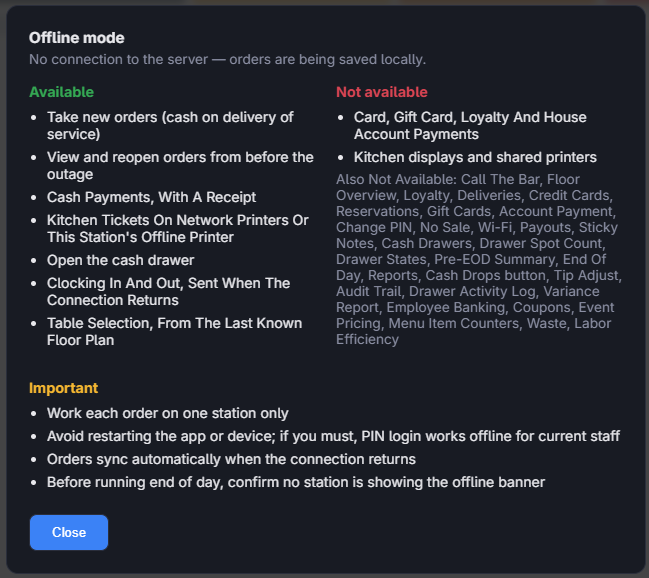
- The first time someone signs in during an outage, the What works offline? panel opens automatically with a quick summary of what's available. You can reopen it anytime by tapping the banner.
- When the connection returns, the banner briefly turns green — "Back online — 3 orders synced" — and then disappears. No action needed.
What works offline
- Taking orders — ring up items, modifiers, guests, and discounts as usual. Prices and taxes calculate exactly as they do online.
- Signing in with a PIN — staff who were active as of the last sync can sign in by PIN even during an outage, including after an app or device restart.
- Cash — take cash payments and settle orders on the spot; the cash drawer opens as usual. Payments are recorded on the device and post to the server automatically when the connection returns.
- Printing — receipts print on this station's offline backup printer. Kitchen tickets go to the kitchen's own printers when the shop's network is working, and otherwise to that same backup printer. See Kitchen tickets during an outage.
- Recall — offline orders appear in the orders list, and orders from before the outage can be reopened to add items or take cash. Items that were already on the order are locked until the connection returns.
Offline orders are given a temporary number that begins with 9, followed by the station number, so two stations never print the same number: station 3 uses 903000, 903001 and so on. The real daily order number is assigned automatically when the order reaches the server.
What's not available offline
- Card, gift card, and house-account payments — these need the server. Take cash, or settle once you're back online.
- Loyalty — points don't accrue and rewards can't be redeemed until you reconnect.
- Kitchen displays — a display keeps the tickets it already had, but orders rung during the outage do not reach it. Those orders print on paper instead. See Kitchen tickets during an outage.
- Signing in with a username and password — only PIN sign-in works offline.
- End of day and reports — end of day is blocked while any orders are waiting to sync.
- Anything that looks up live data — customer accounts, menu changes made in Back Office, and reporting.
Recalling orders while offline
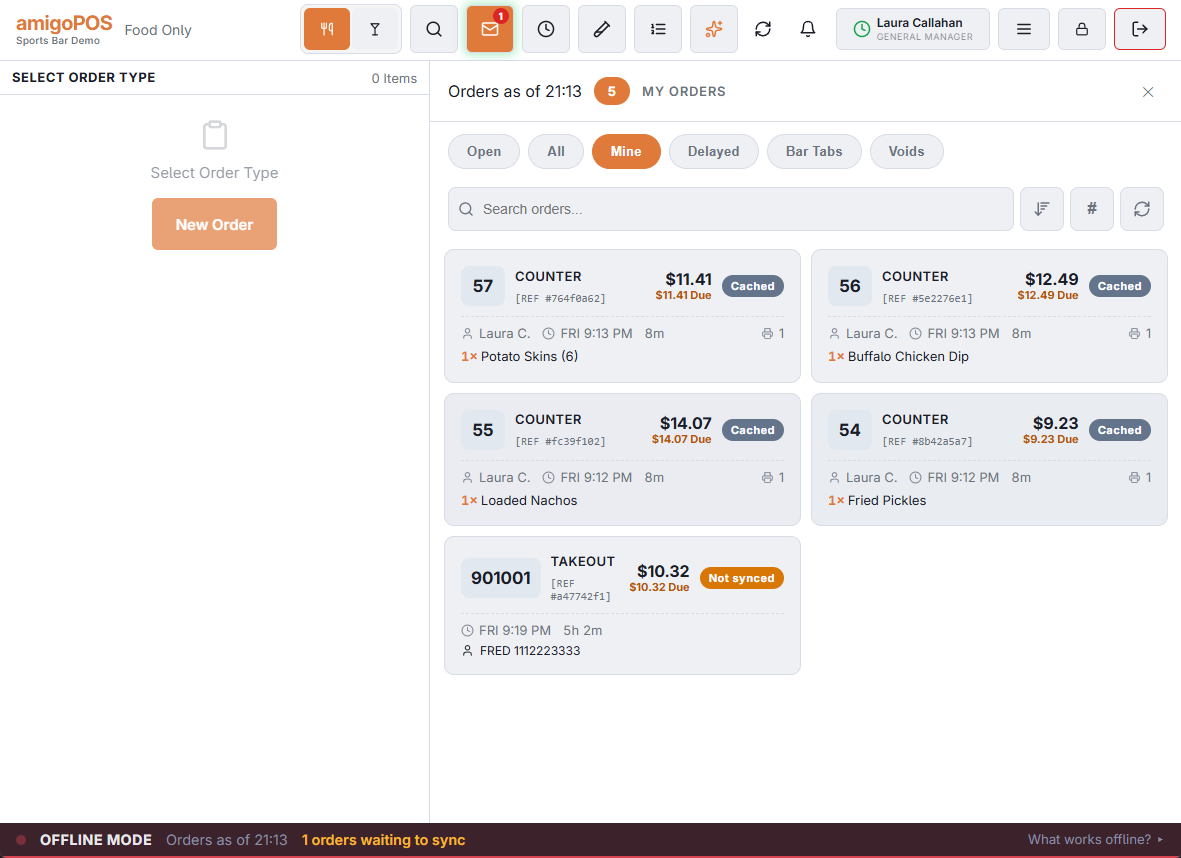
The orders list keeps working offline, with two kinds of entries:
- Not synced (amber) — orders taken on this station during the outage. They can be reopened and edited; changes sync when the connection returns.
- Cached (gray) — orders from before the outage, shown as of the last refresh (the banner shows the time). Reopening one shows a reminder that changes made on other stations after that time aren't visible. You can add items and take cash; existing items are locked and can't be changed or voided until the connection returns. If the order belongs to another staff member, the register asks you to confirm before opening it — work each order on one station.
If a print fails while offline
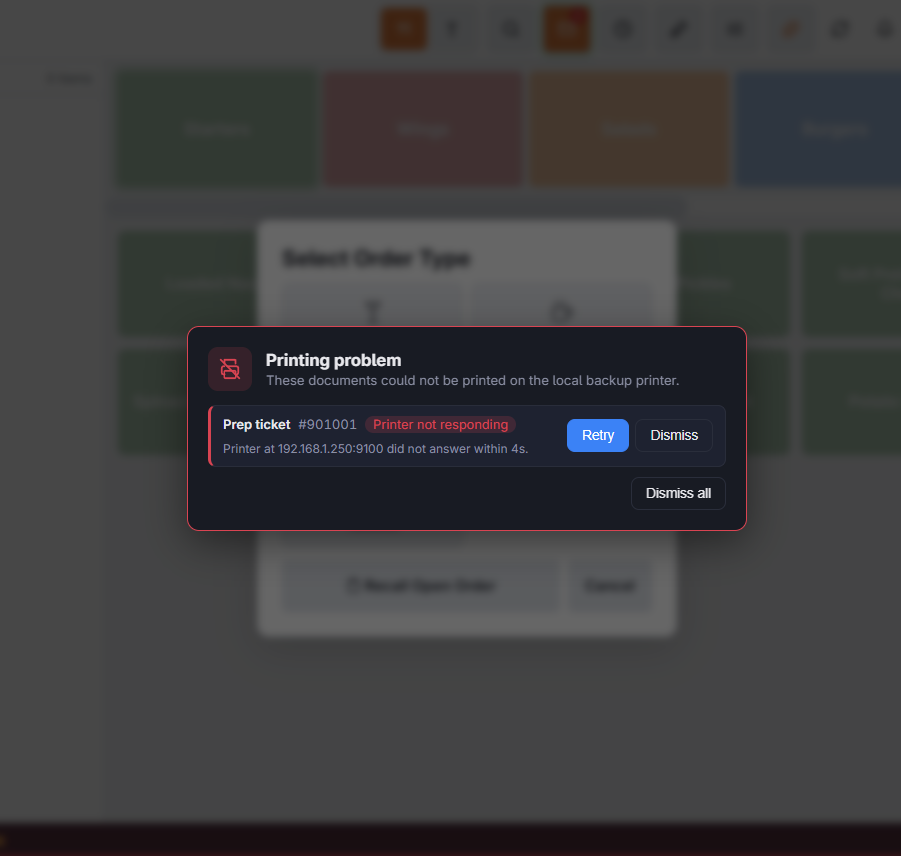
If a receipt or prep ticket can't be printed — the backup printer is off, out of range, or not set up — a Printing problem overlay appears listing each failed document with the reason. Fix the printer (power it on, move it into range) and tap Retry on each item, or Dismiss to skip it.
If the station uses a network backup printer, remember it needs the local network. When the internet is down but the shop's network is fine, it prints normally. When a switch or access point has failed, it won't — the order is still taken and queued, you just won't get a slip.
While you're offline — the ground rules
- Work each order on one station only. Stations can't see each other's offline changes until they sync.
- Prefer not to restart the app or device. If you must, PIN sign-in works and your queued orders are safe — they're stored on the device.
- Don't log out — lock instead. If you tap log out while offline, the register locks the terminal instead so you can get back in with your PIN.
- Cash only. Note card-paying tables and settle them after reconnecting.
- Before end of day, make sure no station is showing the offline banner — end of day is blocked while orders are still waiting to sync.
When the connection returns
- Queued orders sync automatically — the banner turns green and shows how many were sent.
- Offline orders receive their real daily order number.
- Kitchen displays, shared printers, card payments, and loyalty resume immediately.
- The orders list refreshes and the Cached / Not synced pills disappear.
Most outages end there with nothing to do. If an order can't be synced — because it was settled or voided elsewhere during the outage, for example — a manager resolves it afterwards. See After an outage.
Stores using DC Direct card terminals
DC Direct card payments stop while the internet is down, and card payments cannot be recorded offline. Keep a backup terminal on an analog phone line, leave card-paying orders open, and record the backup payments with a card method that has no processor once the connection returns. See Internet outages and card payments in Integrations › DC Direct.
Tables and customers
- Tables. The seating chart opens from the copy kept on the station. It shows the tables that were in use when the connection dropped, plus the orders this station has taken since. Tables opened on other stations during the outage do not show.
- Table status cannot be changed until the connection returns.
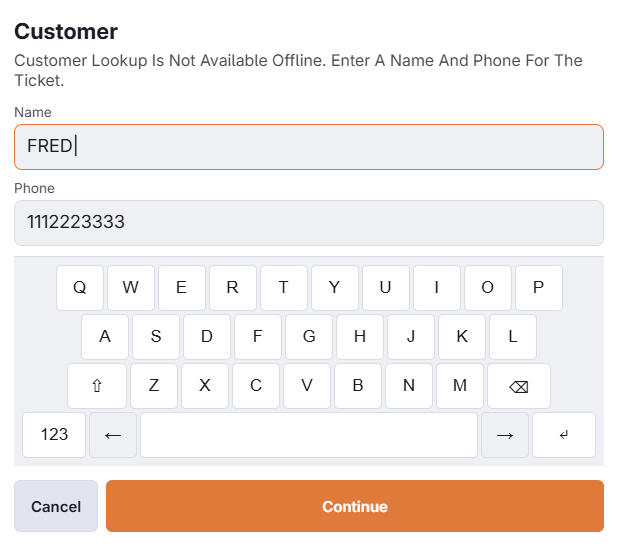
- Customers. Customer lookup needs the server. An order type that asks for a customer, and the Customer button, open a small screen for a name and phone instead. Both print on the receipt and show in the orders list. No customer record is created, so that order has no loyalty, no history and no delivery charge. Put a delivery address in the order note.
Screens that are dimmed
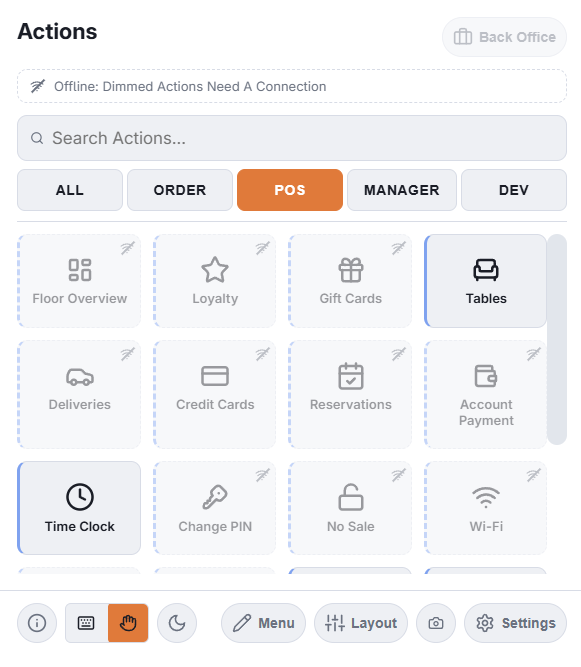
In the More menu, everything that needs the server is dimmed and marked while the station is offline. Tapping a dimmed item shows a message and nothing else happens. The What works offline? panel lists them by name.
- Dimmed: customer accounts, loyalty, gift cards, reservations, deliveries, the floor overview, sticky notes, No Sale, payouts, every manager function, printer and device settings, and Back Office.
- Still working: discounts, coupons, notes, hold, fire course, comps, gratuity, order type, tax exempt, tables, the time clock, language and layout.
Payments: what is different
- A payment cannot be voided while offline; the button is hidden. Void it after reconnecting.
- An order with nothing left to pay, such as a fully comped one, is closed after reconnecting.
- The cash drawer is opened by the printer it is plugged into. That works on this station's offline backup printer, and on the receipt printer when it is a network printer or installed on this computer.
Clocking in and out
The time clock works during an outage. Punches are kept on the station and sent when the connection returns. See Clocking in and out while offline.