Every delivery order can have its own tracking page. The customer opens a short link — from the on-the-way text or email, the web store’s confirmation, the QR code on the receipt, or a link the store sends — and sees where the order is, live, without logging in.
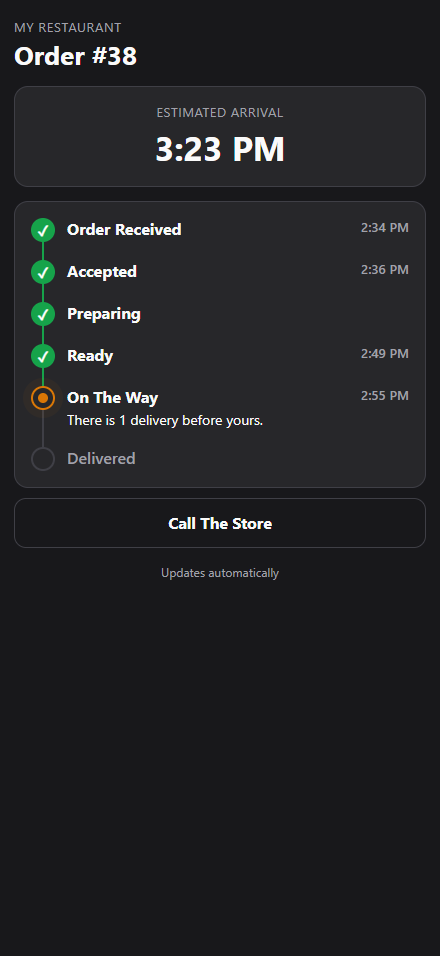
What the customer sees
- The steps — Order Received, Accepted, Preparing, Ready, On The Way, Delivered, each with the time it happened. A web pickup order ends with Ready For Pickup and Picked Up instead.
- Estimated Arrival — worked out from the driver’s route once the order is out (the stops before this one, plus a few minutes at each door), otherwise the time the store promised. Close to the time it reads Any Minute Now. A scheduled order shows the time it is for.
- The driver — “There are 2 deliveries before yours”, then, when the driver taps On My Way and Arrived on the phone, “Your driver is on the way to you” and “has arrived”. With Show The Driver’s First Name on, the first name replaces “Your driver”.
- The store — its name, logo and a Call The Store button.
When something goes wrong
The page tells the customer, in plain words, without details the store would rather give on the phone:
- Running late — five minutes past the promised time.
- The driver can’t reach you — the driver reported a problem at the door; it goes away when the store marks it resolved.
- Delayed, the store will be in touch — the order was brought back to the store.
- Payment didn’t go through — a pay link was declined; a Pay Now button opens the payment page again.
- The store made a change to your order — after the store adjusted it.
- For a delivery-partner driver: finding a driver is taking longer, the store is arranging another driver, or Open Map to follow the partner’s driver.
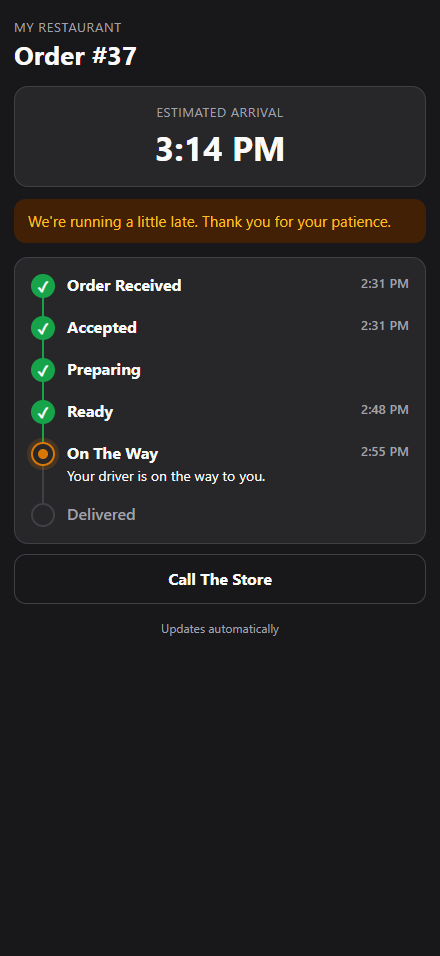
The page refreshes itself every 20 seconds and speaks the customer’s phone language (English, Spanish or Arabic).
Where the link comes from
- The on-the-way text and email sent when the order is dispatched (when the store sends them), in the store’s language.
- The web store confirmation and order pages, as a Track button — for pickup orders too.
- The receipt: the default customer receipt prints a “Track your order” QR code on tracked deliveries.
- The Track button on the delivery board and Text Tracking Link on a manager’s phone — see the delivery screen and dispatch.
- Optionally, a text as soon as a register or call-center delivery order reaches the store.
When it stops working
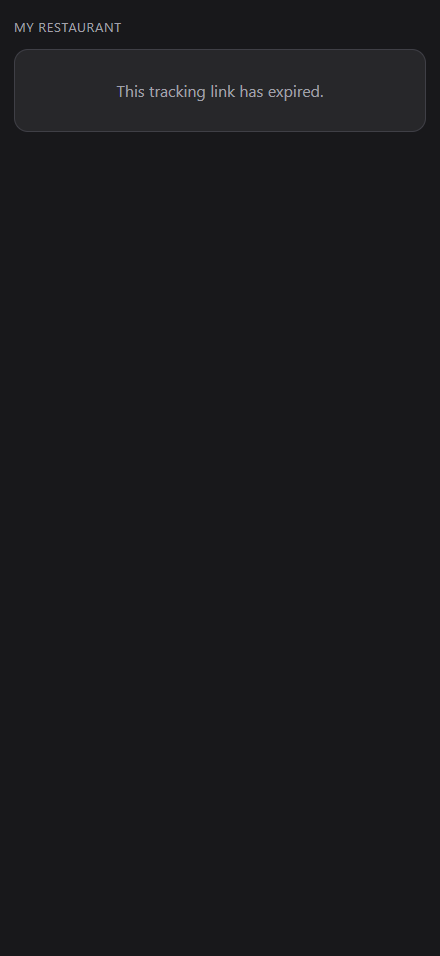
The link keeps working for the hours set in Link Works For (2 by default) after the order is delivered, picked up or cancelled, and never more than 24 hours after the order was due. After that the page reads “This tracking link has expired.”
To switch tracking on or off and choose these options, see setting up order tracking.