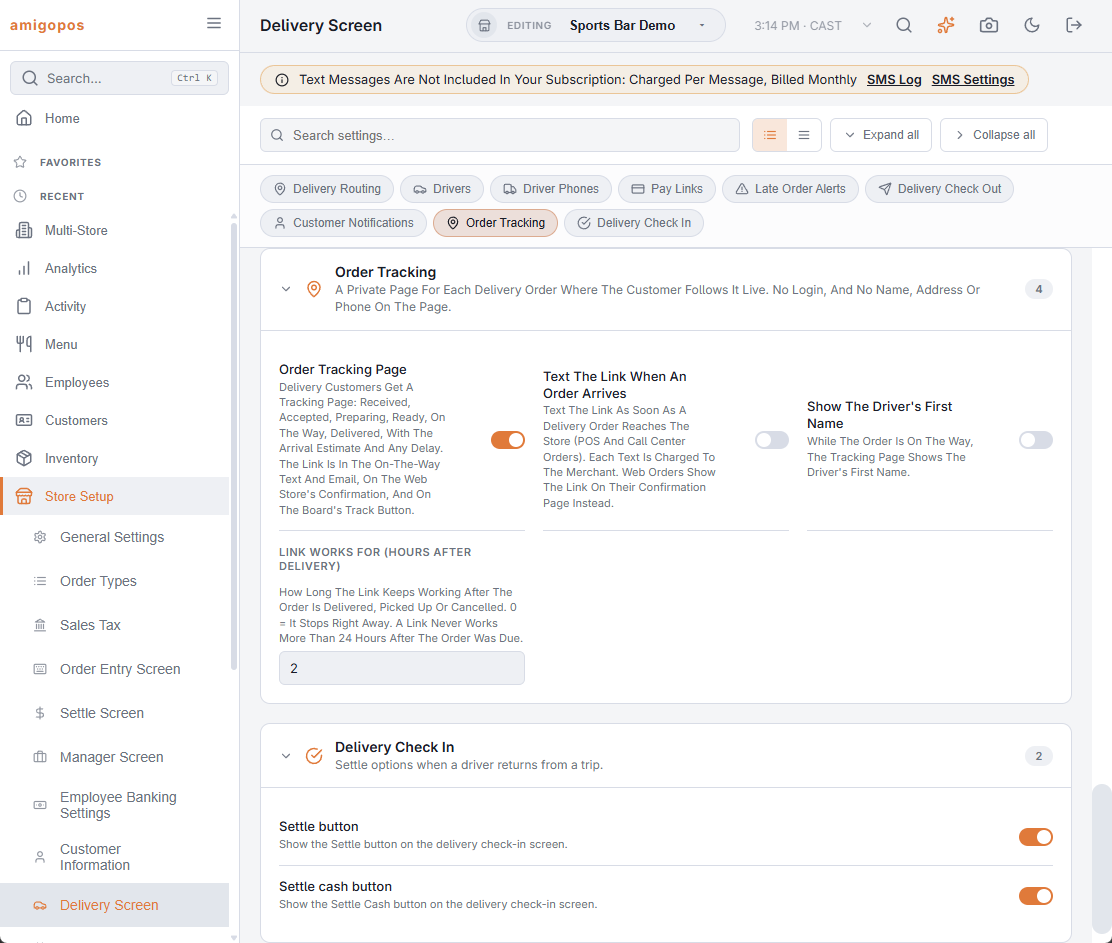
Order tracking is on for every store that delivers. The settings are in Back Office › Store Setup › Delivery Screen › Order Tracking.
| Setting | What it does | Starts as |
|---|---|---|
| Order Tracking Page | Delivery customers get a tracking page. Off, no links are made: the on-the-way message goes out without one, the board has no Track button and receipts print no QR. | On |
| Link Works For (Hours After Delivery) | How long the link keeps working after the order is delivered, picked up or cancelled. 0 stops it right away. Never more than 24 hours after the order was due. | 2 |
| Show The Driver’s First Name | While the order is on the way, the page shows the driver’s first name instead of “Your driver”. | Off |
| Text The Link When An Order Arrives | Texts the link as soon as a delivery order from a register or the call center reaches the store. Web orders show the link on their confirmation page instead. | Off |
Text messages
Texts that carry the link go out under the store’s text-message action Order Tracking Links, which is on by default. Switch it off to stop every tracking text while keeping the page and the other links.
The receipt
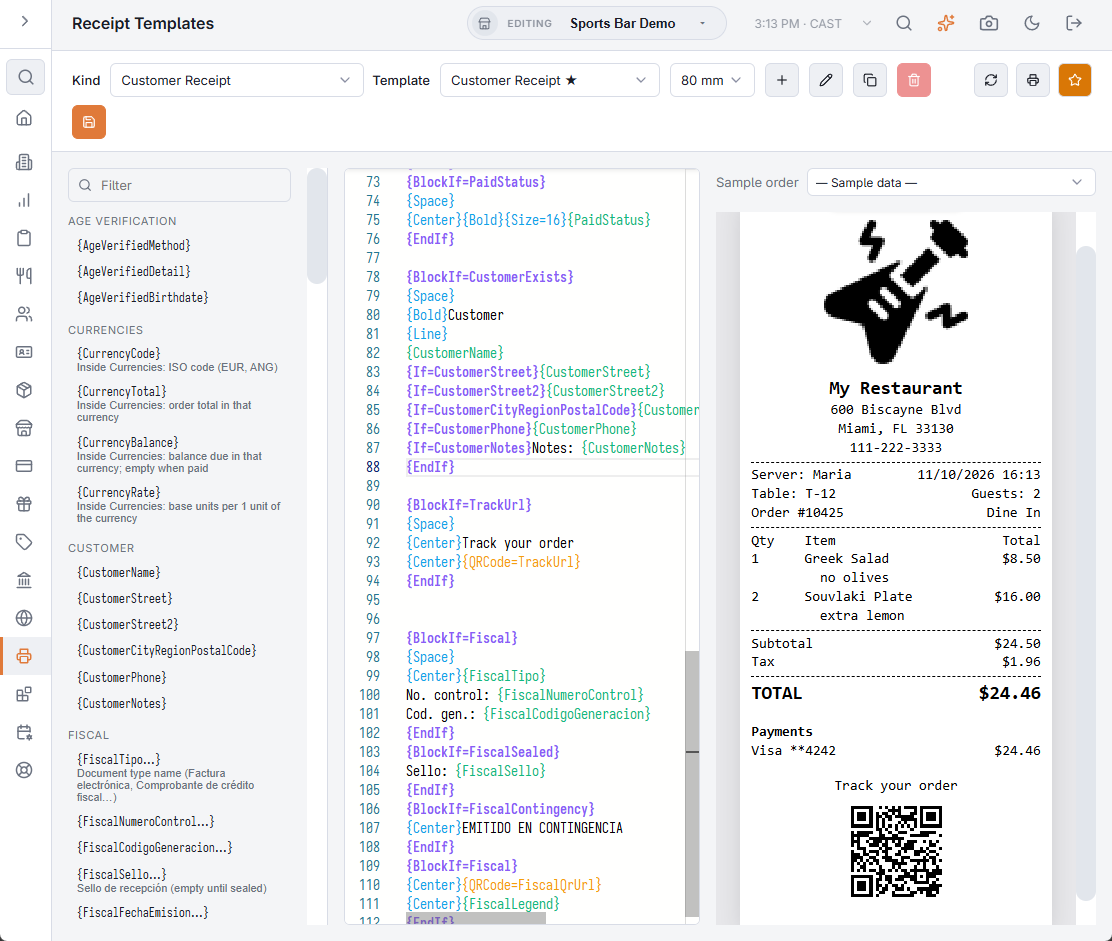
The default customer receipt prints a “Track your order” QR code on tracked deliveries. A receipt template the store has already edited does not change by itself: add this where the code should print.
{BlockIf=TrackUrl}
{Space}
{Center}Track your order
{Center}{QRCode=TrackUrl}
{EndIf}
The address in the link
The link uses the same public address as the pay-at-table page when the store has set one (see Stripe setup), otherwise the system’s own. When neither is available the board says “Tracking Is Not Available For This Order”.
What the customer sees is described in the customer’s order tracking page.