Back Office › Hardware & Printing › Image Manager holds the pictures your print templates print: the logo at the top of receipts, slips and coupons, or any other graphic. Each picture has a number, and a template prints it with {Image Id=N}. Pictures for menu buttons are not kept here; see Button images.
The list
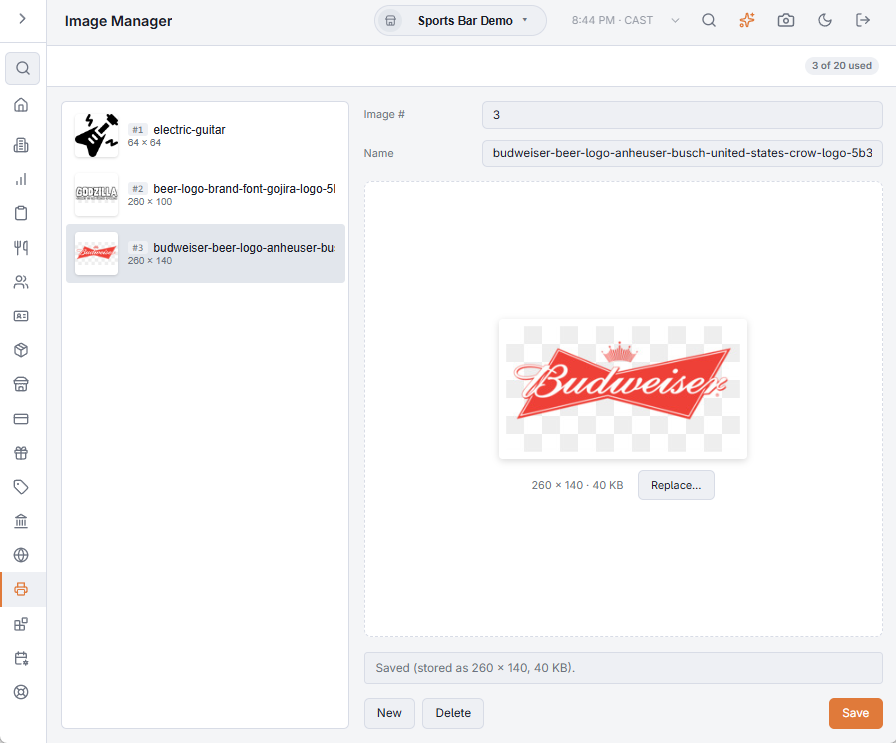
The left side lists the pictures by number, each with a thumbnail, its name and its size in pixels. The badge at the top right shows how many of the 20 places are used, for example 3 of 20 used.
Adding a picture
- Press New. Image # is set to one more than the highest number in use.
- Type a Name you will recognise, for example Store logo.
- Press Choose file…, or in a web browser drag a file onto the box. PNG, JPEG and WebP files are accepted. The picture shows in the box.
- Press Save. The message says how it was stored, for example Saved (stored as 600 × 240, 18 KB).
Pictures are stored as PNG, scaled down to fit 600 × 400 pixels and 200 KB. A file larger than the upload limit is refused with a message giving its size and the limit.
Changing or removing a picture
- Select it in the list. Change its Name or Image #, or press Replace… to pick a new file, then press Save. A template that prints the picture shows the new one from then on.
- A number can belong to one picture only. Choosing a number that is in use shows which picture has it.
- Delete asks first: Delete Image #N? Templates That Print It Will Print Without It. Press Delete again to remove the picture. Check first which templates print its number.
Using a picture in a template
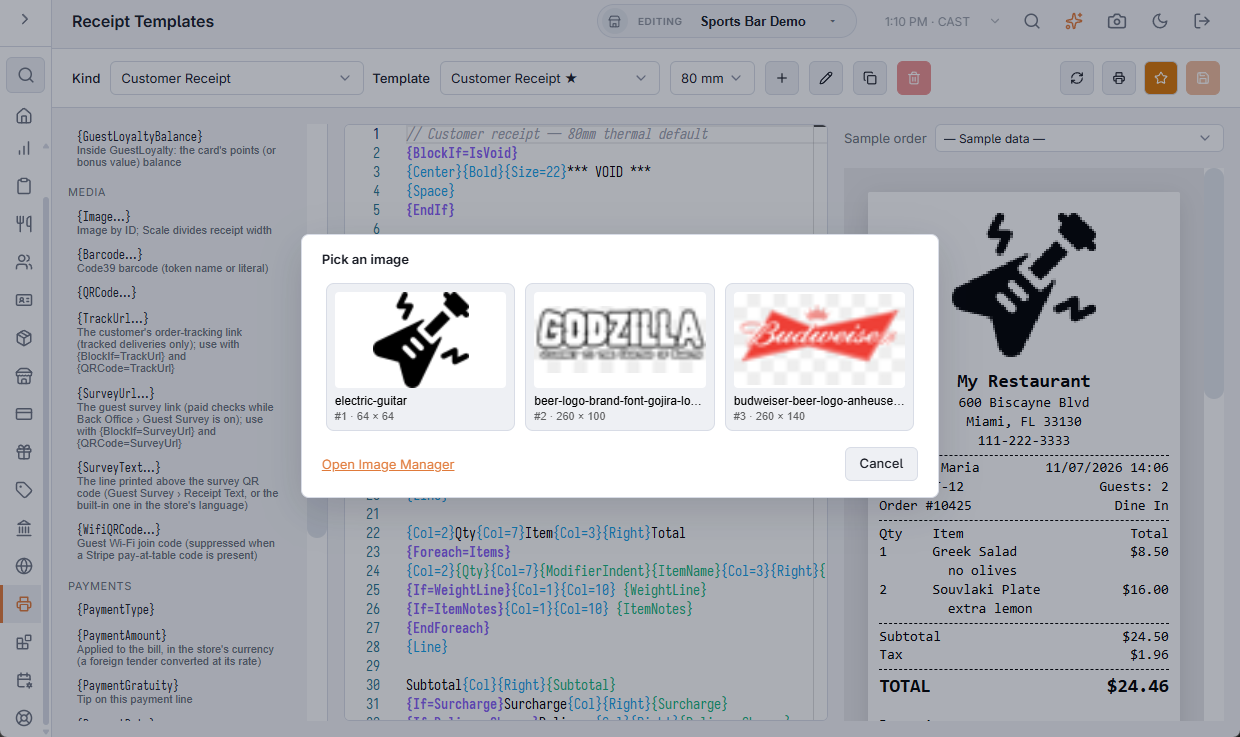
In Receipt and prep-ticket templates, click the Image token in the list on the left. Pick an image shows your pictures; click one to insert {Image Id=N Scale=2} where the cursor is. Scale divides the paper width: Scale=2 prints the picture at half the width of the paper. Open Image Manager in that window brings you back here.
The built-in Customer Receipt, Discount Coupon, Gift Card Slip and Loyalty Card Slip templates print picture #1 at the top. Save your logo as #1 and it appears on them without editing a template.