Back Office › Menu › Menu Setup › Button Images is the store’s library of pictures for the register’s category, item, modifier and level buttons. Upload an image once, clean it up here, then choose it in any number of editors. Receipt logos and other printed graphics are kept separately, in the Image manager.
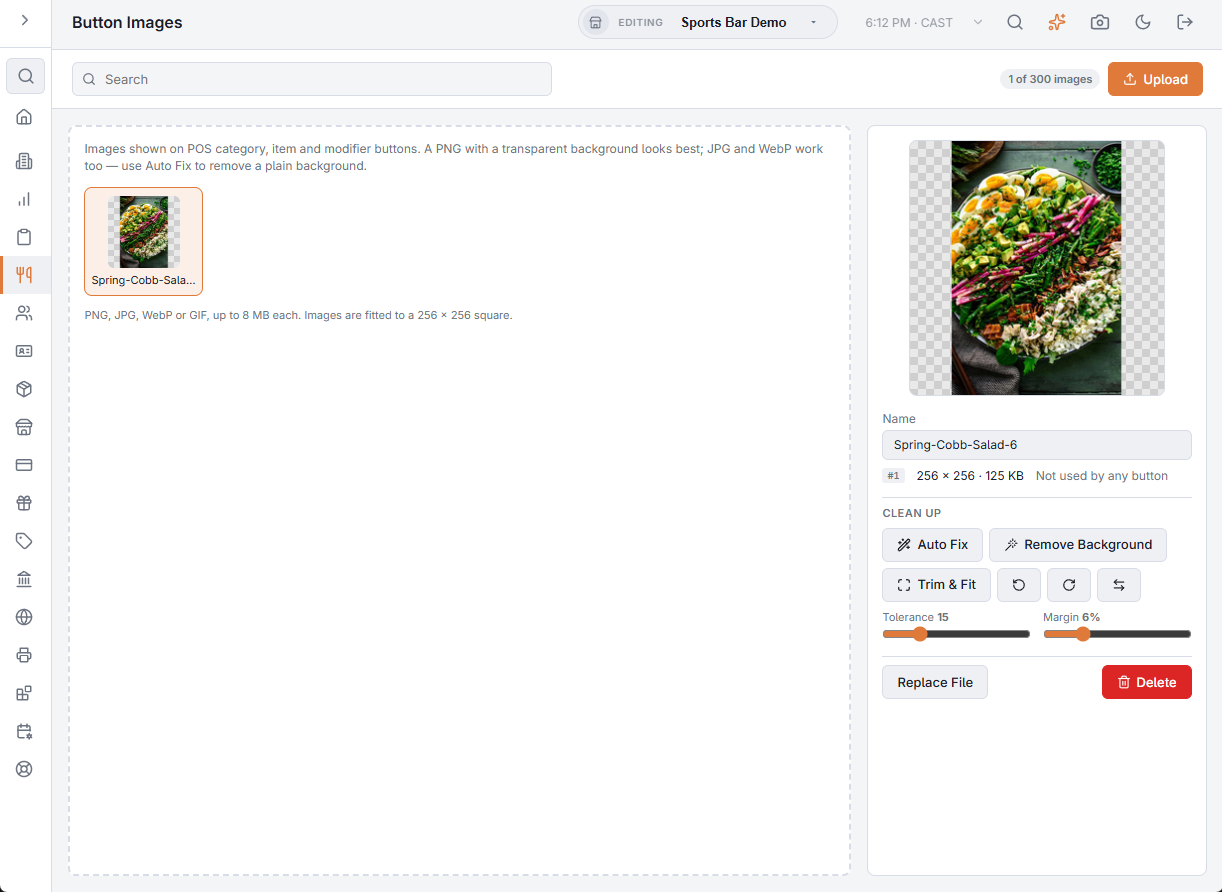
Uploading
- Choose Upload, or drop image files onto the library. Several files can go at once.
- PNG, JPG, WebP or GIF, up to 8 MB each and at least 32 pixels on each side. Each image is fitted into a 256 × 256 square.
- A PNG with a transparent background looks best. A photo on a plain background can be cleaned up with Auto Fix.
- Each image is named after its file. A file that is refused is listed with the reason.
- The badge in the toolbar counts the images against the library’s limit of 300.
The library
Each thumbnail shows the image’s name and, in a corner, how many buttons use it. Search finds images by name. Select an image to work on it.
- Name — rename it; the name saves when you leave the box.
- The line under the name gives the image’s number, size and file size, and Used by N button(s) or Not used by any button.
Clean Up
| Tool | What it does |
|---|---|
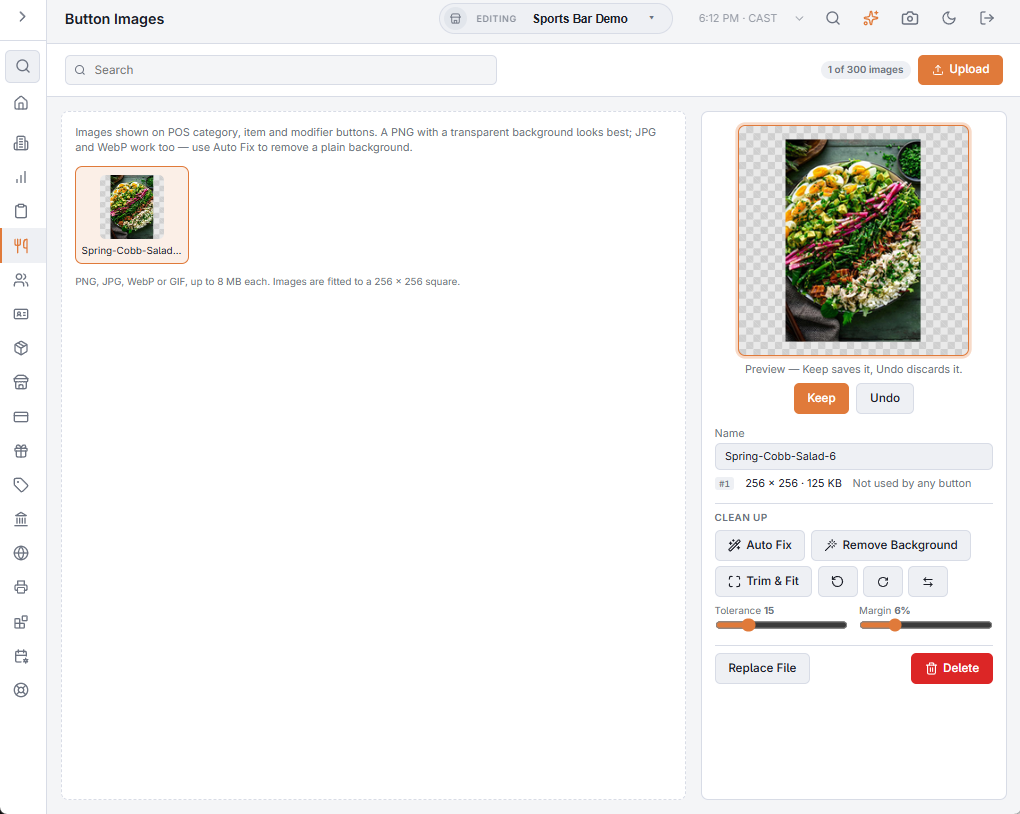
| Auto Fix | Removes a plain background, trims the margins and centres the image. |
| Remove Background | Makes a plain background transparent. |
| Trim & Fit | Trims the empty margins and fits the picture to the square. |
| Rotate Left, Rotate Right, Flip | Turn or mirror the image. |
- Tolerance — how far a color can be from the background and still be removed. Raise it for an uneven background, lower it if parts of the picture disappear.
- Margin — the space left around the picture, as a percentage of the square.
A tool shows a preview first: Keep saves it, Undo discards it. Moving Tolerance after Auto Fix or Remove Background, or Margin after Auto Fix or Trim & Fit, runs that tool again. Rotations and flips build on the preview, so you can turn an image and then fix it before keeping it.
Replacing and deleting
- Replace File — puts a new file in place of the image. Its name stays, and every button that uses it shows the new picture.
- Delete — asks first, and says how many buttons use the image. Those buttons then show text only.
Using an image on a button
The category and item editors, and the modifier and level editors in Food Modifiers, have a Button Image field:
- Choose Image opens the library with a search box; pick an image.
- The × clears it.
- The Button Images link opens this page.
The register shows the images when its UI Settings use Text + Image or Image Only, set separately for categories and items. See Item buttons and screen placement. Registers pick up library changes on their own.