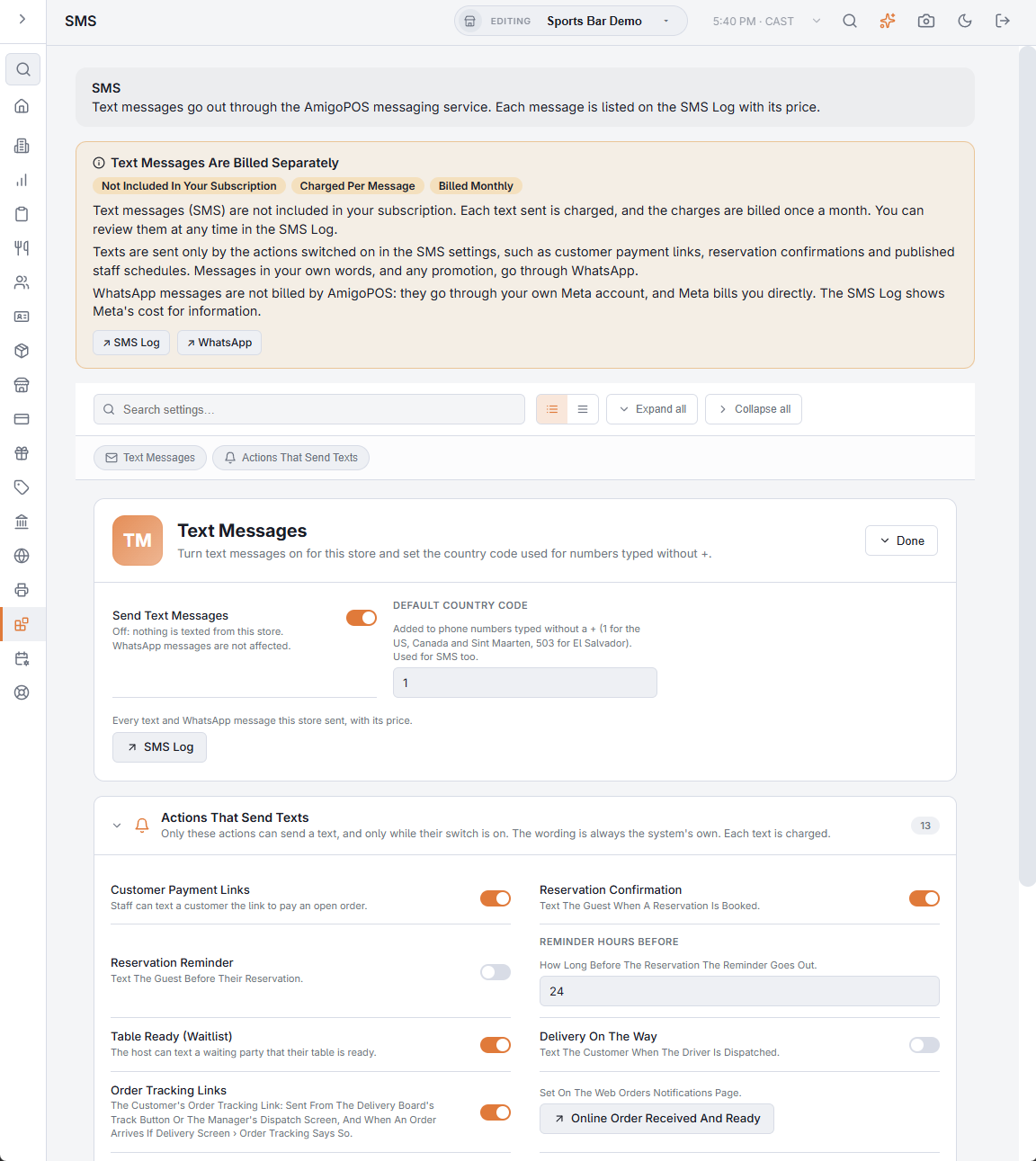
Back Office › Integrations › SMS turns text messages on or off for the store and shows every action that can send one. Texts go out through the AmigoPOS messaging service: there are no accounts or keys to enter. Each text is charged and listed with its price on the SMS log and message costs.
What texts cost
The banner at the top says it plainly: text messages are not included in your subscription, are charged per message and are billed monthly. WhatsApp messages are not billed by AmigoPOS; they go through the store’s own Meta account and Meta bills the store directly. The buttons on the banner open the SMS Log and the WhatsApp page.
Text Messages
- Send Text Messages — the store’s master switch. Off, nothing is texted from the store. WhatsApp messages are not affected.
- Default Country Code — added to phone numbers typed without a
+: 1 for the US, Canada and Sint Maarten, 503 for El Salvador. WhatsApp uses it too. - SMS Log — opens the list of every text and WhatsApp message the store sent, with its price.
Each setting saves as soon as it is changed.
Actions That Send Texts
Only the actions in this list can send a text, and only while their switch is on. The wording is always the system’s own; there is no free-text SMS.
| Action | What it sends | Starts |
|---|---|---|
| Customer Payment Links | Staff text a customer the link to pay an open order. | On |
| Reservation Confirmation | A text to the guest when a reservation is booked. | On |
| Reservation Reminder | A text before the reservation. Reminder Hours Before (1 to 168) sets how long before. | Off |
| Table Ready (Waitlist) | The host texts a waiting party that their table is ready. | On |
| Delivery On The Way | A text to the customer when the driver is dispatched. | Off |
| Order Tracking Links | The customer’s order tracking link, from the delivery board’s track button or the manager’s dispatch screen, and when an order arrives if the Delivery Screen’s order tracking setting says so. | On |
| Online Order Received And Ready | Set on the Web Orders Notifications page; the row opens it. See Notifications (email/SMS). | — |
| Card Payment Approvals (Credomatic) | Staff text a customer the approval of a card-not-present payment. | On |
| Digital Gift Cards | A digital gift card sent by text: the amount, the card number and the Activate link. | On |
| Schedule Published | Each employee’s shifts when a week is published. | Off |
| Employee Phone Access Invites | A manager texts an employee their invite to the staff site. | On |
The last row, WhatsApp, opens the WhatsApp page: messages in the store’s own words, and promotions, go through its WhatsApp templates.
Send A Test Message
- Check the country code beside the number box. It starts as the store’s default; it is ignored when the number starts with
+. - Type a Mobile Number and press Test SMS.
- When it is sent, check the phone, then press SMS Log to see the delivery status.