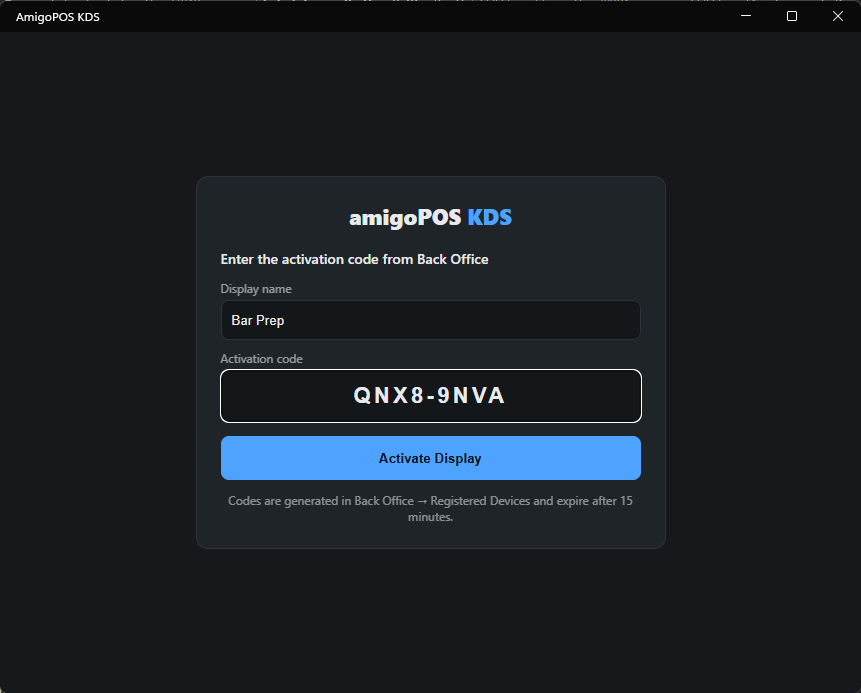
A KDS display joins the store with an activation code. There is no user login — the code already carries the merchant, the store and the role. The steps are the same in the The KDS app for Windows and Android and in a browser.
- In Back Office › Hardware & Printing › Registered Devices, generate a code for the Kitchen Display role. Codes expire, so generate it when you are at the screen — or email or text it from the same page.
- Open the KDS on the display. Give it a name — Kitchen, Bar, Expo — and enter the code.
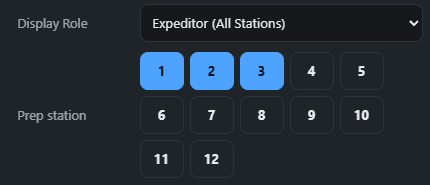
- Choose the display role: a station screen that shows the prep stations you pick, from 1 to 12, or an expeditor screen that shows everything. Other screens can show the same stations.
The board opens and stays activated. The code does not have to be re-entered when the screen restarts, and the app remembers it through updates.
How many displays a store can have
A store can run as many kitchen displays as its plan includes, plus any that were added to it. Under the role list, Registered Devices shows the count — for example Kitchen Displays 2 Of 3 — and the Kitchen Display entry is greyed, with No Display Free or Not In Plan, when there is no room. Displays that are already running are never affected. See Activation codes and device limits.
A display that is reinstalled or reset joins as a new one. Deactivate its old line in Registered Devices first, or it takes a second place.