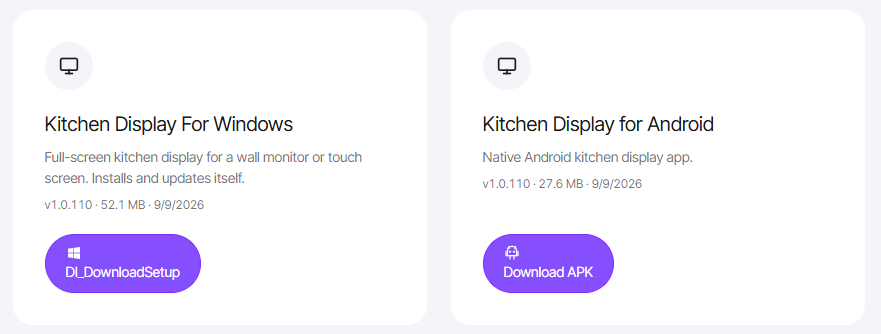
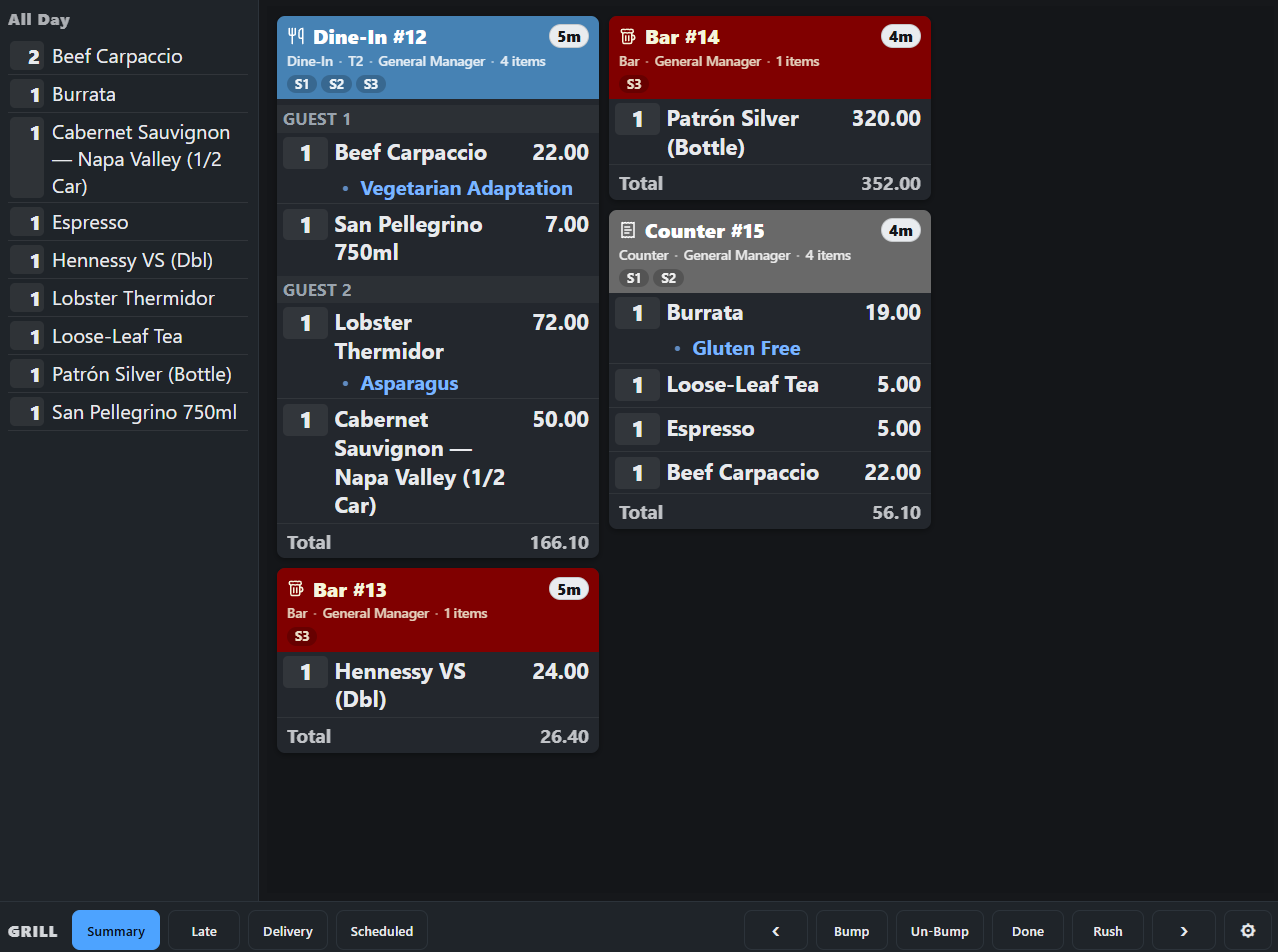
The kitchen display can run two ways. In a browser, by opening the KDS web address on any device with a screen; or as an installed app on Windows or Android. Both show the same board and the same settings. The app is better for a screen that is switched on in the morning and expected to just work.
Why the app
- It opens full screen at start with no address bar, tabs or system bars to catch a greasy finger.
- It updates itself, and it does so at a quiet moment.
- On Android the screen stays on and the device stays in landscape.
- It keeps a copy of the board, so a network drop does not blank the screen — see When the display loses the server.
Windows
- On the Downloads page of the AmigoPOS Cloud web site, download the Kitchen Display for Windows installer and run it. It installs per user with no administrator rights.
- The app starts with Windows from then on. Activate the display the first time it opens.
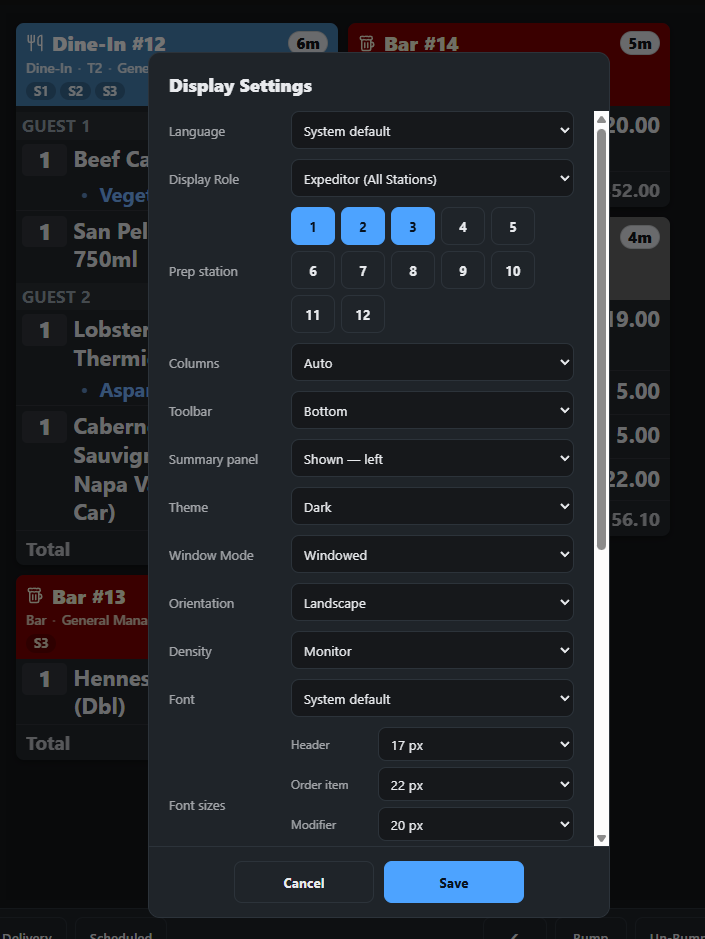
- Window mode in the settings overlay switches between full screen and a normal window, which is handy while a screen is being set up at a desk.
Android
- On the tablet or Android box, open the Downloads page and download the Kitchen Display for Android APK. Allow the browser to install apps when Android asks.
- Install and open it. It runs as a kiosk: full screen, landscape, screen always on. Activate it the first time it opens.
- Android bars in the settings overlay brings the status and navigation bars back when you need them; they hide again on the next start.
Updates
The app checks for new versions on its own. To avoid pulling the board away mid-service, an update is applied only after the kitchen has been quiet for about ten minutes — no new tickets and no bumps. On Windows it restarts itself. On a managed Android device (set up as a kiosk by your reseller) it installs silently; on an ordinary Android device it asks you to confirm the install. Check for updates in the settings overlay shows the current version and forces a check.