On your phone
Alerts arrive as push notifications from the staff site. Turn notifications on under More › This Phone on the staff site; on an iPhone, add the staff site to the Home Screen first. See Phone notifications and schedule alerts.
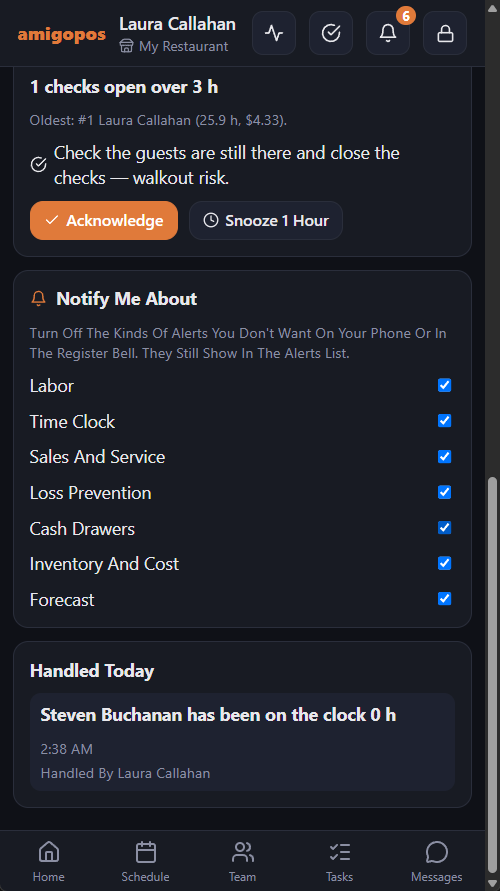
Tapping the notification opens the Alerts page. Open alerts are also counted on the More tab, shown on its Manager Alerts row, and listed under Needs You on Home.
The Alerts page
Open alerts are listed first, marked Urgent or Heads Up, each with what is happening and the suggested fix.
- Acknowledge — you are handling it. It closes for every manager and shows Handled By with your name.
- Snooze 1 Hour — hides it for an hour.
Below, Handled Today lists what was acknowledged, snoozed or is no longer happening.
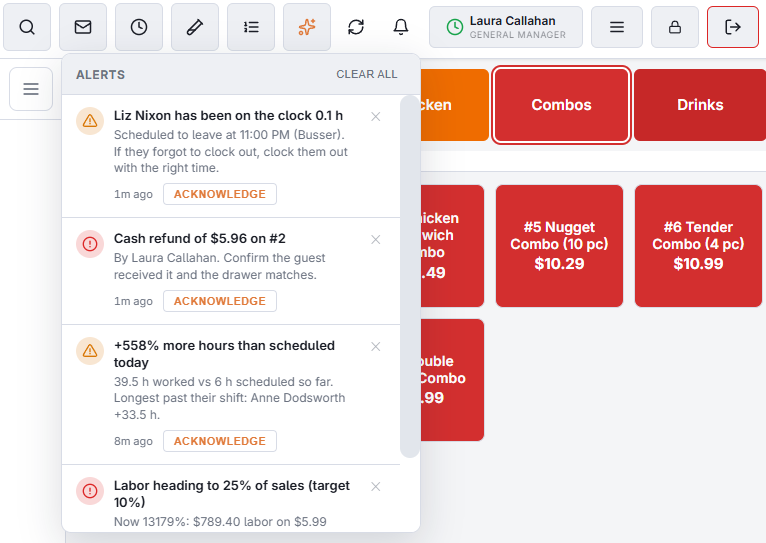
At the register
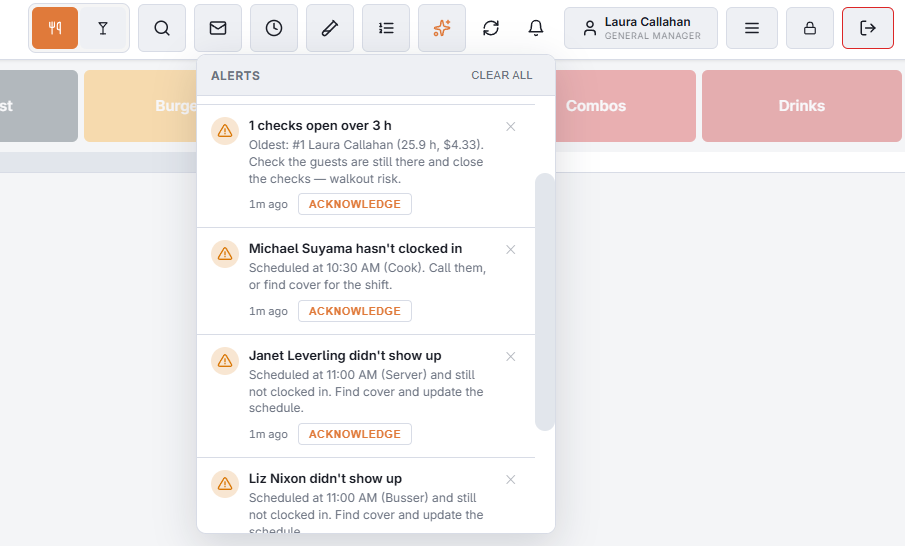
Managers see alerts in the bell on the top bar, and can acknowledge them there. An alert leaves the bell when it is handled anywhere — on a phone, in Back Office, or because it stopped happening.
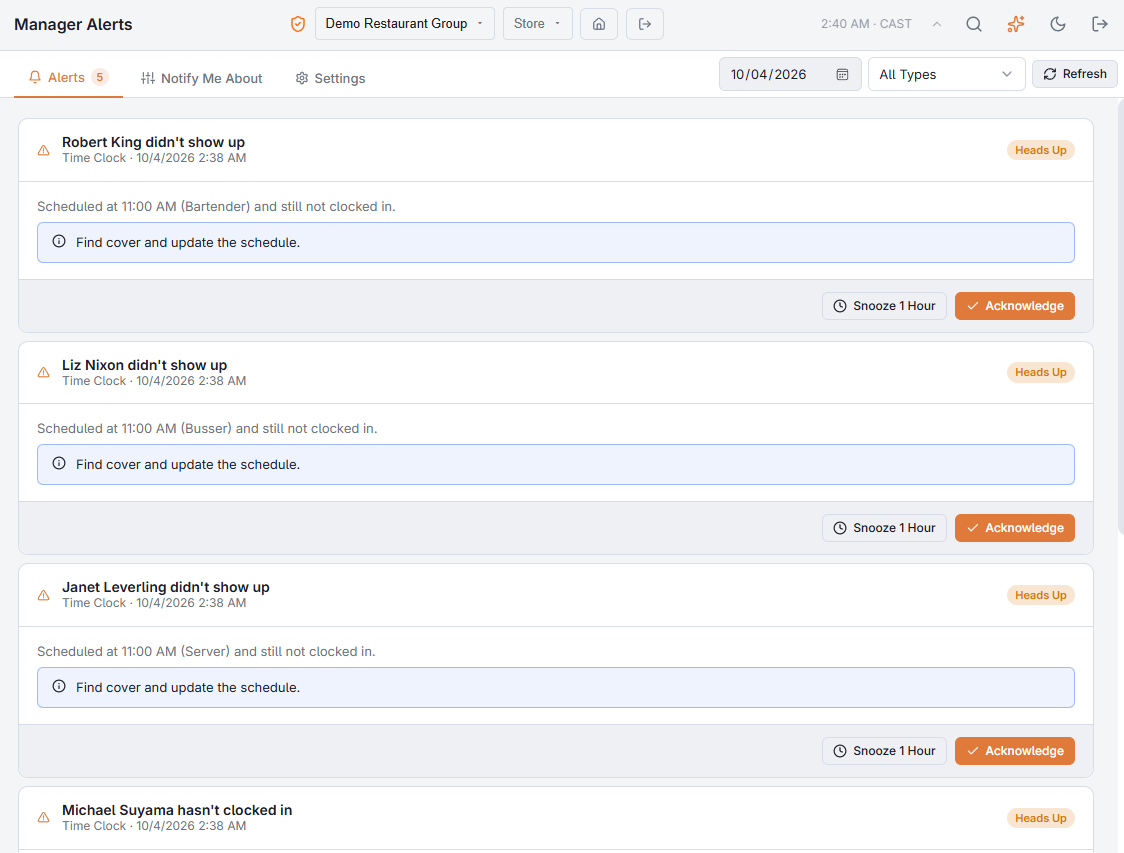
In Back Office
Back Office › Activity › Shifts & End of Day › Manager Alerts has the same list with a day picker and a type filter. Today’s alerts can be acknowledged or snoozed; earlier days are history.
Turning kinds of alerts off for yourself
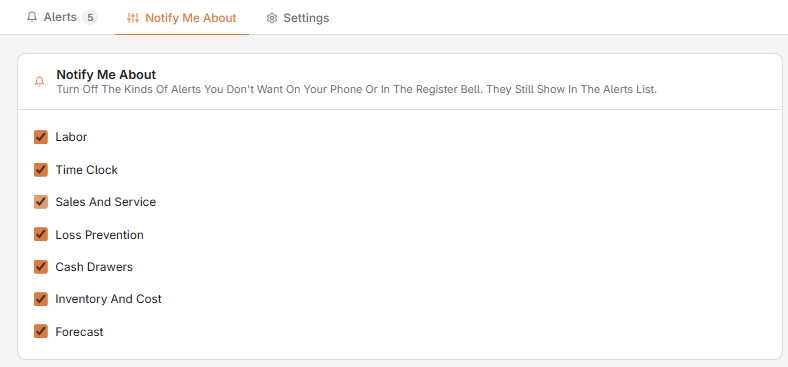
Notify Me About — on the staff site Alerts page, and as a tab in Back Office › Activity › Shifts & End of Day › Manager Alerts — lists the seven kinds of alerts: Labor, Time Clock, Sales And Service, Loss Prevention, Cash Drawers, Inventory And Cost, Forecast. Untick one and you stop getting its pushes and its alerts in your register bell. It still shows in the lists, marked Turned Off For You. The choice is yours alone and follows you to every store.
On the Today page
The staff site’s Today page lists the three most urgent open alerts above the day’s figures, and the briefing at its top repeats their suggested fixes. Tap the card to reach the Alerts page. See Today: the manager’s day on their phone.