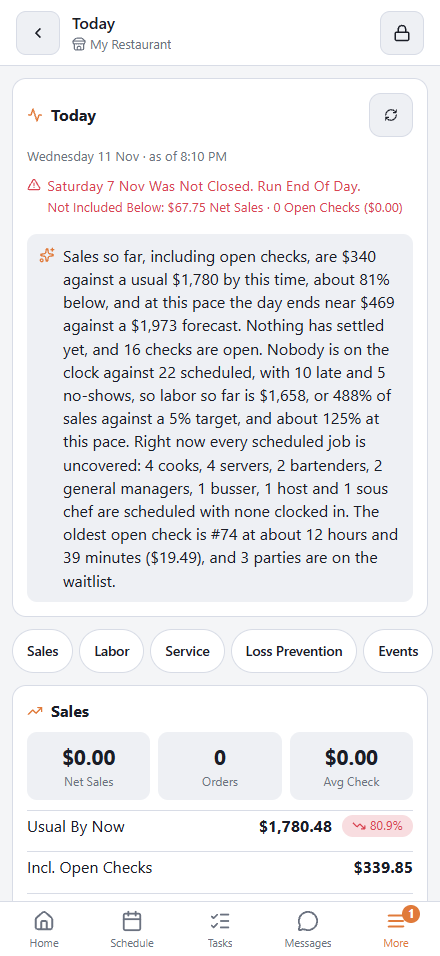
Today is the manager’s page on the staff site: the business day so far on one phone screen — sales against what is usual by this time of day and where the day is heading, who is on the clock and what labor is costing, open checks, deliveries and bookings, voids and discounts against normal, what may run out, and the day’s notable moments — with the open manager alerts on top and a short written briefing.
Who sees it and where it is
Anyone whose job has manager access (Allow Manager in Jobs & Permissions) — the same test as the other manager tools, checked by the server on every request. Open it from More › Today. Because it shows sales, the row is there only for jobs that may see the manager screen’s totals. The page re-reads every two minutes while it is open, and the arrow at the top refreshes it now. The figures are built once per store, at most every 90 seconds, so every manager looking at the same store sees the same numbers.
The page follows the store’s business day — the day the register is still on, from the last close until now — and, for a manager who works at more than one store, the store picked in the header.
The briefing
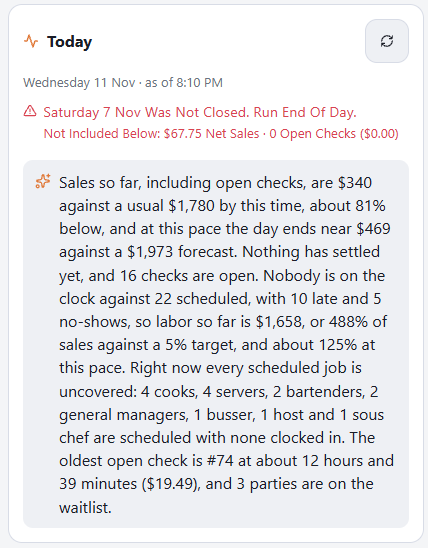
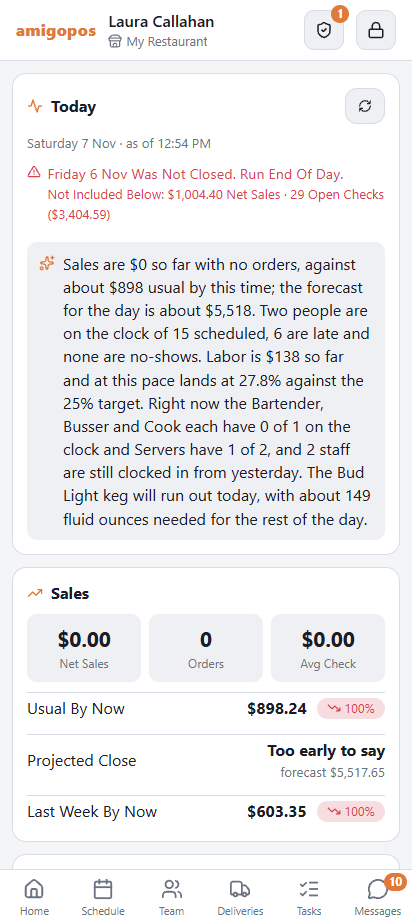
At the top, a few plain sentences in your own language: sales so far against the usual and the forecast, labor, and what needs attention right now, with the suggested fix for each open alert. It is written by the same AI that writes the summary at the top of the End of Day email, from the page’s own figures only, at most once every fifteen minutes per store. The numbers show first; the paragraph fills in a few seconds later. Where the AI is not available, or the day’s allowance has been used, the page simply has no paragraph.
Alerts
Open manager alerts come next — the three most urgent, with the total count. Tap the card to open the Alerts page, where you acknowledge or snooze them. See Getting and handling alerts.
Sales
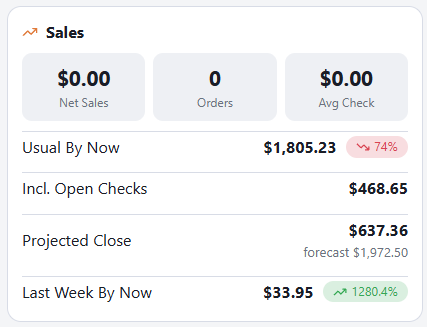
- Net Sales, Orders and Avg Check — settled sales so far, after discounts and without tax: the figures the End of Day will report.
- Usual By Now — what the store has usually taken by this time on this weekday over the last eight weeks, with a green or red chip for how far ahead or behind today is. It appears once there are two such days to compare with.
- Incl. Open Checks — sales so far with the checks still open added in, which is what the pace is measured on; shown while checks are open.
- Projected Close — where the day lands at today’s pace, beside the day’s forecast from Demand forecast when there is one. It needs three comparable days, and it is only offered once at least 15% of a usual day is done — before that the row says it is too early.
- Same Day Last Week (from the stored End of Day close) and Covers.
- A bar for each hour of the day so far with the best hour highlighted, then the top five items by sales and, where more than one is in use, sales by channel: register, web, call center, marketplace.
Labor
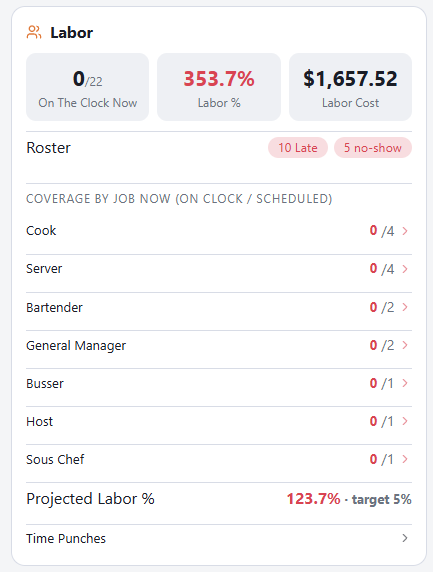
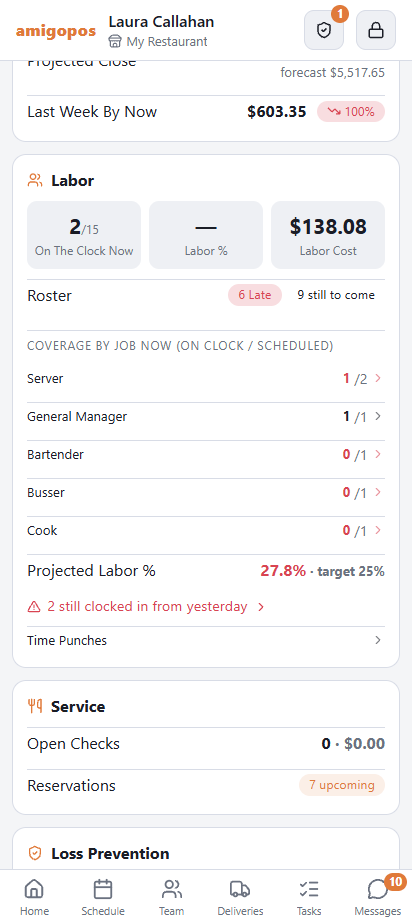
- On The Clock Now against scheduled, with chips for who is late, a no-show, or still to come — the same roster as Schedule › Team.
- Labor % and Labor Cost — cost so far at the employees’ pay rates, counting people still on the clock up to this minute, as a share of sales so far including open checks. It turns red above the store’s target: the labor target from the Manager Alerts settings, or the scheduler’s labor target where alerts are not set up.
- Projected Labor % — with the rest of today’s published shifts added, against the larger of sales so far and the forecast; shown when the store has a forecast or a projection.
- The usual day’s labor (from stored End of Day closes of the same weekday), overtime hours, tips declared so far, and a warning when someone is still clocked in from yesterday.
Service
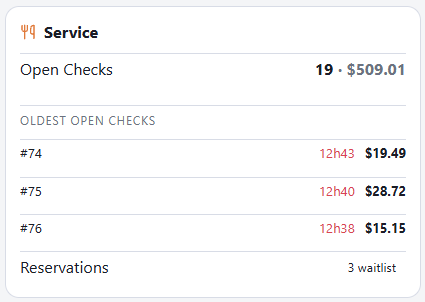
Open Checks (orders already banked by a server or driver are not counted) with their value and the oldest one — its table and server and how long it has been open, red after an hour and a half. Where the store delivers: orders waiting for a driver, out, late against their promised time, and done today. Where the store takes bookings: upcoming, seated, no-show and the waitlist. Rows the store does not use are hidden.
Loss prevention
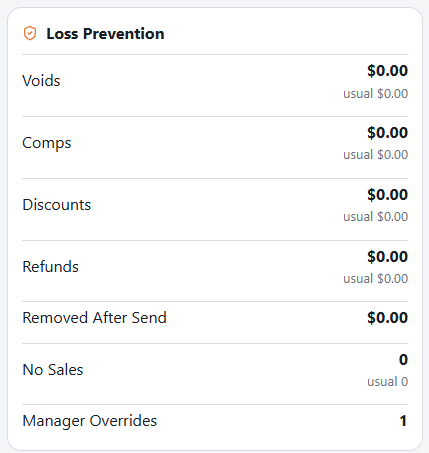
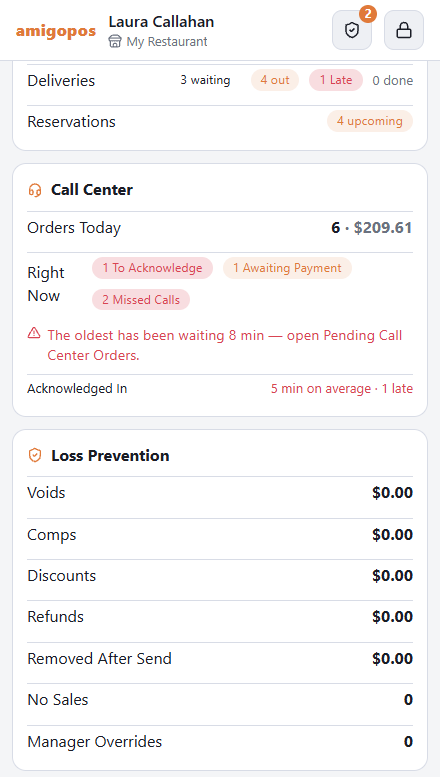
Voids, Comps, Discounts, Refunds, Removed After Send and No Sales, each with its count and each against what is usual by this time of day — the average of the store’s stored End of Day closes for this weekday, scaled to the share of the day done so far. A figure turns red when it is at least one and a half times the usual. Below them: Manager Overrides and price changes, Drawers Over/Short for the drawers counted so far, and a warning when the day’s figures do not tie out — the same checks the End of Day report runs.
Inventory
May Run Out Today — ingredients whose forecast use for the rest of the day is more than what is on hand plus the deliveries due today; this is the forecast behind the daily inventory alert. Sold Out (86) and Running Low — menu items whose counters are at zero or down to the last few, where counters are switched on. Waste Logged — the cost of the waste entered today. The card is hidden when there is nothing to show.
Events
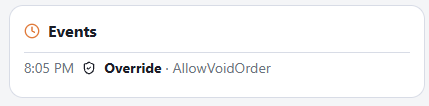
The newest thirty notable moments of the day, with the time and who did it: voids (red when the order had already gone to the kitchen), refunds, manager overrides, cash drops, paid outs and drawer counts. The full detail is in the end-of-day report.
Where the numbers come from
Sales and loss figures are the ones the End of Day uses; labor is costed at pay rates, like the timesheet; “usual” means the same weekday over the last eight weeks, and it is left out until there is enough history. Totals can differ from the Back Office dashboards, which have their own definitions — see Manager alerts: questions and fixes. Nothing on this page is stored; it is rebuilt from the day’s transactions each time.
Cash, coverage and a few more lines
The page gained a card and several lines; each shows only when it has something to say.
- Cash — a card after Service: the cash expected in each drawer right now and the total (float plus cash sales, less refunds, paid-outs and drops), cash sales, paid-outs, gift card cash-outs in amber (cash leaving a drawer with no sale behind it), drops to the safe and when the last one happened. The drawer figures are the ones the End of Day will expect — see Where the cash is.
- Last week by now under Sales, beside the usual-by-now figure, with the percentage above or below it.
- Coverage by job now under Labor: for each job, who is on the clock against who the schedule says should be there at this moment, red when short — the same question the Scheduler’s job bands answer for the week.
- Two more roster chips: Past Shift End (still on the clock after the scheduled end — a forgotten clock-out inflates labor) and Unscheduled (on the clock with no shift today).
- On a paid holiday the Labor card says so — Paid Holiday Today · name ×2 · premium included — and the labor cost, labor percent and projection carry the premium, so they match what payroll will pay rather than the base rates the time clock stores.
- Oldest open checks under Service lists up to three (table or number, server, how long, amount) when more than one check is open.
- In Events, a paid-out with no recipient or reason shows its note, so a gift card cash-out reads as one.
The briefing knows the new figures too and will mention a job running short, someone still on the clock past their shift, a cash-out or a holiday when they matter.
The Call Center card
Between Service and Cash, at stores that take orders from the call center (it appears only when a call-center order reached the store today or a call was missed): orders and sales from the call center today; then what is waiting right now — orders to acknowledge, orders awaiting a pay-link payment, missed calls — or “nothing waiting”; how long the oldest unacknowledged order has waited; and acknowledged-in minutes with the late count. The figures are the ones the call-center alerts use, so the card and the alerts agree.
From Labor to the punches
The Past Shift End chip and the warning about someone still clocked in from yesterday open the Team page showing only who is still on the clock, each with Clock Out. The Labor card ends with a Time Punches link to the week’s punches. See Fixing punches from your phone.
Moving around the page
A strip of section names stays under the header while you scroll. Tap a name to jump to that part of the page.