The staff site can raise a notification on a phone even when the site is closed — for a message from a manager, a decision on a request, or a shift about to start.
Turning them on (employee)
- On the staff site, open More › This Phone and switch on the Notifications card.
- The phone asks whether to allow notifications. Allow it.
- On an iPhone, add the site to the Home Screen first (Share › Add to Home Screen) and open it from there — Apple only allows notifications for sites added that way.
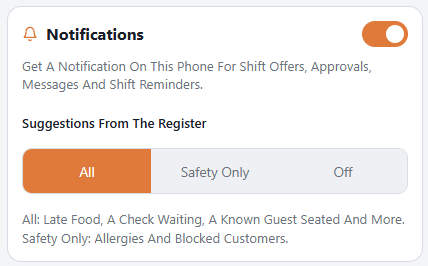
The setting belongs to that phone: switching it on at home does not switch it on for a second phone, and switching it off stops that phone only. If your phone was replaced, or you cleared the browser, switch it on again. The card is hidden on phones that cannot do notifications at all.
What gets sent
- Any message you receive — from a manager, or from the system (a time-off answer, a shift offer).
- Shift reminder — a while before your shift starts.
- Running late — if the shift has started and you have not clocked in, to you and to the managers.
- No-show — to the managers, if nobody has clocked in well past the start.
Setting the alerts (manager)
Back Office › Employees › Scheduling › Time Clock, section Schedule Alerts:
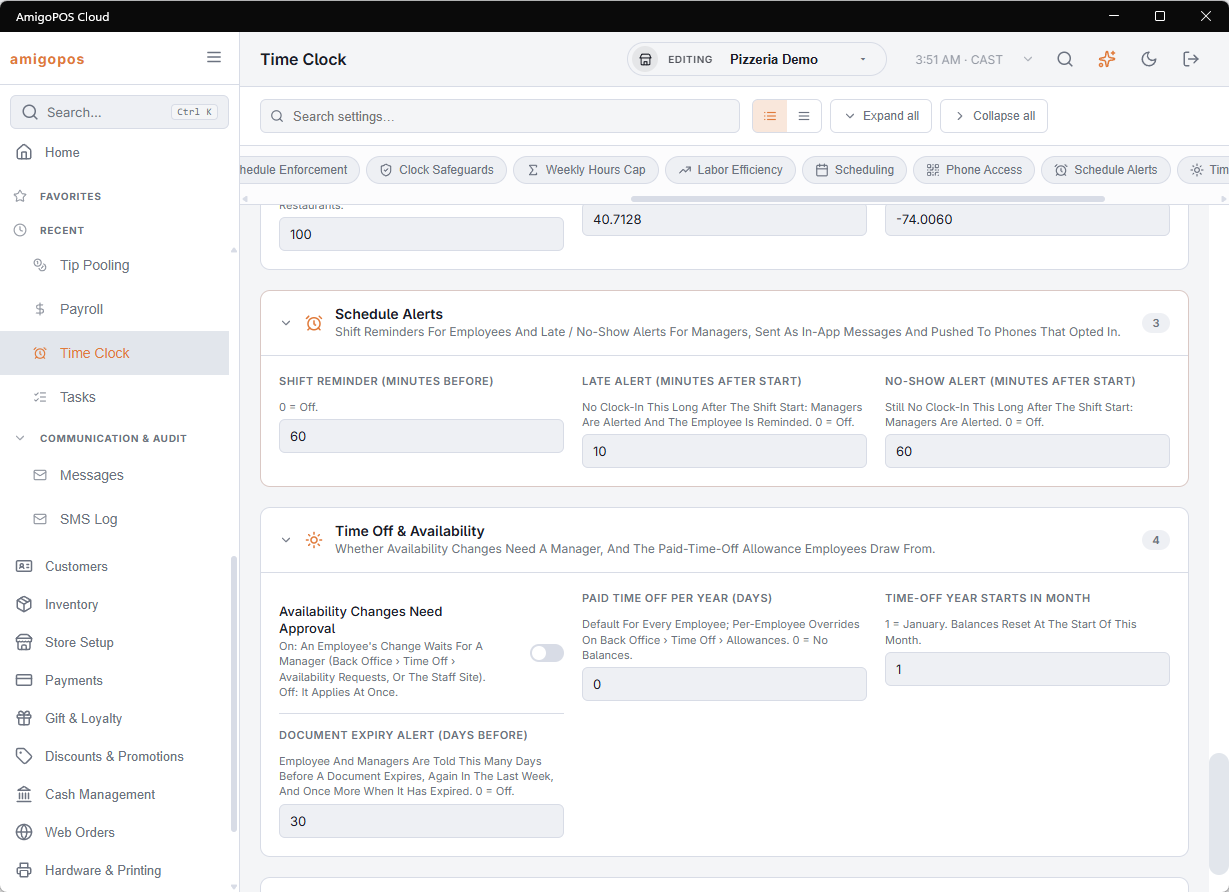
- Shift Reminder (Minutes) — how long before the start the employee is reminded. 60 by default; 0 turns it off.
- Late Alert (Minutes) — how long after the start, with no punch, the employee and the managers are told. 10 by default.
- No-Show Alert (Minutes) — how long after the start the managers get a no-show alert. 60 by default.
Each fires once per shift, for published shifts only. The employee gets theirs in the language on their profile; managers get theirs in the store’s. The same alerts feed the late and no-show counts in Attendance history.
Manager alerts
Managers also get manager alerts through the same notifications — labor over target, overtime ahead, a cash void, an ingredient about to run out. They go to the managers clocked in at the store, outside the store’s quiet hours, and each manager can turn kinds of alerts off for themselves. See Manager alerts.
For drivers
- New delivery run — the register dispatched orders to you.
- Order removed — the store took an order off your run.
- Order cancelled — bring it back to the store.
- Order paid online — do not collect payment at the door.
They arrive in your own language and open the Deliveries screen.
More that is sent
- Shift changed, New shift, Shift removed — when a manager changes one of your published shifts; see Scheduler.
- List assigned — when a manager gives you a list for today or a later day.
- Overdue — 10 minutes after a list’s due time, if it is not finished: to the person it was given to, or to whoever is on the clock in its jobs, and to the managers on the clock.
- Out of range — to every manager, as soon as a temperature or number outside its range is recorded.
- Clocked out at … — when a manager closes your punch from their phone; reply to it if the time is wrong.
Each one is also a message, so it waits in Messages on the staff site and at the register. The task alerts are explained in Task lists.
Delivery notifications
- Managers are notified when a driver reports a problem at the door and when an order is coming back to the store. The notification opens Dispatch.
- Drivers are notified when the store resolves the problem they reported (carry on) and when the store wants an order brought back.
Suggestions from the register
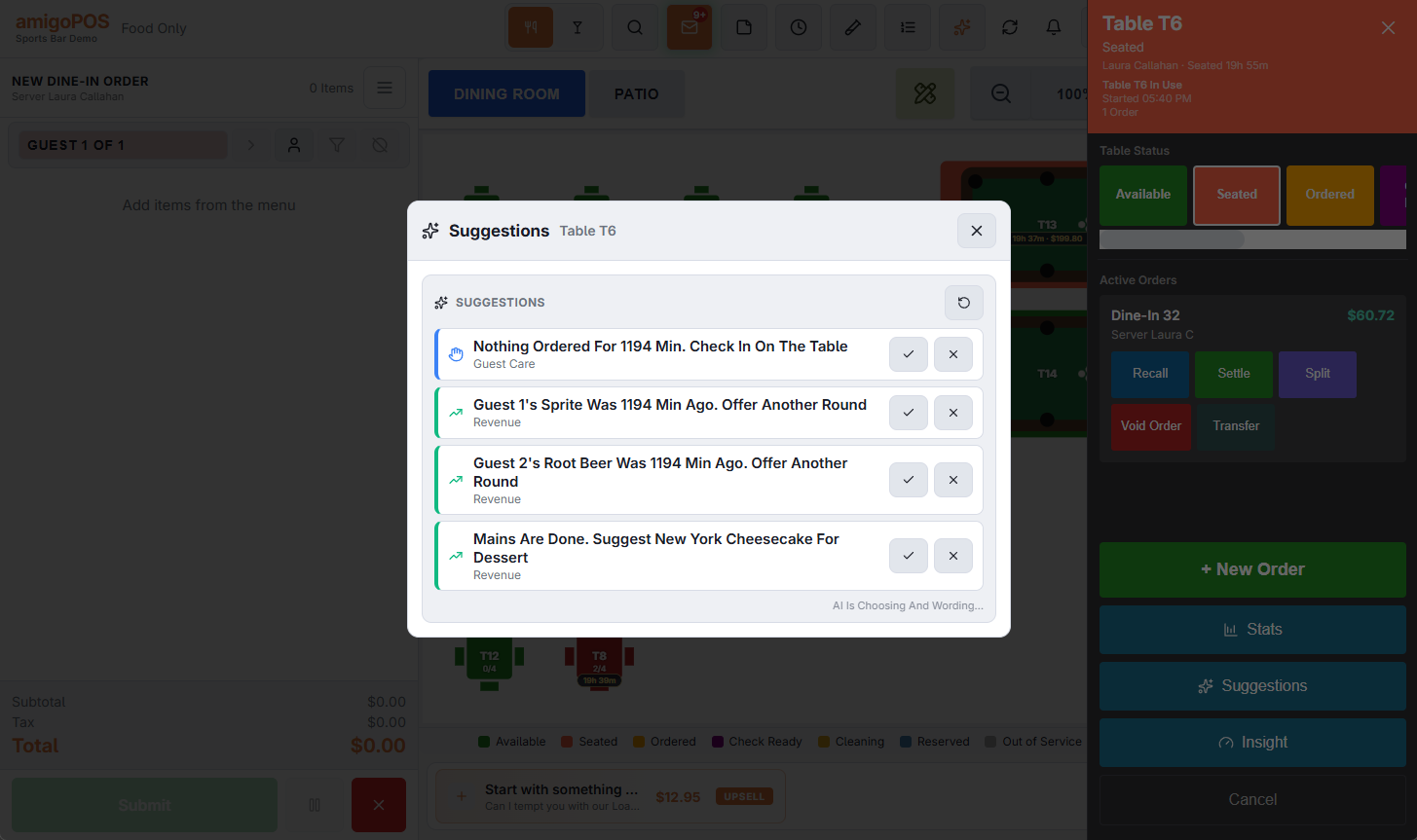
With notifications on, the Notifications card also has Suggestions From The Register: All (late food, a check waiting, a known guest seated and the rest), Safety Only (a guest's allergies and blocked customers) or Off. The choice belongs to you, not the phone, so it follows you to any phone you sign in on. See Suggestions.