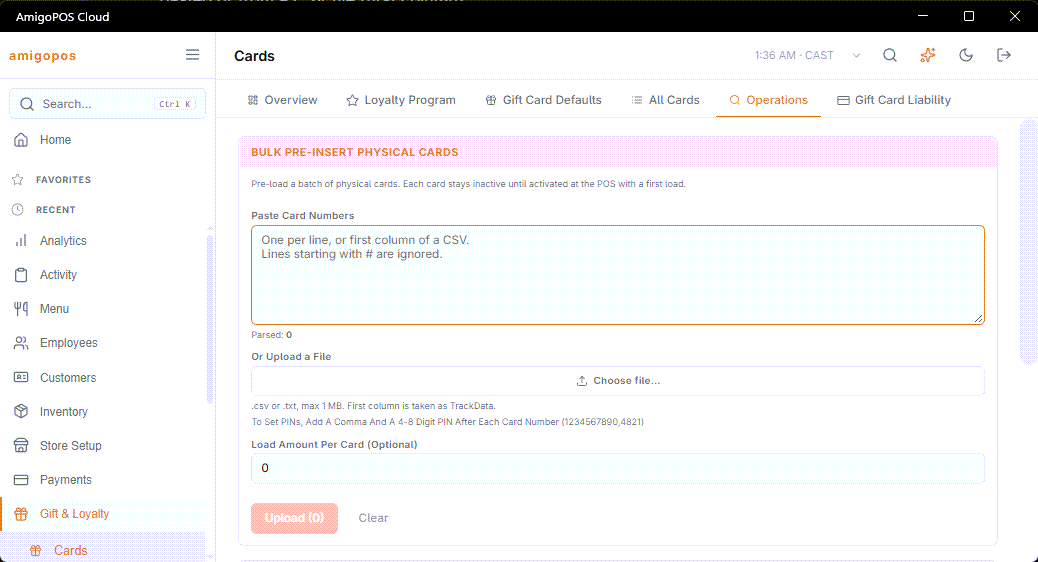
Bulk Pre-Insert Physical Cards, on the Operations tab of Back Office › Gift & Loyalty › Cards, adds a whole box of printed cards at once from a list of card numbers.
The list
- Paste Card Numbers — one number per line, or the first column of a CSV; columns can be separated by commas, semicolons or tabs. Lines starting with # are ignored.
- Or Upload a File — Choose file… reads a .csv or .txt file of up to 1 MB into the box.
Parsed shows how many numbers were found; numbers shorter than 4 characters and repeats in the list are left out. Clear empties the box.
Two ways
- Numbers only — press Upload. The cards are created inactive, ready to be sold; each is activated by its first sale or load at the register. The result shows how many cards were inserted and how many were skipped because the business already has them; View skipped cards lists those.
- With a Load Amount Per Card (Optional) — for staff with the Adjust And Transfer Gift Card Balances permission. Every card in the list is created or activated and loaded with that amount, up to 1000 cards at a time. A Reason is required, such as the company the order was for. Uploading the same list again doesn’t load twice. The result shows the cards loaded and the ones that weren’t, with View Cards.
Loading needs gift card adjustments allowed for the store (Gift Card Adjustments Enabled in All program settings (search), on by default).
PINs
For cards printed with a scratch-off PIN, staff with the same permission can write each line as number,pin (a comma, semicolon or tab between them; a PIN of 4 to 8 digits). After the cards are added, the PINs are set, and the result shows how many were and weren’t. See Card PINs.