A card number alone is enough to use a card online, and printed numbers are often sequential. A PIN closes that gap: a card with a PIN needs it when it is typed in on the web ordering checkout or on the balance page. The register never asks for a PIN — the card is in hand.
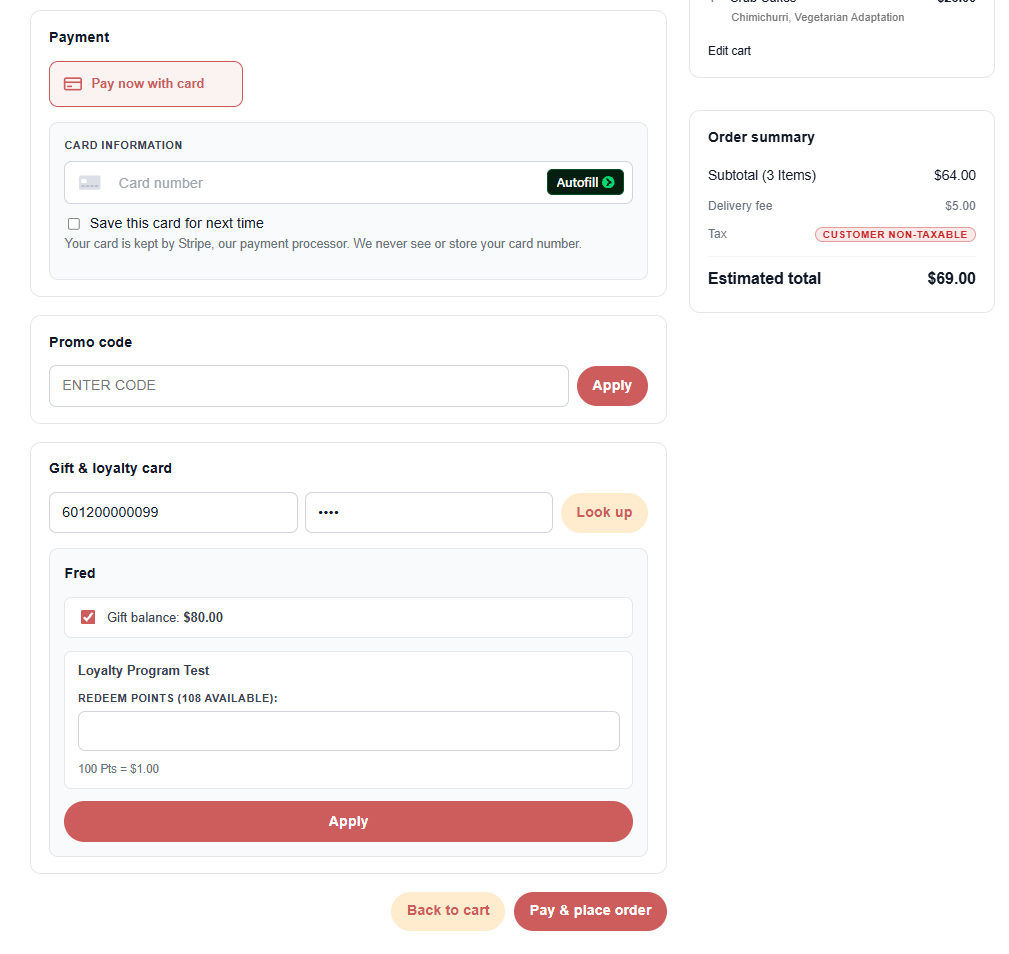
Setting PINs
- One card — open it from All Cards in Back Office › Gift & Loyalty › Cards. Under Card PIN, type 4 to 8 digits and press Set PIN, or press Remove PIN.
- Many cards — add
number,pinlines to the bulk upload on the Operations tab (Adding cards in bulk).
Both need the Adjust And Transfer Gift Card Balances permission; without it the Card PIN box doesn’t show. PINs are stored in a form nobody can read back, so a forgotten PIN is replaced, not looked up.
Rules
These store settings are in All program settings (search):
- Gift Card Online Requires Pin — off (the default): only cards that have a PIN are asked for it. On: a card without a PIN can’t be used online at all.
- Gift Card Pin Max Failures — after this many wrong PINs in a row (5), the card’s online use locks and a fraud alert is raised; 0 never locks.
- Gift Card Pin Lock Minutes — how long the lock lasts (30). Setting or removing the PIN clears the lock.