The register shows the categories as a strip of tabs and each category’s items as a grid of buttons. Their order is set in Back Office › Menu › Menu Setup › Menu Categories and Menu Items, and how the buttons look is set on each category and item.
Button order
Each category and each item has a Button position. Categories follow their positions. Items follow theirs too, unless the store sorts items alphabetically:
- Food items: Order menu items alphabetically in Back Office › Store Setup › Order Entry Screen.
- Bar items: Order bar menu items alphabetically in Bar Settings.
Sorted alphabetically, positions are ignored. That suits a long list nobody has arranged. An item with no position (0) comes after the positioned ones.
Reordering in Back Office
In Menu Categories and Menu Items, the Move up and Move down arrows on each row move it one place at a time.
- It saves straight away and renumbers the list 1, 2, 3…, closing any gaps. There is no undo: move it back.
- The order is what the register’s category strip and item buttons follow, and the online menu too.
- On Menu Items, pick one category, clear the search and set the sort to By position first. The sort switch is the store-wide alphabetical setting for food or bar items, so switching it to A–Z changes the register too.
- Rows hidden by Hide inactive are renumbered too, and keep their place among the rows around them.
Colors and images
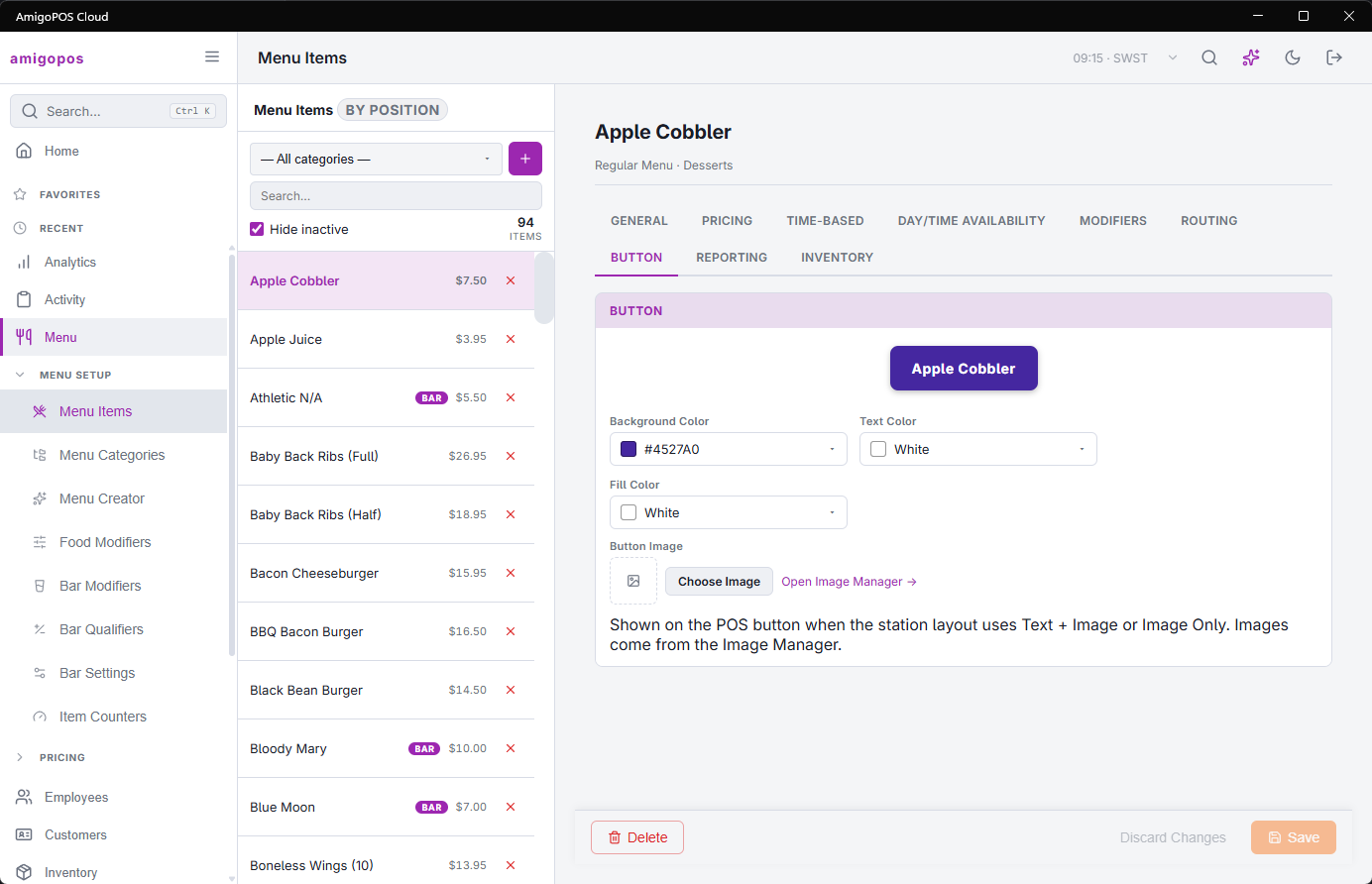
A category’s Button section and an item’s Button tab set the Background Color, the Text Color and the Button Image. The image comes from the store’s library; see Button images.
Whether buttons show text, text with the image, or the image alone is set on the register, under UI Settings, for categories and items separately: Text Only, Text + Image or Image Only. The same screen sets how many rows and columns of buttons fit. See Station layout and UI settings.
When an item is missing from the register
- The item’s Visible box is ticked, and its category’s Visibility is Visible.
- POS is ticked in Visible To, on the item and on its category.
- The item’s and the category’s Day/time Availability both allow the current hour and day.
- The item has no counter at zero; see Menu item counters (86 / availability).