Back Office › Menu › Menu Setup › Item Counters puts a countdown on limited items — tonight’s twelve specials. Each sale takes one off, and when the count reaches zero the item’s button is disabled, so nobody rings the thirteenth. Managers can do the same from the register; see Menu item counters overlay (86 from the register).
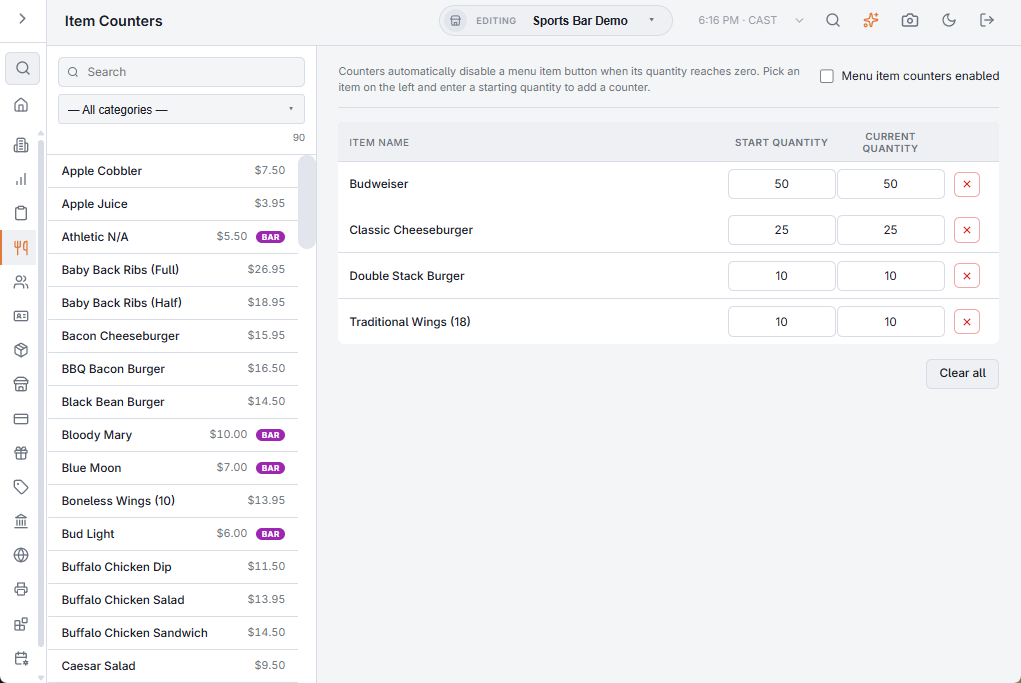
Turning counters on
Menu item counters enabled at the top of the page switches counting on for the store. It is the same setting as in Back Office › Store Setup › Order Entry Screen. While it is off, counters can be set up but the register ignores them.
Adding a counter
- Find the item in the list on the left: pick a category or search by name. Items that already have a counter are not listed.
- Pick the item. Its name appears under the list with a Start Quantity box.
- Enter the quantity and choose Add. The counter starts with its current quantity at the start quantity.
The counters table
- Item name, Start Quantity and Current Quantity for each counter. Both quantities can be changed in place; each saves when you leave the box and reaches the registers straight away.
- Set Current Quantity to 0 to sell an item out now, or raise it when the kitchen makes more.
- The × deletes one counter after you confirm. The item is then no longer counted, which means unlimited.
- Clear all deletes every counter after you confirm. It cannot be undone.
With Delete menu item counters at end of day on, in Back Office › Store Setup › Order Entry Screen, End of Day clears all counters so the next day starts with everything available.
Counters and stock
A counter is a number you set by hand. It does not use recipes and does not restock itself. Stock rules follow real inventory: with Warn At The POS or Block At The POS, items whose ingredients have run out get a Low or Out badge on their button. The two work together, and a counter at zero makes the item sold out whatever the stock rule says — see Stock rules: when an item runs out.