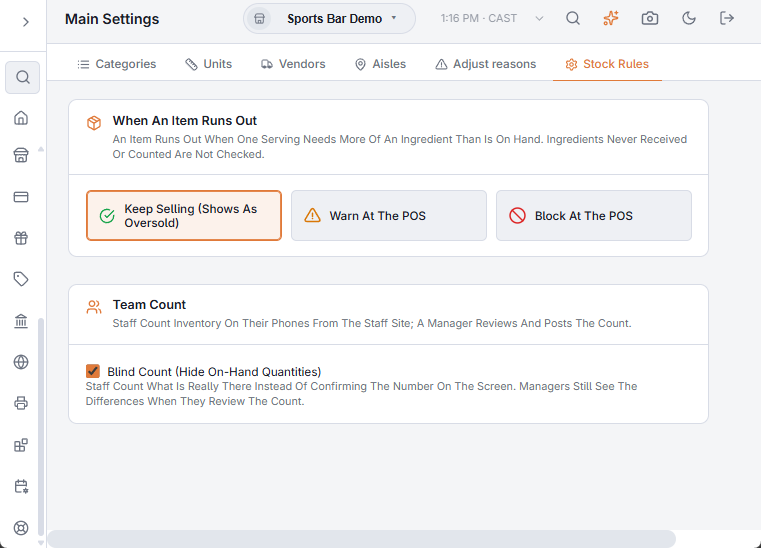
A stock rule decides what the POS does when a menu item needs more of an ingredient than is on hand. Set it in Back Office › Inventory › Setup › Main Settings, Stock Rules tab, under When An Item Runs Out.
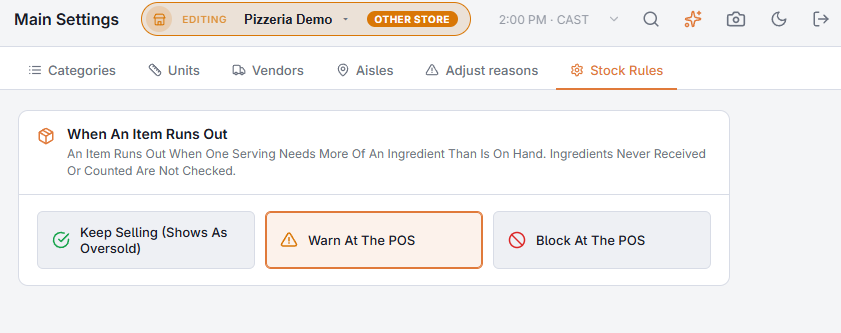
The three choices
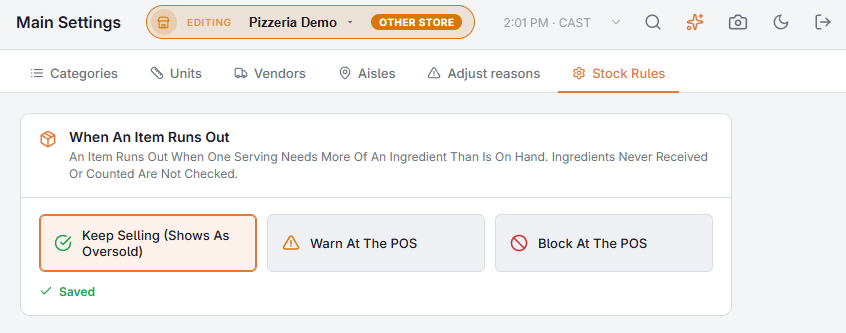
- Keep Selling (Shows As Oversold) — the default. The POS doesn’t change; the ingredient goes below zero and shows as Oversold until the next delivery or count.
- Warn At The POS — the item’s button gets an amber outline and a Low badge. Tapping it still adds the item, with a message such as “Not Enough Mozzarella In Stock”.
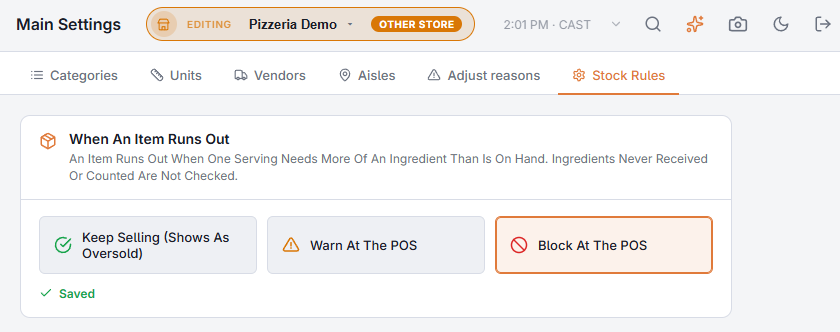
- Block At The POS — the button is greyed out like a sold-out item, with an Out badge, and can’t be added. Picking it from search shows “Out Of Stock: Mozzarella” instead.
When an item counts as out
- An item runs out when one serving needs more of any ingredient in its recipe than is on hand.
- Ingredients that were never received or counted are not checked, so a new ingredient doesn’t block its menu items before its first delivery.
- Only the item’s own recipe is checked; modifiers are not.
- The POS refreshes the list in the background about once a minute and when you change categories, so a delivery or a count clears the badges shortly after it is saved.
Stock rules follow real inventory. Menu item counters are separate: a counter is a number you set by hand, and a counter at zero makes the item sold out whatever the stock rule says.
Blocking is only as good as your receiving and counts. Start with Warn At The POS for a few weeks; move to blocking once the Low badges match what the kitchen sees.
Team count: blind counting
The Team Count card on the same tab has Blind Count (Hide On-Hand Quantities), on by default. The staff site’s count screen then doesn’t show how much is on hand, so staff count what is really there instead of confirming the number on the screen. Managers still see on-hand and the differences when they review the count. See Counting inventory as a team on your phones.