Back Office › Inventory › Operations › Purchase Orders is where you build what to buy, keep track of what is on its way, and receive it when it arrives.
The order list
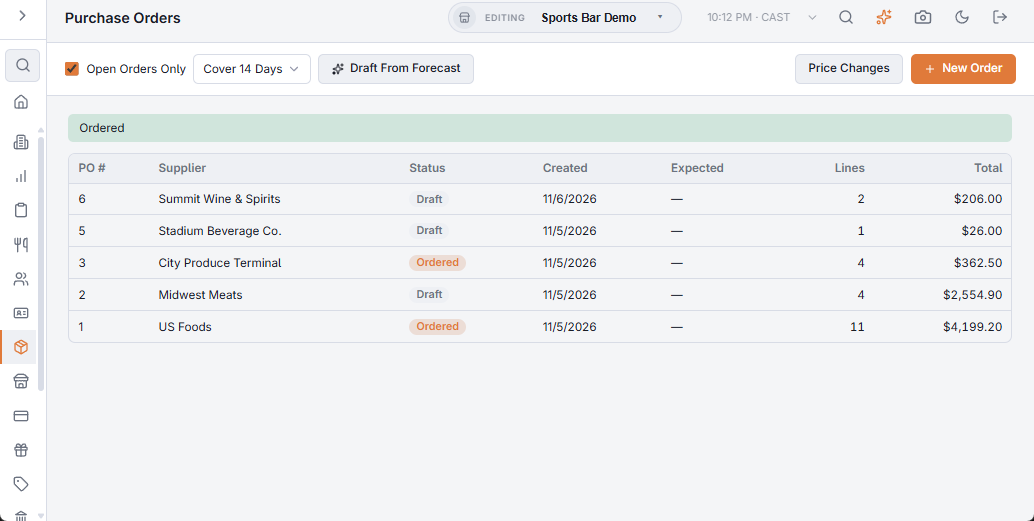
The list shows each order’s PO #, Supplier, Status, Created and Expected dates, Lines and Total. Open Orders Only (on when the page opens) hides received and cancelled orders. Click an order to open it. The toolbar also has Draft From Forecast with its Cover N Days list (see Drafting purchase orders from the forecast), Price Changes and New Order.
Creating an order
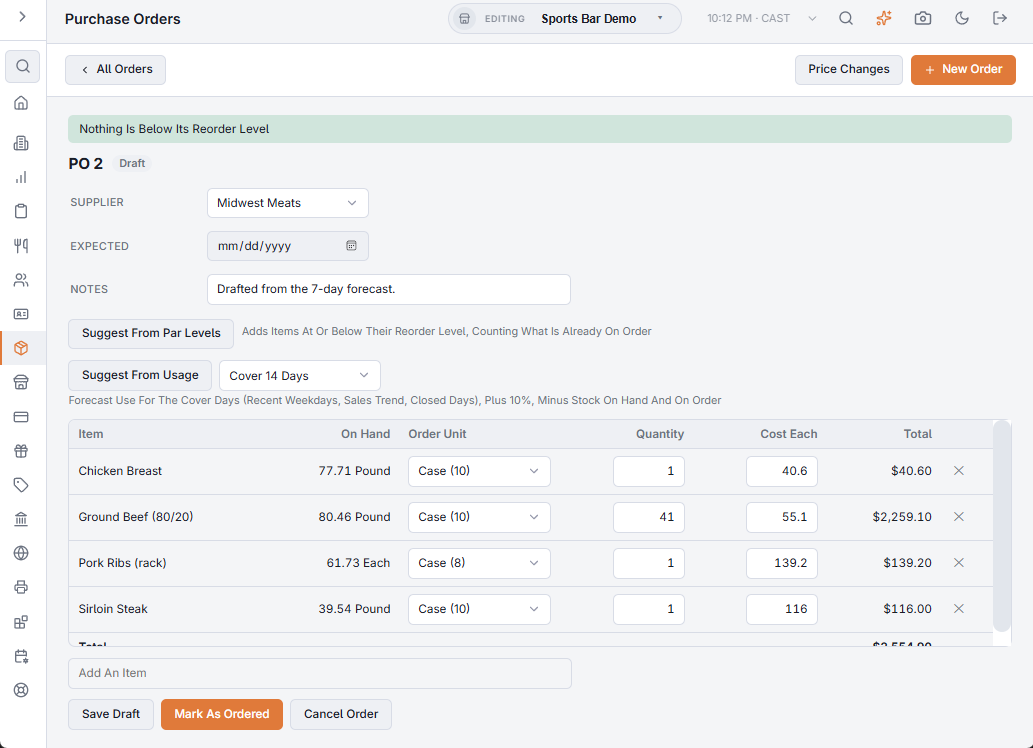
- Choose New Order. Pick the Supplier (or No Supplier), an Expected date and any Notes.
- Add lines by typing part of an item’s name in Add An Item and picking it from the list; the supplier’s items are listed first. Or let the order fill itself:
- Suggest From Par Levels adds items at or below their reorder level, counting what is already on order, and orders each back up to its maximum quantity (or its reorder level when no maximum is set).
- Suggest From Usage adds what the next 3, 7 or 14 days are expected to use — see Ordering from the forecast.
- On each line set the Order Unit (Unit, Pack or Case, from the item’s packaging), the Quantity and the Cost Each. On Hand shows beside each item, and the Total adds up as you go. ✕ removes a line.
- Save Draft to keep working on it, or Mark As Ordered once it has gone to the supplier.
Order status
Orders move through Draft, Ordered, Partly Received and Received. Only a draft can be changed; open orders count as “on order” in both suggestions, so nothing is ordered twice.
| Status | Buttons |
|---|---|
| Draft | Save Draft, Mark As Ordered, and Cancel Order once the draft has been saved. |
| Ordered | Receive, Edit Order (back to Draft) and Cancel Order. |
| Partly Received | Receive for the rest, or Close As Received when the remaining lines won’t arrive. |
Cancel Order asks first; a cancelled order can’t be ordered or received.
Receiving an order
- Open the order and choose Receive.
- Enter the Invoice Number from the delivery paperwork. For each line the screen shows what was Ordered and already Received; enter what arrived in Receive Now and what it actually cost in Cost Each. More than ordered is accepted.
- Choose Receive. The stock goes in at those costs. If part of the order is still coming, it becomes Partly Received; otherwise Received. Back returns to the order without receiving.
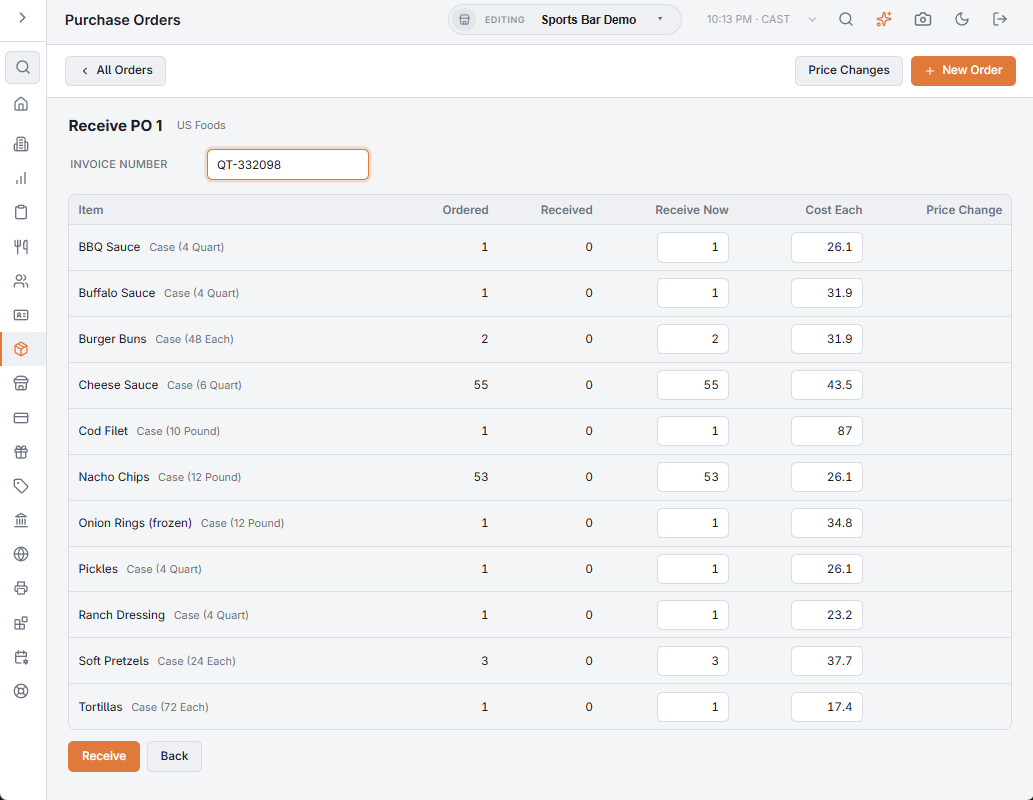
A line whose cost differs 5% or more from the order’s Cost Each shows the change in the Price Change column, and the screen counts them (for example “2 Price Changes Of 5% Or More”). Receiving an order adds stock exactly as Receiving inventory does.
Price changes
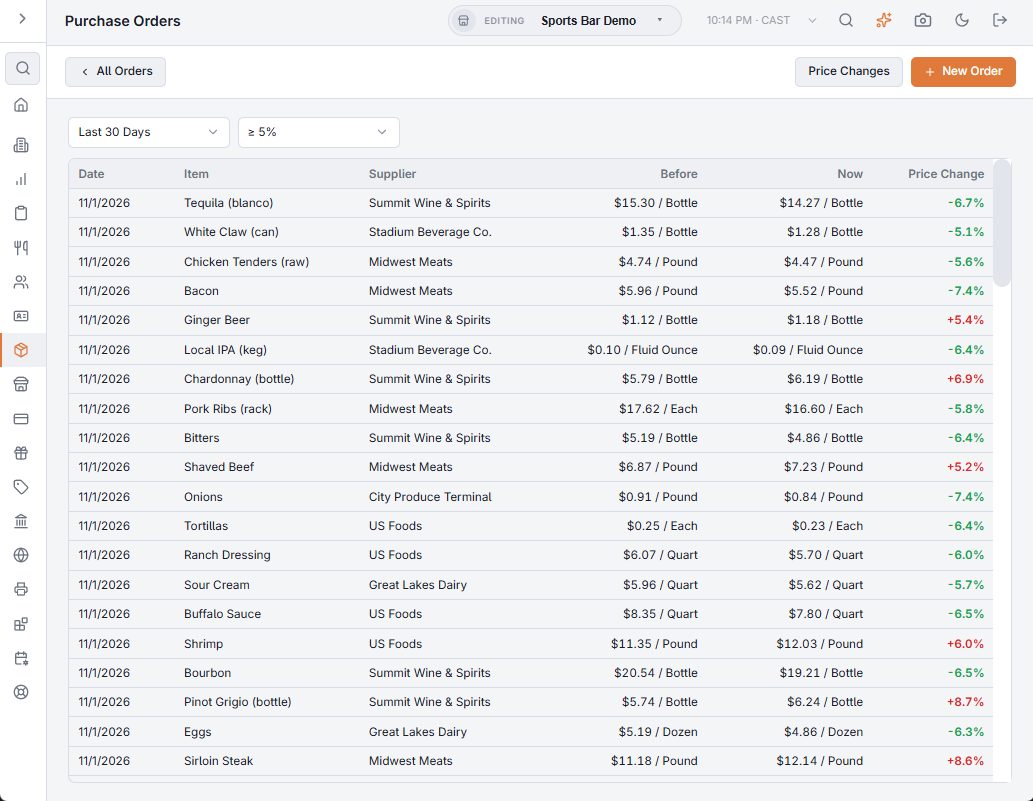
Price Changes lists the deliveries whose cost per unit moved from the previous delivery of the same item. Pick the period (Last 30, 60 or 90 Days) and the smallest change to show (5%, 10% or 20%). Each row shows the Date, Item, Supplier, the Before and Now cost per unit, and the Price Change.
To draft an order for every supplier at once from the forecast, see Drafting purchase orders from the forecast.